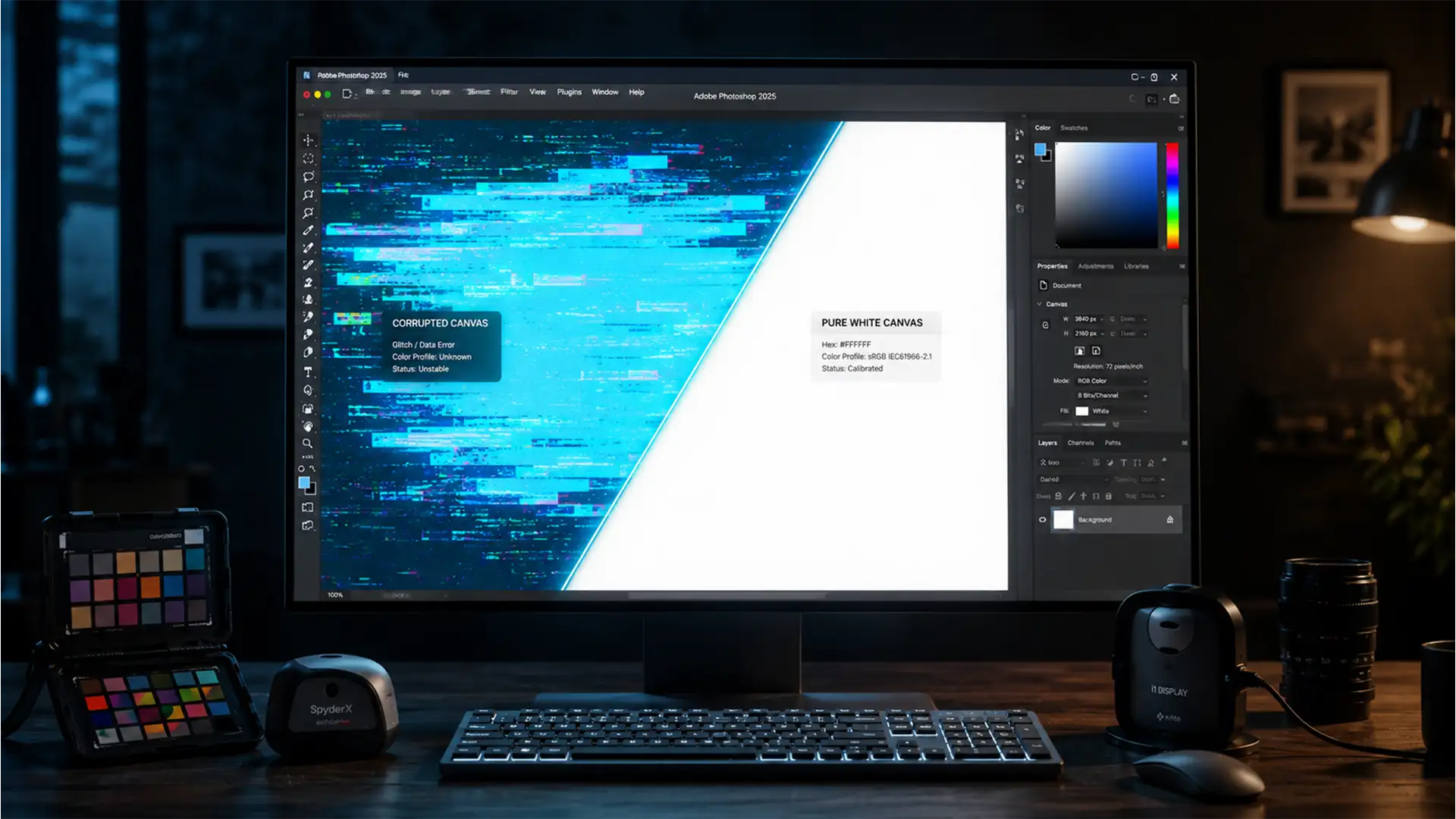

You just updated to the latest version of Adobe’s flagship software, opened a new document, and immediately noticed a glaring issue: your pure white canvas has a distinct, sickly blue or cyan tint. If you are desperately searching for a photoshop 2025 workspace white looks blue fix, you are not alone.
This widespread rendering bug in Photoshop v26.0+ is actively disrupting professional workflows. It happens when your operating system’s monitor profiles clash with Adobe’s newly updated rendering engine. Fortunately, this isn’t a hardware failure—it is a software conflict.
In this guide, we will break down exactly why your workspace colors are suddenly inaccurate and provide three proven, step-by-step methods to restore pure white to your canvas.
Why Does My Photoshop 2025 Canvas Look Blue?
The root cause of this color shift lies deep within Photoshop 2025’s updated architecture. The latest release integrates OpenColorIO and advanced HDR handling to improve high-end color grading. However, this massive upgrade makes the software hyper-sensitive to corrupted or poorly written OS-level monitor ICC profiles.
Often, Windows updates automatically install proprietary manufacturer profiles for monitors like Dell, ASUS, or BenQ. When these flawed profiles interact with Photoshop’s new Native Canvas rendering engine and GPU compositing features, the software misinterprets the white point. The result? Pure white (#FFFFFF) is incorrectly rendered with a heavy blue overlay.
To fix this, we need to bypass the flawed ICC profile at the OS level or force Photoshop to use its legacy rendering engines.
How to Fix the Photoshop 2025 Workspace Color Bug
Method 1: The Quick Fix (Reset OS Monitor ICC Profile)
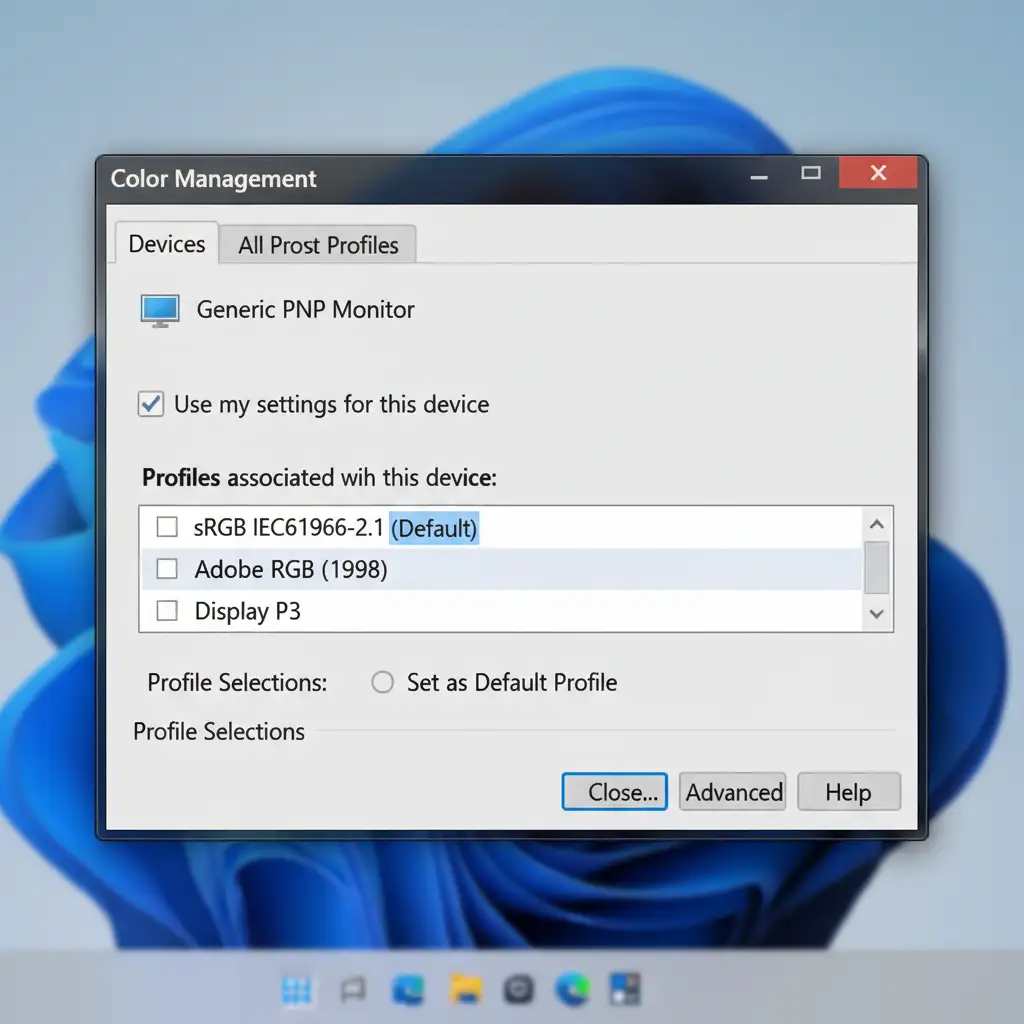
The most effective way to resolve this issue is to override your manufacturer’s corrupted display profile with a standard, universally recognized color profile.
For Windows Users:
- Click the Start menu, type Color Management, and hit Enter.
- Select your primary monitor from the ‘Device’ dropdown menu.
- Check the box that says Use my settings for this device.
- Click Add… and scroll down to find sRGB IEC61966-2.1.
- Select it, click OK, and then click Set as Default Profile.
- Restart Photoshop 2025.
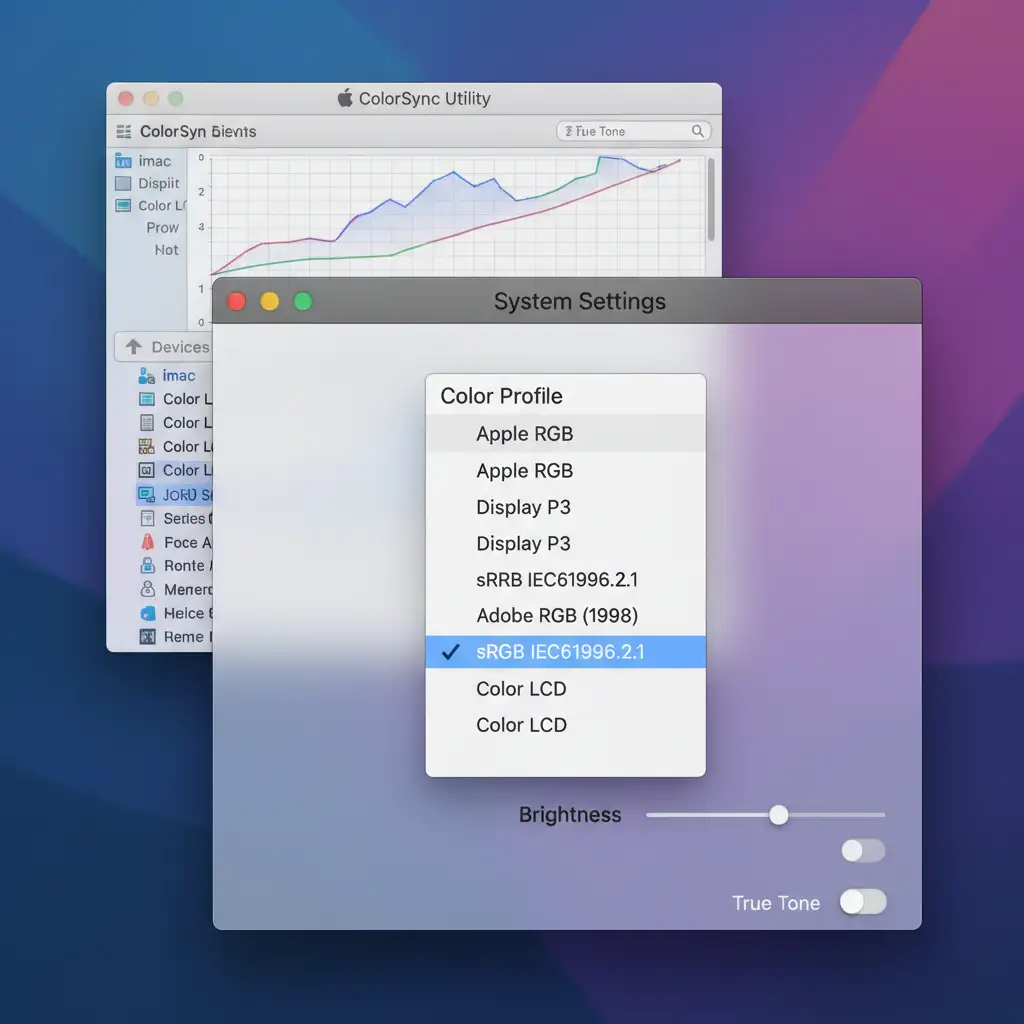
For Mac Users:
- Open System Settings > Displays.
- Select your monitor and look for the Color Profile dropdown.
- Change the profile to sRGB IEC61966-2.1.
- Alternatively, open the ColorSync Utility, navigate to the Devices tab, and ensure your display is pointing to the standard sRGB profile rather than a custom manufacturer profile.
Method 2: The Pro Workaround (Disable Native Canvas)
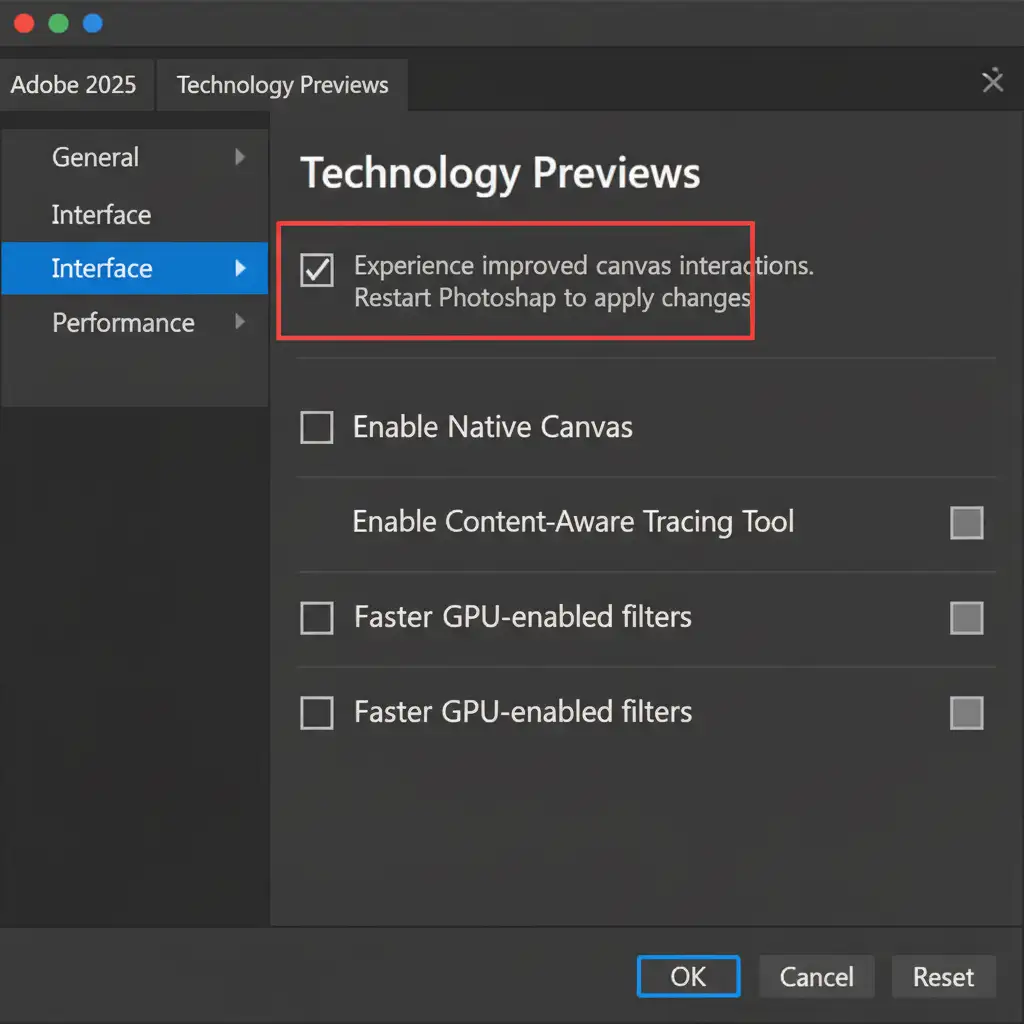
If tweaking your OS-level color management doesn’t work, or if you require a specific custom profile for other applications, you can bypass the bug directly within Photoshop by disabling the new rendering engine.
- Open Photoshop 2025.
- Navigate to Edit > Preferences > Technology Previews (Windows) or Photoshop > Settings > Technology Previews (Mac).
- Look for the option labeled Enable Native Canvas.
- Uncheck this box. This forces Photoshop to revert to its legacy display engine, completely bypassing the OpenColorIO UI color tint bug.
- Click OK and restart the application.
Method 3: The Technical Deep-Dive (Tweak GPU Acceleration Settings)
If you are still seeing a blue tint, the issue might be rooted in how your graphics card is communicating with Photoshop’s advanced rendering pipeline. Outdated display drivers can easily corrupt Photoshop 2025’s color pipeline.
- First, ensure you perform a clean installation of the latest display driver (NVIDIA Studio Drivers or AMD Pro Drivers are highly recommended for creatives).
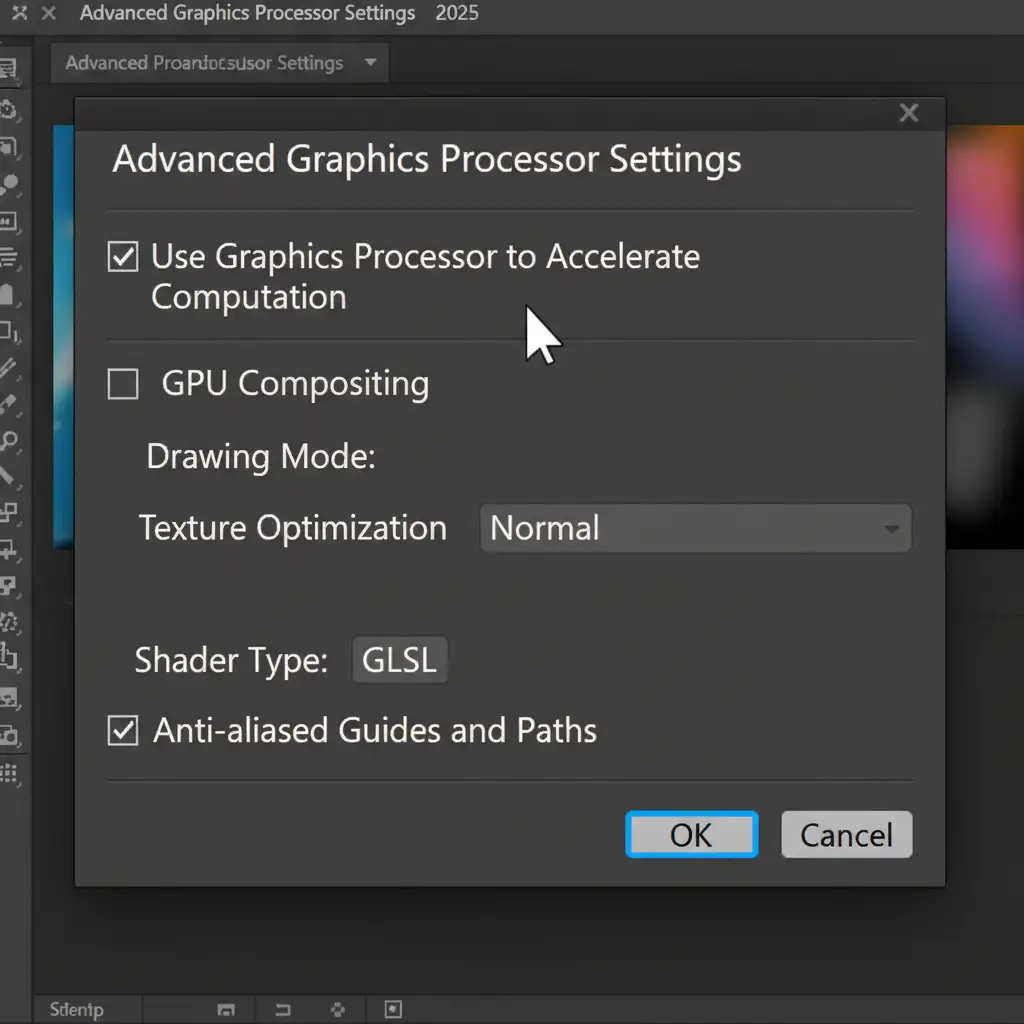
- Open Photoshop and go to Preferences > Performance.
- Under the Graphics Processor Settings, click on Advanced Settings.
- Uncheck the box for GPU Compositing.
- Click OK and restart Photoshop.
Note: Disabling GPU acceleration features may slightly reduce the smoothness of zooming and panning, but it is a reliable way to stabilize your color calibration.
Still Struggling with Color Calibration? Let the Experts Handle It
Dealing with software bugs, corrupted ICC profiles, and inconsistent color rendering drains the time and energy you should be spending on your actual creative work. Even with the right fixes applied, achieving perfect, print-ready color accuracy across hundreds of images requires absolute technical precision.
You don’t have to fight your software to get flawless results.
At Image Work India and Cloud Retouch, we specialize in professional color correction, high-end photo retouching, and bulk image editing. Our team of experts operates on perfectly calibrated, industry-standard workstations, ensuring your images look exactly as they should—vibrant, accurate, and completely free of unwanted color casts.
Stop wrestling with Photoshop 2025 bugs. Contact Image Work India and Cloud Retouch today, and let us elevate your portfolio with flawless, true-to-life color grading while you focus on capturing the perfect shot.




