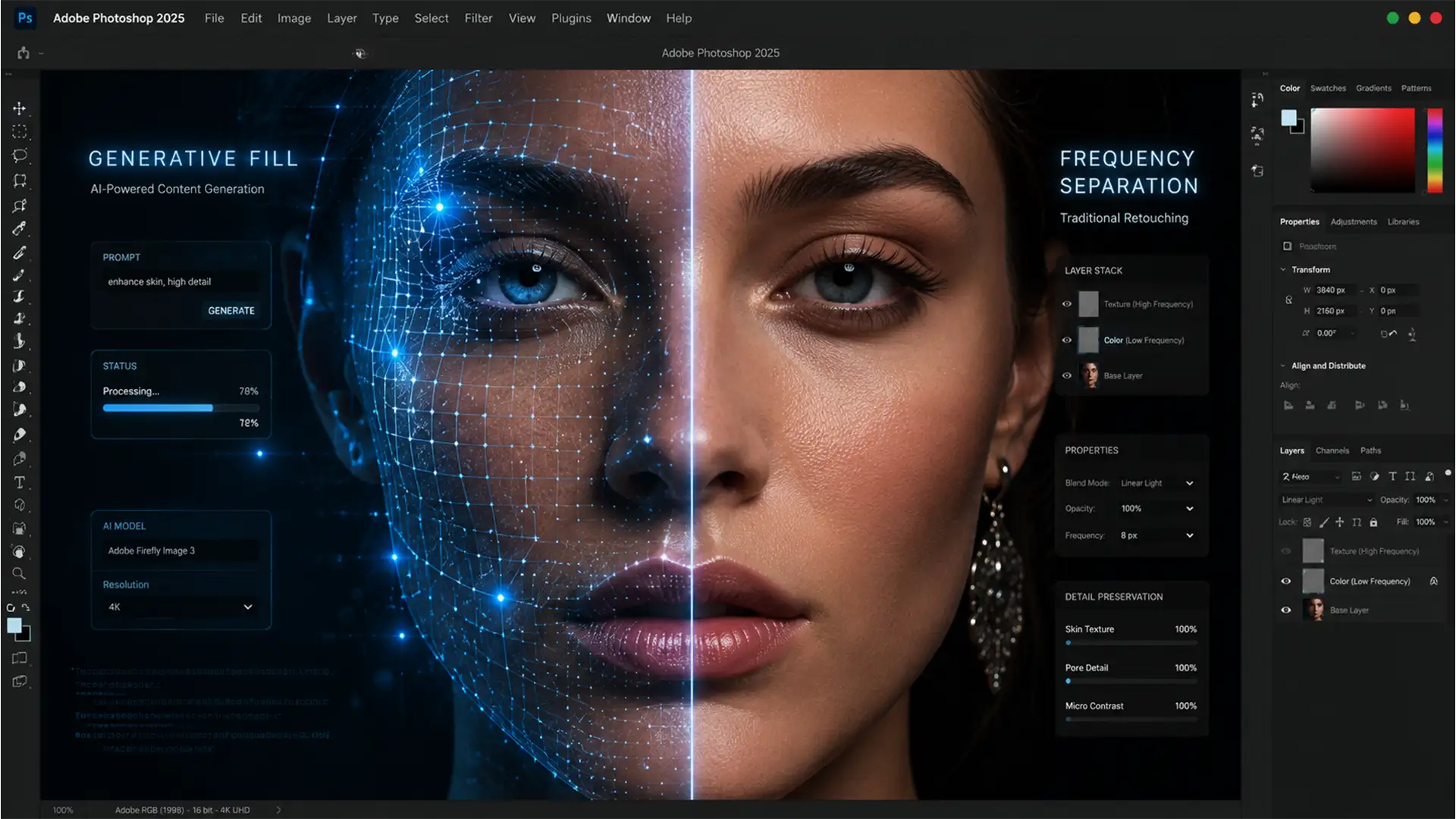

Are you tired of Photoshop’s Generative Fill Retouching high-end portraits into plastic, muddy messes?
In Photoshop v25.x and newer, AI tools offer incredible speed, but they introduce a massive pain point for professional retouchers: they utterly destroy natural skin textures like pores and peach fuzz. When applied directly, Generative Fill often creates severe micro-contrast mismatches and unnatural color shifting.
But what if you could harness the speed of AI while maintaining the flawless, editorial texture of traditional methods? Welcome to the ultimate AI frequency separation color correction workflow. Here is how to seamlessly integrate AI into your high-end retouching stack.
The Problem with AI in High-End Skin Retouching
Generative Fill inherently flattens organic micro-textures. Because the AI prioritizes broad pixel replacement over preserving original RAW data, retouching large blemishes or uneven skin tones often results in a “patched” look.
Traditional Frequency Separation solves this by mathematically splitting your image into two distinct layers:
- High-frequency layer: Contains only texture (pores, fine lines, hair).
- Low-frequency layer: Contains only color, tone, and shading.
The technical challenge is integrating Generative Fill into this non-destructive editing stack without breaking the mathematical blend of your layers, especially in a 16-bit workspace.
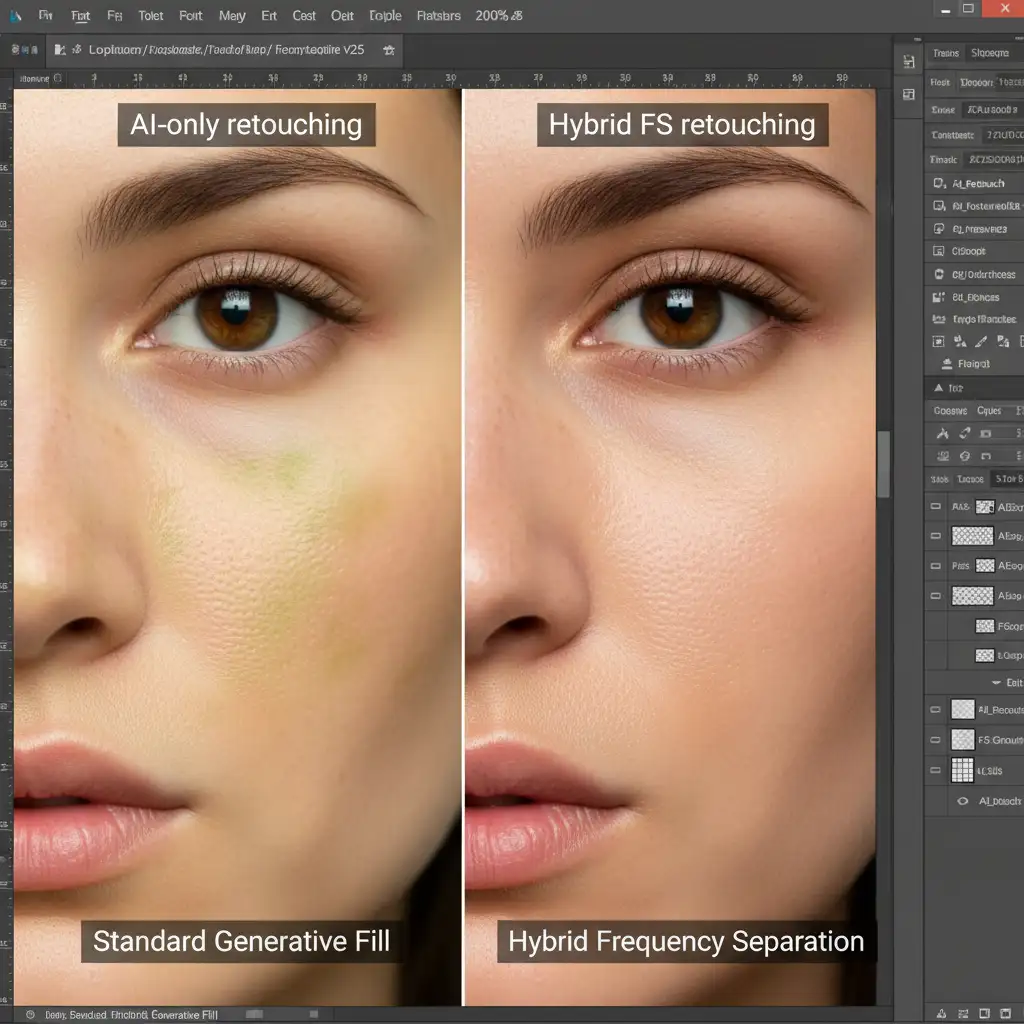
Mastering the Hybrid AI Frequency Separation Color Correction Workflow
To prevent AI from ruining your texture, we must isolate the generative fixes exclusively to the tonal layer. Depending on the complexity of your image, there are three proven methods to achieve this.
Method 1: The Quick Opacity Fade (For Fast Fixes)
If you are working on a tight deadline and need to remove large, distracting blemishes, you can use a modified traditional approach.
- Duplicate your background layer.
- Make a loose lasso selection around the blemish.
- Apply Generative Fill without any text prompts.
- Immediately use the Edit > Fade Generative Fill command, or simply drop the new AI layer’s opacity to 50-60 percent.
This allows the original skin texture from the background layer to bleed through the AI-generated patch, restoring a degree of natural realism.
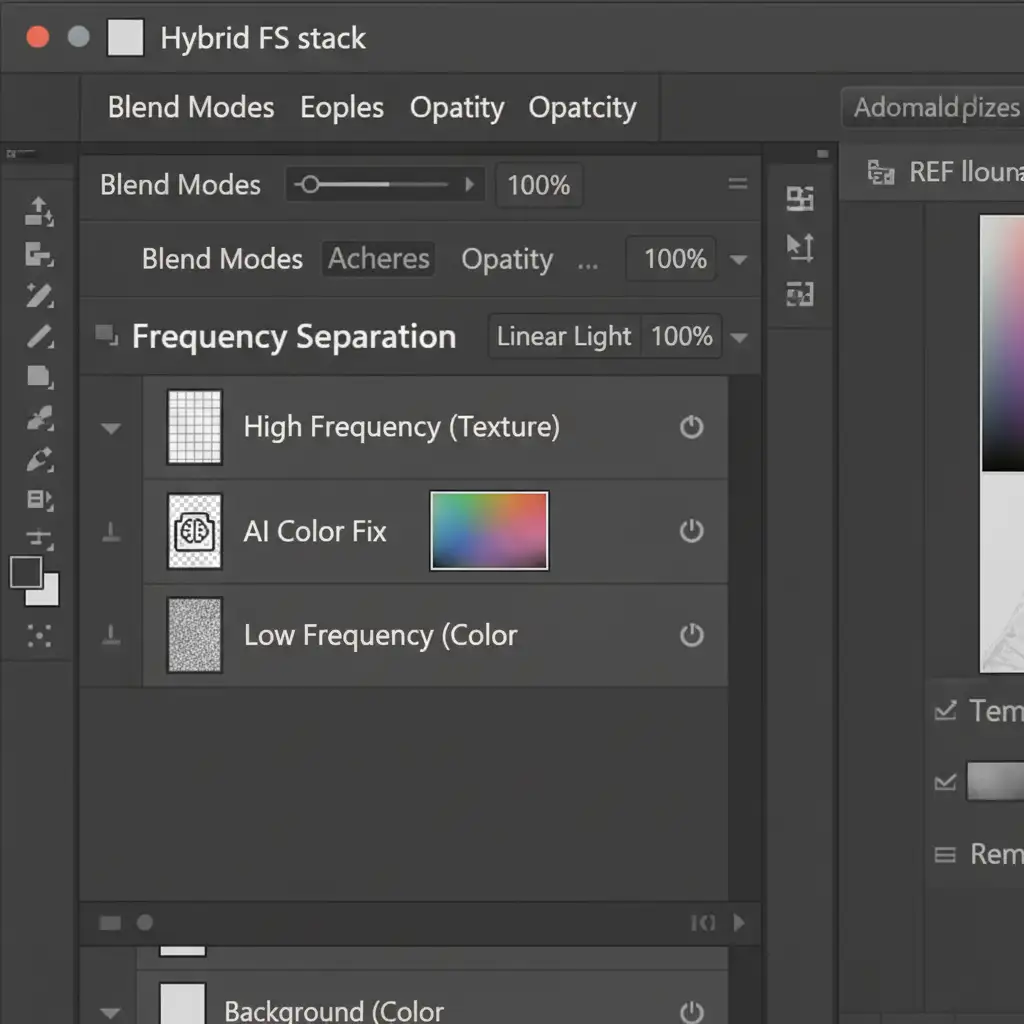
Method 2: The Pro Workaround (AI on the Low-Frequency Layer)
For editorial work, you need absolute control. This method forces the AI to fix color and shading while completely ignoring the texture.
- Build your standard Frequency Separation layer stack. Run your Gaussian Blur on the Low-frequency layer to smooth the base tones.
- Select only the Low-frequency layer in your Layers panel.
- Make a lasso selection over the uneven skin tone or color shift.
- Apply Generative Fill (leave the prompt blank).
Because the untouched High-frequency layer sits above your AI edits, the Generative Fill perfectly corrects the underlying color and shading while your original skin pores remain 100% intact.
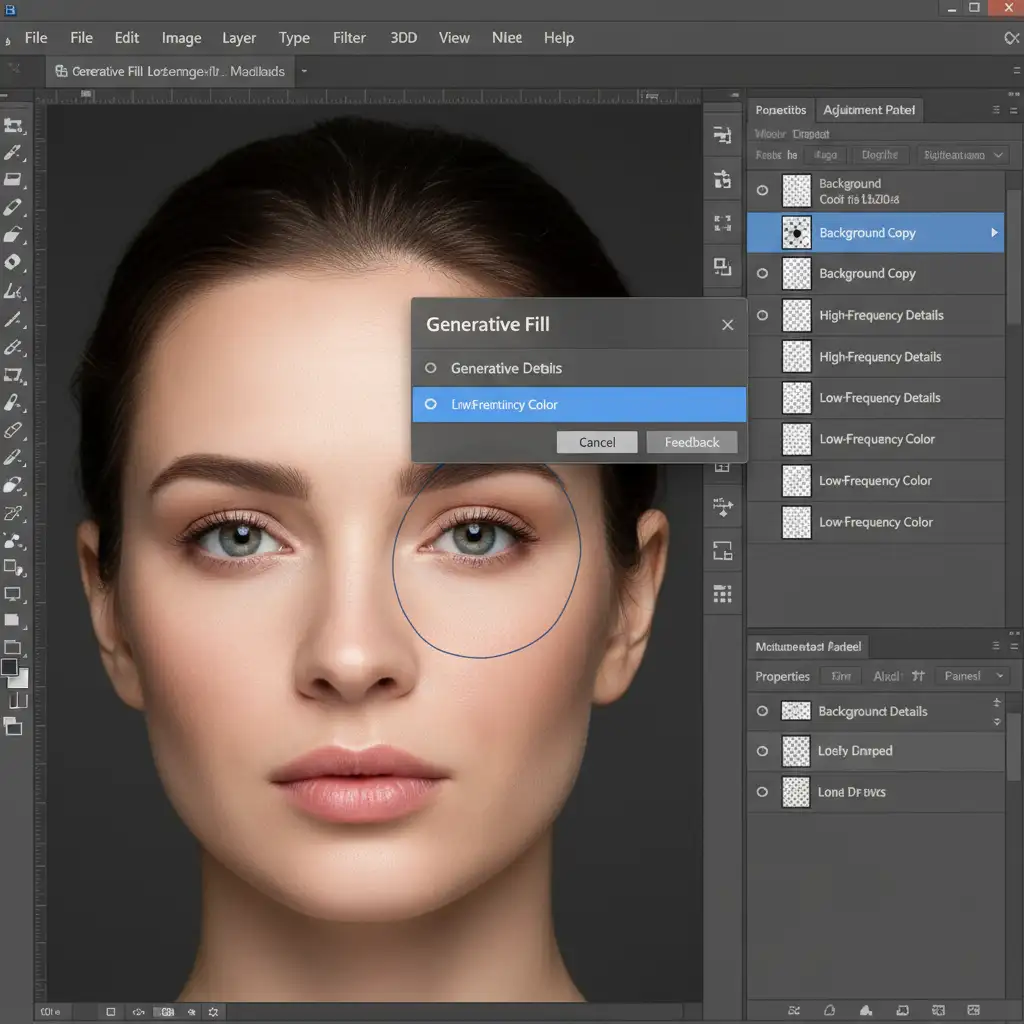
Method 3: The Technical Deep-Dive (16-Bit Workspace Integration)
For complex reconstructions where the AI must generate new texture alongside color (e.g., replacing a large object covering the face), you must rebuild the FS stack specifically for the patched area to maintain micro-contrast.
- Apply Generative Fill on a merged copy of your image (Ctrl+Alt+Shift+E / Cmd+Option+Shift+E).
- Rebuild the Frequency Separation stack specifically over the newly patched area.
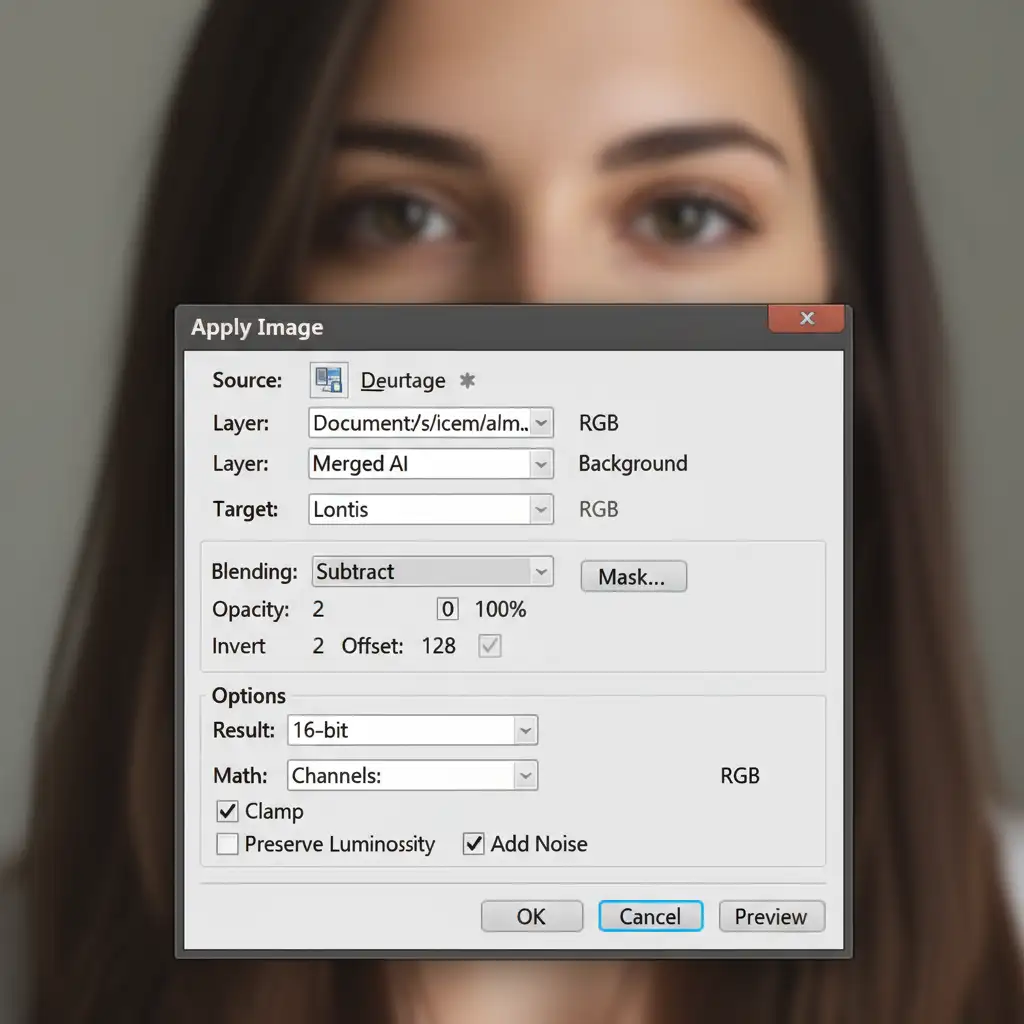
- To extract the newly generated AI texture accurately in a 16-bit workspace, open the Apply Image dialog box.
- Set the Layer to your Merged AI layer. Change Blending to Add (Invert checked) or Subtract. Critically, set Scale to 2 and Offset to 128.
- Set this new high-frequency layer to Linear Light.
- Finally, use advanced Luminosity Masks to seamlessly blend the AI’s micro-contrast into the original RAW data without haloing.
Scale Your High-End Retouching Today
Mastering the AI frequency separation color correction workflow bridges the gap between next-generation speed and traditional, non-destructive editing perfection. By isolating AI generation to the low-frequency layer, you eliminate muddy color patches and preserve the organic micro-contrast your clients demand.
Struggling to balance AI speed with high-end editorial quality? You don’t have to navigate complex 16-bit Apply Image math and luminosity masks alone. Let the experts at Image Work India and Cloud Retouch handle your complex retouching workflows. Contact us today for flawless, high-volume hybrid editing that keeps your images looking natural and professional.




