

You’re in the middle of a crucial retouching workflow, perfectly dialing in your tones, when you hit a sudden roadblock: the Curves tool is completely disabled. If you are dealing with the frustrating photoshop curves adjustment greyed out 2025 issue, you aren’t alone.
With the latest Adobe Photoshop 2025 (v26.x – v27.x) updates, stricter color profile enforcements and new AI generative layers frequently conflict with traditional adjustment layers. Whether it’s a locked background, an incompatible bit depth, or a glitch in your workspace, this guide will walk you through exactly how to restore your Curves tool and get back to non-destructive editing in seconds.
Why Are Adjustment Layers Disabled in Photoshop 2025?
Before jumping into the fixes, it helps to understand why Photoshop restricts certain tools. In the 2025 build, Adobe has tightened how adjustment layers interact with different file types to prevent document corruption and color shifting.
The most common culprits include:
- Incompatible Image Modes: Trying to apply adjustments in Indexed Color or Bitmap modes.
- Bit Depth Limitations: Working in 32-bit channel depth, which restricts standard raster adjustments.
- Layer Restrictions: Attempting to apply a curve directly to a locked background layer or an unrasterized AI Generative layer.
- Corrupt Color Profiles: Working with a missing or unsupported CMYK mode profile.
Here is how to troubleshoot and fix the issue step-by-step.
How to Fix “Photoshop Curves Adjustment Greyed Out 2025”
Method 1: Verify and Convert Your Image Mode (The Quick Fix)
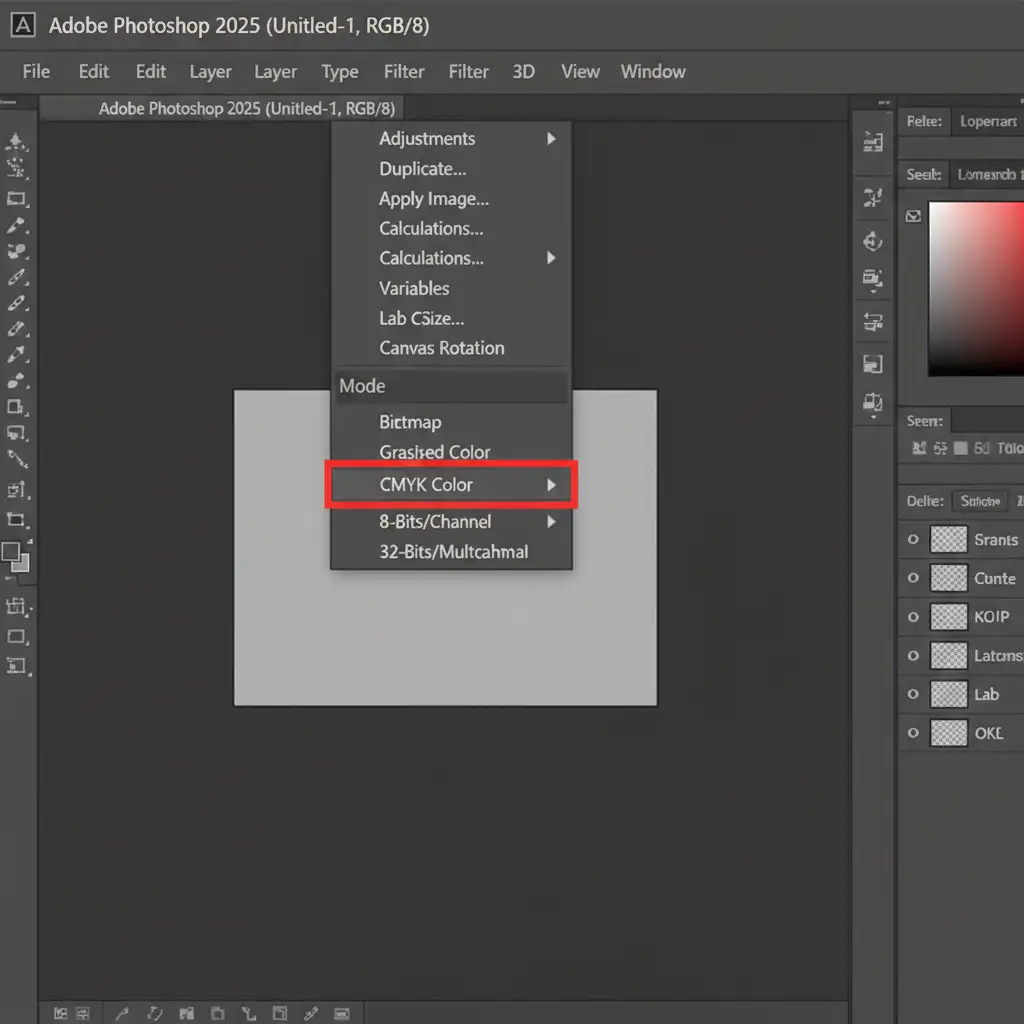
The number one reason your Curves adjustment is greyed out is an incorrect image mode. Tools like Curves and Levels are designed primarily for RGB and CMYK workspaces. If your image was downloaded from the web, it might be stuck in Indexed Color mode, which disables most adjustment layers.
Step-by-step fix:
- Navigate to the top menu bar and click Image.
- Hover over Mode.
- Ensure that RGB Color is checked. If it is set to Indexed Color or Bitmap, change it to RGB.
- In the same menu, verify your bit depth. Select 8-Bits/Channel or 16-Bits/Channel. Working in 32-bit mode will disable standard curves.
Method 2: Master Layer Targeting and Smart Objects (The Pro Workaround)
If your image mode is correct but the tool is still disabled, the issue lies within your Layers panel. Photoshop 2025 introduces new AI Generative layers that do not behave like standard raster layers. Furthermore, locked layers will reject direct adjustments.
Step-by-step fix:
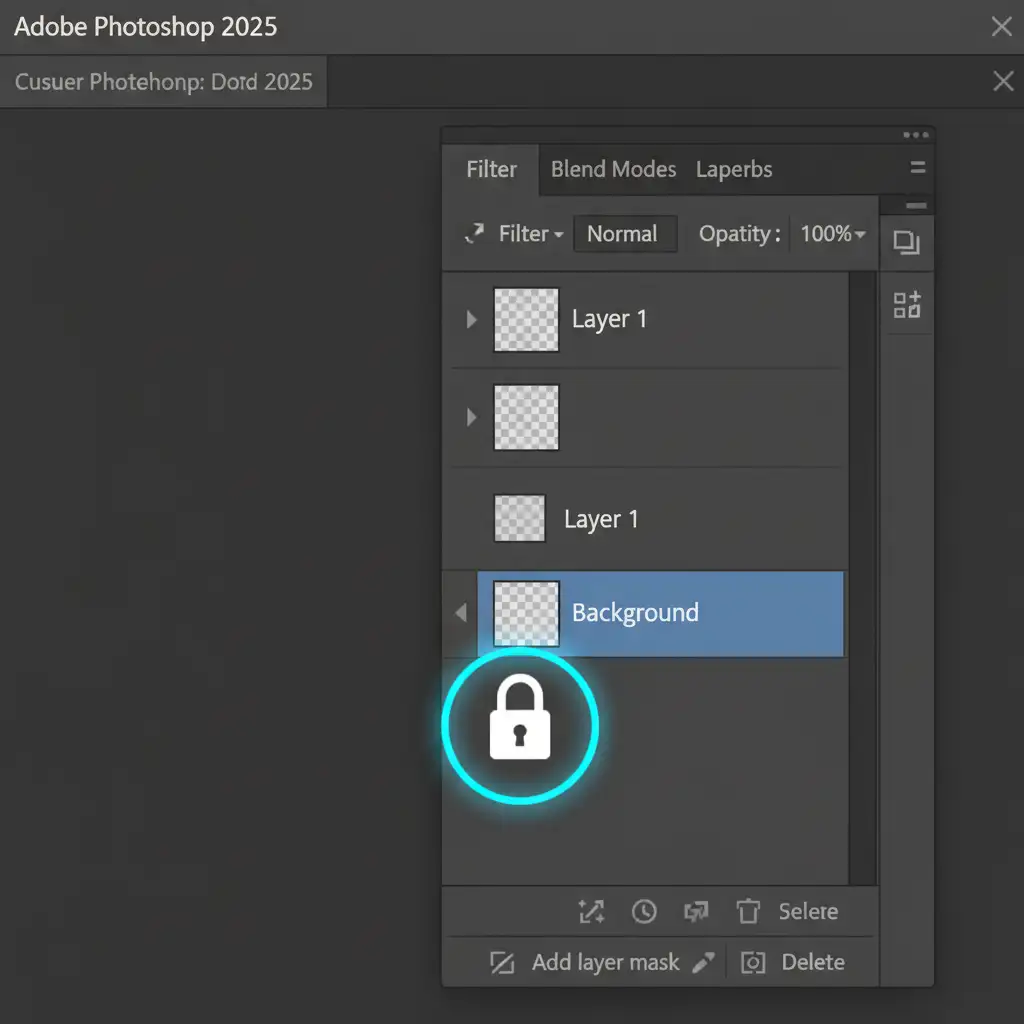
- Unlock the Layer: Look at your Layers panel. If your target layer says “Background” and has a padlock icon next to it, click the padlock once to unlock it into a standard “Layer 0”.
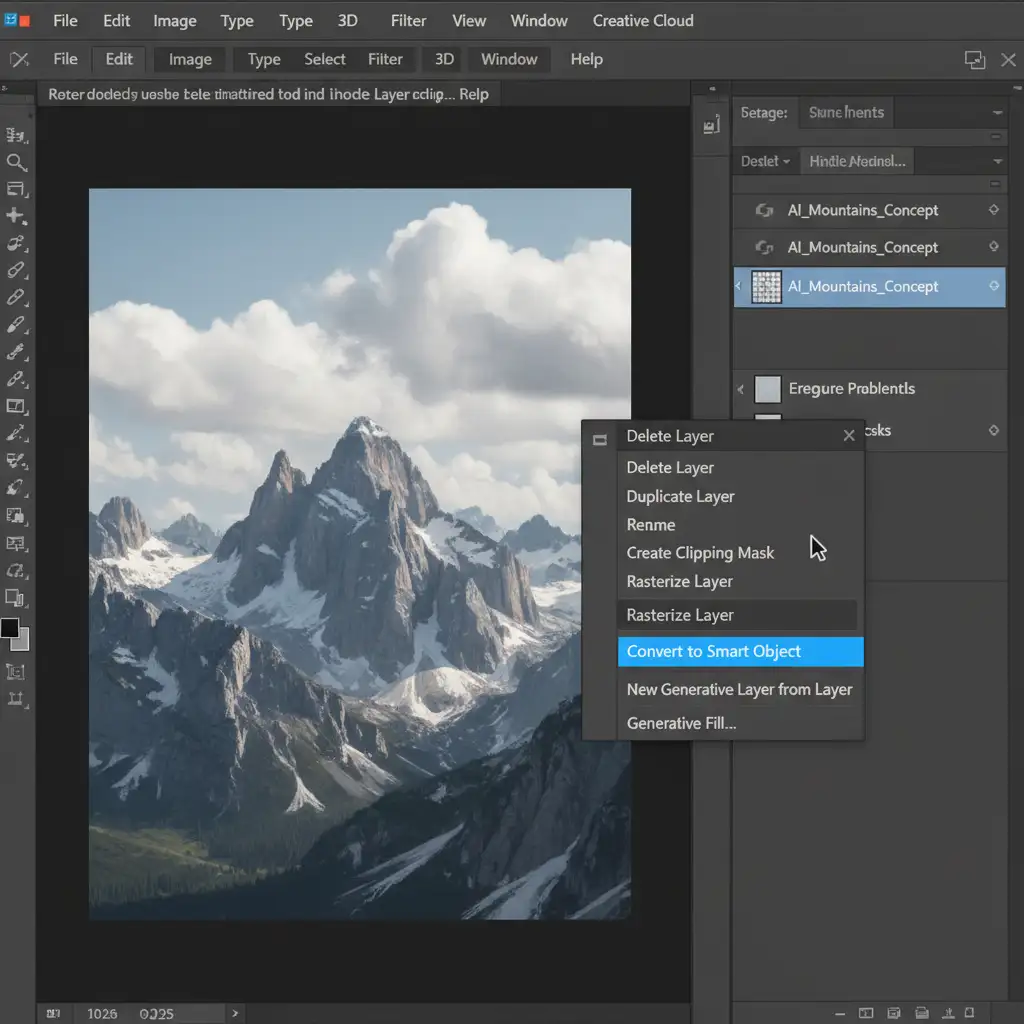
- Handle AI Layers: If you are trying to apply a curve to a 2025 AI Generative layer, you cannot do it directly. Right-click the generative layer and select Convert to Smart Object.
- Once it is a Smart Object, you can apply the Curves adjustment as a Smart Filter, preserving your non-destructive editing workflow. Alternatively, if you no longer need the AI properties, simply right-click and choose Rasterize Layer.
Method 3: Troubleshoot UI Glitches and Reset Preferences (The Technical Deep-Dive)
If you have verified the image mode, unlocked your layers, and converted to Smart Objects, but the curves are still greyed out, you are likely experiencing a UI glitch or a corrupted application cache in the 2025 update.
Step-by-step fix:
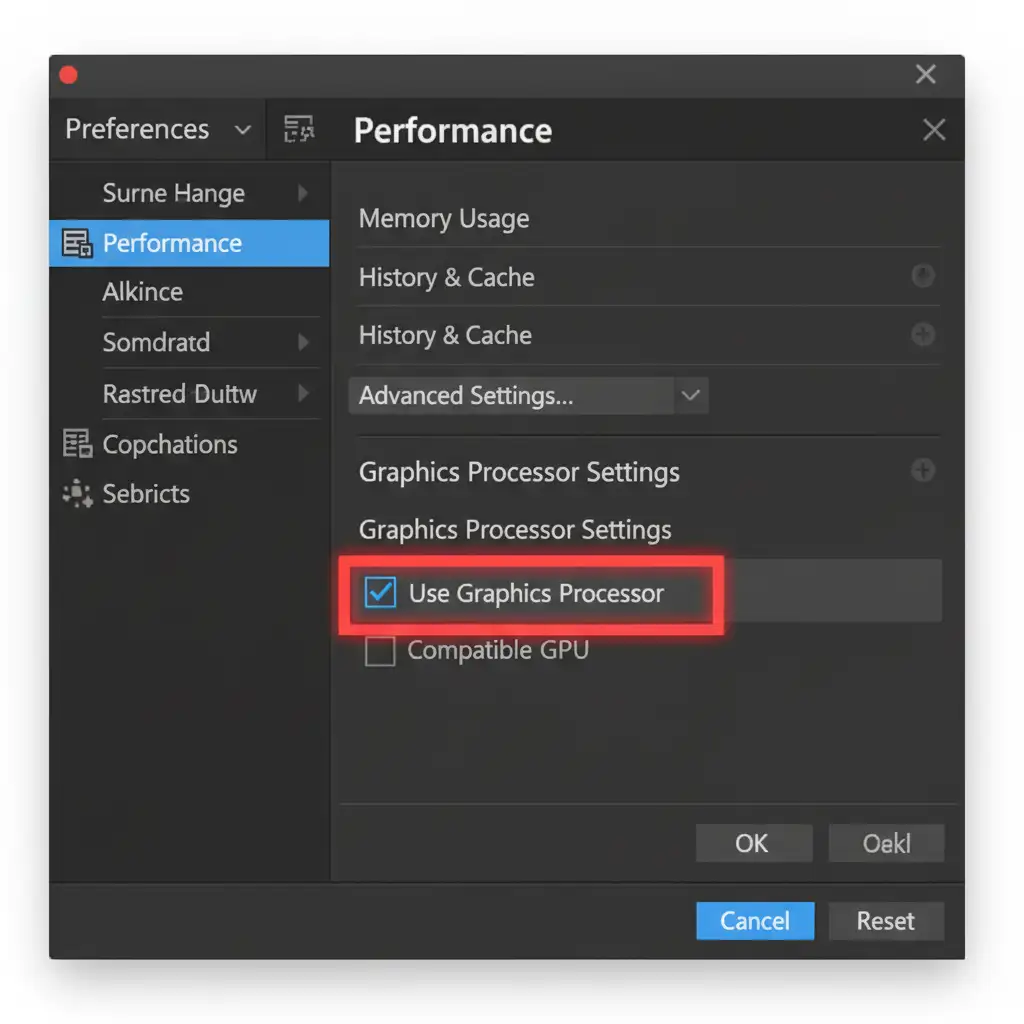
- Go to Edit > Preferences > Performance (Windows) or Photoshop > Settings > Performance (Mac).
- Look under the Graphics Processor Settings. Ensure the Use Graphics Processor box is checked to enable proper GPU acceleration.
- Click OK and restart Photoshop.
If the problem persists after a restart, you may need to clear your corrupted preferences. Hold Ctrl+Alt+Shift (Windows) or Cmd+Option+Shift (Mac) immediately while launching Photoshop. A prompt will ask if you want to delete the Adobe Photoshop Settings file. Click Yes.
Stop Fighting Your Software. Let the Experts Handle the Edits.
Troubleshooting complex software glitches like the “photoshop curves adjustment greyed out 2025” error drains valuable time that you should be spending on creative work or growing your business. Layer masking, fixing color profiles, and managing smart objects can quickly turn a simple edit into an hour-long headache.
If you are struggling with complex Photoshop troubleshooting, have a massive backlog of images to process, or simply need flawless, high-end retouching, Image Work India and Cloud Retouch are here to help.
Our team of professional retouchers specializes in bulk photo editing, advanced color correction, and non-destructive workflows tailored to your exact specifications. Stop wrestling with greyed-out menus and let our experts deliver pixel-perfect results, fast.
[Contact Image Work India and Cloud Retouch Today for a Free Trial and Custom Quote!]




