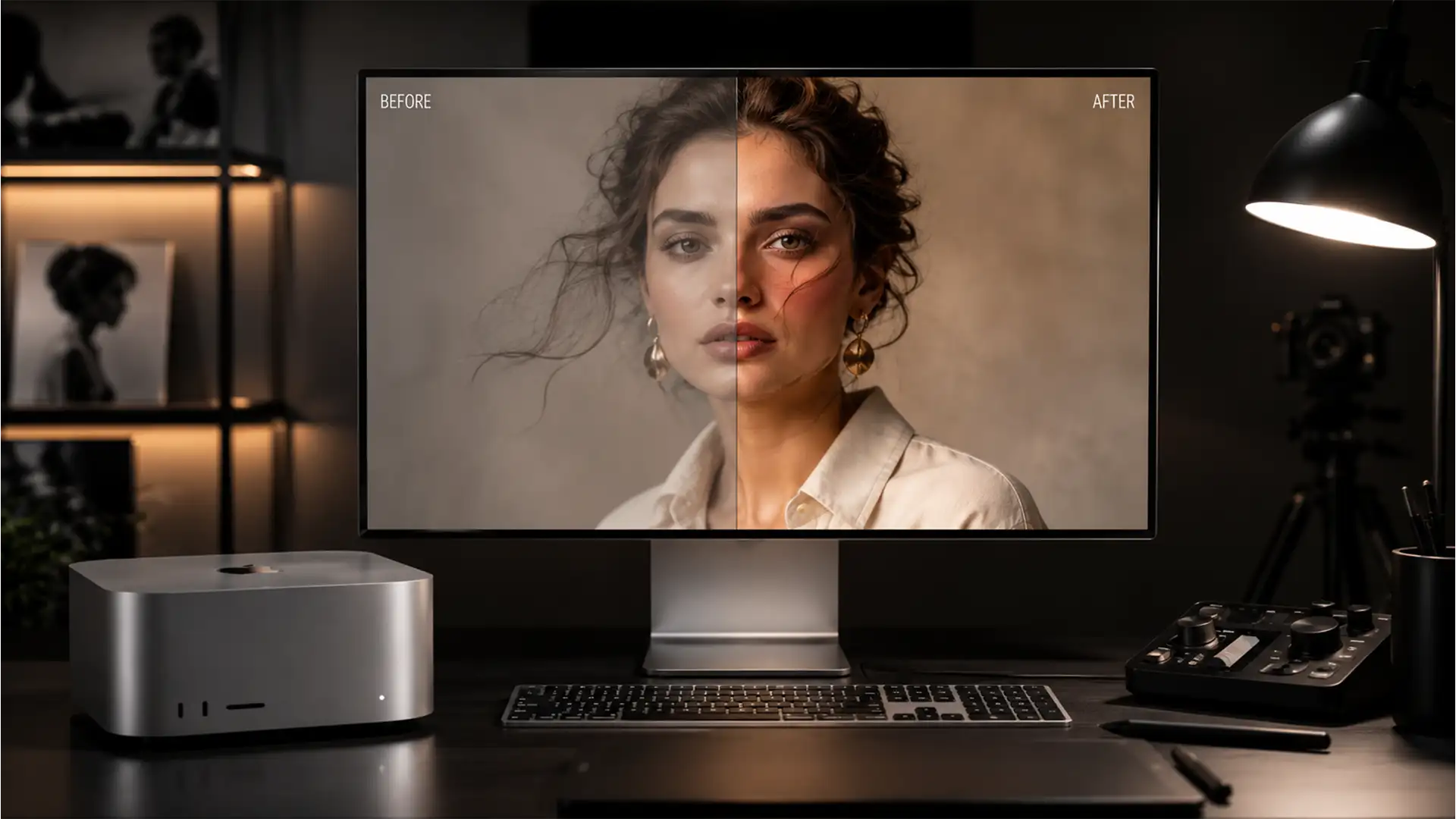

You just invested in a powerful new Apple Silicon machine, but there is a glaring issue: your images look terrible. If you are dealing with the notorious Photoshop color mismatch Mac M2 M3 chips bug, you aren’t alone. You open a vibrant image in Photoshop, but it looks washed out, dull, or strangely hyper-saturated compared to how it appears in Apple Preview, Safari, or Chrome.
For professional photographers and retouchers, color accuracy isn’t optional—it’s everything. This frustrating display discrepancy can ruin your editing workflow and lead to disastrous print results. Fortunately, we have the exact technical steps to force macOS and Photoshop to speak the same color language.
Here is your definitive guide to fixing the Apple Silicon color bug.
Why Do Colors Look Dull in Photoshop on Mac M2 and M3?
The Photoshop color mismatch Mac M2 M3 chips issue primarily affects users running Photoshop CC v24.x through v25.x on Apple Silicon processors, specifically under macOS Ventura and macOS Sonoma.
The core of the problem is a software conflict between Apple’s ColorSync utility—which handles the beautiful but complex Pro Display XDR and Liquid Retina profiles—and the Adobe Color Engine (ACE).
In native Apple Silicon mode, the Metal API rendering pipeline can occasionally misinterpret embedded profiles like sRGB IEC61966-2.1 or Adobe RGB (1998). Instead of rendering them accurately, the system treats them as generic monitor profiles. Furthermore, memory allocation differences within the unified memory architecture of M2 and M3 chips can cause GPU caching issues. This sometimes freezes the visual state of the color profile, causing colors to fail to update when you drag your Photoshop window across different external monitors.
How to Fix the Photoshop Color Bug on Apple Silicon (Step-by-Step)
We have broken down the solutions from a quick settings adjustment to a deep-dive technical override. Try these methods in order.
Method 1: The Quick Fix (Photoshop Color Profile Assignment)
Often, the mismatch occurs because Photoshop is trying to use your specific Mac display profile as its working space, rather than a standardized color gamut.
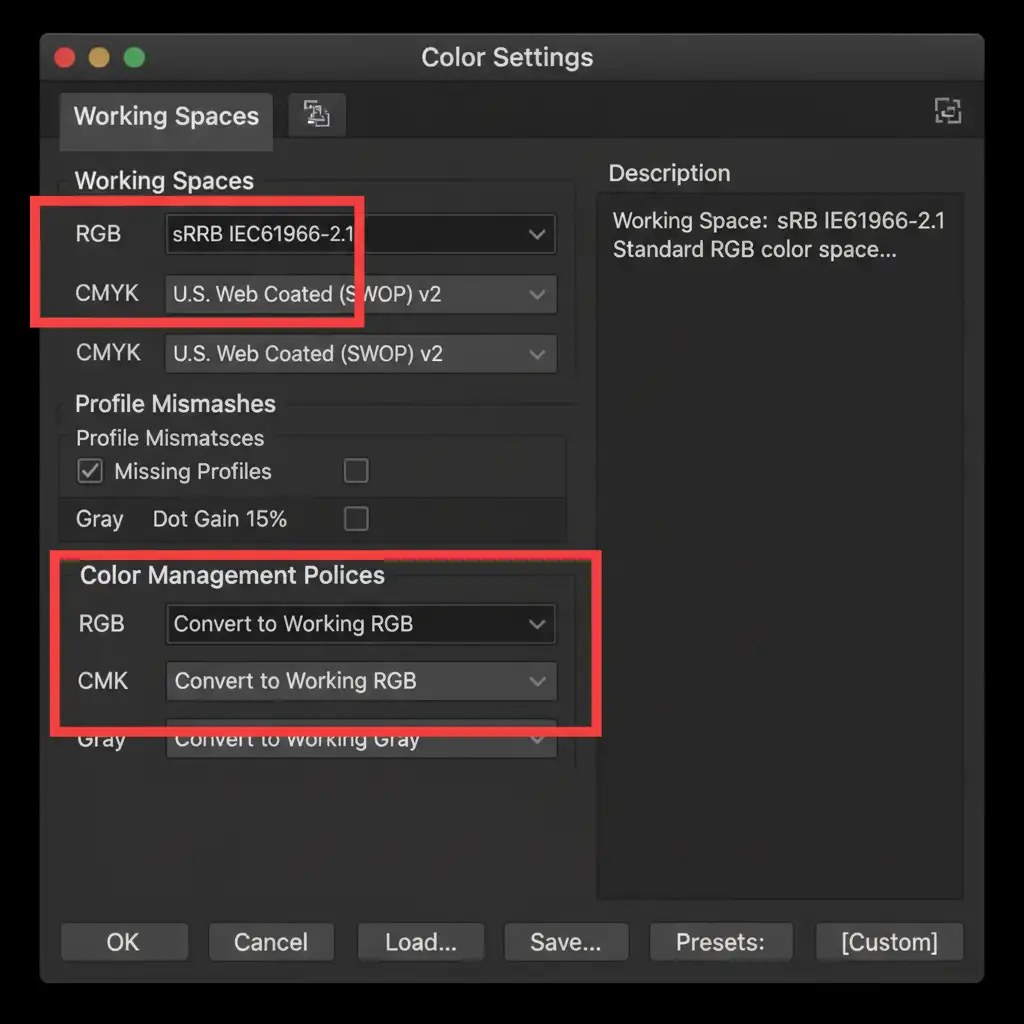
- Open Photoshop and navigate to Edit > Color Settings.
- Under the Working Spaces section, ensure your RGB setting is set to a standard profile like sRGB IEC61966-2.1 or Adobe RGB (1998). Never set this to your specific Display profile (e.g., “Color LCD”).
- Under Color Management Policies, check the box for Convert to Working RGB.
- Click OK and restart Photoshop.
Method 2: The Pro Workaround (macOS Reference Modes)
If adjusting Photoshop’s internal settings doesn’t resolve the Photoshop color mismatch Mac M2 M3 chips error, you need to lock your macOS display into a predictable reference mode. This aligns the OS color management with the Adobe Color Engine.
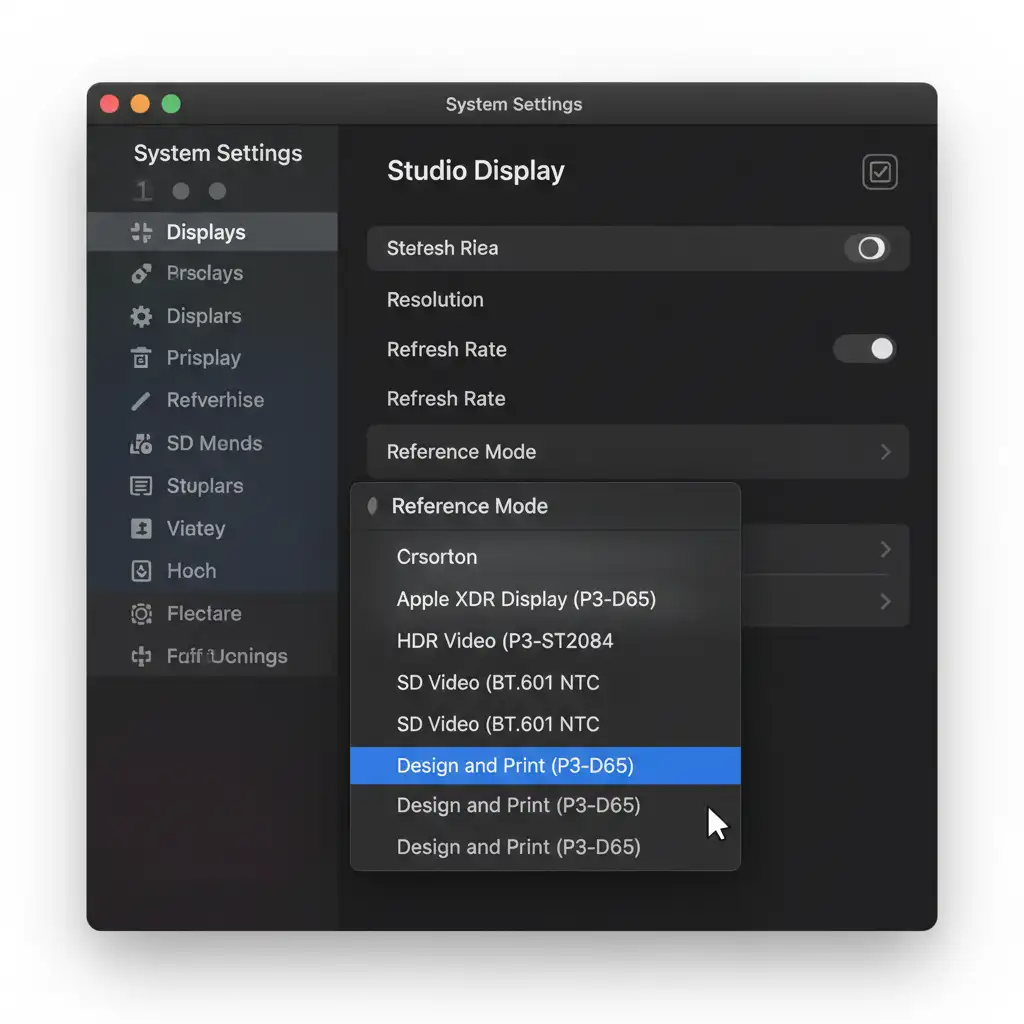
- On your Mac, open System Settings > Displays.
- Locate the Display Preset drop-down menu (defaulted to “Apple Display”).
- Change this preset to Design and Print (P3-D65) or Photography (P3-D65).
By doing this, you are forcing the display to use a strict, predictable color gamut rather than dynamically adjusting based on Apple’s True Tone or auto-brightness features.
Method 3: The Technical Deep-Dive (Metal API & GPU Overrides)
If you are still experiencing washed-out colors, the issue is likely tied to how the Metal API and GPU Acceleration are interacting with Photoshop’s canvas rendering on your M2 or M3 chip.
Disabling GPU Compositing & Native Canvas
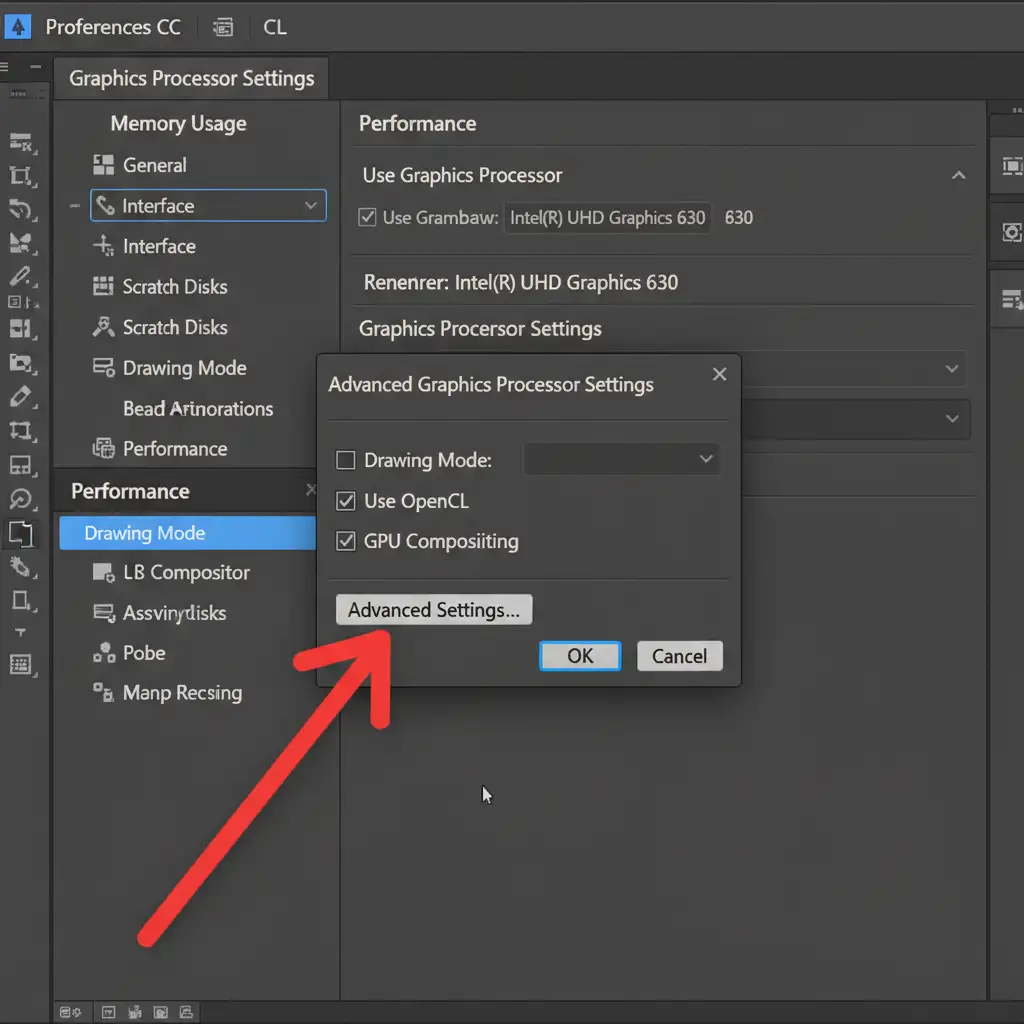
- Go to Photoshop > Settings > Performance.
- Under Graphic Processor Settings, click on Advanced Settings.
- Uncheck GPU Compositing. (If the issue is severe, uncheck Use Graphics Processor entirely to isolate Metal API rendering bugs).
- Next, navigate to Photoshop > Settings > Technology Previews.
- Check the box for Deactivate Native Canvas.
- Restart Photoshop.
Running Photoshop in Rosetta 2
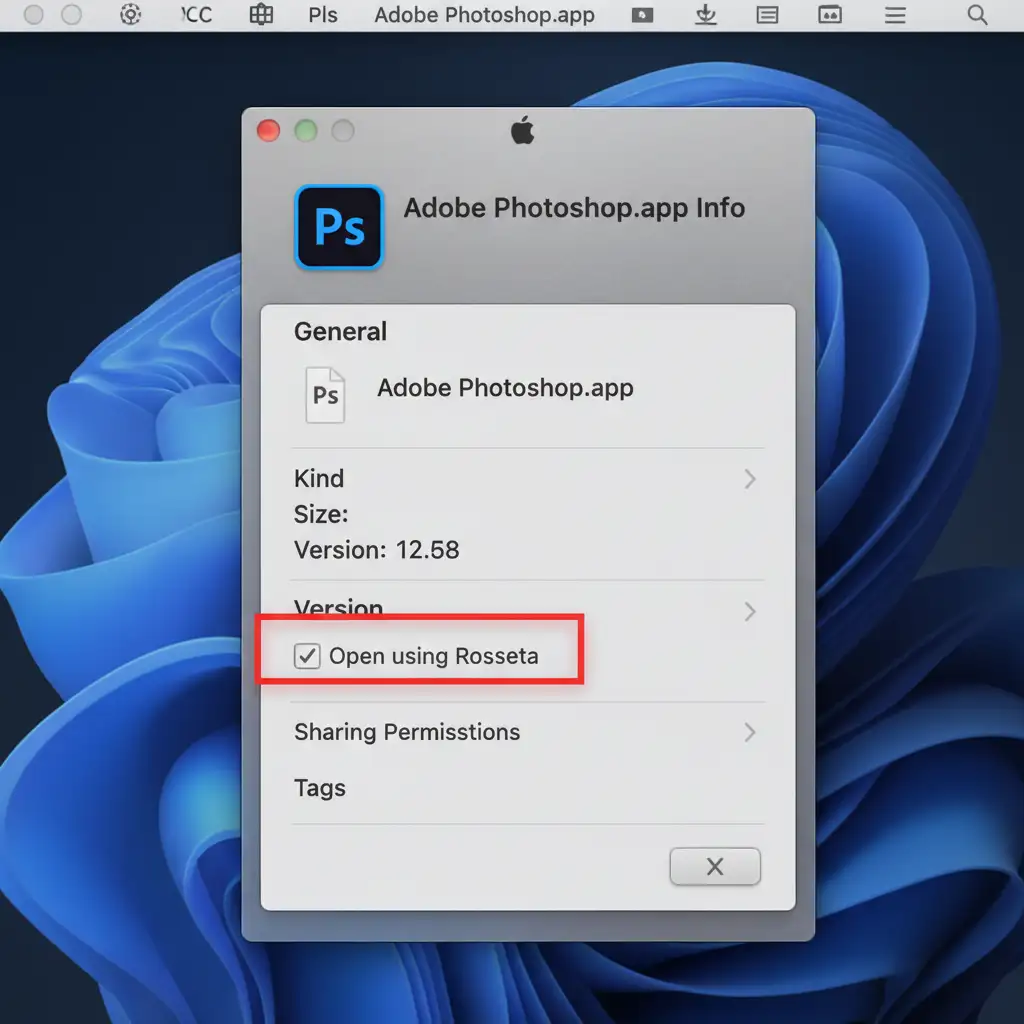
As a last resort, bypassing the native Apple Silicon architecture entirely can eliminate M2/M3 specific rendering bugs. By forcing the app to run through Apple’s translation layer, Rosetta 2, you revert to the highly stable Intel-based rendering pipeline.
- Close Photoshop.
- Open your Applications folder in Finder.
- Right-click the Adobe Photoshop app icon and select Get Info.
- In the General section, check the box labeled Open using Rosetta.
- Launch Photoshop.
Stop Fighting Software Bugs—Let the Experts Handle Your Retouching
Troubleshooting the Photoshop color mismatch Mac M2 M3 chips bug takes time away from what you actually want to be doing: creating stunning visuals. While these technical fixes will stabilize your Color Working Space, maintaining pixel-perfect color accuracy across hundreds of images requires a calibrated eye and a flawless technical workflow.
Need perfect color consistency without the technical headache? Let Image Work India and Cloud Retouch handle your high-end photo retouching.
Our team of expert retouchers operates on strictly calibrated, standardized environments to guarantee that the colors we see are exactly the vibrant, accurate colors your clients receive. From high-end fashion and e-commerce to real estate and product photography, we deliver flawless, color-accurate results every time.
[Contact Image Work India & Cloud Retouch Today] to streamline your workflow and elevate your images.




