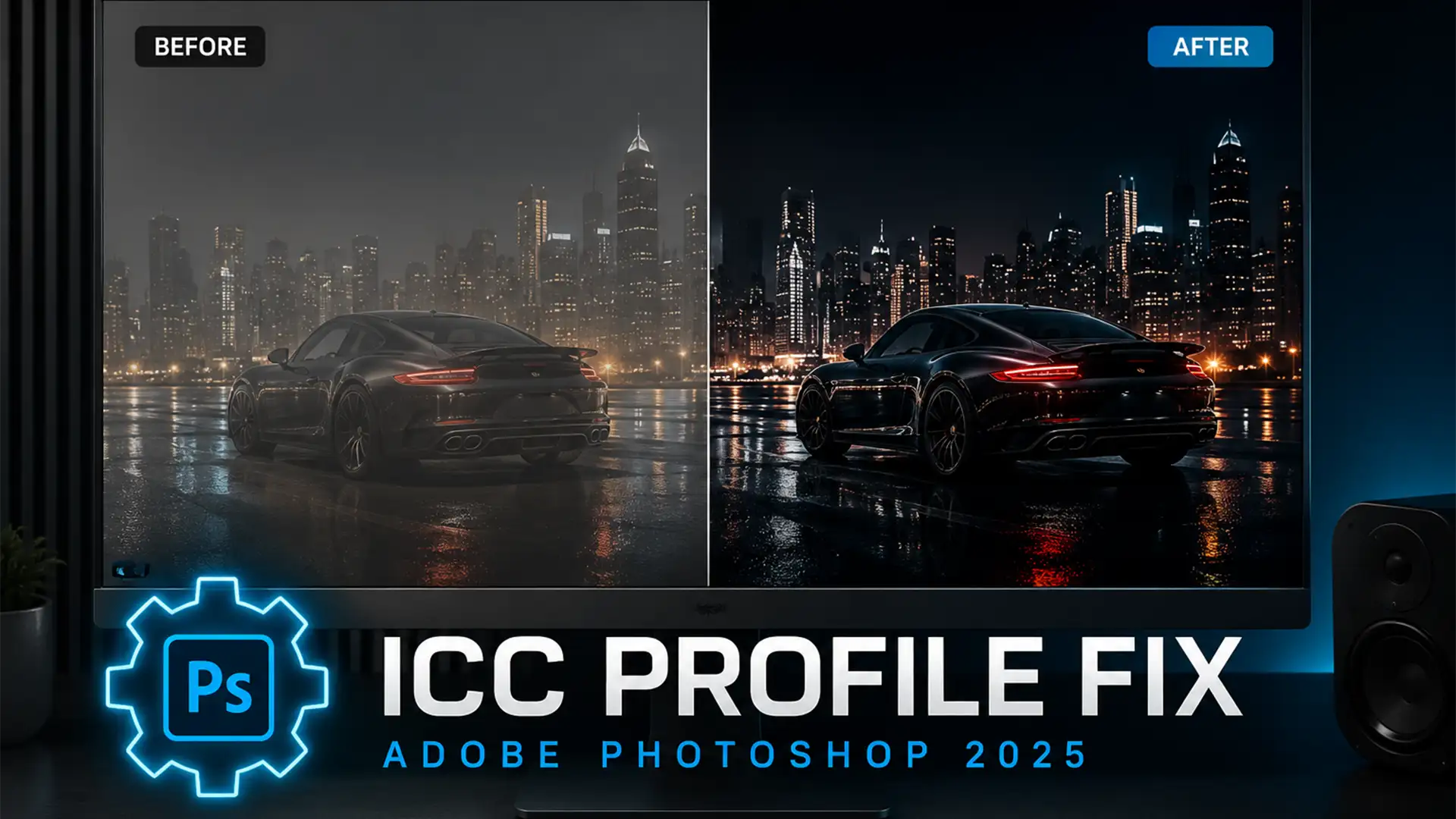

You have spent hours perfecting the contrast of an image, but when you open it in Photoshop 2025 (v26.x or v27.x), your pure blacks (RGB 0,0,0) look completely washed out, flat, and gray. This rendering bug is a massive roadblock for professional retouchers and photographers who rely on flawless color accuracy.
The culprit? A known conflict between Photoshop’s modern GPU-accelerated engine and your operating system’s display profiles. Fortunately, applying the use legacy display ICC color management Photoshop fix takes less than sixty seconds. In this guide, we will break down exactly why this happens and provide three proven methods to restore your deep blacks immediately.
Why Are My Blacks Muddy in Photoshop 2025?
Before applying the fix, it helps to understand the technical root cause. Photoshop 2025 utilizes a modern GPU-accelerated Advanced Color Management system designed to speed up rendering. However, this system frequently miscalculates the monitor’s black point during the GPU rendering phase.
This bug is particularly prevalent on Windows 11 HDR setups or when using wide-gamut displays. When Photoshop’s engine clashes with specific OS-level monitor ICC profiles, it breaks overall contrast, causing true blacks to render as dark gray. By reverting to CPU-based color calculation, we bypass this GPU miscalculation entirely.
How to Apply the ‘Use Legacy Display ICC Color Management’ Photoshop Fix
Here are the three most effective methods to resolve the muddy blacks issue, ranging from a quick settings toggle to a comprehensive color space reset.
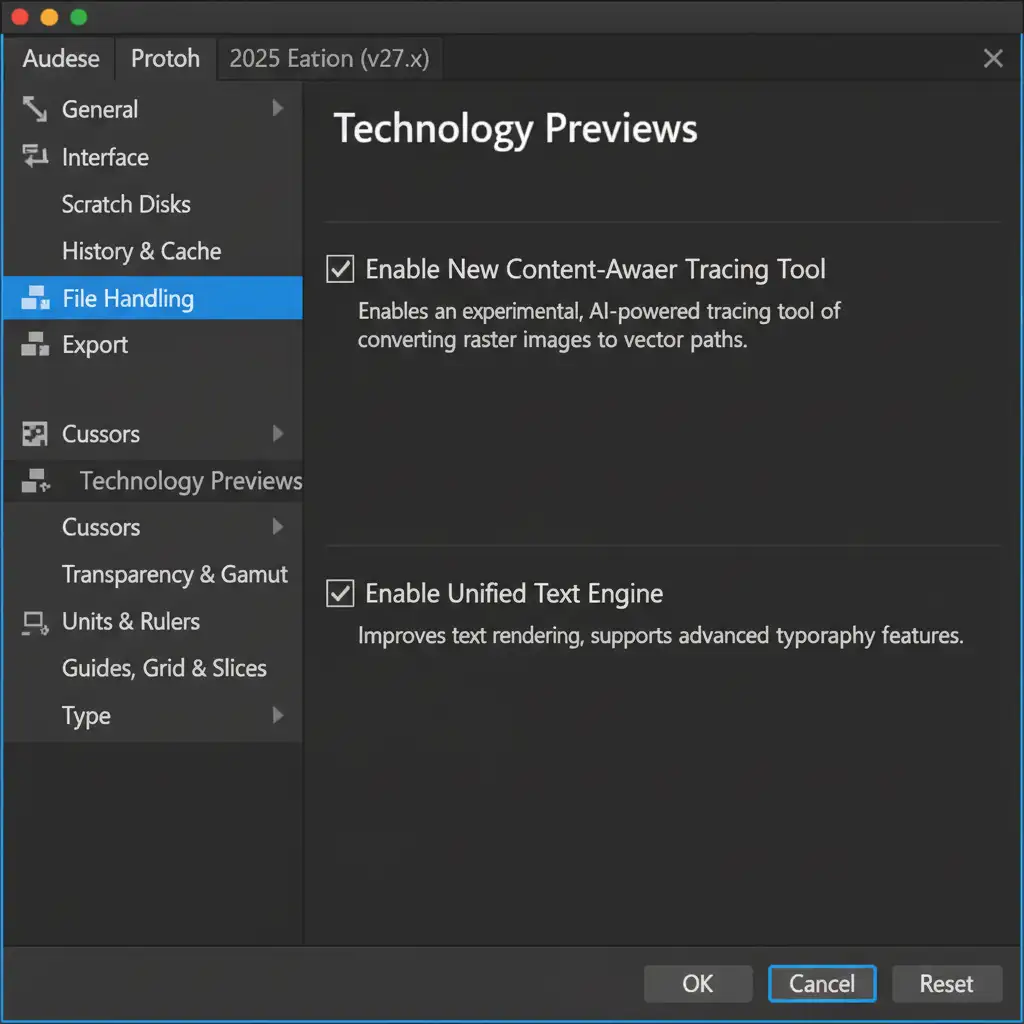
Method 1: The Technology Previews Quick Fix (Recommended)
The fastest way to resolve this gamut and contrast issue is to force Photoshop to use its older, highly stable CPU-based color calculation method.
- Open Photoshop 2025.
- Navigate to Edit > Preferences > Technology Previews (on a Mac, go to Photoshop > Settings > Technology Previews).
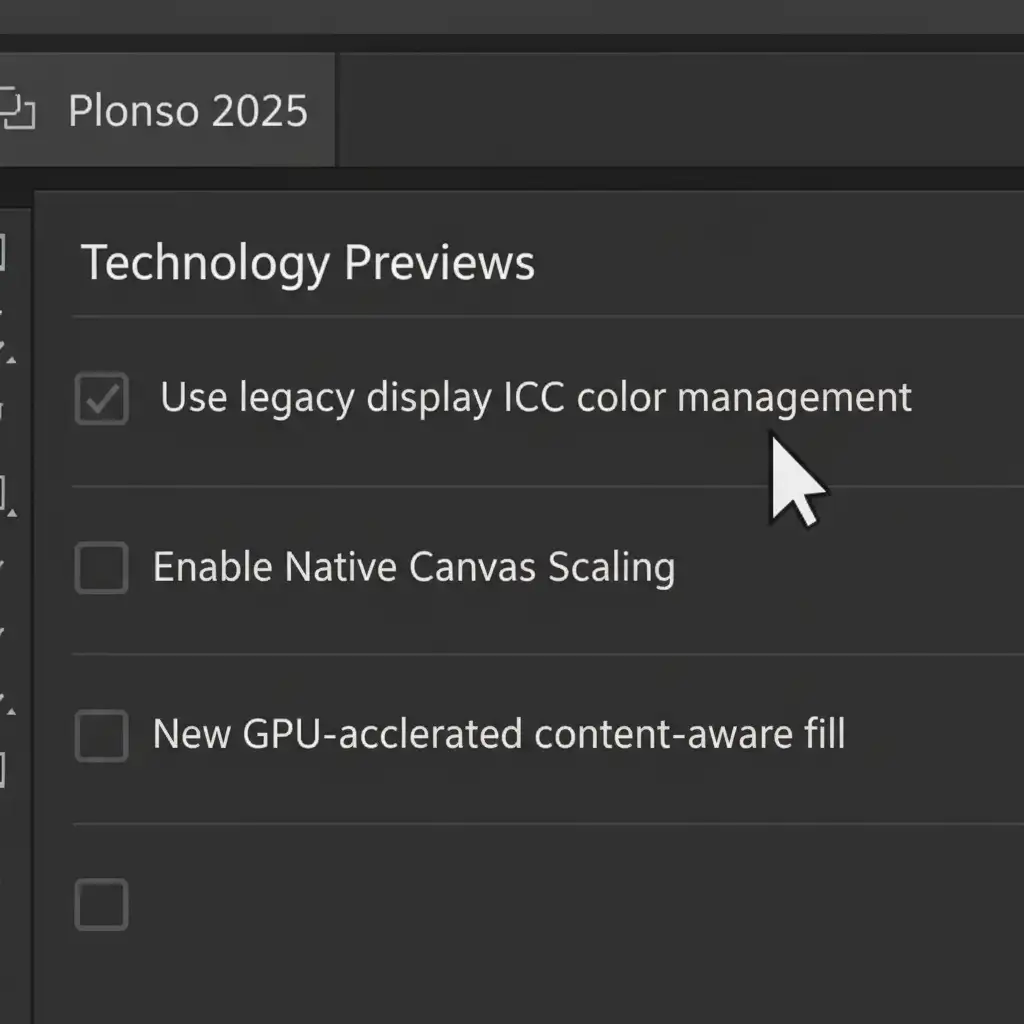
- Locate the checkbox labeled Use legacy display ICC color management.
- Check the box to enable it.
- Click OK and completely restart Photoshop.
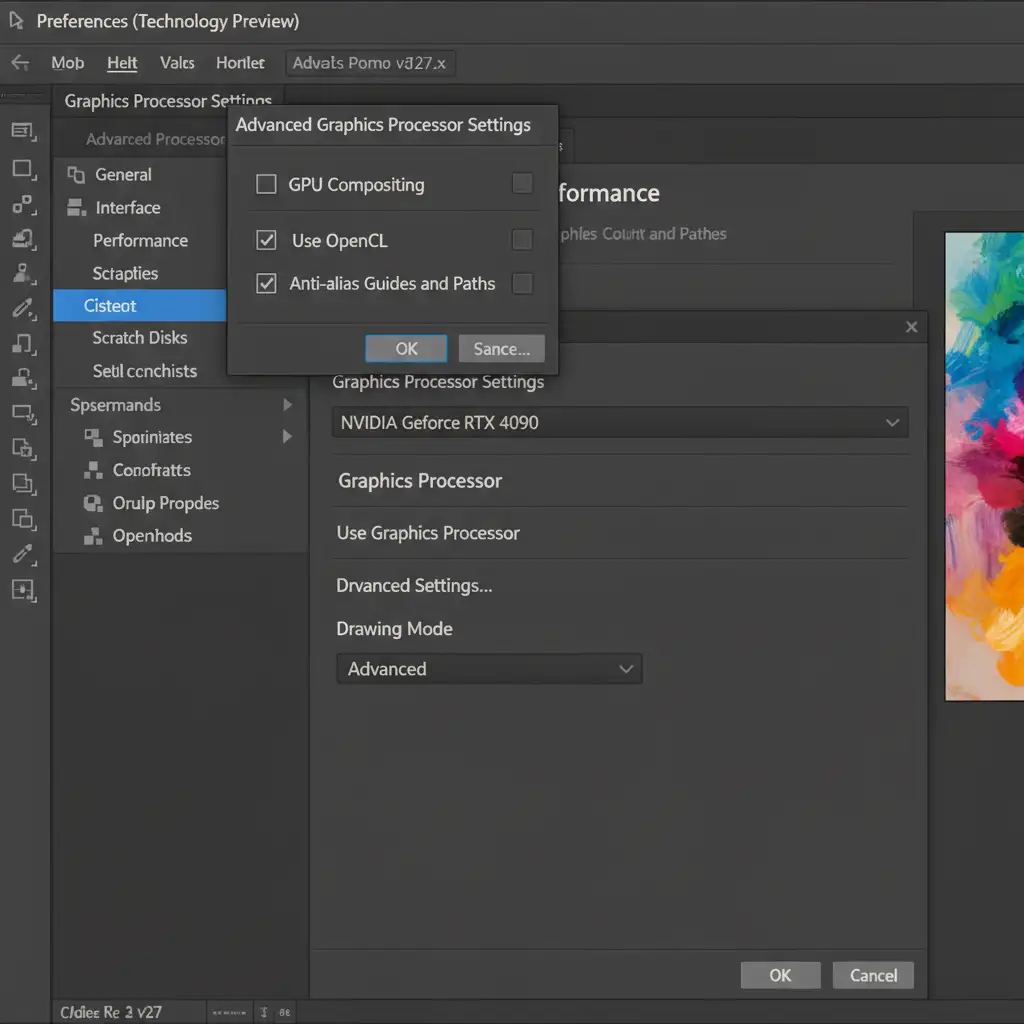
Method 2: Disabling GPU Compositing (The Pro Workaround)
If the legacy ICC fix does not fully resolve the issue, the problem might be deeply rooted in how your graphics card handles image compositing. Bypassing GPU compositing ensures your graphics processor isn’t interfering with your rendering intent.
- Navigate to Edit > Preferences > Performance (or Photoshop > Settings > Performance on Mac).
- Under the Graphics Processor Settings section, click the Advanced Settings button.
- Uncheck the box for GPU Compositing.
- Click OK and restart the application.
Method 3: Resetting OS Color Profiles (The Technical Deep-Dive)
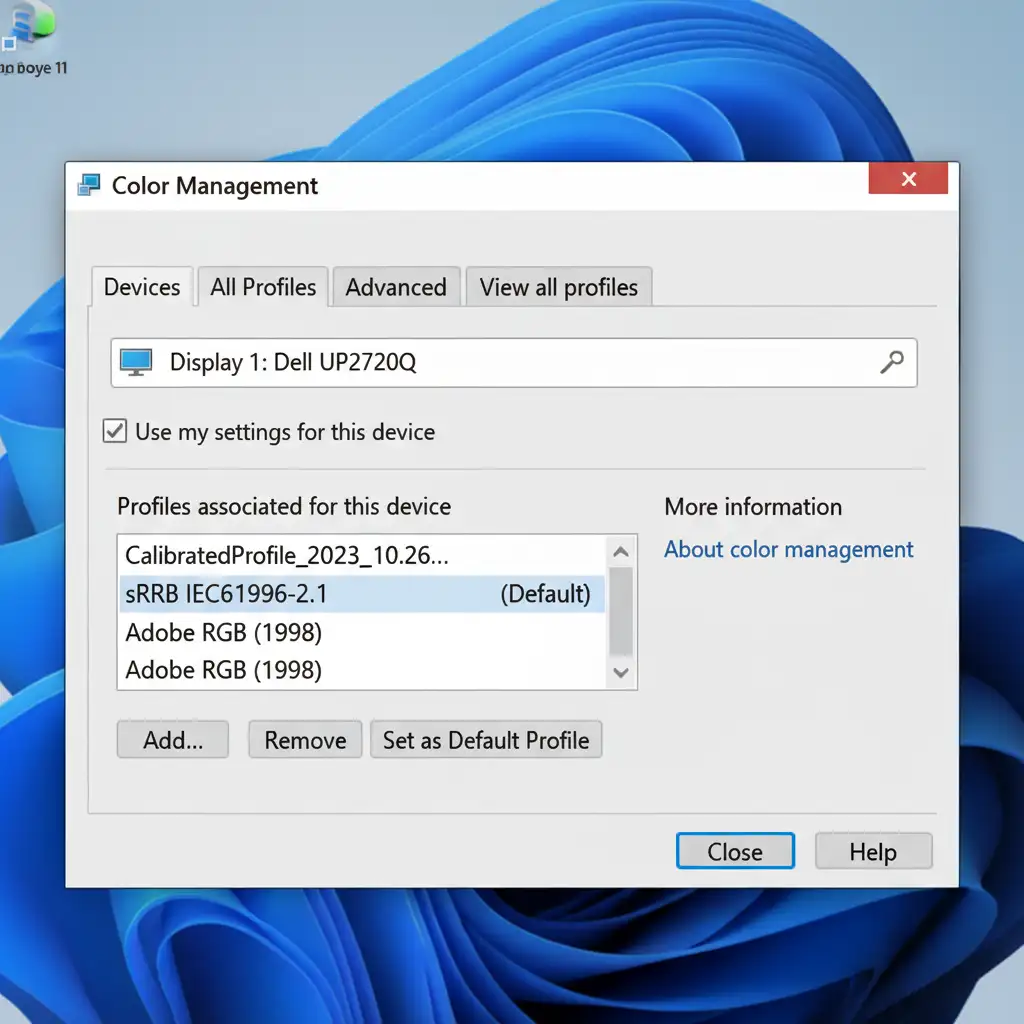
If Photoshop is still rendering muddy blacks after adjusting internal settings, your operating system’s ICC Profile is likely corrupted. You need to assign a stable, universal color profile and perform a fresh monitor calibration.
- Open Color Management in Windows (or ColorSync Utility on macOS).
- Select your primary monitor from the device dropdown list.
- Check the box for “Use my settings for this device.”
- Remove any existing, corrupted custom ICC profiles from the list.
- Click Add and select the standard sRGB IEC61966-2.1 profile. Set it as the default profile.
- Crucial Next Step: Update your GPU Studio drivers (NVIDIA or AMD) to the latest version.
- Finally, perform a fresh hardware calibration using a dedicated colorimeter (like a Datacolor Spyder or Calibrite Display) to generate a clean, bug-free profile.
Stop Fighting Software Bugs: Outsource to the Experts
Troubleshooting GPU acceleration bugs, managing color gamuts, and fighting with software settings takes you away from what actually makes your business profitable: shooting and closing clients. If you are struggling with inconsistent colors across massive image catalogs, you don’t have to fix it alone.
Image Work India and Cloud Retouch specialize in high-volume, pixel-perfect e-commerce retouching. Our team of professional retouchers operates on strictly calibrated hardware with flawless color management pipelines, ensuring your deep blacks, vibrant highlights, and exact product colors are delivered perfectly every single time.
Stop wasting hours on technical workarounds. Let us handle your batch processing and color correction so you can focus on scaling your studio. Contact Image Work India and Cloud Retouch today for a free trial of our premium retouching services.




