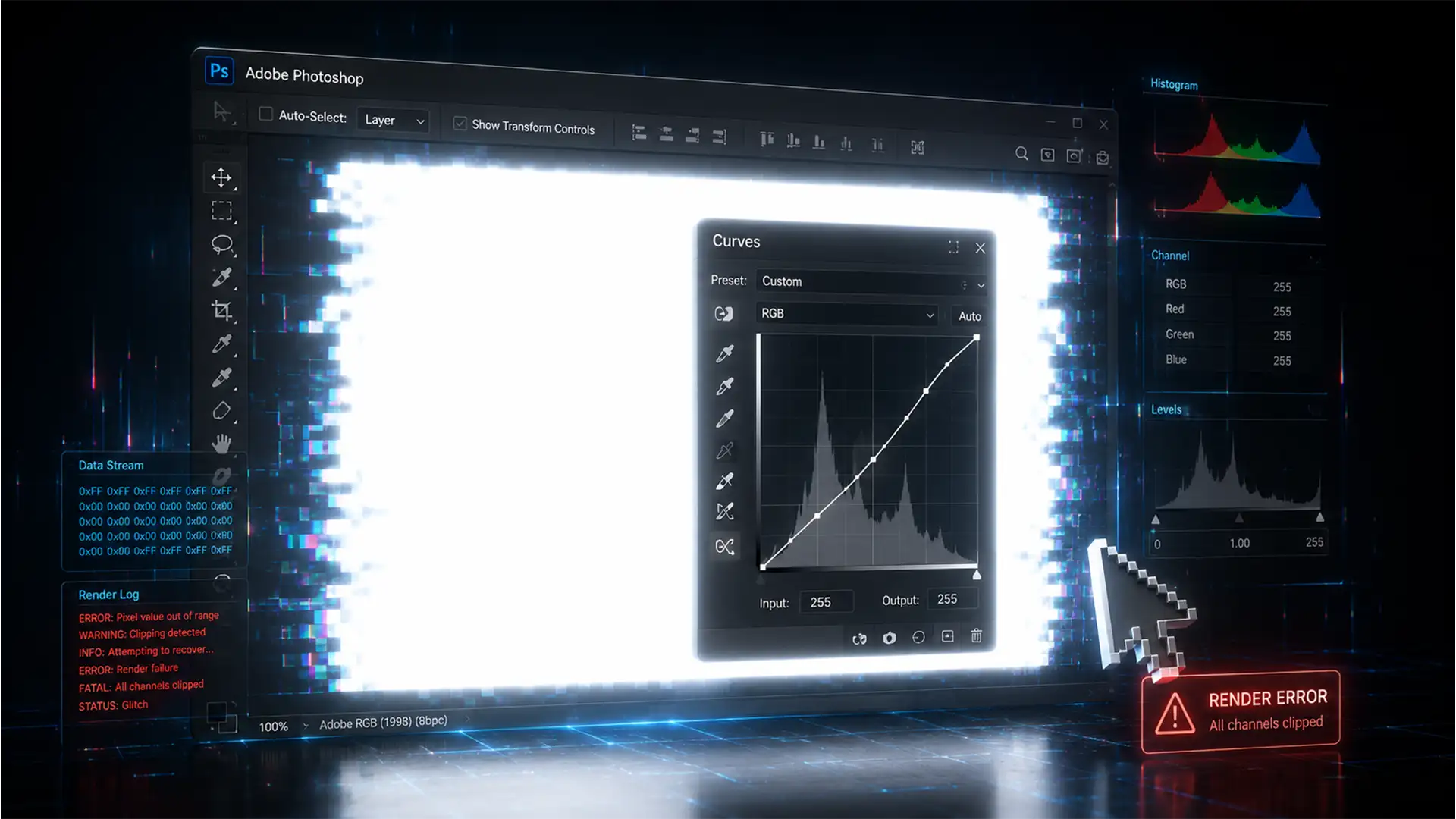

You are deep into a critical retouching session, adjusting the contrast of a complex composite. You click the Auto button on your Curves adjustment layer to establish a baseline, and suddenly—your entire canvas turns blindingly white.
If your Photoshop Curves Auto Color picker turns layer white, you are dealing with a known rendering glitch that heavily affects users on Adobe Photoshop v24.x through v25.x. Instead of speeding up your workflow, this bug brings production to a complete halt.
Fortunately, you don’t need to reinstall your software to fix it. In this guide, we will break down exactly why this error happens and provide three proven methods to restore your Auto Color Correction tools.
Why Your Auto Color Picker is Turning Layers White
When you trigger the Auto Color Correction Options within the Curves or Levels properties, Photoshop runs complex algorithms like “Enhance Monochromatic Contrast” or “Find Dark & Light Colors.” When the layer renders completely white (RGB 255,255,255), technical analysis points to two primary culprits:
- Corrupted Target Colors: The target color swatch data has become corrupted, accidentally mapping your shadow inputs directly to pure white.
- GPU Compositing Failure: The graphics processor fails to read the histogram mapping correctly during GPU acceleration. When the engine panics, it defaults to extreme highlight clipping, wiping out all image data.
Here is how to troubleshoot and fix both issues.
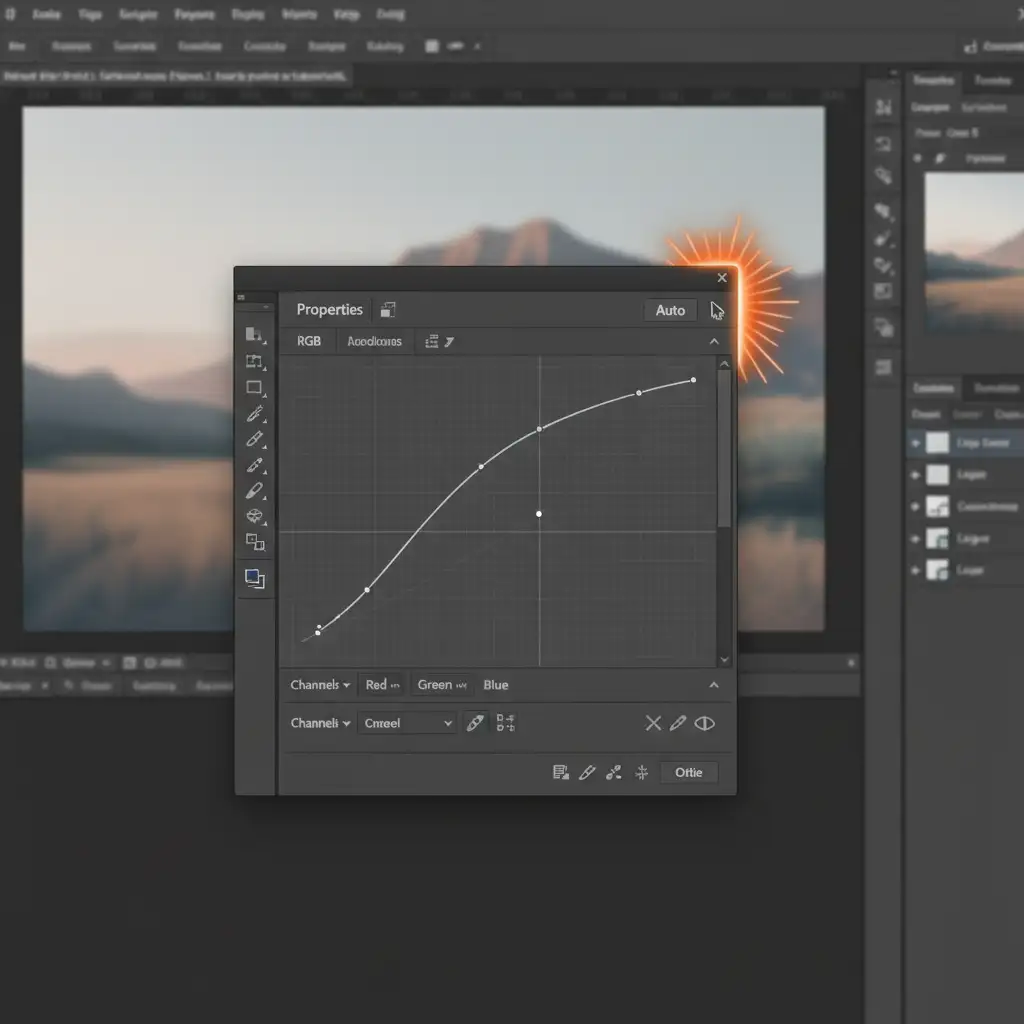
3 Ways to Fix the Photoshop “White Layer” Bug
Method 1: The Quick Fix (Reset Corrupted Swatches)
If the bug is caused by a localized glitch in your swatch data, a quick Preferences reset of the Auto dialog will usually clear the error.
- Open your Curves adjustment layer.
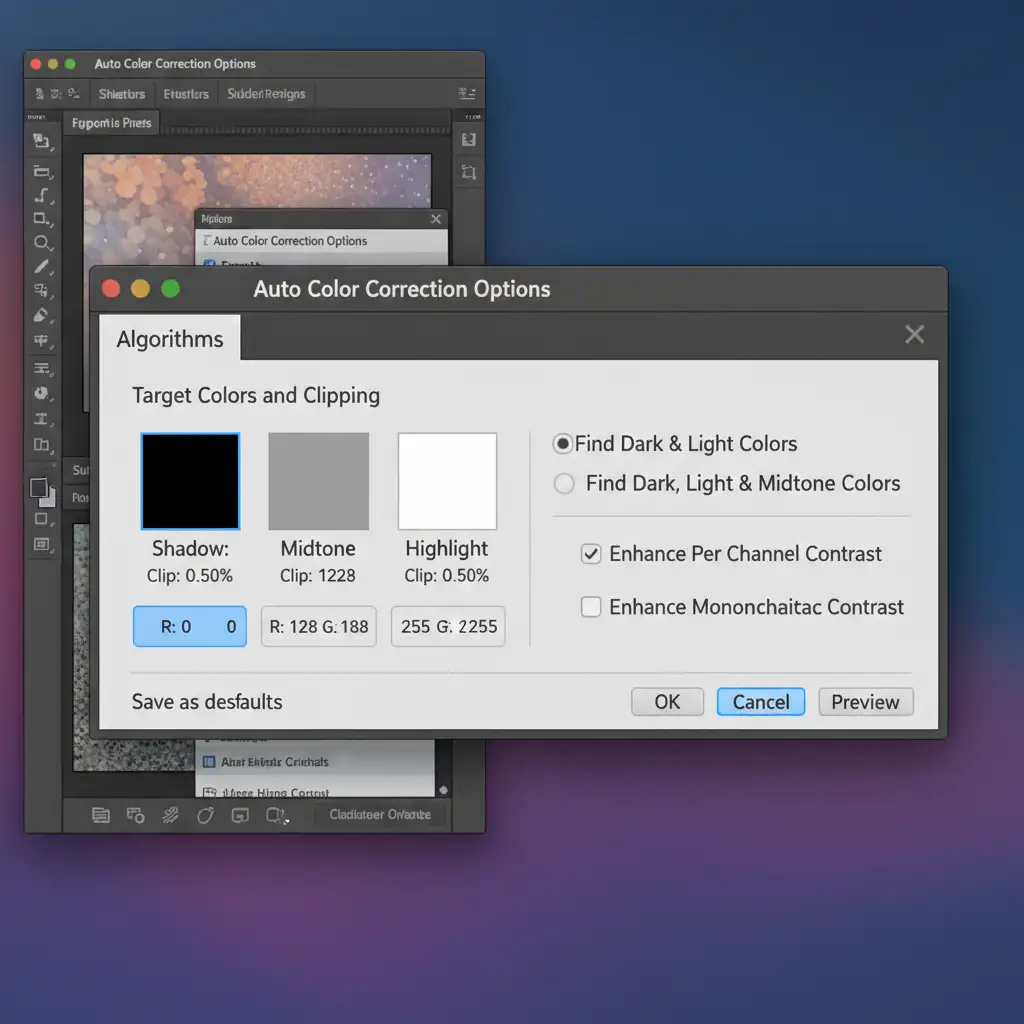
- Hold down the Alt key (Windows) or Option key (Mac) and click the Auto button. This forces the Auto Color Correction Options dialog box to open.
- Once the dialog is open, hold Alt/Option again. You will see the “Cancel” button dynamically change into a “Reset” button.
- Click Reset to restore the default target swatches and clear the corrupted mapping.
Method 2: The Pro Workaround (Bypass the Algorithm)
If the automated algorithms are consistently failing, professional retouchers bypass them entirely. This method gives you superior control without risking software glitches.
- Right-click your image layer and select Convert to Smart Object. This ensures your edits remain non-destructive.
- Apply a Curves adjustment layer.
- Instead of using the Auto button, manually set your histogram mapping. Select the Black Point eyedropper and click the darkest part of your image. Repeat this with the White Point eyedropper for the brightest area.
- To safely adjust the midtones, use the gray eyedropper, or manually check Snap Neutral Midtones if you are working within the Auto dialog.
- Finally, change the adjustment layer’s blending mode from Normal to Luminosity blending mode. This prevents unwanted color shifts while adjusting contrast.
Method 3: The Technical Deep-Dive (Disable GPU Compositing)
If the layer still turns pure white after trying the steps above, you are experiencing a graphics driver conflict with the Photoshop v24+ rendering engine. You need to restrict how Photoshop uses your GPU.
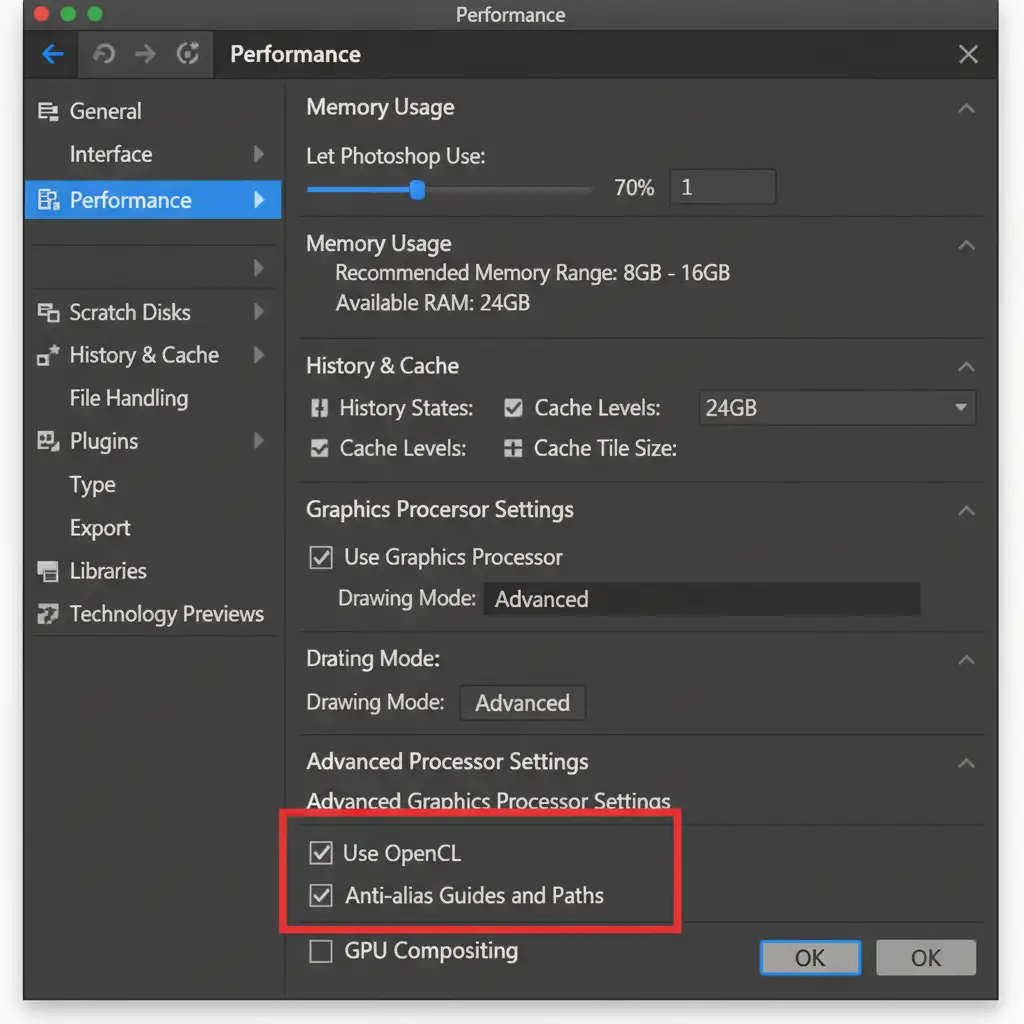
- Navigate to Edit > Preferences > Performance (on Windows) or Photoshop > Settings > Performance (on Mac).
- Look for the Graphics Processor Settings block on the right side.
- Click the Advanced Settings button.
- Uncheck the box labeled GPU Compositing.
- Click OK, then restart Photoshop to clear the VRAM cache.
Disabling this specific feature forces Photoshop to use standard rendering for adjustments, permanently resolving the white layer clipping issue.
Stop Letting Software Bugs Derail Your Deadlines
Troubleshooting software bugs like the Photoshop Curves Auto Color picker turns layer white error consumes valuable time that you should be spending on creative work or scaling your business. When technical glitches threaten your post-production timelines, it’s time to bring in the experts.
At Image Work India and Cloud Retouch, we specialize in flawless, high-volume color correction and professional photo editing services. Our dedicated teams use optimized, glitch-free workflows to deliver pixel-perfect results, ensuring your images are delivered on time, every time.
Stop fighting with your software. Contact Image Work India and Cloud Retouch today and let our professional retouching team handle the heavy lifting for you.




