

You’ve invested significant time and money into flawless, high-end product photography. But the moment you upload those pristine shots to your store, disaster strikes: your photos look blurry, pixelated, and cheap. Sound familiar? You aren’t alone. Shopify’s aggressive automatic compression is designed to speed up page loads, but it often destroys image quality in the process.
If you’re tired of losing sales because of artifact-heavy product visuals, you’re in the right place. In this guide, we’ll show you exactly how to bypass Shopify image compression 2024 master parameter techniques, ensuring your visuals remain crystal clear and conversion-ready.
Why Does Shopify Compress Images Automatically?
To understand how to fix the problem, you need to understand the mechanics behind it. When you upload an image to your store, it doesn’t just sit on a server. It passes through the Shopify CDN (Content Delivery Network).
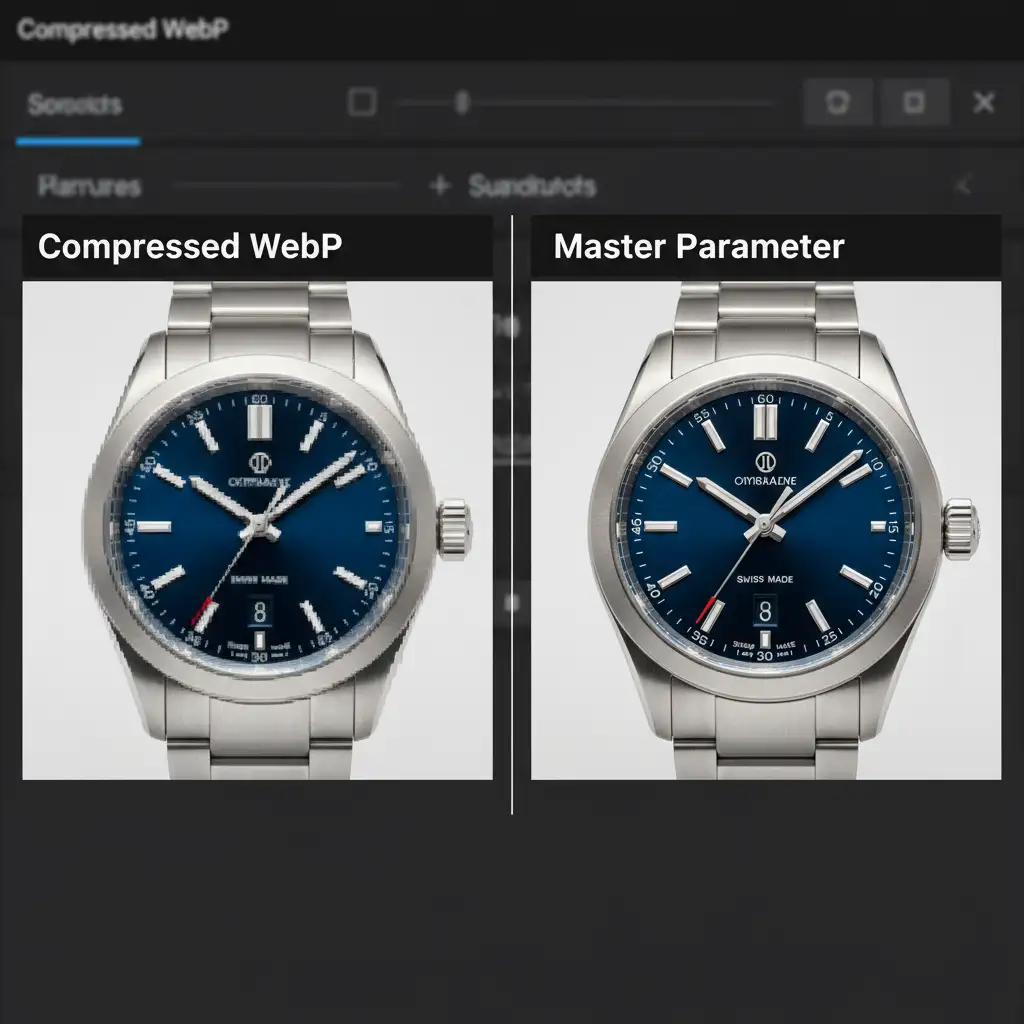
To optimize page speed—a critical factor for SEO and user experience—Shopify automatically applies lossy compression. It strips out metadata, alters the color profile, and forces a WebP conversion. While WebP is a great, lightweight format, Shopify’s automated processing pipeline can be overly aggressive. This results in heavy artifacting and noticeable pixelation, especially on high-detail product images where zooming is essential for the buyer’s journey.
Fortunately, Shopify OS 2.0 architectures give developers and store owners the tools to bypass this pipeline and force the server to load the original, untouched file.
How to Bypass Shopify Image Compression in 2024
Here are the three most effective methods to maintain absolute image clarity on your storefront.
Method 1: The Quick Fix Using the Master Parameter
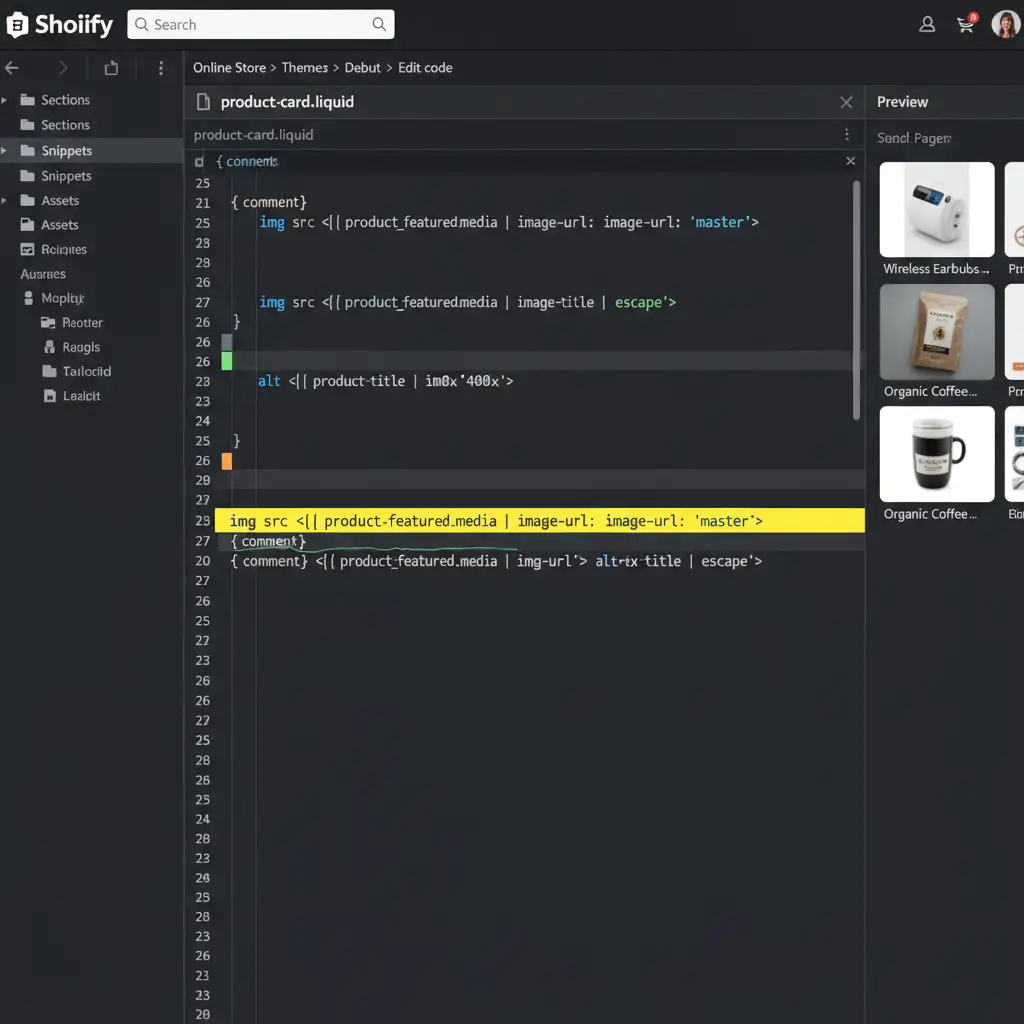
In older Shopify themes, developers used the img_url filter. In modern OS 2.0 themes, this has been deprecated in favor of the image_url filter. By default, your theme likely requests a specific, compressed size (e.g., image_url: width: 800).
To force Shopify to bypass compression and load your original file, you need to edit your Liquid template and use the master parameter.
- Go to your Shopify Admin.
- Navigate to Online Store > Themes.
- Click the three dots next to your active theme and select Edit code.
- Locate the Liquid file rendering your images (often product-media.liquid or main-product.liquid).
- Change the sizing filter to image_url: master.
Method 2: The Pro Workaround with SVGs
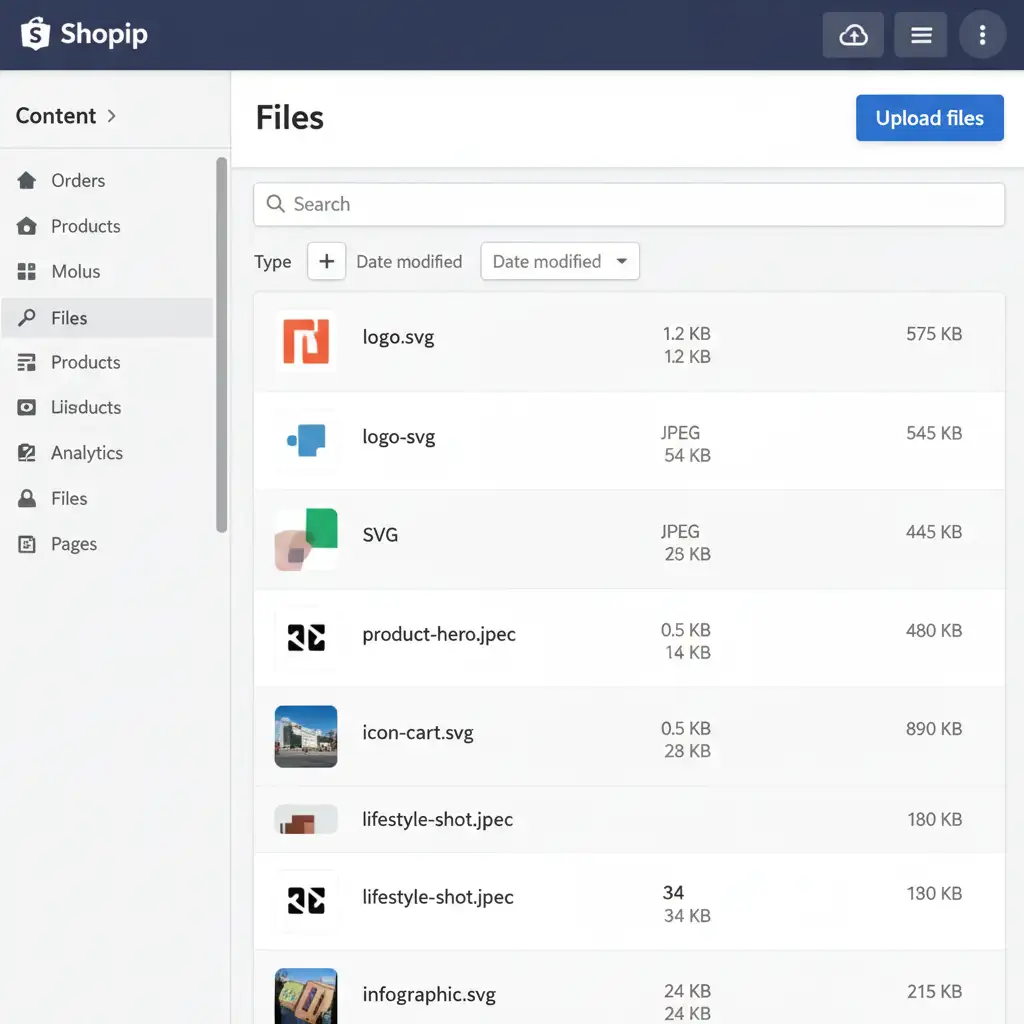
Photographs require raster formats (like JPEGs or WebP), but what about your logos, icons, and text-heavy graphics? If these are looking blurry, you need to switch to a lossless format.
Shopify’s image processor does not compress or alter SVG (Scalable Vector Graphics) files. By uploading an SVG, you completely bypass the CDN’s compression engine, ensuring absolute lossless scaling regardless of the device’s screen size or aspect ratio.
Method 3: The Technical Deep-Dive for Responsive Srcset
While the master parameter is a great quick fix, loading massive 4K images on mobile devices can severely hurt your site speed. The professional, balanced approach is to edit the main-product.liquid file to implement responsive srcset attributes while preventing resampling.
To bypass the compression algorithm without using the master parameter, you must set the maximum width attribute exactly to your uploaded image size. For example, if you upload a 2048×2048 image, your code should read:
{{ image | image_url: width: 2048 }}
Furthermore, ensure you remove any crop or scale parameters from the Liquid code. When Shopify sees an exact dimension match with no cropping instructions, it skips the resampling process, serving a much cleaner file.
Ensure Flawless eCommerce Visuals with Cloud Retouch
Fixing your Shopify code is only half the battle. If your original source images aren’t perfectly edited, color-corrected, and optimized, no amount of Liquid coding will make them look premium.
Need flawless, high-resolution product photos that actually convert? Hire Image Work India & Cloud Retouch for professional eCommerce image editing. From complex clipping paths and background removal to high-end ghost mannequin retouching, our experts ensure your visuals shine on Shopify, Amazon, and beyond.
Don’t let bad images tank your conversion rates. Contact Cloud Retouch today and let us handle the technical heavy lifting so you can focus on scaling your brand.




