![Fix Photoshop 2025 Select & Mask Action Bug [Batch Edit]](https://imageworkindia.com/wp-content/uploads/2026/04/fix-photoshop-2025-select-and-mask-action-bug-Featured-Image-1.webp)

Imagine setting up a massive batch processing run for your latest ghost mannequin effect catalog, only to return hours later and find your automated workflows completely ruined. If you recently updated to the newest Adobe release, you are likely experiencing the frustrating Photoshop 2025 Select and Mask action bug.
This known memory caching glitch conflicts with the updated Object Selection AI engine, causing Photoshop actions to either halt entirely or output jagged, pixelated borders instead of clean global refinements. Don’t let a software update destroy your post-production volume. Here is exactly how to fix the error and get your automated batch editing back on track.
Understanding the Photoshop 2025 Select and Mask Action Bug
When executing automated scripts via File > Automate > Batch or the Image Processor, Photoshop 2025 struggles to properly cache memory for headless (non-GUI) masking tasks.
If your action includes a step that opens the modern Select and Mask workspace to apply shift edge or feathering adjustments, the AI selection engine fails to output to a layer mask correctly. The result? Hard, jagged edges that ruin product photos, or a complete halt of your Photoshop actions.
Fortunately, there are three proven ways to bypass this bug.
3 Ways to Fix the Select and Mask Bug in Automated Workflows
Method 1: The Quick Fix (Bypass with Legacy Refine Edge)
The easiest way to circumvent the bug is to avoid the modern Select and Mask workspace entirely. By substituting it with the older, more stable Legacy Refine Edge tool, your action will process without triggering the memory leak.
- Open the Actions panel and delete the broken Select and Mask step.
- Hit the Record button to modify your action.
- Make your initial selection.
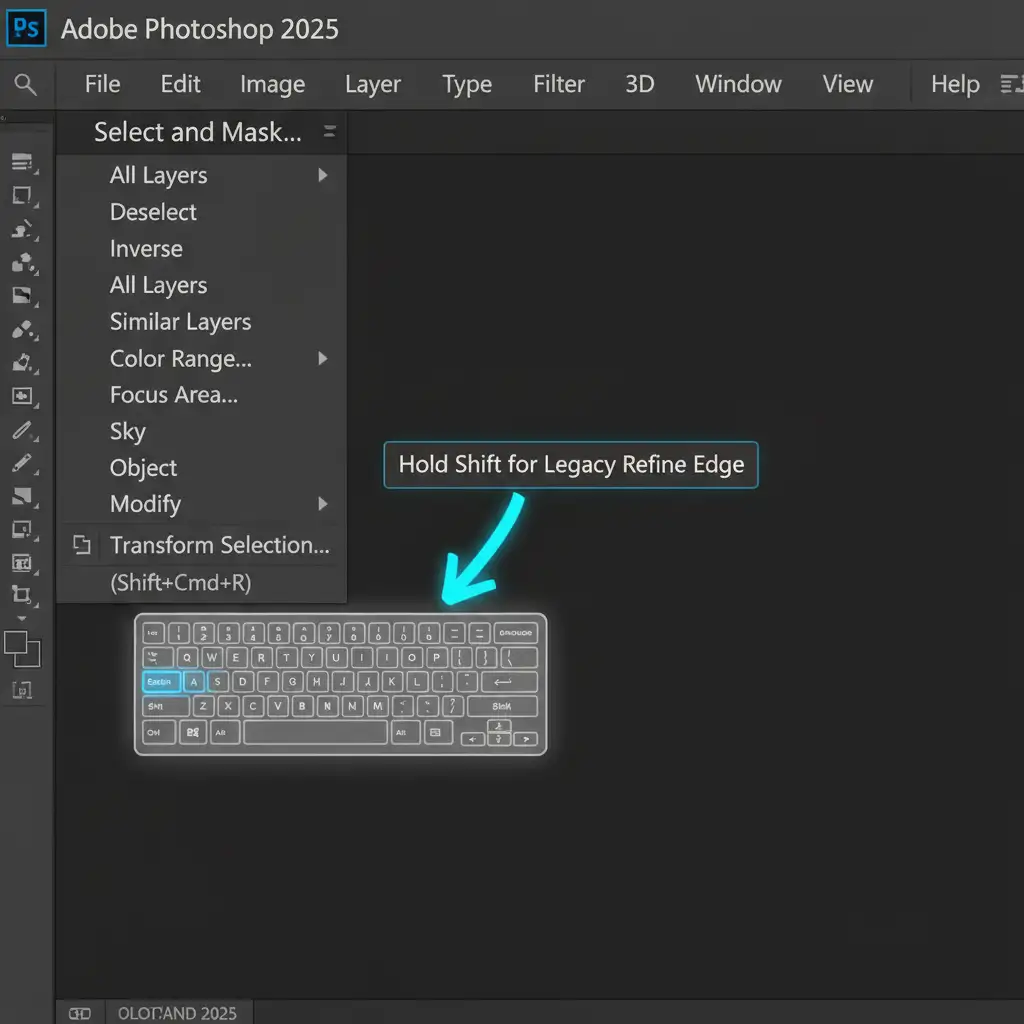
- Hold the Shift key, then navigate to Select > Select and Mask in the top menu bar.
- This secret shortcut forces Photoshop to open the Legacy Refine Edge menu.
- Apply your edge smoothing, click OK, and stop recording.
Method 2: The Pro Workaround (Smart Objects & Mask Adjustments)
If you want to maintain completely non-destructive edges without relying on legacy tools, you can replicate edge refinements directly on a layer mask using standard adjustment filters.
- Convert your target image layer into Smart Objects before making your selection.
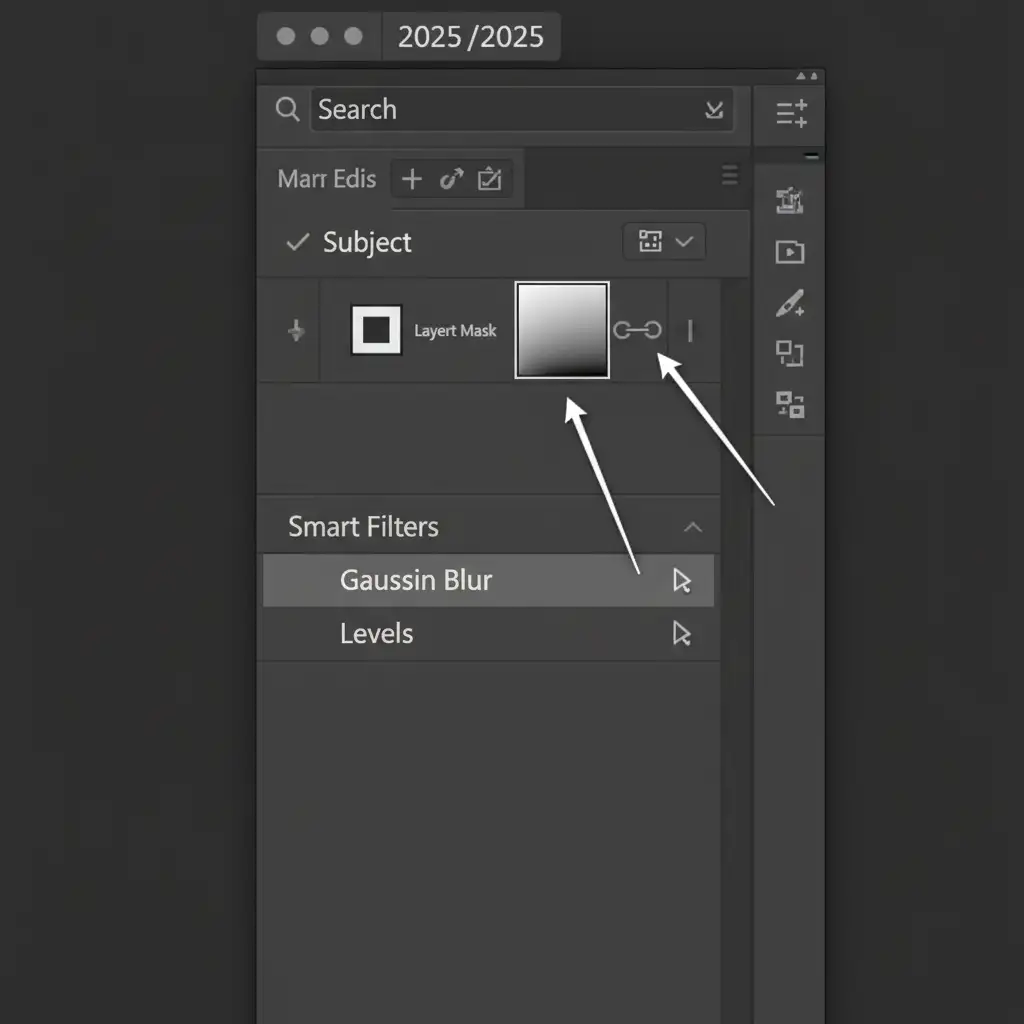
- Apply a basic Subject selection and output it as a standard layer mask.
- To replicate the “Feather” and “Shift Edge” global refinements, target the layer mask directly.
- Apply a Gaussian Blur (e.g., 1.5 pixels) to the mask to soften the edge.
- Apply a Levels adjustment directly to the mask, crushing the blacks and whites to tighten and shift the edge inward.
Because you are using standard filters instead of the AI-driven workspace, batch processing will run flawlessly.
Method 3: The Technical Deep-Dive (Disable GPU Acceleration)
If you must use the modern workspace, the issue can often be resolved by changing how Photoshop renders tasks during automated non-GUI processes. The bug is heavily tied to conflicts with GPU acceleration.
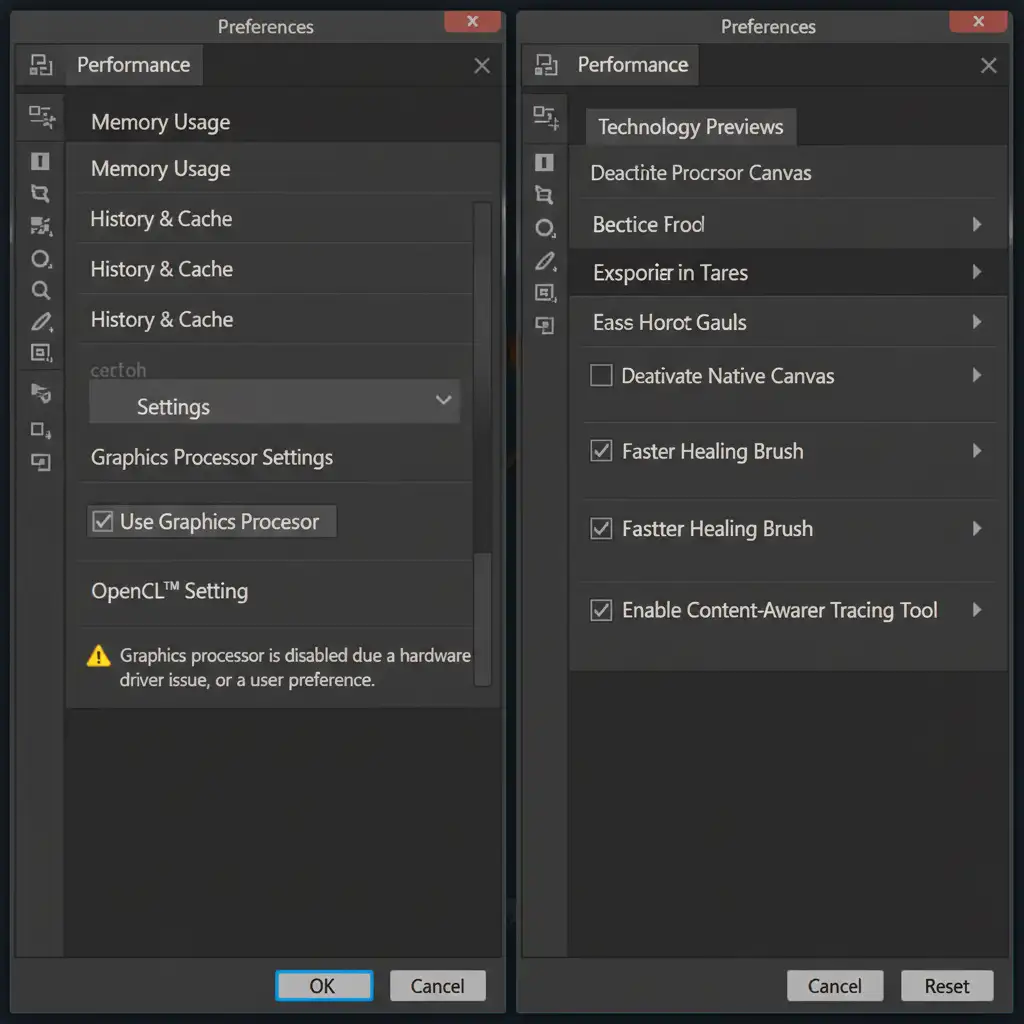
- Navigate to Edit > Preferences > Performance (Windows) or Photoshop > Settings > Performance (Mac).
- Under the Graphics Processor Settings, uncheck the box for Use Graphics Processor.
- Next, navigate to Preferences > Technology Previews.
- Check the box that says Deactivate Native Canvas.
- Click OK and restart Photoshop.
Disabling these features forces Photoshop to rely on CPU rendering, which bypasses the Native Canvas glitch causing the jagged borders during bulk image processing.
Need Flawless Masking at Scale?
Fixing the Photoshop 2025 Select and Mask action bug will get your automated scripts running again, but even the best AI selection tools struggle with complex edges, sheer fabrics, and intricate product details.
If you are struggling to maintain your post-production volume due to constant Photoshop update bugs, it’s time to upgrade your workflow. Outsource your heavy lifting to Image Work India and Cloud Retouch.
Our team of professional retouchers delivers flawless, hand-drawn clipping paths, precise ghost mannequin editing, and complex masking tasks—delivered overnight. Stop fighting software glitches and let us handle your bulk editing so you can focus on scaling your studio. Contact us today for a free trial!




