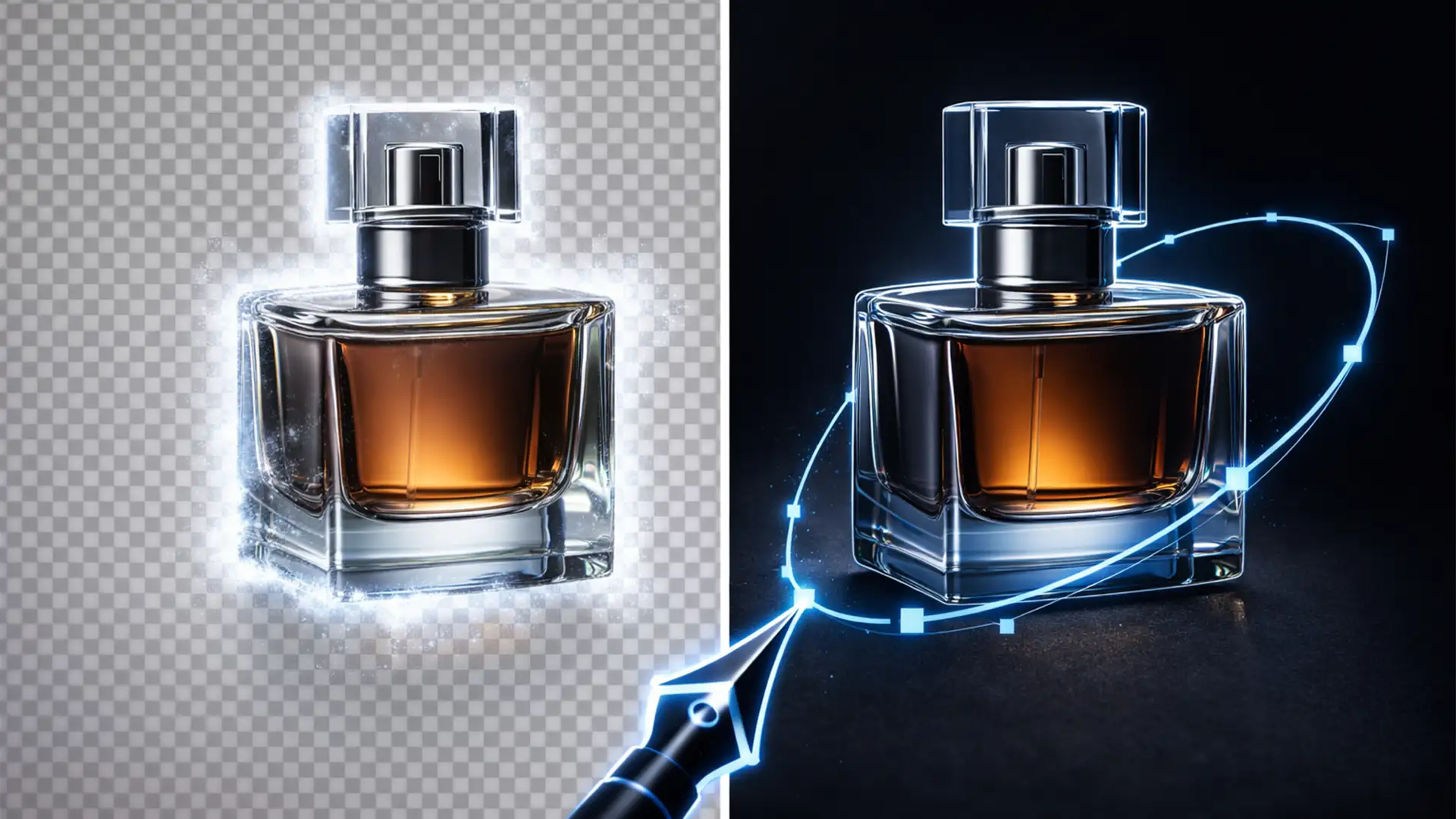

You just ran an entire batch of new product photos through the latest one-click “Remove Background” AI tool. It saved you hours—until you zoomed in Clipping. Wrapped around every reflective surface and complex contour is a sloppy, semi-transparent fringe of the original background color.
These AI halos look amateurish, and on strict e-commerce platforms like Amazon and Shopify, they actively kill your conversion rates. Customers equate image quality with product quality. If your cutouts look cheap, shoppers assume your products are too.
In the battle of the manual clipping path vs AI halos, speed rarely equals quality. Here is the technical truth behind why AI background removal fails on complex edges, and exactly how to fix it to achieve pixel-perfect, conversion-ready product imagery.
The Technical Truth: Why Do AI Halos Happen?
In recent versions of Adobe Photoshop (v24-v25+) and various AI-driven web tools, background removal relies heavily on machine learning edge detection algorithms. While incredibly fast, these algorithms consistently struggle with sub-pixel edge definition, particularly on reflective surfaces, transparent materials, and complex contours.
When generating a raster-based layer mask, the AI attempts to guess where the product ends and the background begins. This results in incorrect pixel interpolation at the boundary edge. The software leaves behind a noticeable fringe—or “halo”—of the original background color bleeding into the subject.
By contrast, a manual clipping path bypasses pixel-guessing entirely. It generates a mathematical vector boundary using Bezier curves that strictly isolates the subject. This guarantees a completely crisp, halo-free cutout compliant with stringent e-commerce standards.
How to Fix AI Halos in Photoshop (3 Methods)
If you are dealing with a batch of automated cutouts that suffer from edge bleeding, you have a few ways to salvage the images. Here are three methods, ranging from a quick automated fix to the ultimate professional standard.
Method A: The Quick Fix – The Defringe Tool
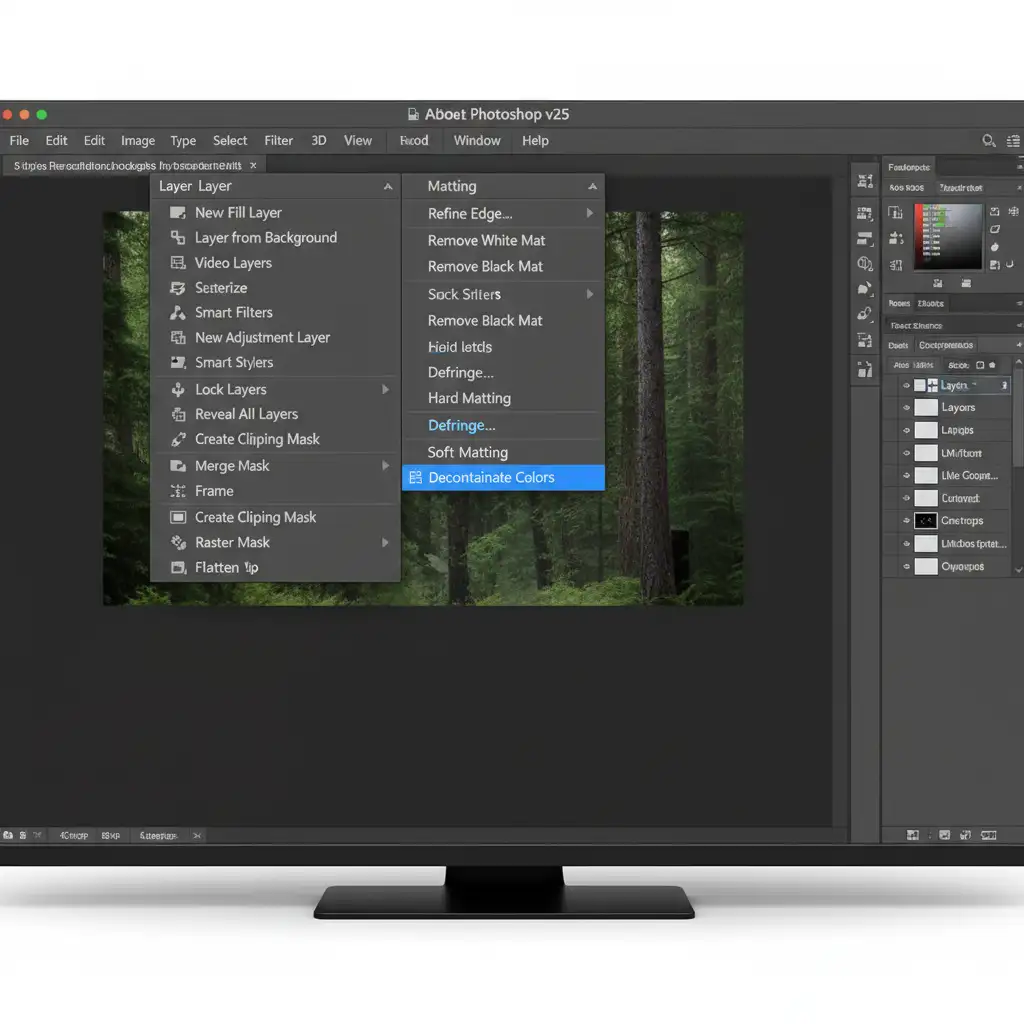
If you need to rapidly clean up a rasterized AI mask, Photoshop’s built-in Defringe tool can shave off the worst of the automated edge halos.
- Select your masked product layer in the Layers panel.
- Navigate to the top menu: Layer > Matting > Defringe.
- Enter a 1-2 pixel radius.
- Click OK to quickly strip away the AI-generated edge bleed.
Method B: The Pro Workaround – Select and Mask
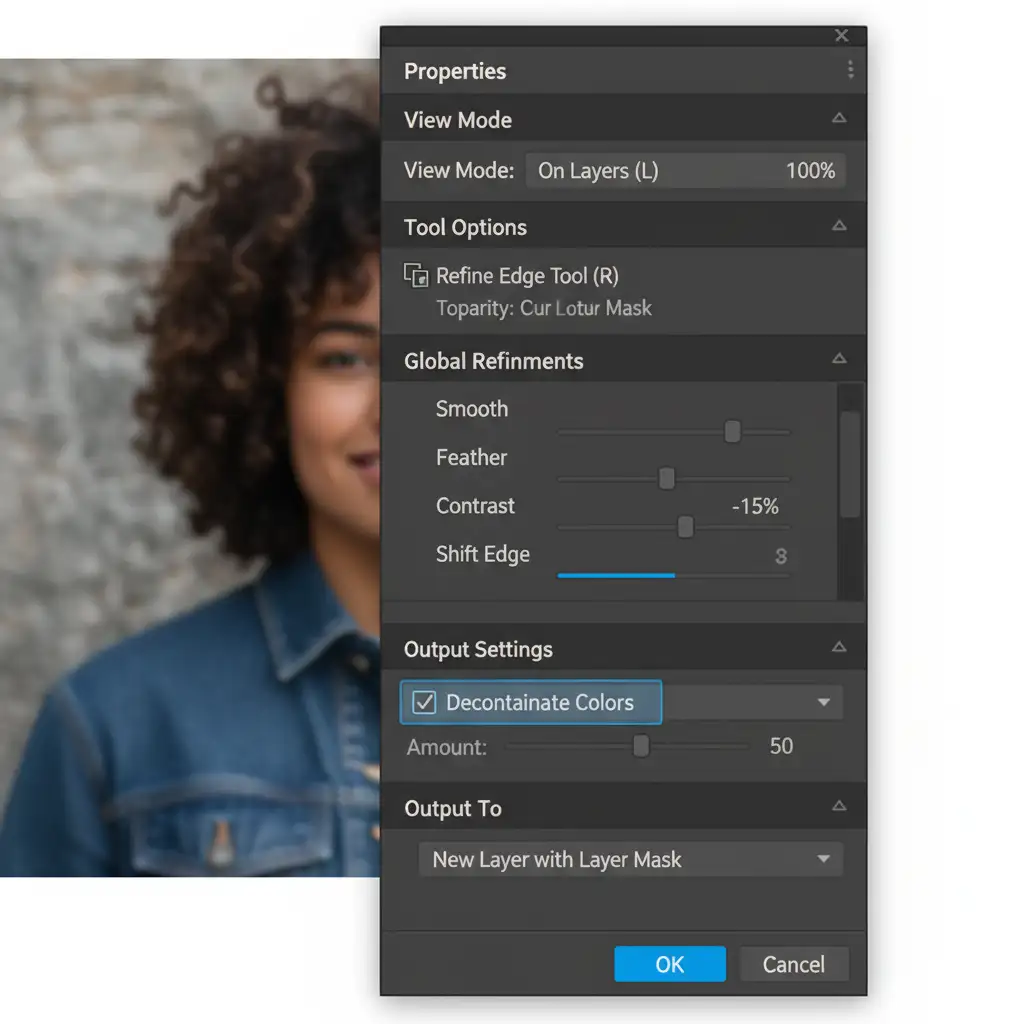
For a more controlled mathematical suppression of edge bleeding, you can refine your AI mask using the Select and Mask workspace.
- After applying an AI background removal, select the layer mask.
- Open the Select and Mask workspace (Properties panel or top toolbar).
- Scroll down to the Global Refinements and Output Settings.
- Adjust Shift Edge to a negative value (e.g., -15 percent) to pull the mask inward.
- Check the Decontaminate Colors box to mathematically suppress the remaining halo bleed.
Method C: The Technical Deep-Dive – The Manual Pen Tool Path
If you want zero background bleeding, perfect anti-aliasing, and an edge that passes the strictest quality control, you must bypass AI entirely. The manual Pen Tool path remains the gold standard for high-end retouching.
- Select the Pen Tool (P) from your toolbar.
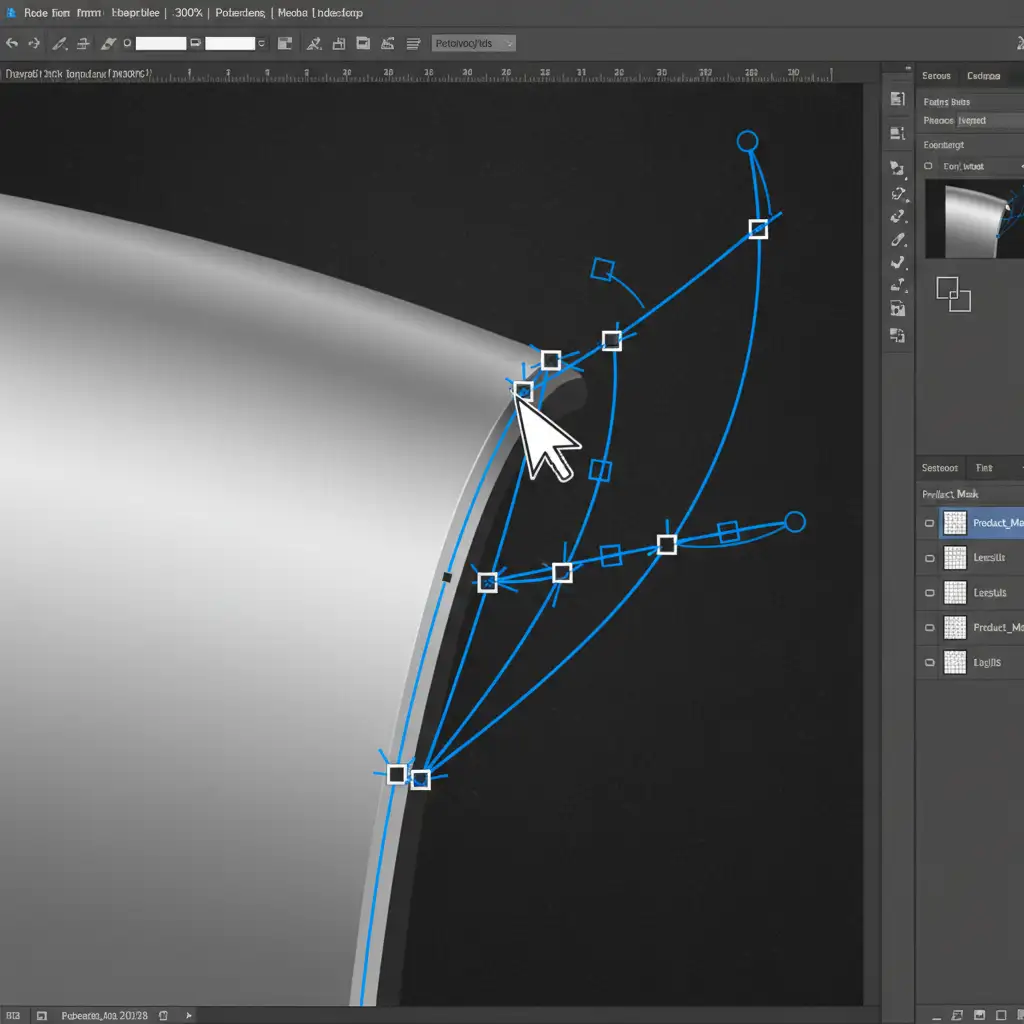
- Zoom in to 300 percent on your document to see the exact pixel boundary.
- Manually plot anchor points precisely 1-2 pixels inside the product edge.
- Drag your anchor points to create smooth, accurate Bezier curves around complex contours.
- Navigate to the Paths panel, double-click your Work Path, and save it.
- From the panel menu, select Clipping Path and set the Flatness to 0.2 device pixels.
This ensures a flawless, mathematically perfect edge without a single pixel of haloing.
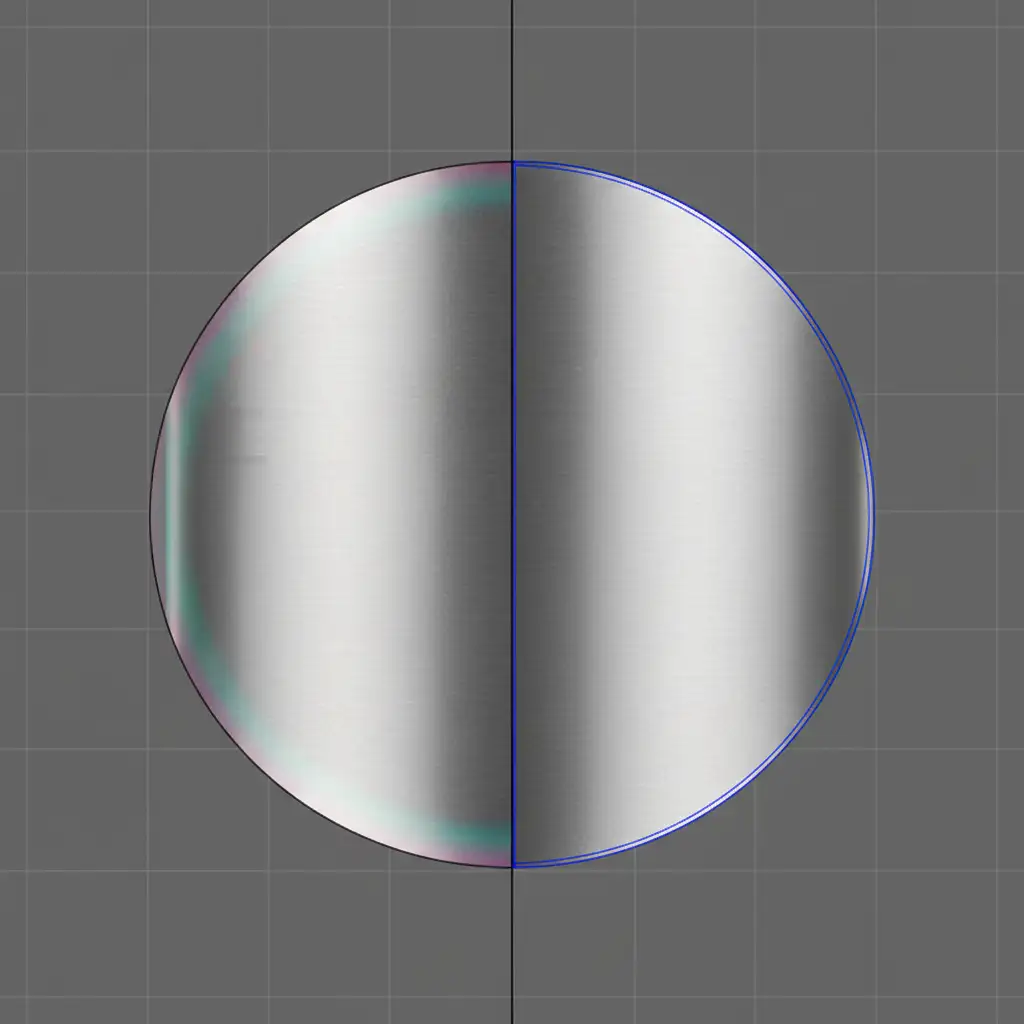
Manual Clipping Path vs AI Halos: The Final Verdict
When comparing a manual clipping path vs AI halos, the choice comes down to your brand’s reputation. Automated edge detection algorithms are improving, but they still rely on rasterizing and guessing. For transparent items, jewelry, reflective metals, and complex apparel, the Pen Tool is non-negotiable.
A hand-drawn vector path guarantees that your product stands out crisply against pure white backgrounds on Amazon, preventing the sloppy visual artifacts that cause buyers to scroll past your listing.
Scale Your Image Quality with Image Work India
Fixing AI halos one by one using the Defringe tool or Select and Mask is incredibly tedious. Drawing perfect Bezier curves yourself takes hours of dedicated technical work that you simply don’t have time for when managing an e-commerce brand.
Don’t let AI artifacts tank your conversion rates. Hire the expert retouching teams at Image Work India and Cloud Retouch. We specialize in pixel-perfect, 100% hand-drawn manual clipping paths scaled for your entire product catalog. Whether you have 50 SKUs or 50,000, our dedicated professionals ensure your images meet the strictest Amazon and Shopify standards with zero halos and perfect edges.
Contact Image Work India today for a free trial and see the difference a truly professional clipping path makes for your conversions.




