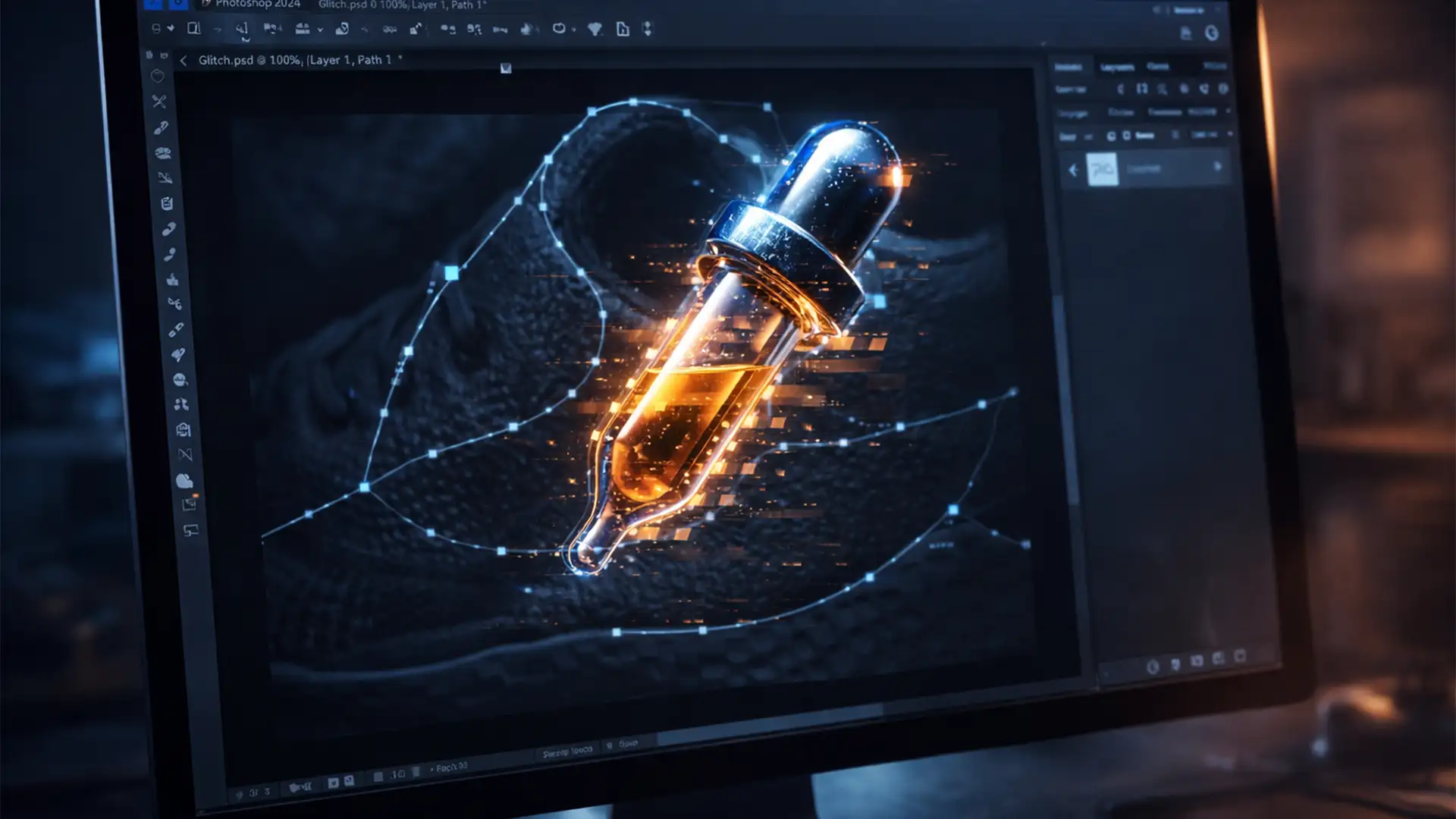

You’ve just spent ten minutes meticulously drawing a perfect bezier curve for a complex clipping path in Photoshop v25.x (2024). You hit Ctrl+Enter (or Cmd+Return on Mac) to load the selection, fully expecting to see those familiar marching ants. Instead? A complete UI freeze. Your cursor is suddenly trapped as the Eyedropper tool, and your workflow grinds to an absolute halt.
If you are dealing with the frustrating Photoshop 2024 selection from path eyedropper bug, you are not alone. This eyedropper tool stuck issue is a known rendering conflict tied to Adobe’s updated display engines. Fortunately, there are three proven ways to bypass this glitch and get back to your retouching work.
Here is the definitive guide to fixing the path selection bug in Photoshop 2024.
Why Does the Photoshop 2024 Eyedropper Bug Happen?
When you attempt to convert a path to a selection using keyboard shortcuts, Photoshop relies on its display engine to transition the vector UI into a rasterized selection border. In Photoshop v25.x, Adobe introduced updates to its Native Canvas rendering engine and GPU acceleration protocols.
Unfortunately, for many users, these updates clash with system graphics drivers. Instead of executing the command, the software experiences a UI freeze, defaulting the cursor to the Eyedropper tool and locking out other tools like the vector mask or brush.
How to Fix the “Eyedropper Tool Stuck” Issue
Depending on how deeply this bug affects your system, you can use a quick workflow bypass or dive into the software preferences to disable the conflicting rendering engines.
Method 1: The Quick Workflow Bypass (No Restart Required)
If you are in the middle of a tight deadline and cannot restart Photoshop, you can break the Eyedropper loop using two different methods.
The Keyboard Escape: Immediately tap the Esc key, followed by the V key (Move Tool shortcut). This interrupts the eyedropper tool stuck state and forces the UI to refresh.
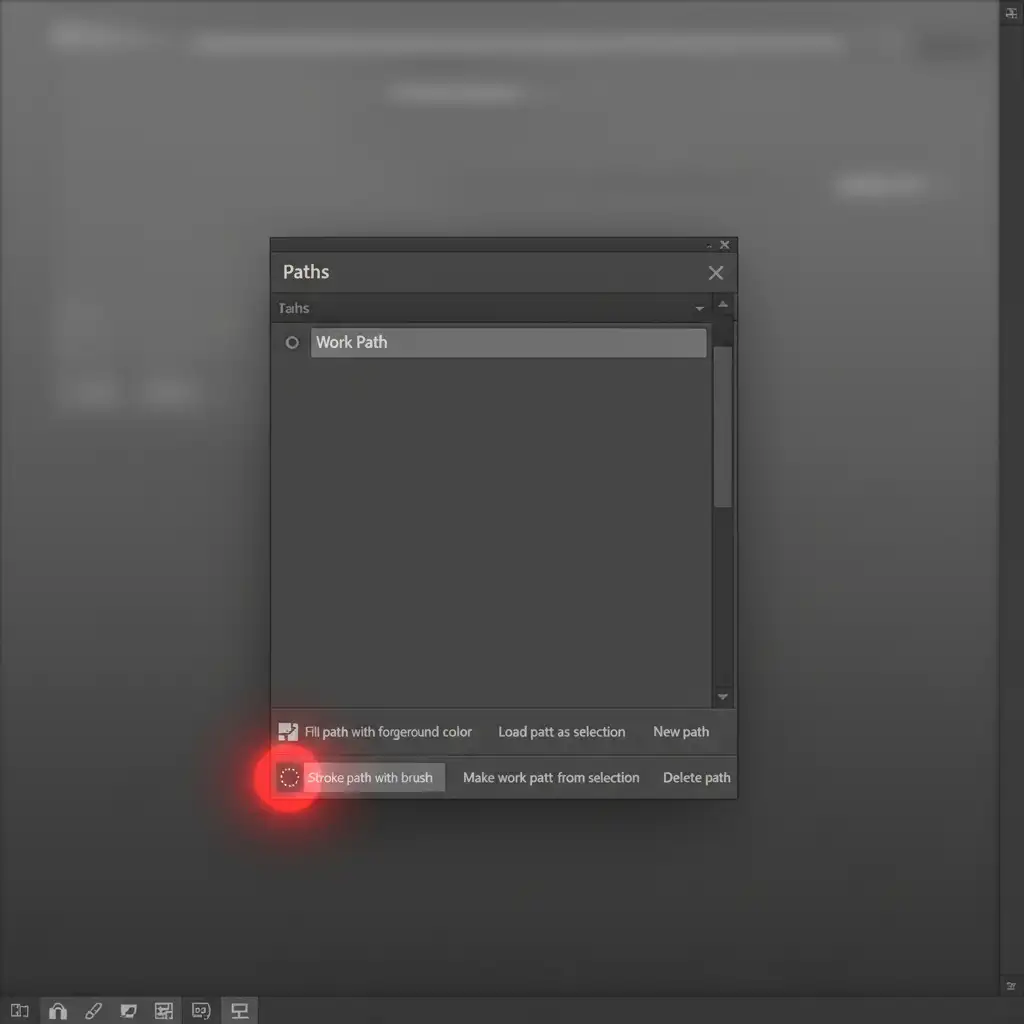
The Paths Panel Alternative: Instead of using Ctrl+Enter to load your selection, use the built-in UI buttons.
- Open your Paths panel.
- Select your active Work Path or saved path.
- Click the “Load path as a selection” icon (the dotted-circle) located at the bottom of the panel.
Method 2: Deactivate Native Canvas (The Pro Workaround)
If you want to use your keyboard shortcuts without the UI freezing, you need to disable the new rendering engine causing the conflict.
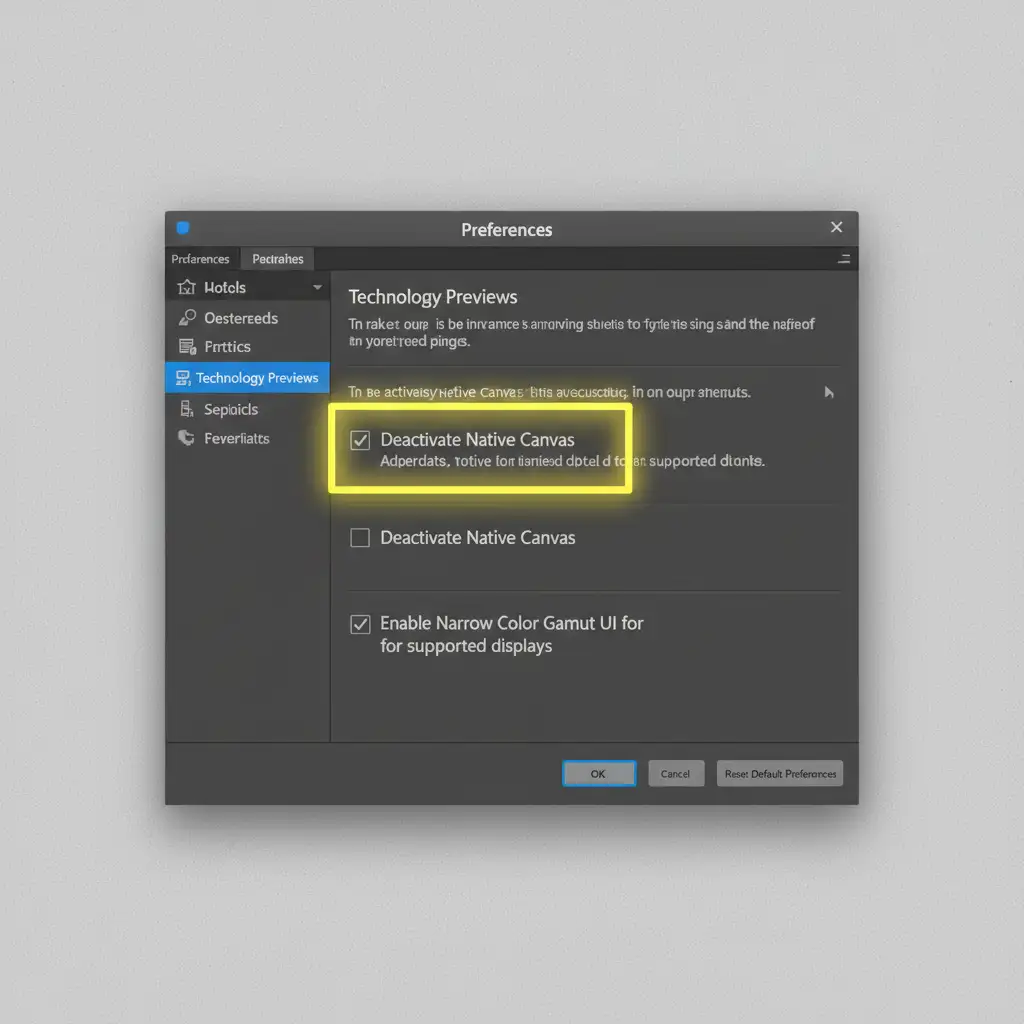
- Navigate to Edit > Preferences > Technology Previews (Windows) or Photoshop > Settings > Technology Previews (Mac).
- Look for the checkbox labeled Deactivate Native Canvas.
- Check the box to enable the deactivation.
- Click OK and restart Photoshop.
By deactivating the native canvas, you force Photoshop to use its older, stable legacy rendering engine, which prevents the shortcut bug from triggering.
Method 3: Disable GPU Compositing & Update Drivers
If the bug persists even after disabling Native Canvas, the root cause is likely a deeper conflict with your GPU acceleration and compositing settings.
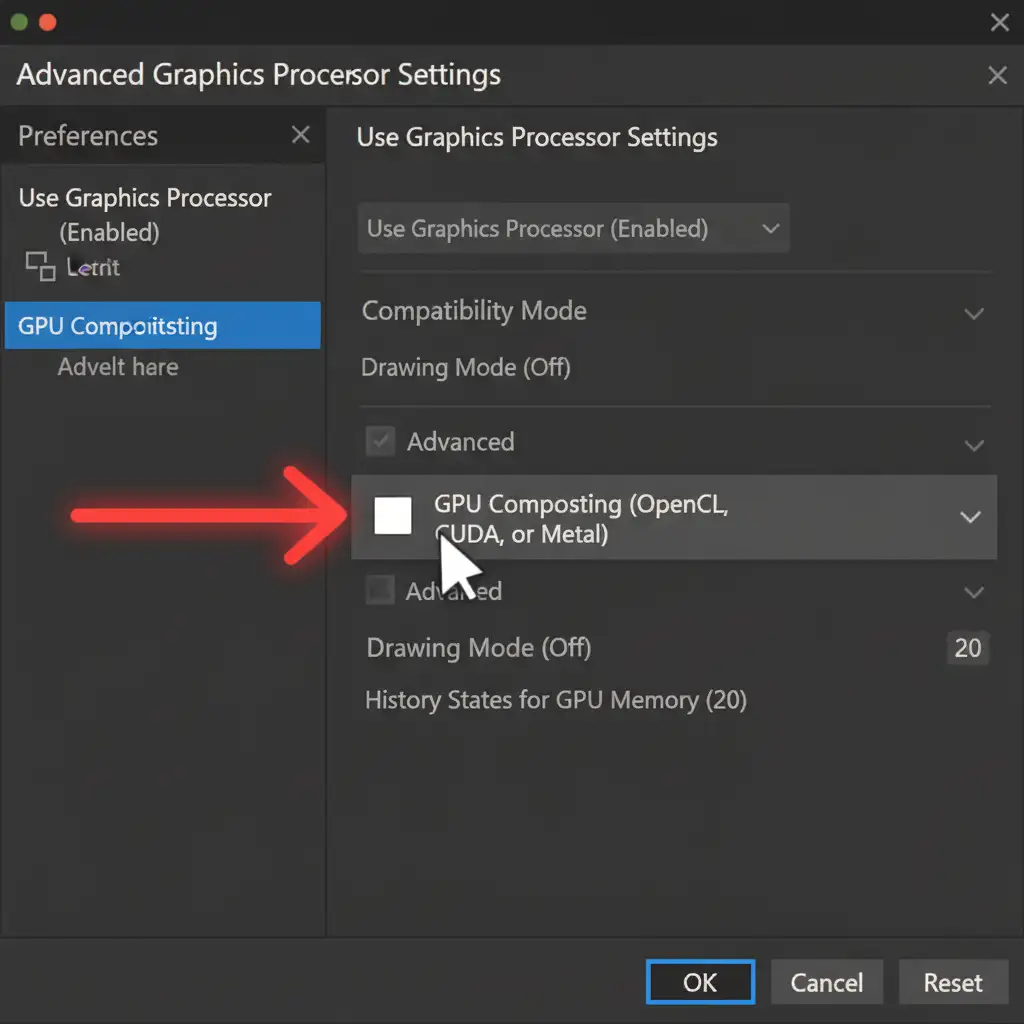
- Go to Edit > Preferences > Performance (or Photoshop > Settings > Performance on Mac).
- Under the Graphics Processor Settings section, click the Advanced Settings button.
- Uncheck the box for GPU Compositing.
- Click OK and restart the application.
Pro Tip: To ensure long-term stability, always keep your graphics drivers updated. If you are using an NVIDIA card, switch from the “Game Ready” drivers to the “Studio” drivers, which are specifically optimized for creative applications like Photoshop. Finally, clear your Photoshop cache (Edit > Purge > All) to remove any corrupted temporary files.
Scale Your Retouching Workflow Without the Headaches
Software bugs like the Photoshop 2024 selection from path eyedropper bug are incredibly frustrating when you are trying to meet strict client deadlines. Troubleshooting UI freezes and graphics conflicts eats into the time you should be spending on creative direction and business growth.
Don’t let software bugs ruin your delivery times. If you are tired of wrestling with clipping paths, complex vector masks, and tedious software glitches, let the experts handle it.
Hire the professional retouching teams at Image Work India and Cloud Retouch. We specialize in flawless, hand-drawn clipping paths, bulk masking, and high-end photo retouching with zero downtime and fast turnarounds. Focus on growing your business, and let us handle the pixels. Contact us today to streamline your post-production workflow!




