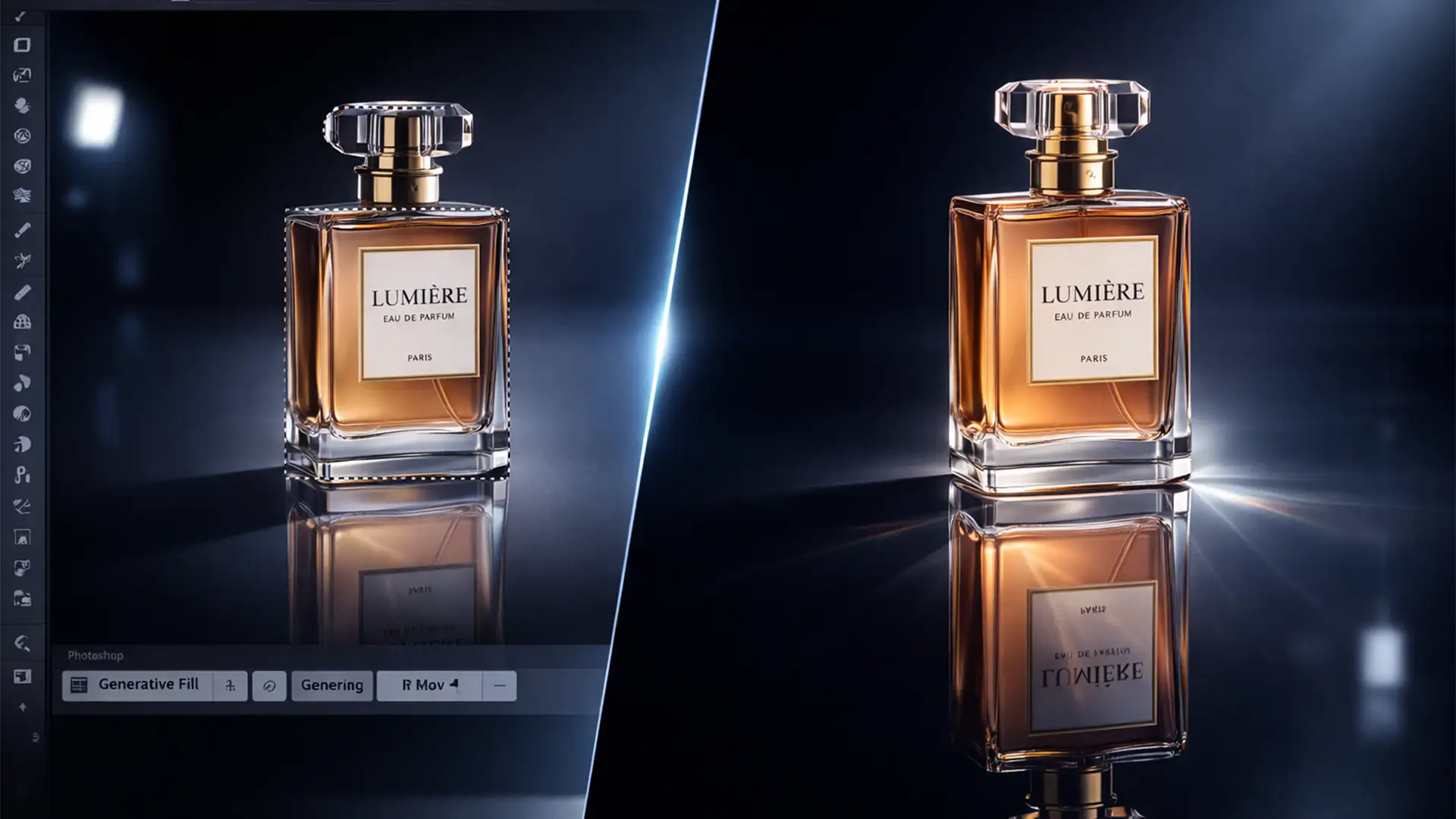

You’ve carefully isolated your product, fired up Generative Fill, and typed “create reflection.” But instead of a pristine, perspective-matched mirror surface, Photoshop generates a random hallucinated object, a warped shadow, or broken physics that look nothing like your subject.
If you are struggling with this, you aren’t alone. Creating accurate reflections is one of the most common friction points for designers using Adobe Photoshop v25.0+ and its latest beta builds. The AI doesn’t just need to know what you want; it needs the geometric context of the original object to map it correctly.
In this guide, we are breaking down the exact mirror surface reflection prompts Photoshop professionals use, alongside the technical selection overlaps required to force the Firefly Image 2 Model to render physically accurate results every time.
Why Generative Fill Fails at Reflections
When Generative Fill hallucinates, it is usually because of a lack of overlapping context. If you draw a selection box purely below your subject, the AI has no source pixels to reference. It treats the blank space as an isolated canvas, guessing what should be there based on vague text inputs.
To fix this, we need a combination of precise prompt engineering, correct selection techniques, and occasionally, a hybrid manual approach.
Method 1: The Best Mirror Surface Reflection Prompts in Photoshop
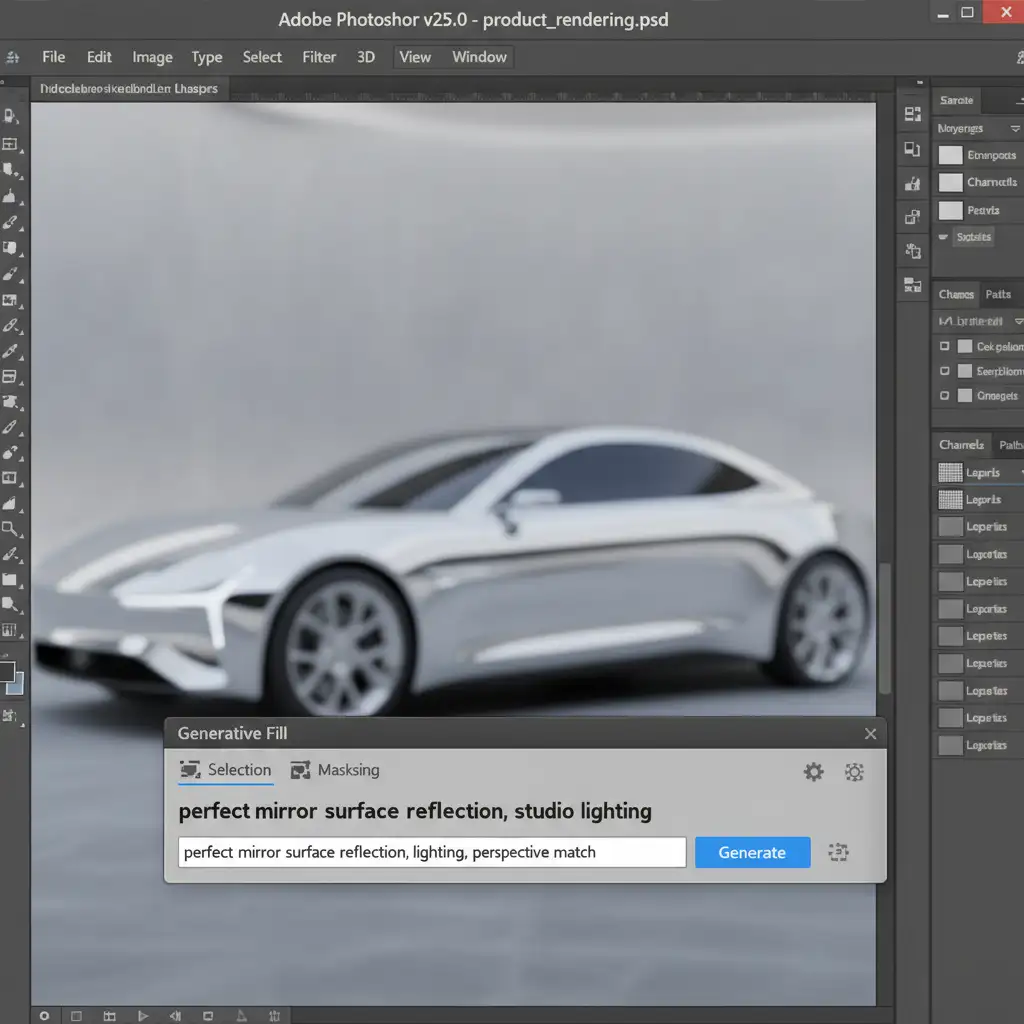
Stop using generic prompts like “make a reflection” or “add water.” The Firefly Image 2 Model responds best to highly descriptive, directional phrasing that dictates lighting, surface texture, and perspective.
Here are the most effective prompts to use in your Contextual Task Bar:
- For Studio Product Photography: “Perfect mirror surface reflection, studio lighting, perspective match.”
- For Outdoor/Natural Scenes: “Calm water reflection, photorealistic, subtle ripples.”
- The “Blank” Hack: Interestingly, leaving the prompt completely blank often yields better, more contextual reflections than typing vague words. A blank prompt forces the AI to rely entirely on the surrounding pixels rather than trying to interpret a poorly phrased command.
Method 2: The “15 to 20 Percent Overlap” Rule
Even the best mirror surface reflection prompts in Photoshop will fail if your selection is wrong. The AI requires source data.
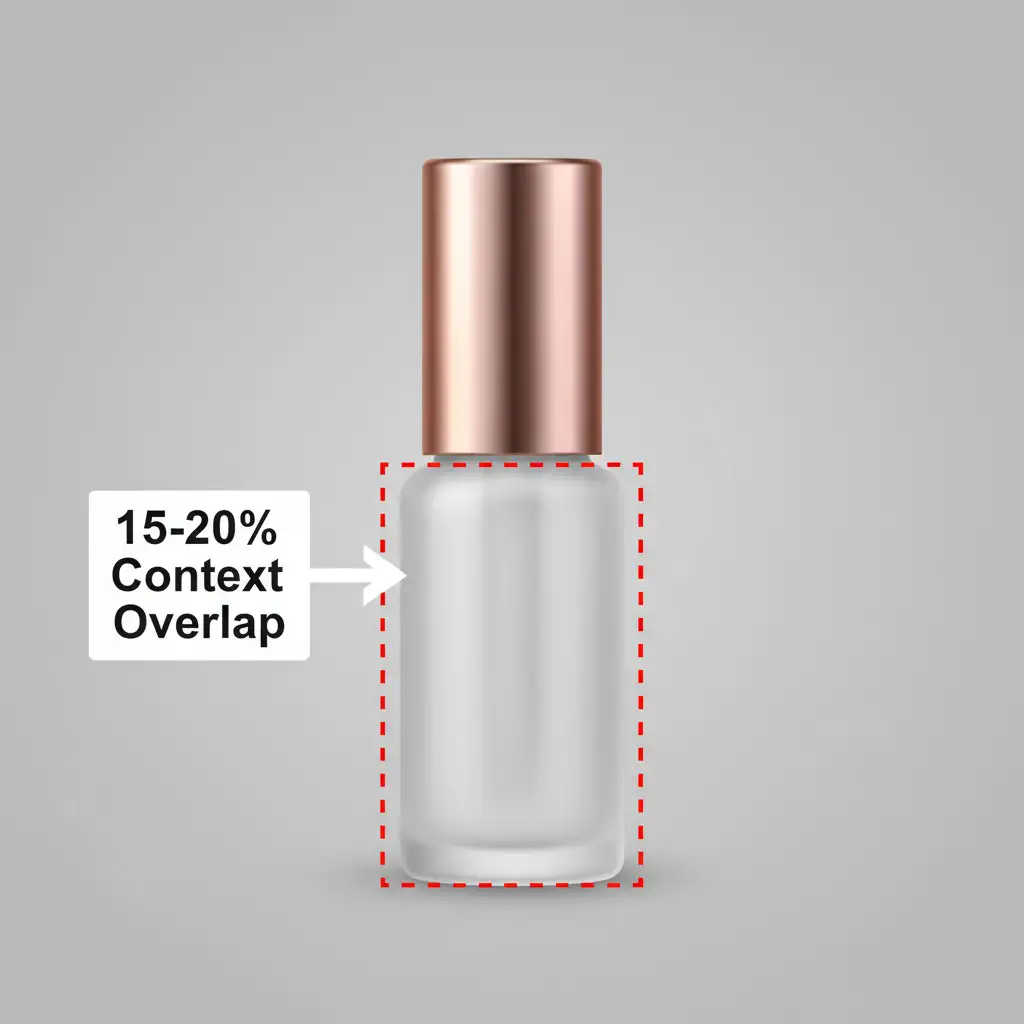
Instead of drawing your selection directly under the object, grab the Rectangular Marquee Tool. Draw your selection box so that it overlaps the bottom 15% to 20% of the actual object’s base. This forces the AI to read the original product’s pixels and map them downward into the generated reflection area.
Step-by-Step Execution:
- Select the Rectangular Marquee Tool (M).
- Drag a box starting slightly above the base of your subject (overlapping 15-20%).
- Extend the box downward to cover the area where the reflection should appear.
- Apply your highly specific Generative Fill prompt.
Method 3: The Pro Workaround – The Hybrid “Flip and Fill”
When AI alone isn’t cutting it-or if you are working on a massive eCommerce batch where you can’t afford to regenerate prompts-the most reliable method is the Hybrid Flip and Fill. This technique guarantees a 100% accurate perspective while using AI only for the blending.
How to Execute the Hybrid Flip:
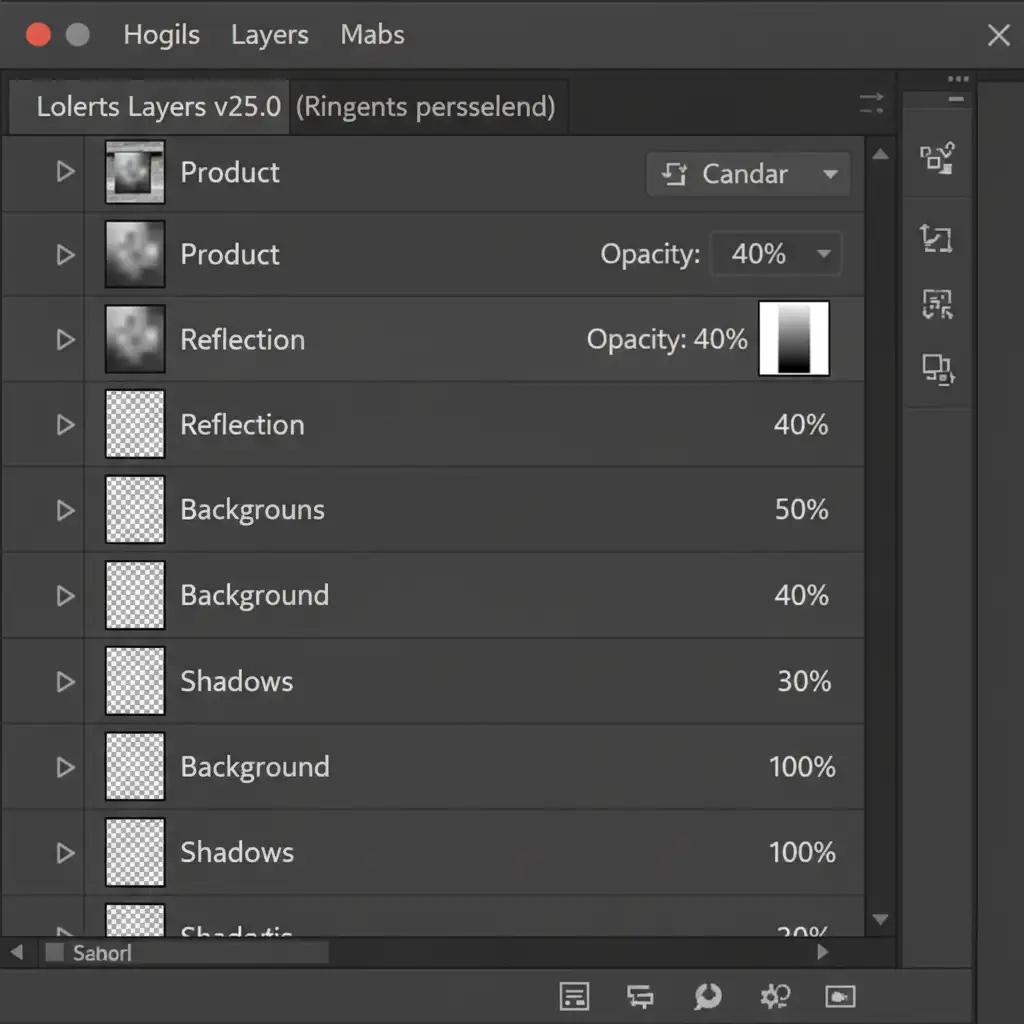
- Duplicate and Flip: Select your isolated subject layer. Press Ctrl+J (Windows) or Cmd+J (Mac) to duplicate it. Press Ctrl+T to transform, right-click, and select Flip Vertical.
- Align and Adjust: Drag the flipped layer down so it perfectly aligns with the base of your original subject. If the perspective is slightly off, use Perspective Warp to snap the base lines together.
- Set Opacity: Lower the flipped layer’s Opacity to 40 percent in the Layers panel. You can also experiment with different Blend Modes (like Screen or Soft Light) depending on your background.
- AI Blending (Optional): Add a Layer Mask to the flipped layer. Use a soft black brush to fade the bottom of the reflection. For water effects, select the mask edges and use Generative Fill with the prompt “subtle water ripples” to blend the harsh edges realistically. (Ensure your layer is set to Rasterize before applying destructive edits if you aren’t using smart objects).
Note: This manual method is incredibly fast once you build muscle memory, and it utilizes hardware GPU Acceleration smoothly without waiting for cloud-based AI generation times.
Stop Fighting the AI-Let the Experts Handle It
Mastering mirror surface reflection prompts in Photoshop requires a deep understanding of AI contextual mapping, precise masking, and prompt engineering. While these techniques will drastically improve your output, applying them perfectly across hundreds or thousands of product images is a massive drain on your time and resources.
If you are struggling with inconsistent AI reflections, broken shadows, or slow workflows for your eCommerce catalog, let the professionals take over.
At Image Work India and Cloud Retouch, we specialize in pixel-perfect, highly scalable photo editing services. Whether you need flawless mirror reflections, complex drop shadows, or bulk background removal, our expert retouching teams deliver flawless, natural-looking results at scale.
Don’t let bad reflections ruin your product presentation. [Contact Image Work India today] or explore our specialized services at [Cloud Retouch] to get a free trial on your next batch of images!




