
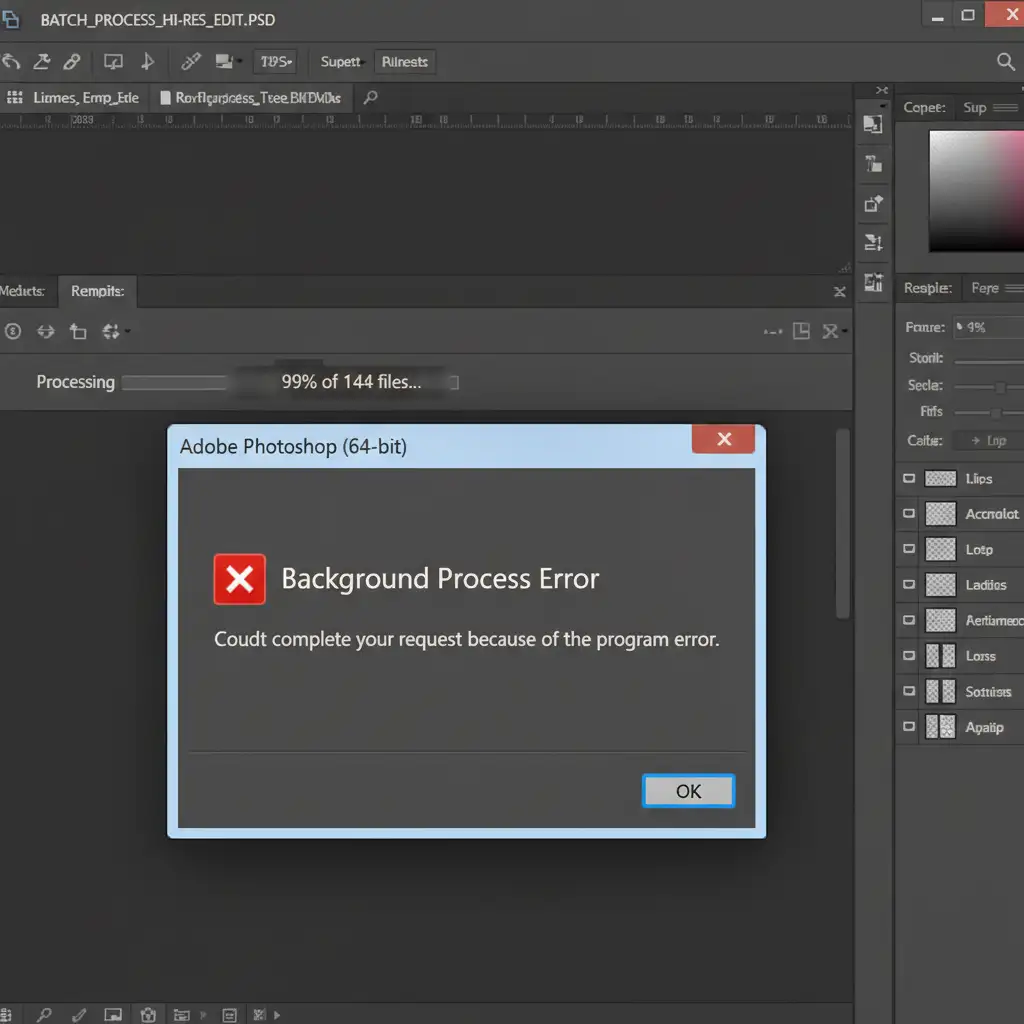
There is nothing more frustrating than watching your screen freeze while exporting a massive folder of product images. You set up your files, hit run, and walk away—only to return and find that Photoshop 2026 has hung at 99 percent. A stubborn ‘Background Process Error’ popup is blocking your screen, your system is suffering from a massive memory leak, and your ecommerce workflow has ground to a halt.
If you are dealing with the Photoshop 2026 batch process background error fix, you are not alone. This specific glitch in version 27.x is a known conflict between Adobe’s new AI-driven background rendering and legacy system files.
Here is exactly how to fix the memory leak, bypass the freezing, and get your production schedule back on track.
Why Does Photoshop 2026 Freeze During Batch Processing?
Photoshop 2026 (v27.x) introduced highly advanced AI-driven background rendering and batch processing algorithms. While these features are designed to speed up exports, they occasionally collide with legacy Windows MSVC++ redistributable files or corrupted local preferences.
When you run large, high-resolution exports—especially through the default Image Processor script—this collision triggers a memory leak. The software fails to release RAM allocation, causing the application to hang indefinitely and eventually throw the dreaded ‘Background Process Error’.
How to Fix the Photoshop 2026 Batch Process Background Error
Depending on the severity of the memory management conflict on your machine, one of these three methods will resolve the issue.
Method 1: The Quick Fix – Resetting Photoshop Preferences
Corrupted local preference files are the most common culprit behind unexpected software freezes. Forcing a hard reset of your Photoshop preferences clears out temporary conflicting data that disrupts background rendering.
- Close Photoshop 2026 completely.
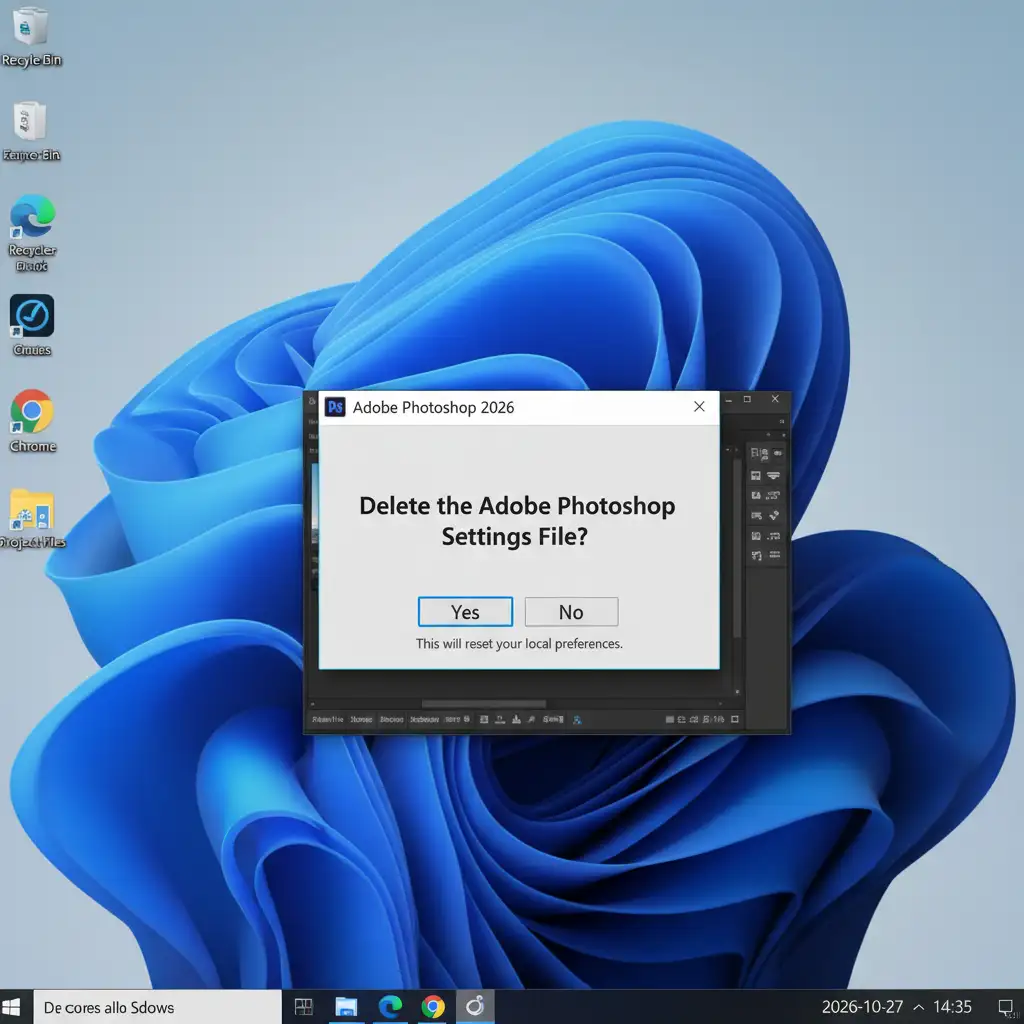
- Press and hold Ctrl+Alt+Shift (Windows) or Cmd+Opt+Shift (Mac) immediately while clicking to open the application.
- A prompt will appear asking if you want to delete the Adobe Photoshop settings file.
- Click Yes.
Method 2: The Pro Workaround – Bypassing Image Processor with Automate Batch
If the default File > Scripts > Image Processor continues to hang, you can bypass the script entirely. By recording custom action scripts and running them through the Automate menu, you force Photoshop to handle file saving differently, avoiding the background error.
- Open a sample image and open your Actions panel (Window > Actions).
- Create a new Action and record yourself going to File > Save a Copy (choose your desired JPEG/TIFF settings), then close the image. Stop recording.
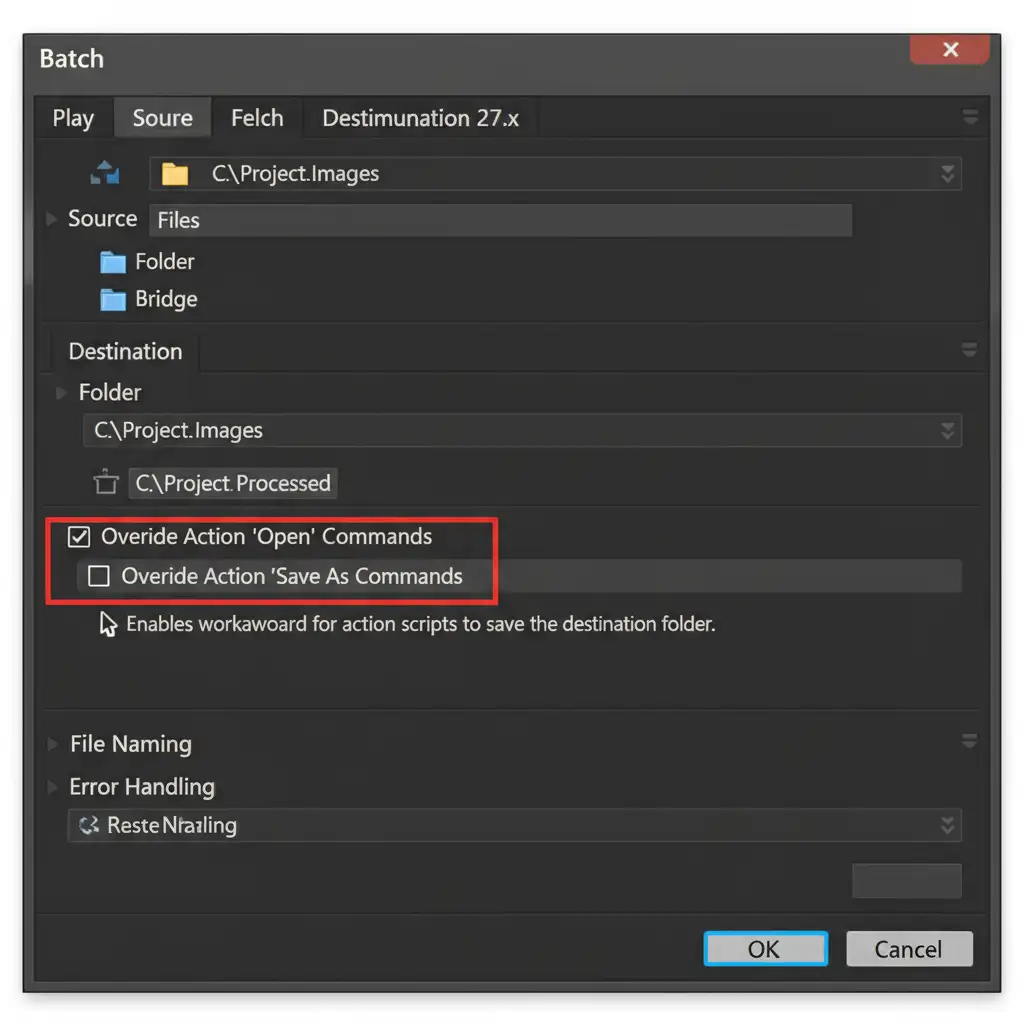
- Navigate to File > Automate > Batch.
- Select your newly created Action from the dropdown.
- Choose your Source folder and Destination folder.
- Crucial Step: Check the box that says Override Action “Save As” Commands. This prevents the software from pausing to ask for a file name on every single image.
Method 3: The Technical Deep-Dive – MSVC++ and Performance Tweaks
If you are still experiencing crashes, the issue lies in how Photoshop communicates with your operating system’s memory and graphics card. Outdated Microsoft Visual C++ files and aggressive GPU acceleration will bottleneck your system.
- Update Windows Redistributables: Download and install the latest Microsoft Visual C++ Redistributable (x64) directly from the official Microsoft website. Restart your computer.
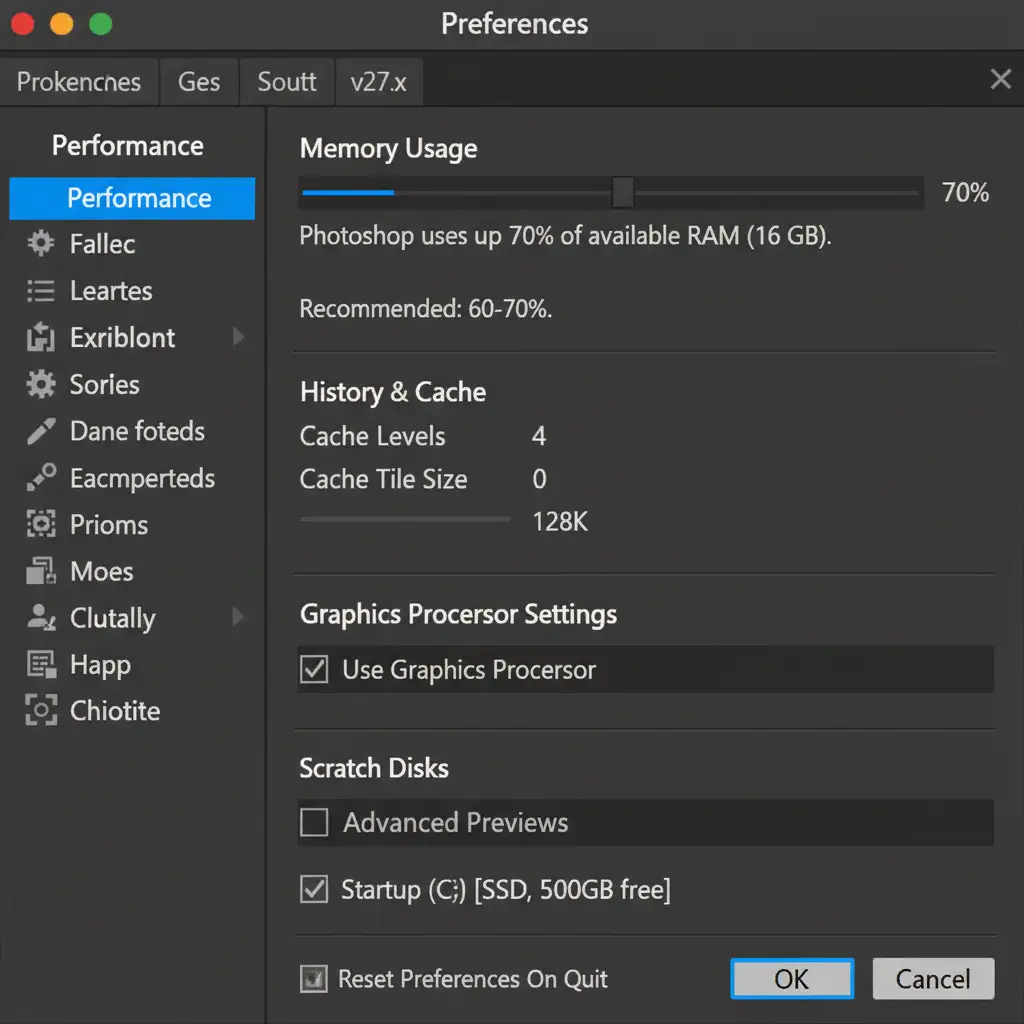
- Adjust RAM Allocation: Open Photoshop and navigate to Edit > Preferences > Performance. Reduce your Memory Usage slider to 70 percent. Leaving 30% for your OS prevents the memory leak from crashing your entire computer.
- Disable GPU Acceleration: In the same Performance panel, temporarily uncheck Use Graphics Processor. This isolates any conflicts between your graphics card drivers and the v27.x background rendering engine.
Stop Fighting Software, Start Scaling Your Business
Troubleshooting the Photoshop 2026 batch process background error fix can save your current project, but managing massive volumes of product photos is always a drain on your internal resources.
Don’t let software glitches, memory leaks, and tedious batch processing slow down your seasonal product launches. If you want to eliminate these bottlenecks entirely, it is time to outsource the heavy lifting.
Image Work India and Cloud Retouch provide flawless, high-volume ecommerce image processing for global brands. Our professional retouching team handles everything from complex clipping paths to flawless color correction—delivered on time, every time, without you ever having to look at a crash report.
Contact us today to streamline your ecommerce workflow and let the experts handle your image retouching at scale!




