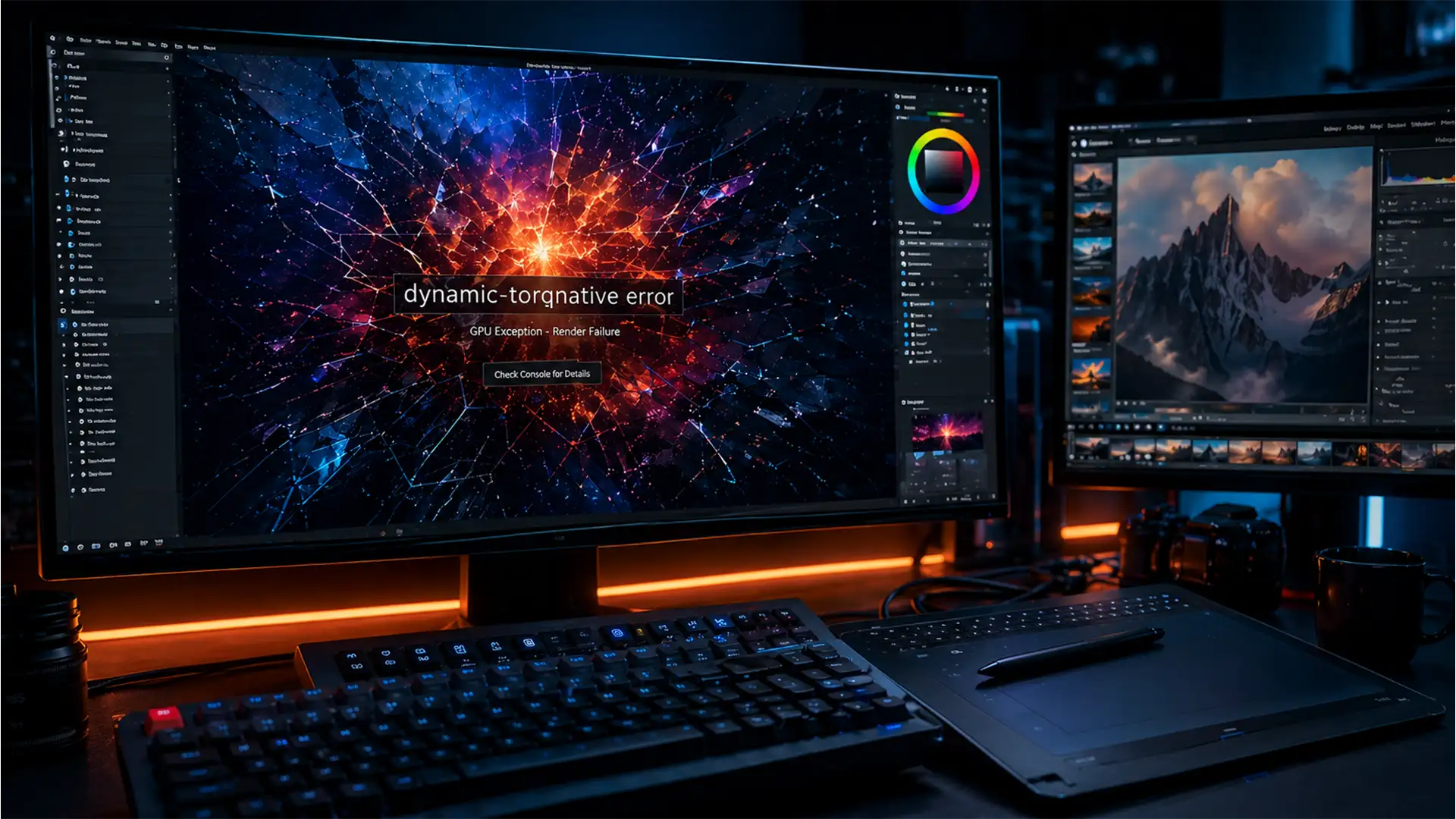

You are hours deep into a complex composite, you hit the generative AI prompt, and suddenly-your screen freezes. The application closes without warning. If you are experiencing this exact scenario, you are likely dealing with the notorious rendering engine failure in Adobe’s latest update. Finding a reliable Photoshop 2026 dynamic-torqnative crash fix has become the top priority for professional retouchers and digital artists over the last few weeks.
This specific crash halts productivity, especially when deadlines are looming. Fortunately, resolving this issue doesn’t require rolling back to an older version of the software. In this guide, we will break down exactly why this VRAM allocation failure is happening and provide three permanent solutions to stabilize your workflow.
Why is the dynamic-torqnative Error Happening in Photoshop v27.x?
The dynamic-torqnative error primarily targets systems equipped with dedicated GPUs when they are pushed to their limits during heavy AI processing or 3D rendering tasks.
At its core, this is a software-hardware communication failure. The issue stems from a direct conflict between Adobe’s new dynamic torque rendering engine and outdated VRAM allocation protocols. Whether you are operating on macOS using the Metal framework or on a Windows machine utilizing DirectX 12, the GPU acceleration pipeline gets bottlenecked. When Photoshop requests more VRAM than the OS protocol can smoothly allocate for real-time previewing, the dynamic-torqnative pipeline collapses, resulting in an immediate crash to the desktop.
3 Proven Methods for Your Photoshop 2026 dynamic-torqnative Crash Fix
Depending on your system setup and technical comfort level, one of these three methods will restore stability to your application.
Method 1: The Quick Fix – Disable Native Canvas Acceleration
The fastest way to bypass the dynamic-torqnative error is to stop Photoshop from using the specific rendering pathway that causes the crash.
- Open Photoshop 2026.
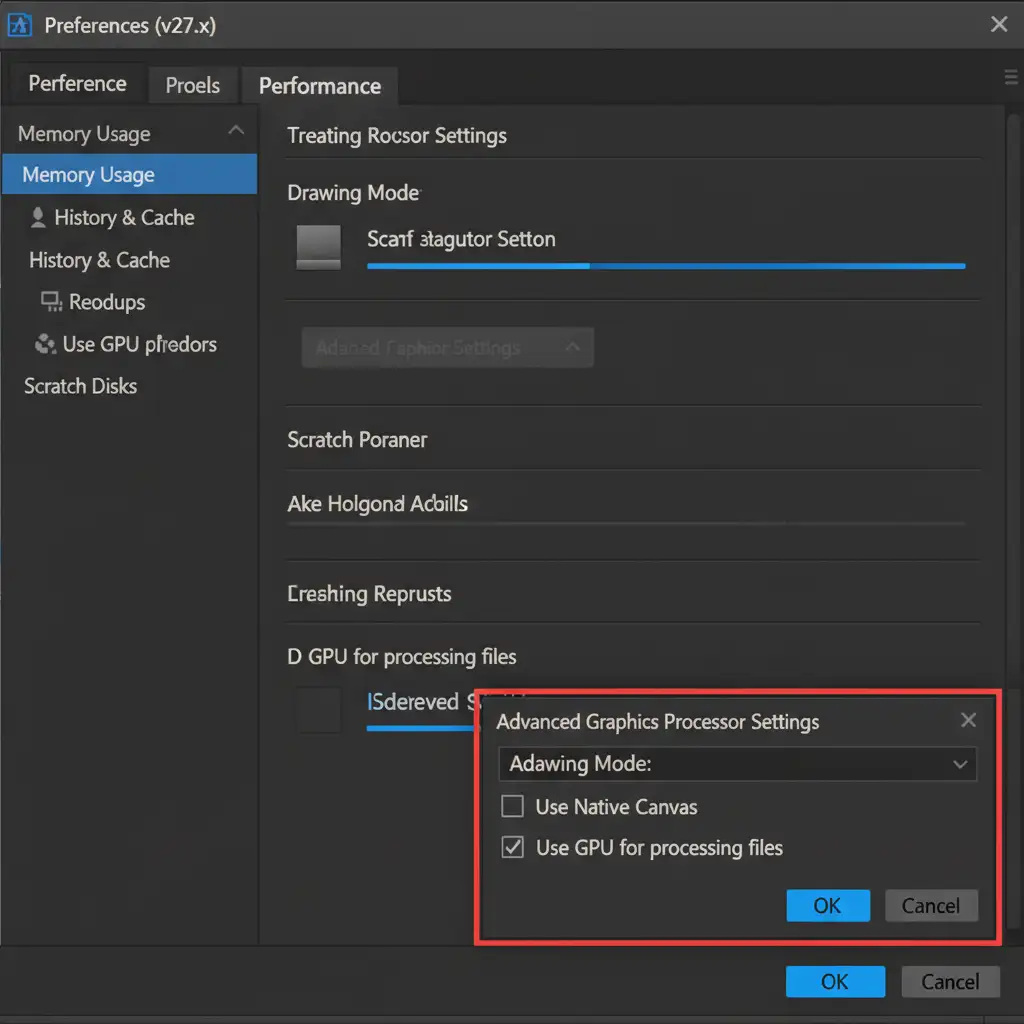
- Navigate to Edit > Preferences > Performance (Windows) or Photoshop > Settings > Performance (Mac).
- In the Graphics Processor Settings box, click on Advanced Settings.
- Locate and uncheck the Use Native Canvas option.
- Click OK and restart Photoshop.
Method 2: The Pro Workaround – Isolate Layers with Smart Objects
If you need to keep Native Canvas enabled for other features but want to avoid crashes during heavy processing, you must alter how Photoshop handles real-time rendering.
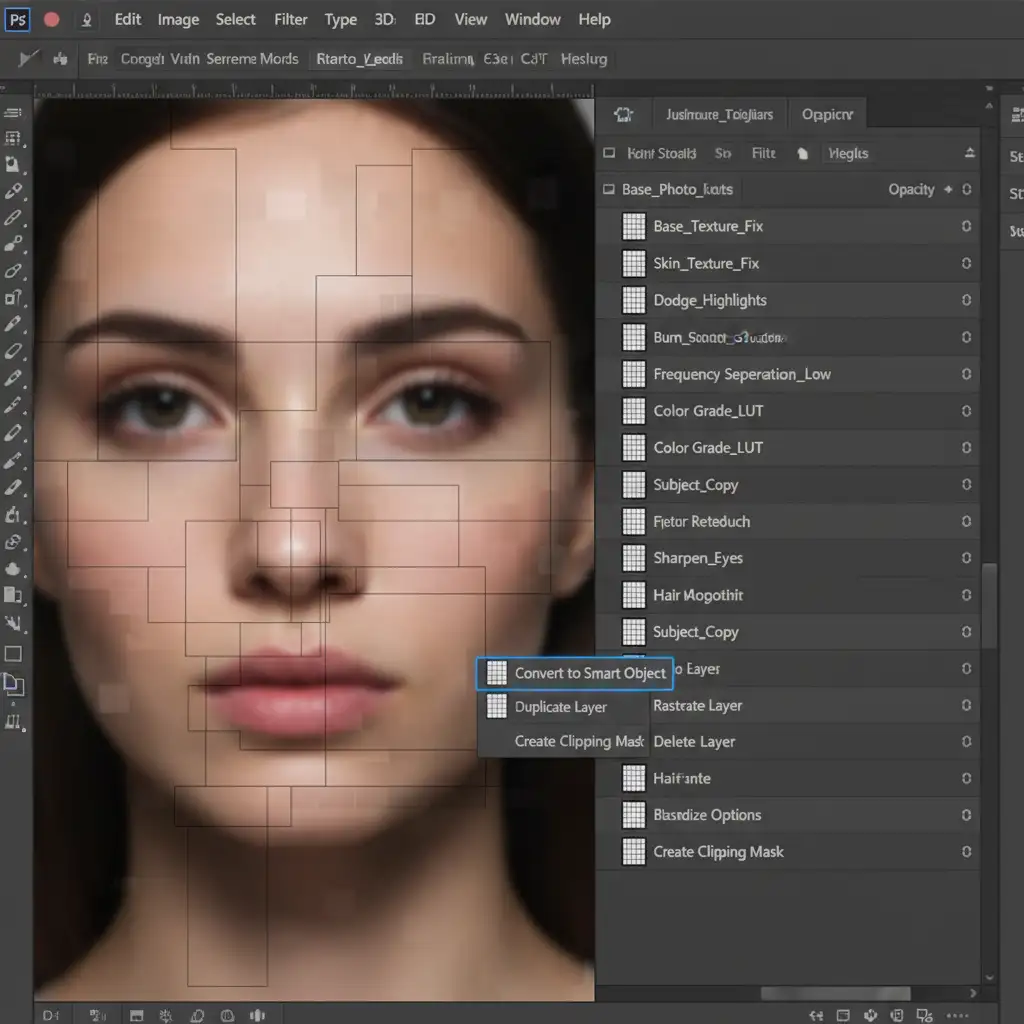
Instead of forcing the dynamic-torqnative pipeline to render dozens of heavy AI or high-resolution layers simultaneously, isolate them. Convert your most demanding layers into Smart Objects. When you need to render or export these specific assets, use the Export As function rather than relying on real-time canvas previewing. This forces the software to process the data outside the unstable rendering engine.
Method 3: The Technical Deep-Dive – Flush GPU Cache & Optimize VRAM
For high-end setups that require maximum performance, masking the issue isn’t enough. You need to optimize how your system handles VRAM allocation at a foundational level.
Step A: Flush the GPU Cache on Startup
Corrupted cache files frequently trigger DirectX 12 and Metal framework conflicts.
- Close Photoshop completely.
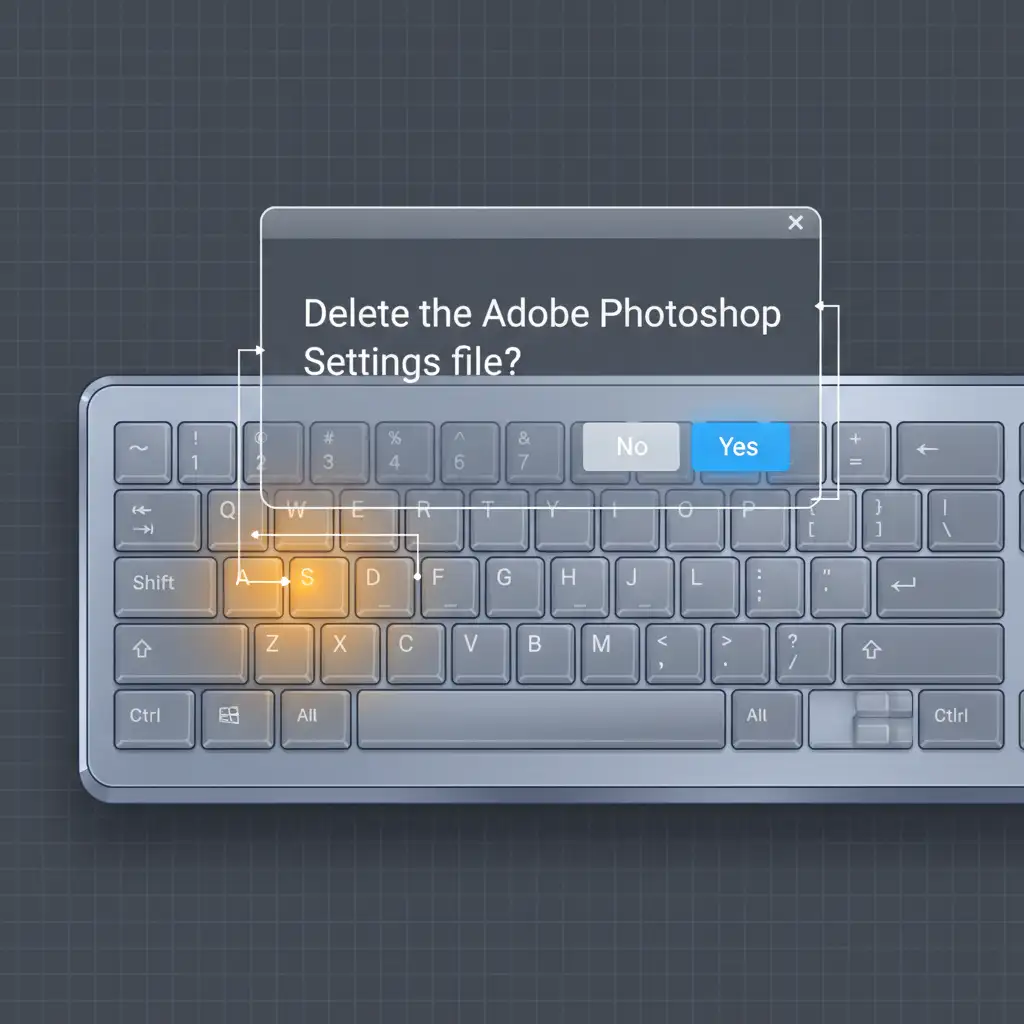
- Hold down Shift + Ctrl + Alt (Windows) or Shift + Cmd + Opt (Mac).
- While holding the keys, launch Photoshop.
- A prompt will appear asking if you want to delete the Adobe Photoshop Settings file. Click Yes.
Step B: Increase Memory Limits and Update Drivers
Next, give the rendering engine the headroom it needs:
- Go back to Preferences > Performance.
- Under Memory Usage, increase the limit to 85 percent.
- Exit Photoshop and open your GPU management software.
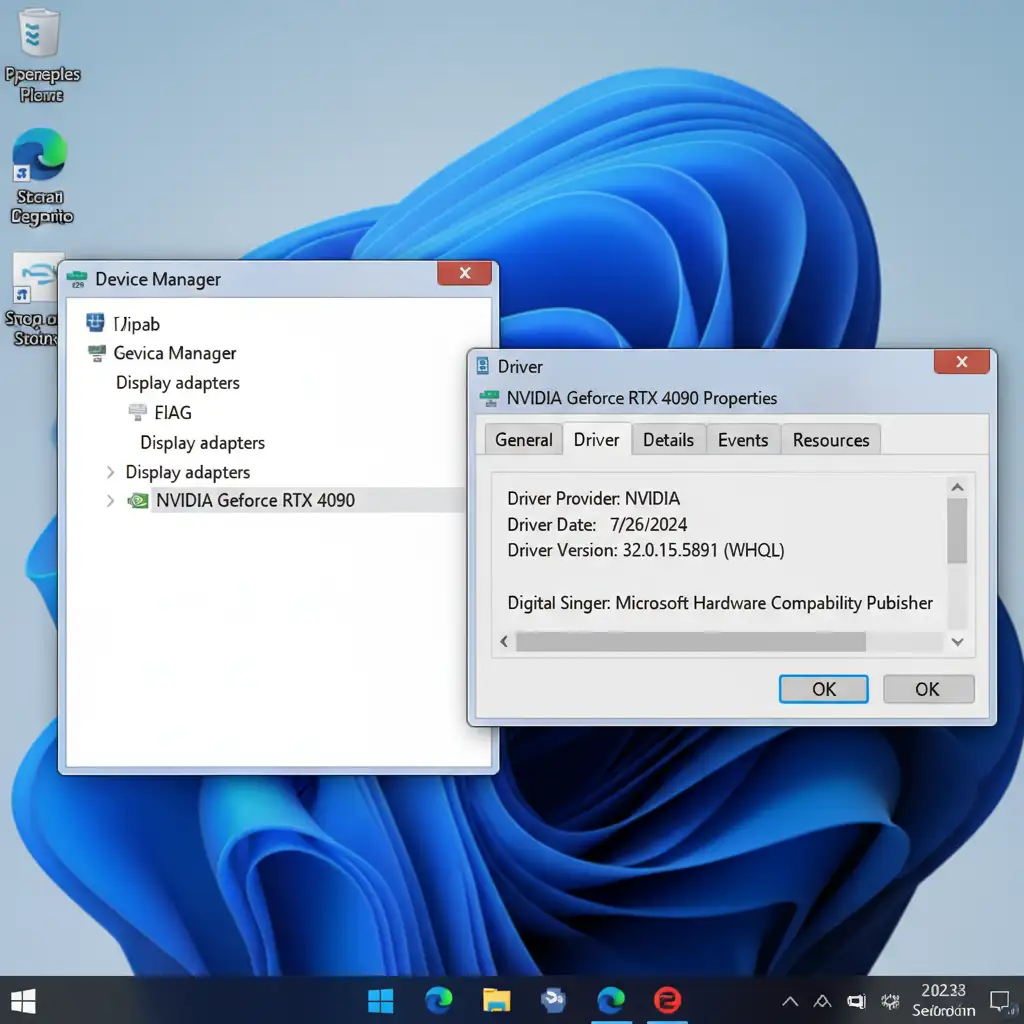
- Manually update your graphics drivers to the latest WHQL release. If you are using an NVIDIA card, ensure you install the NVIDIA Studio drivers (not Game Ready) for maximum stability. AMD users should opt for the latest AMD PRO driver suite.
Stop Troubleshooting and Start Delivering
Software crashes, VRAM allocation errors, and rendering bugs eat into your most valuable asset: your time. While implementing a Photoshop 2026 dynamic-torqnative crash fix will stabilize your machine, the hours spent troubleshooting are hours lost on actual creative work.
If you are struggling with constant software issues, overwhelming project volumes, and looming deadlines, you don’t have to manage it all alone. Offload your high-end retouching to the experts at Image Work India and Cloud Retouch. Our dedicated teams utilize enterprise-grade hardware and specialized workflows to ensure flawless, on-time delivery for every image-no matter how complex the composite.
Focus on growing your photography or e-commerce business, and let us handle the pixels. Contact Image Work India today to streamline your post-production workflow.




