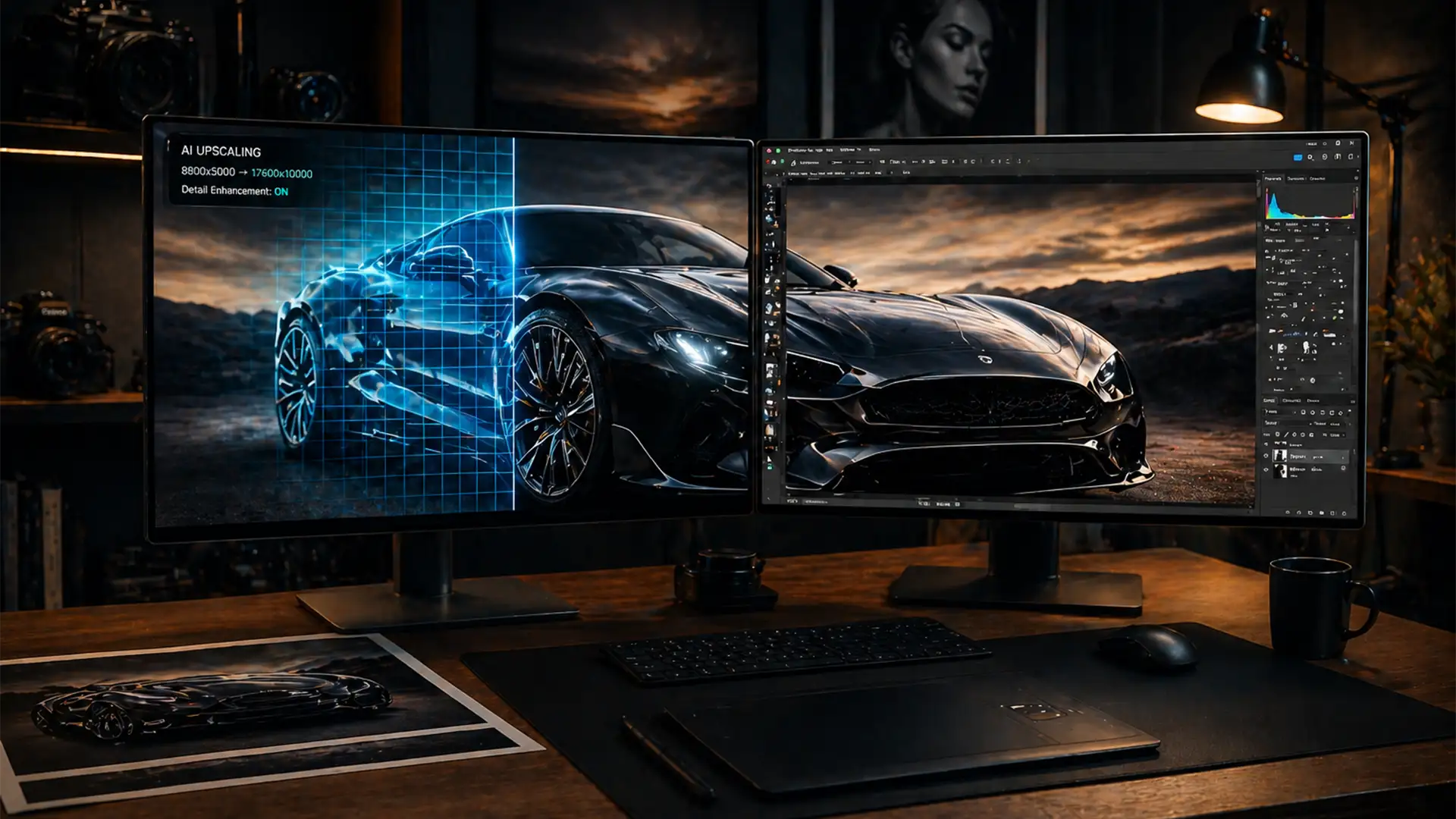

You’ve just used Photoshop’s Generative Fill to expand the background of a stunning commercial portrait. Zoomed out, it looks flawless. But when you zoom in to 100% to prep the file for a high-end print run, disaster strikes. The AI-generated patch is a soft, pixelated mess that completely lacks the crisp digital grain structure of the original photograph.
This happens because Photoshop currently caps its AI renders at a maximum of 1024×1024 pixels. When you select a larger area, the software simply stretches that low-resolution patch to fit, ruining the image for commercial printing. If you need to upscale generative fill for print, you cannot rely on default settings.
Here is the definitive, step-by-step retouching guide to fixing blurry AI edits and ensuring your files meet strict print resolution standards.
Understanding the Generative Fill 1024px Limit
To fix the problem, you first need to understand the mechanics of the Adobe Firefly Image Model. Currently, regardless of your document’s size or DPI, Generative Fill processes and outputs a maximum resolution of 1024×1024 pixels.
If you lasso an area that is 4000×4000 pixels, Photoshop generates a 1024px image and scales it up by roughly 400%. This severe upsampling destroys edge contrast and smears the texture. For a standard web banner, this might go unnoticed. But for a commercial print resolution of 300 DPI, the generative patch will look conspicuously blurry next to your razor-sharp photographic base.
Method 1: The Quick Fix – Grid-Based Generation
The simplest way to bypass the stretching issue is to prevent Photoshop from scaling the AI output in the first place. Instead of making one massive selection, force the software to render at a 1:1 pixel ratio.
Step-by-Step Grid Workflow
- Analyze the Area: Identify the large blank space you need to fill.
- Select in Chunks: Use the Rectangular Marquee or Lasso Tool to select an area no larger than roughly 1000×1000 pixels.
- Generate: Apply Generative Fill to this small section.
- Repeat: Move to the next adjacent 1000px section, slightly overlapping the previous generation, and repeat the process.
By generating in smaller grids, Photoshop renders the Adobe Firefly Image Model at its native resolution without stretching it, keeping the results significantly sharper.
Method 2: The Pro Workaround – Smart Object Upscaling and Grain Matching
If generating in grids is too tedious or creates mismatched seams, you can generate one large patch and manually upscale it using advanced interpolation algorithms, followed by noise floor matching.
Step 1: Upsampling with Preserve Details 2.0
First, isolate your Generative Fill layer.
- Right-click the Generative Fill layer and select Convert to Smart Object. This protects the pixel data.
- Open the image size dialog box (Image > Image Size).
- If you need to scale the document up, ensure the Resample dropdown is set to Preserve Details 2.0. This algorithm is far superior to standard Bicubic Smoother for retaining edge contrast in AI-generated textures.
- Alternative: You can also right-click the Smart Object and open it in Camera Raw, then use the Super Resolution feature to cleanly double the pixel dimensions of the patch.
Step 2: Noise Floor Matching
Even with excellent upsampling, the AI patch will look “too clean” or plasticky compared to the base photo. You must add synthetic grain to blend it.
- With your Smart Object selected, go to Filter > Camera Raw Filter.
- Navigate to the Effects panel.
- Carefully adjust the Grain, Size, and Roughness sliders. Zoom in to 200% on a seam where the AI patch meets the original photo, and adjust until the synthetic grain perfectly matches the original image’s noise floor.
Method 3: The Technical Deep-Dive – Third-Party AI Upscaling and Frequency Separation
For high-end commercial retouching where perfection is non-negotiable, the best way to upscale generative fill for print is to combine dedicated AI upscaling software with advanced retouching techniques.
Step 1: Extract and Upscale
- Isolate the low-resolution Generative Fill layer. Turn off the visibility of all other layers.
- Export this layer as a high-quality TIFF or PNG.
- Run the exported file through dedicated upscaling software like Topaz Gigapixel AI (or Photoshop’s built-in Neural Filters for Super Zoom). These tools use machine learning to hallucinate realistic missing details, effectively transforming a 1024px patch into a crisp 4000px+ texture.
Step 2: Blend with Frequency Separation
Once you import the newly upscaled patch back into your working document, you may find slight color or texture mismatches at the seams.
- Mask the upscaled patch carefully into your composition.
- Group your layers and set up a standard Frequency Separation folder (separating the image into a Low-Frequency Color layer and a High-Frequency Texture layer).
- Use the Clone Stamp tool on the High-Frequency layer to seamlessly blend the textures at the borders. Use a soft brush on the Low-Frequency layer to correct any color shifts introduced by the AI generation.
Flawless Prints Require Professional Retouching
Learning how to upscale generative fill for print is essential if you want to utilize Adobe’s AI tools without compromising your commercial output. However, managing 1024px limits, Preserve Details 2.0 interpolation, noise floor matching, and complex Frequency Separation takes significant time—time you could be spending behind the camera or scaling your business.
Ensure your commercial prints are flawlessly sharp without the headache. Outsource your complex, high-res retouching to the experts at Image Work India and Cloud Retouch. Our team of professional retouchers specializes in high-end commercial workflows, seamlessly blending AI technology with meticulous manual retouching to deliver 300 DPI perfection every time.
Contact us today to elevate your image quality and streamline your post-production workflow.




