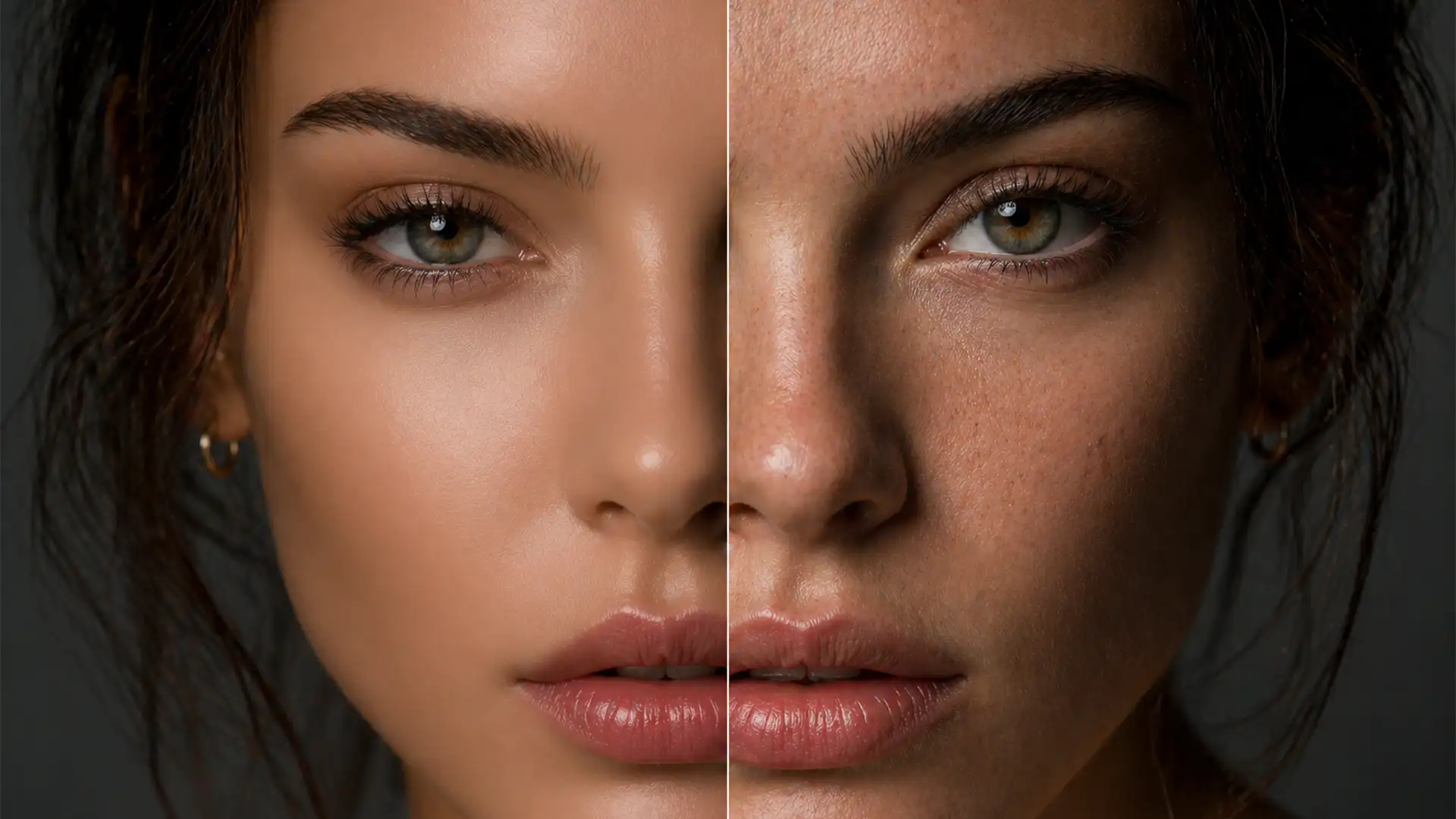

You just generated a stunning portrait using Midjourney v6 or Stable Diffusion XL. The lighting is perfect, the composition is flawless, but when you zoom in, the subject looks like a synthetic mannequin. This waxy, overly smoothed appearance immediately gives away the image as AI-generated.
If you want to use these assets for professional campaigns, you need to know how to remove AI plastic look from portraits. The core issue is a complete lack of high-frequency detail—the microscopic pores, fine lines, and micro-contrast that make human skin look real.
In this guide, we will show you exactly how to rebuild lost skin texture in Adobe Photoshop v25.x without destroying the base lighting and volume of your image.
Why AI Generators Create Waxy, Synthetic Skin
AI image models rely on aggressive denoising processes to generate images from random noise. Combined with dataset biases that favor idealized, heavily edited faces, the output often strips away natural human imperfections. The result is a loss of high-frequency detail. To fix this, we must artificially reintroduce texture, utilizing concepts borrowed from traditional frequency separation workflows.
Here are three professional methods to restore realistic pores and micro-contrast.
How to Remove AI Plastic Look from Portraits in Photoshop v25.x
Method 1: The Quick Fix (Noise & Blur)
When you need a fast solution to break up the synthetic haze, adding controlled noise is your best first step.
- Open your AI portrait in Photoshop.
- Create a new layer (Shift + Ctrl + N) and fill it with 50% gray.
- Change the layer’s blend mode to Overlay.
- Navigate to Filter > Noise > Add Noise. Select Uniform and Monochromatic noise, setting the amount between 2-4%.
- To prevent the noise from looking like digital static, go to Filter > Blur > Gaussian Blur and apply a slight 0.3px radius to soften it into realistic film grain.
Method 2: The Pro Workaround (Texture Overlays & Blend If)
For a more convincing result, applying a high-quality skin texture pattern overlay yields superior realism.
- Import a seamless, high-resolution skin pore texture pattern and place it over your subject’s face.
- Set the layer blending mode to Soft Light.
- Double-click the texture layer to open the Layer Style dialog box.
- Use the Blend If sliders (Underlying Layer) to seamlessly hide the texture from extreme shadows and blown-out highlights. Hold Alt (or Option) to split the slider handles for a smooth transition.
- Finally, add a layer mask and paint with a soft black brush to mask out the eyes, hair, and lips—areas that should never have skin pores.
Method 3: The Technical Deep-Dive (Generative Fill & Frequency Separation)
If you are dealing with a highly prominent portrait where standard overlays aren’t enough, you can leverage AI to fix AI, or use real photographic references.
- Using Generative AI: Make a loose selection around the overly smooth skin. Click Generative Fill and use specific prompts like “realistic human skin texture, macro pores”. This forces the AI to regenerate the area with high-frequency detail prioritized.
- Using Real References: Duplicate a layer from a real, high-resolution reference photo of human skin. Apply a High-Pass filter (Filter > Other > High Pass) with a radius of around 2-4px. Use the Transform tool to match the perspective of your AI subject’s face, and set the blend mode to Linear Light at a low opacity (15-30%). Use Luminosity masking to restrict this detail only to the midtones.
Advanced Tips for Photorealistic AI Skin
To truly master AI portrait retouching, keep these final adjustments in mind:
- Micro-contrast: Real skin interacts with light dynamically. Use dodge and burn techniques on a micro-level to enhance the tiny bumps and dips in the skin.
- Neural Filters: Photoshop’s built-in Neural Filters can occasionally be used to add subtle film grain or harmonize the noise across the entire image, ensuring the added pores blend seamlessly with the original AI generation.
Don’t Have Time to Fix Plastic AI Skin? Let the Pros Handle It
Learning how to remove AI plastic look from portraits requires a deep understanding of high-end retouching, frequency separation, and precise masking. If you are scaling an ad campaign, producing a lookbook, or generating hundreds of AI assets, spending hours rebuilding skin texture in Photoshop simply isn’t viable.
Image Work India and Cloud Retouch specialize in high-volume, pixel-perfect photo editing. Our expert retouchers know exactly how to peel away the synthetic haze and humanize your AI-generated assets with photorealistic skin, natural pores, and flawless micro-contrast.
Struggling to make your AI-generated campaigns look photorealistic? Contact Image Work India and Cloud Retouch today, and let us transform your synthetic generations into breathtaking, lifelike photography.




