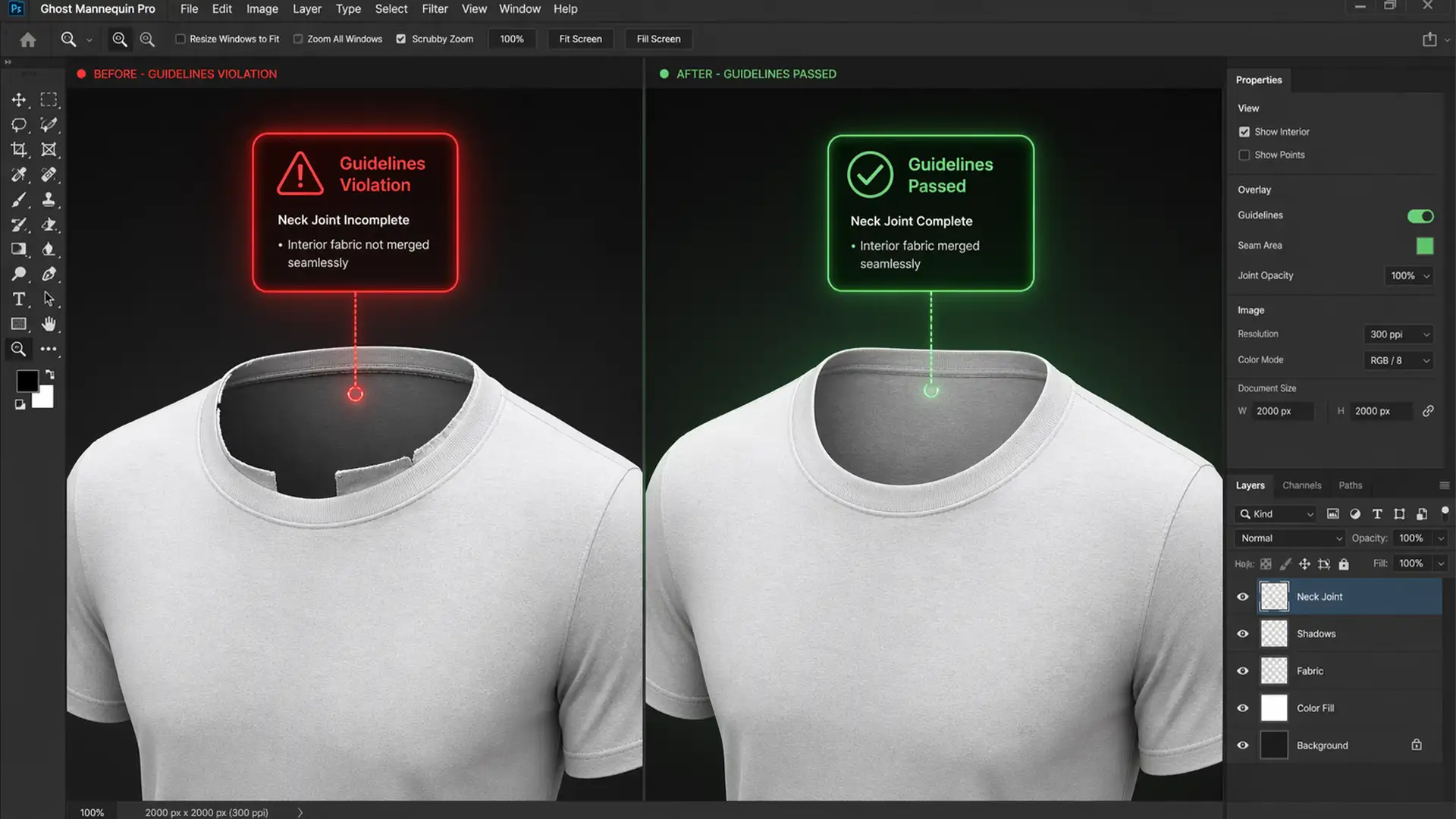

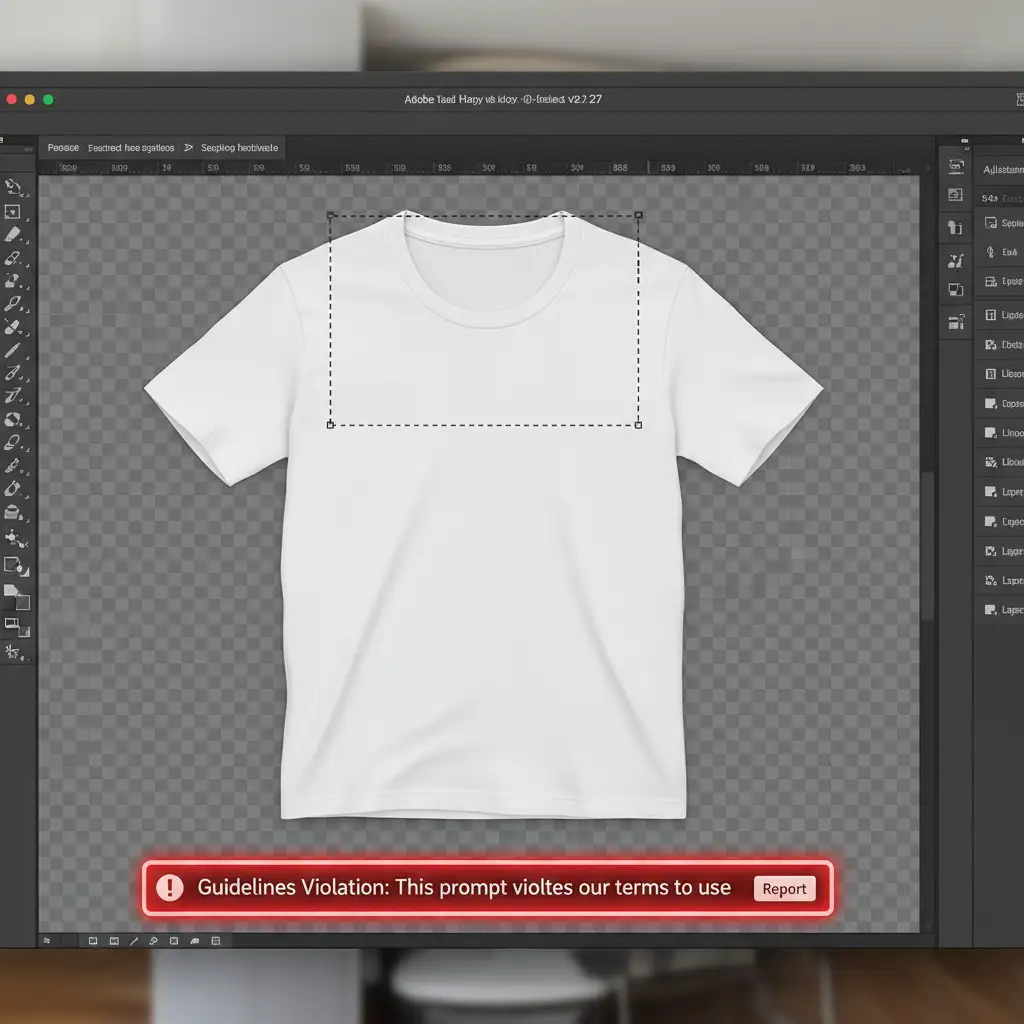
You are editing a batch of e-commerce apparel. You select the hollow neck area to create a seamless ghost mannequin effect, click Generative Fill, and BAM—a red “Guidelines Violation” error stops you dead in your tracks. Why is Adobe Firefly flagging a simple cotton t-shirt?
If you are struggling with Photoshop AI incorrectly identifying skin tones or hollow necklines as inappropriate content, you aren’t alone. This frustrating false positive is derailing post-production workflows everywhere. In this guide, we will walk you through the ultimate Photoshop Generative Fill guidelines violation ghost mannequin fix to get your edits back on track.
Why Does the Generative Fill “Guidelines Violation” Happen?
Adobe Photoshop (versions 25.0 and above, including Beta releases) integrates Adobe Firefly to power its Generative Fill capabilities. To ensure user safety, Adobe implemented strict AI safety filters.
Unfortunately, these filters are highly sensitive when processing apparel photography. When you attempt a ghost mannequin neck joint, the algorithm often misinterprets the hollow necklines, lingering skin tones from the original human model, or specific fabric folds as inappropriate content—specifically nudity or policy violations. Consequently, the AI halts the automated neck joint creation process entirely.
3 Ways to Fix the Generative Fill Guidelines Violation Ghost Mannequin Error
To bypass these hypersensitive AI safety filters, you need to change how the software reads your selection. Here are three proven methods to achieve a flawless neck joint without triggering the error.
Method A: The Quick Fix (Prompt Engineering)
Most retouchers leave the Generative Fill prompt box empty, allowing the AI to contextualize the surrounding pixels. However, an empty prompt forces the AI to guess, increasing the risk of a false flag.
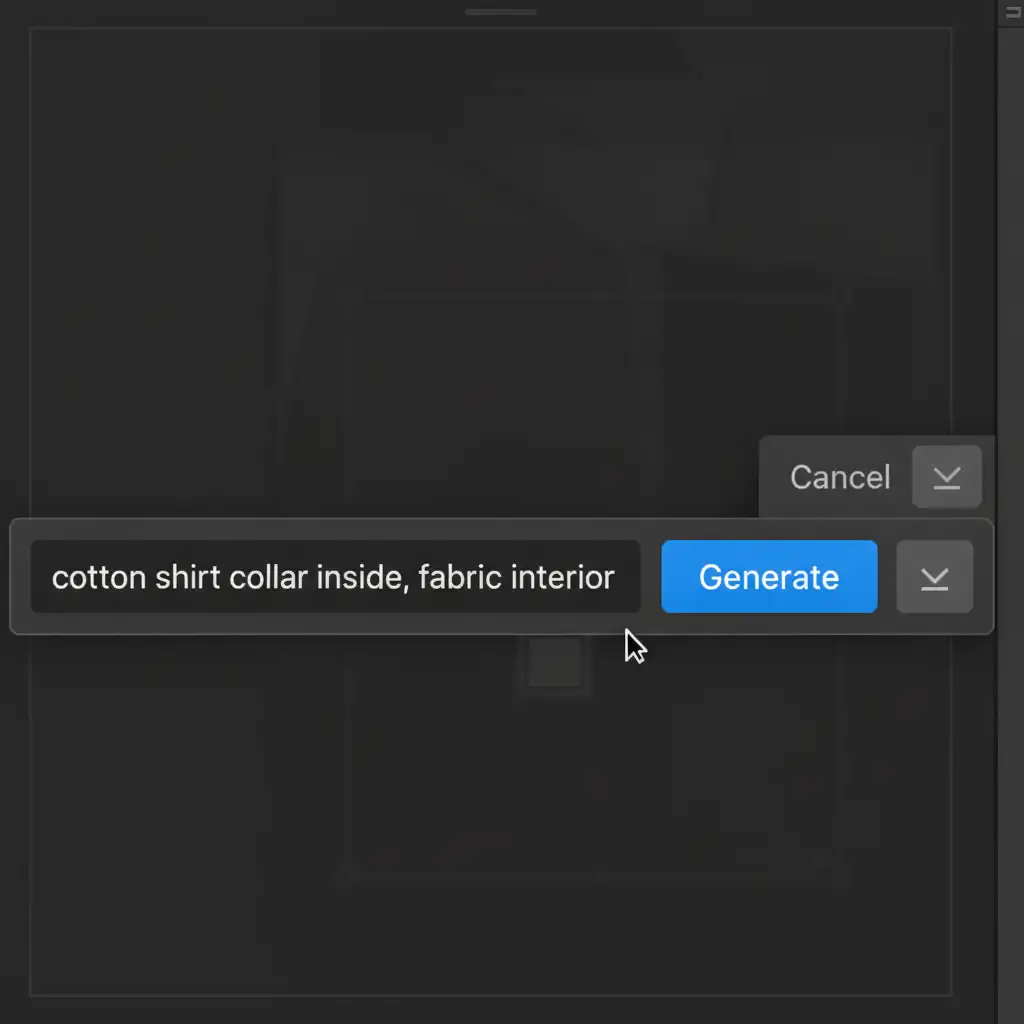
Instead of leaving it blank, use the Contextual Task Bar to feed the AI safe, descriptive terminology.
- Do Use Non-Trigger Words: “fabric interior”, “cotton shirt collar inside”, “seamless inner garment”, or “blank background”.
- Avoid Trigger Words: Never use words like “neck”, “skin”, “body”, or “model”.
Method B: The Pro Workaround (Pre-filling with Content-Aware)
If prompt engineering fails, the AI is likely detecting microscopic leftover human features from the original model. You need to sanitize the canvas before asking Adobe Firefly to generate the final fabric.
- Use the Lasso Tool to select the empty neck space where the original model’s neck used to be.
- Instead of jumping straight to AI, use traditional Content-Aware Fill (Edit > Content-Aware Fill) first. This fills the gap with surrounding background pixels or neutral fabric colors, effectively deleting any lingering skin tones.
- Once you have a neutral, skin-free area, apply Generative Fill over that new patch.
By removing human features first, you prevent the AI safety filter from scanning trigger pixels.
Method C: The Technical Deep-Dive (Selection Refinement & Masking)
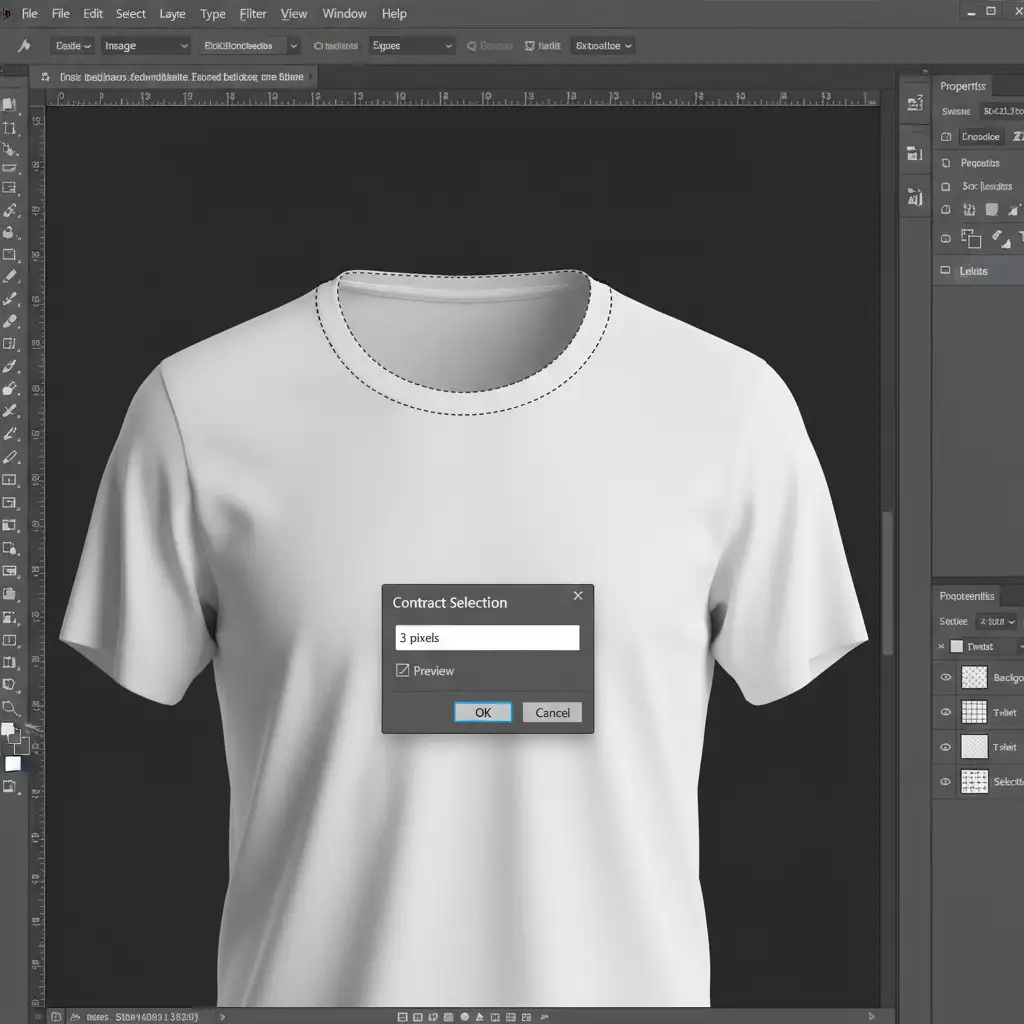
Often, the issue stems from the marching ants including too much of the original skin or the physical mannequin edge. Tightening your selection ensures the AI only reads the fabric pixels.
- Make your initial selection around the collar.
- Navigate to Select > Modify > Contract and shrink the selection by 2-3px. This pulls the marching ants away from the contaminated edges.
- Use Layer Masking to isolate the garment completely, hiding the original background and any remaining mannequin parts.
- Crucial Step: Convert the isolated garment layer into Smart Objects before running Generative Fill. This flattens the visible data for the AI, ensuring it only analyzes the clean fabric pixels and ignores hidden masked data.
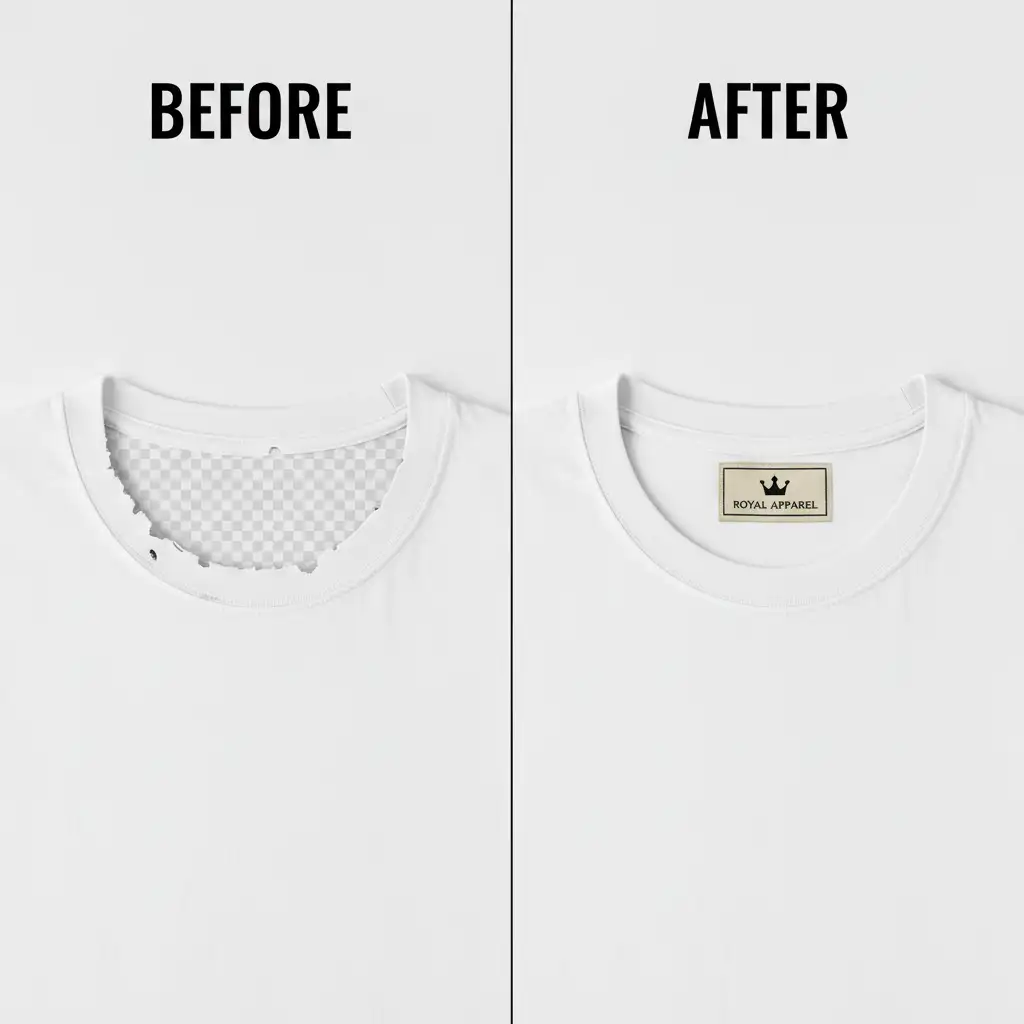
The Final Result: Seamless Neck Joints
By understanding how Adobe Firefly interprets image data, you can easily implement the Photoshop Generative Fill guidelines violation ghost mannequin fix. Whether you rely on smart prompt engineering, Content-Aware Fill sanitization, or precise selection refinement, you can restore your post-production speed and achieve flawless apparel imagery.
Scale Your Apparel Editing with Image Work India & Cloud Retouch
Mastering these technical workarounds takes time, and when you are processing thousands of e-commerce SKUs, time is your most valuable asset. If you need pixel-perfect apparel photos without the AI hassle, let the experts handle the heavy lifting.
Image Work India and Cloud Retouch specialize in professional, high-volume ghost mannequin editing, seamless neck joints, and advanced apparel retouching. We bypass the technical bottlenecks so you can focus on selling.
Ready to elevate your product photography? Contact Image Work India and Cloud Retouch today for flawless, ready-to-publish e-commerce imagery.




