
You just made the perfect selection with the lasso tool, the “marching ants” are active, and you are ready to speed up your workflow with AI image generation. But suddenly, you hit a wall: the Photoshop Generative Fill taskbar is missing in v25.6.
If your Contextual Task Bar has vanished after the latest Adobe Creative Cloud update, you are not alone. This frustrating Photoshop UI glitch frequently hides the taskbar inadvertently during marquee operations or workspace transitions. Fortunately, you don’t need to reinstall the software to get your AI tools back.
Here is exactly how to restore the Contextual Task Bar and permanently pin the Generative Fill button in seconds.
Why Did the Generative Fill Bar Disappear?
In Photoshop v25.6, the Contextual Task Bar is designed to be dynamic, appearing near your cursor when you make active selections. However, a known UI state glitch causes the bar to unpin or hide completely. This usually happens when users switch tools rapidly, use custom workspaces, or update from a previous version without clearing their software cache.
How to Fix the “Photoshop Generative Fill Taskbar Missing v25.6” Bug
Follow these three methods, starting from the quickest fix to a complete workspace reset.
Method 1: The Quick UI Refresh
The fastest way to retrieve the missing Generative Fill bar is to force a quick UI refresh through the top menu.
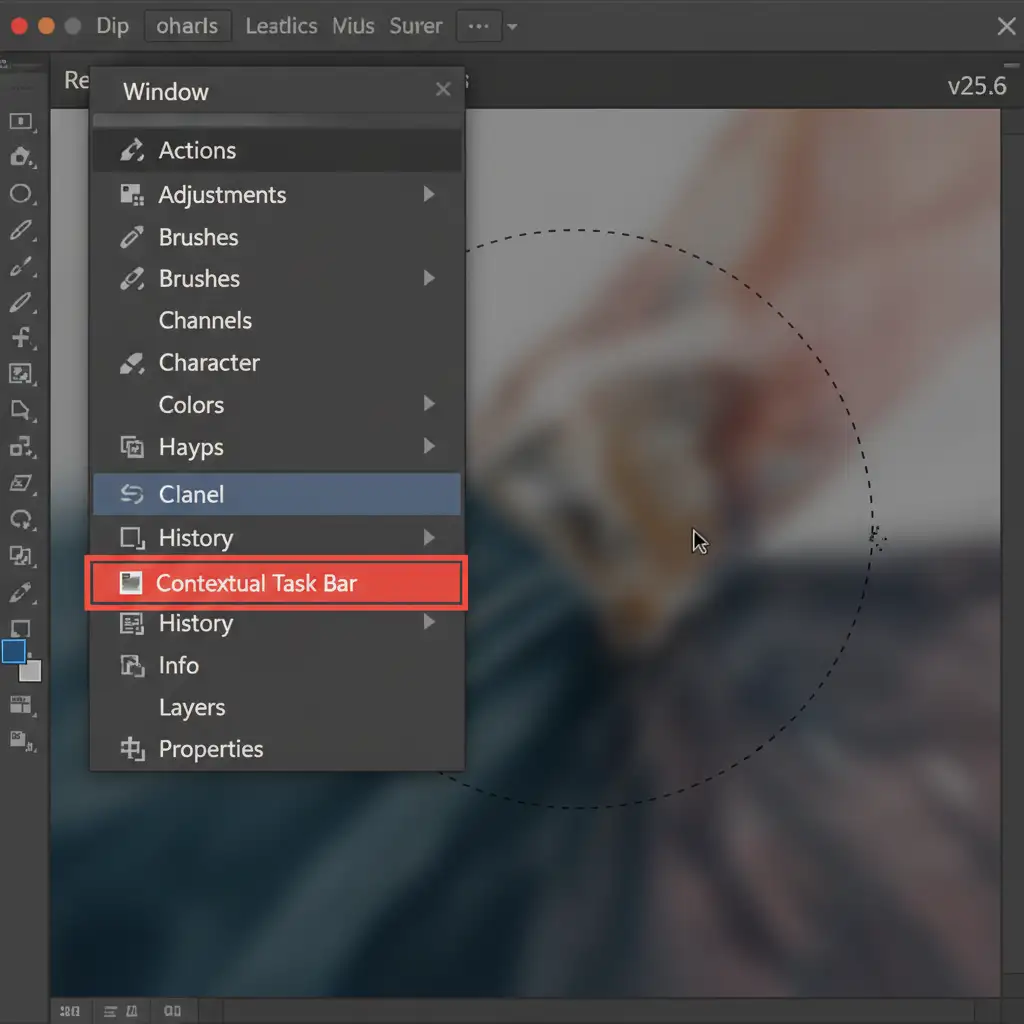
- Navigate to the top menu bar and click on Window.
- Scroll down the drop-down menu and look for Contextual Task Bar.
- If it is unchecked, click it to activate it.
- If it is already checked, uncheck it, wait a second, and re-check it. This forces the UI to refresh and brings the bar back to the forefront.
Method 2: Pin the Bar & Reset Your Workspace
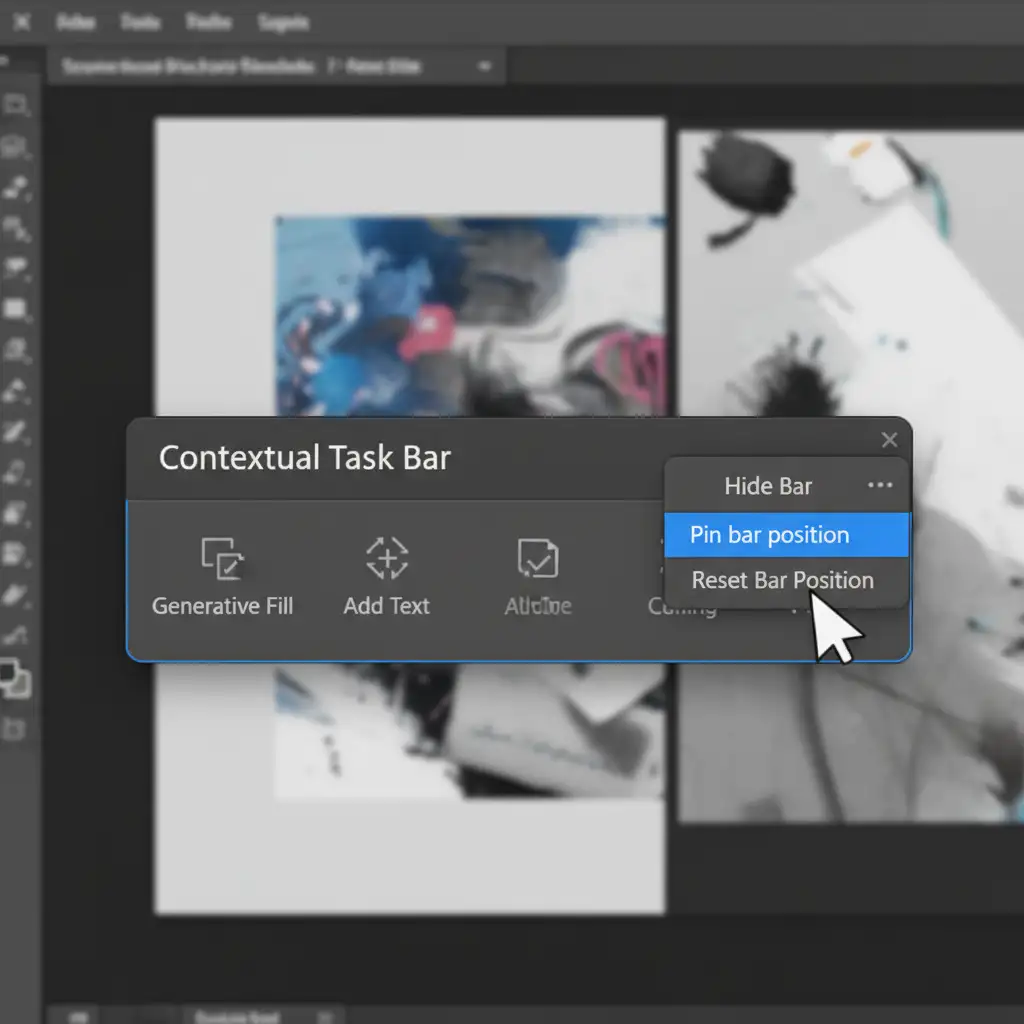
If the taskbar reappears but keeps vanishing every time you use the lasso tool, you need to lock it in place.
- Once the Contextual Task Bar is visible, click the three-dot menu located on the right edge of the bar.
- Select Pin bar position from the pop-up menu. This stops the bar from auto-hiding or jumping around the screen.
If pinning doesn’t work and the bar still vanishes, resetting your current workspace will clear any corrupted UI layouts:
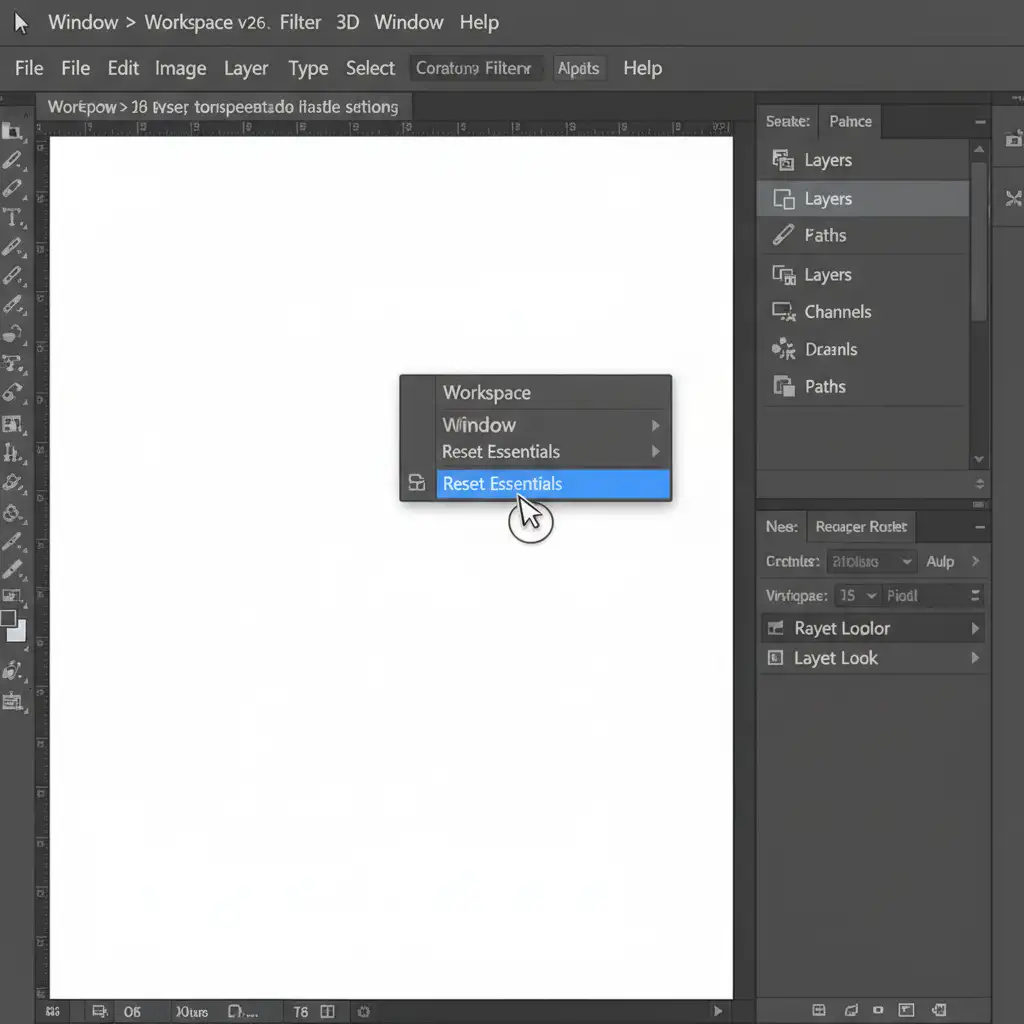
- Go to Window > Workspace > Reset [Current Workspace] (e.g., Reset Essentials).
Method 3: The Technical Deep-Dive (Clear Preferences)
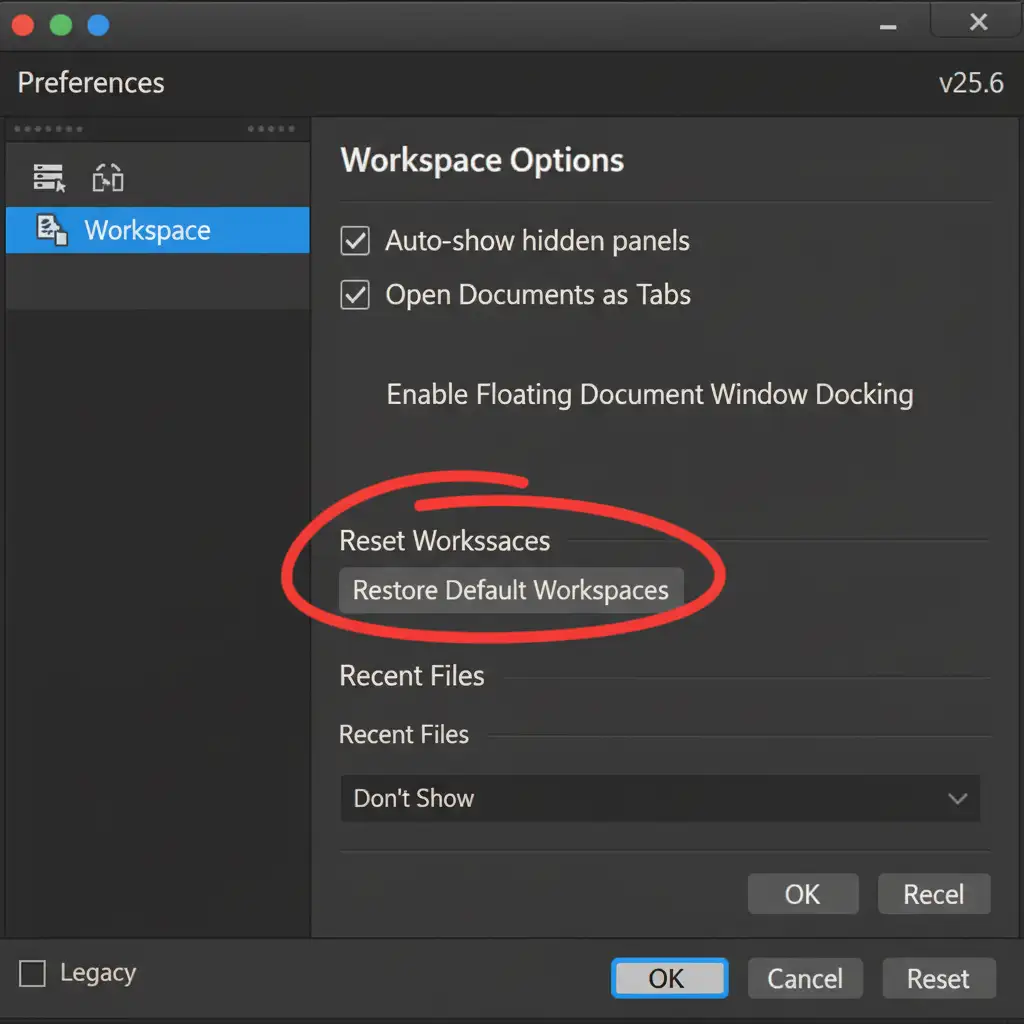
If the Photoshop Generative Fill taskbar missing v25.6 issue persists, the underlying Photoshop Preferences may be corrupted. You will need to restore the default workspaces from the settings menu.
- On Windows: Go to Edit > Preferences > Workspace. On Mac: Go to Photoshop > Settings > Workspace.
- In the dialog box, click the button labeled Restore Default Workspaces.
- Click OK and restart Photoshop. This clears the software cache and guarantees a fresh, glitch-free interface upon reboot.
Stop Fighting Photoshop UI Glitches-Let the Experts Handle It
Dealing with the “Photoshop Generative Fill taskbar missing v25.6” bug is just one of many technical hurdles that can slow down your creative pipeline. When you are managing high-volume photo editing, every minute spent troubleshooting software glitches is a minute lost on actual production.
You don’t have to do it alone. Image Work India and Cloud Retouch specialize in taking the technical burden off your shoulders. From high-end fashion retouching and complex clipping paths to bulk e-commerce image processing, our expert design team delivers flawless, pixel-perfect results with zero downtime.
Stop fighting with your software. Let us handle your image editing tasks with expert precision so you can focus on growing your business. Contact Image Work India today to streamline your workflow!




