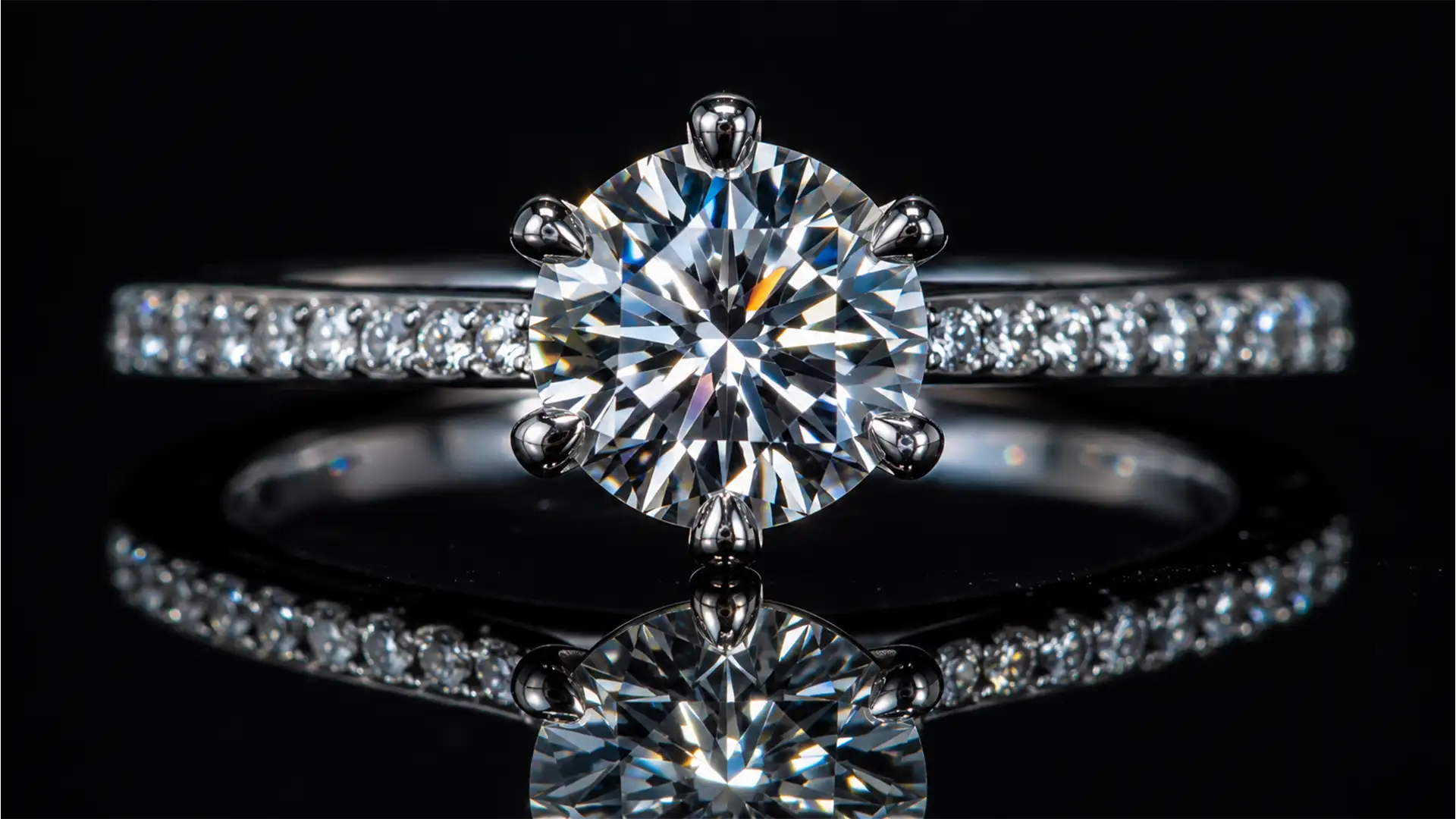

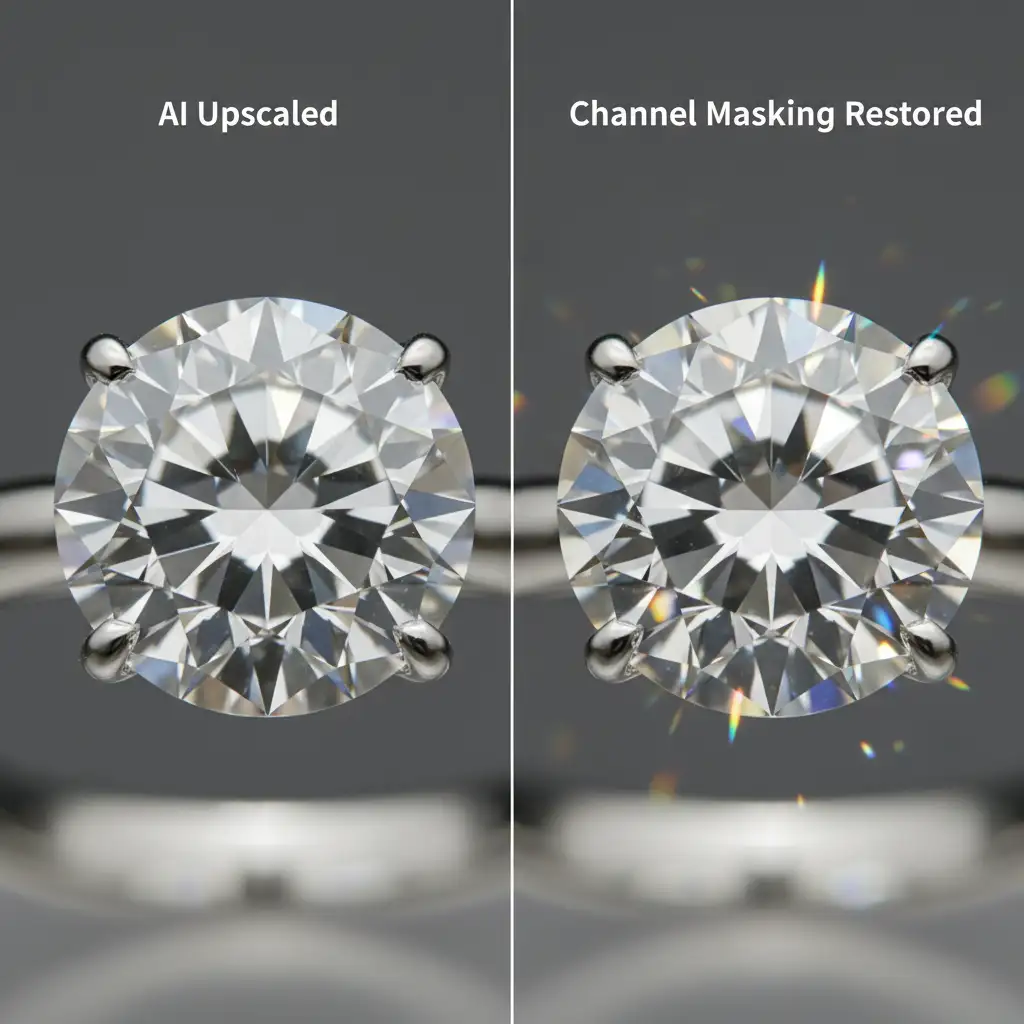
You just ran a stunning, but low-resolution, client image through Topaz Gigapixel AI v7.x or Adobe Photoshop v25+ Super Resolution. The gold band looks incredibly crisp, but there is a massive problem: the diamond looks like a piece of cheap, polished glass.
This is the biggest pain point in maintaining gemstone fire in AI-upscaled jewelry photos. Neural networks are trained to aggressively hunt down and eliminate chroma noise and JPEG artifacts. Unfortunately, the algorithms cannot differentiate between digital noise and the microscopic chromatic aberrations, dispersion, and spectral highlights that give a gemstone its “fire.” As a result, the AI applies a heavy smoothing algorithm that completely destroys the complex light refraction patterns and high-frequency spatial data of the stone.
If you want to maintain the luxury appeal of your high-end catalogs, you need to bypass this destructive noise reduction. Here are three professional techniques to restore micro-contrast and realistic internal light to your upscaled jewelry photography.
Method 1: The Quick Fix – Overlay Blending
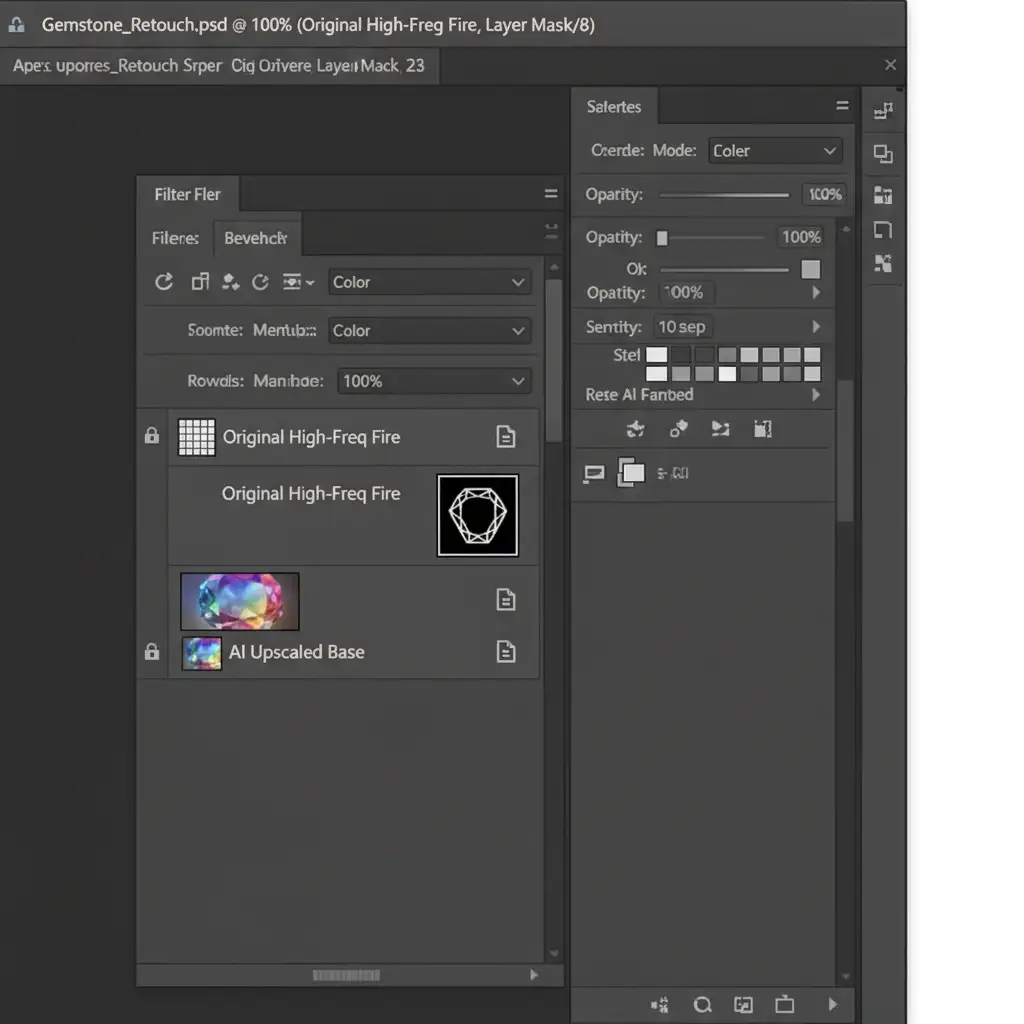
When you are on a tight deadline, you can force the original high-frequency color data back into the high-resolution AI output using specific blending modes and a high-pass filter.
- Upscale the Base: Run your image through your AI upscaler as usual.
- Import the Original: Place the original, unscaled image as a new layer over the upscaled version. Convert it to a Smart Object.
- Scale Up: Transform and scale the original image to match the new high-resolution dimensions. Crucial step: Change your interpolation method to Nearest Neighbor (Hard Edges). This prevents Photoshop from adding its own smoothing during the scale.
- Blend: Change the layer blend mode to Color or Overlay. This instantly brings back the original chromatic fire without overwriting the newly generated luminosity details of the AI base.
- Sharpen: Add a High Pass filter set to a 1.5px radius to crisp up the facet edges.
Method 2: The Pro Workaround – Channel Masking
For high-end editorial retouching, Method 1 might not offer enough control. To meticulously restore gemstone fire without affecting the surrounding metal, rely on channel masking. This technique isolates the brilliant spectral highlights so you can composite them perfectly.
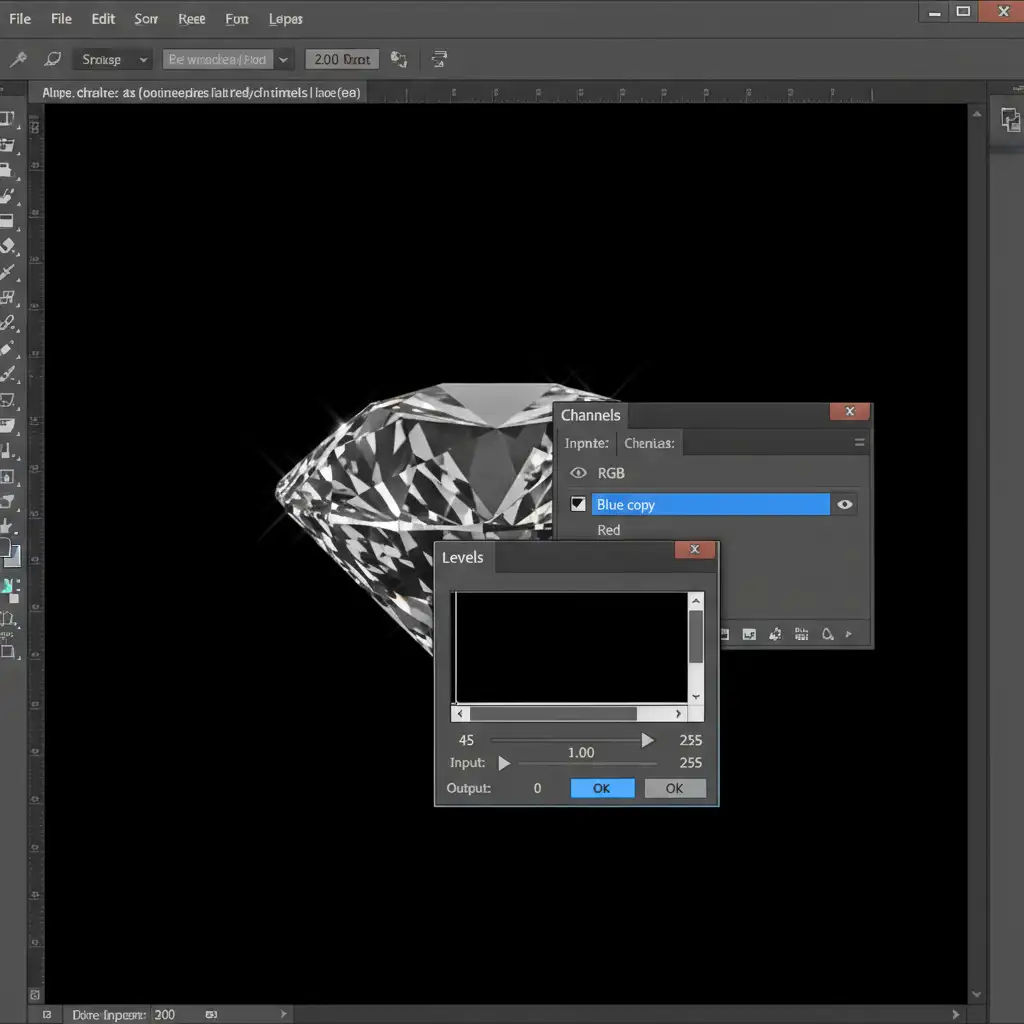
- Analyze the Channels: Open the Channels panel in Photoshop. Inspect the Red, Green, and Blue channels. You want to duplicate the channel with the highest contrast—for diamonds, this is usually the Blue or Green channel.
- Crush the Shadows: Apply a Levels adjustment (Ctrl/Cmd + L) directly to this duplicated channel. Drag the black point slider heavily to the right to crush the shadows, leaving only the brightest spectral highlights (the fire) visible in stark white.
- Create a Luminosity Mask: Ctrl/Cmd + Click the thumbnail of your adjusted duplicate channel to load it as a selection.
- Apply and Composite: Return to your Layers panel. Apply this selection as a layer mask to your original, color-corrected gemstone layer. Composite this masked layer directly over your AI-upscaled base.
Method 3: Technical Deep-Dive – Pre and Post Frequency Separation
If you are dealing with a flawless, high-value diamond where the refraction index illusion must be absolutely perfect, you need to separate the image before the AI touches it.
- Pre-Upscale Separation: Before using any AI tools, run a frequency separation action on your original image. Separate the image into a High Frequency layer (texture, micro-contrast, and fire) and a Low Frequency layer (base color and tone).
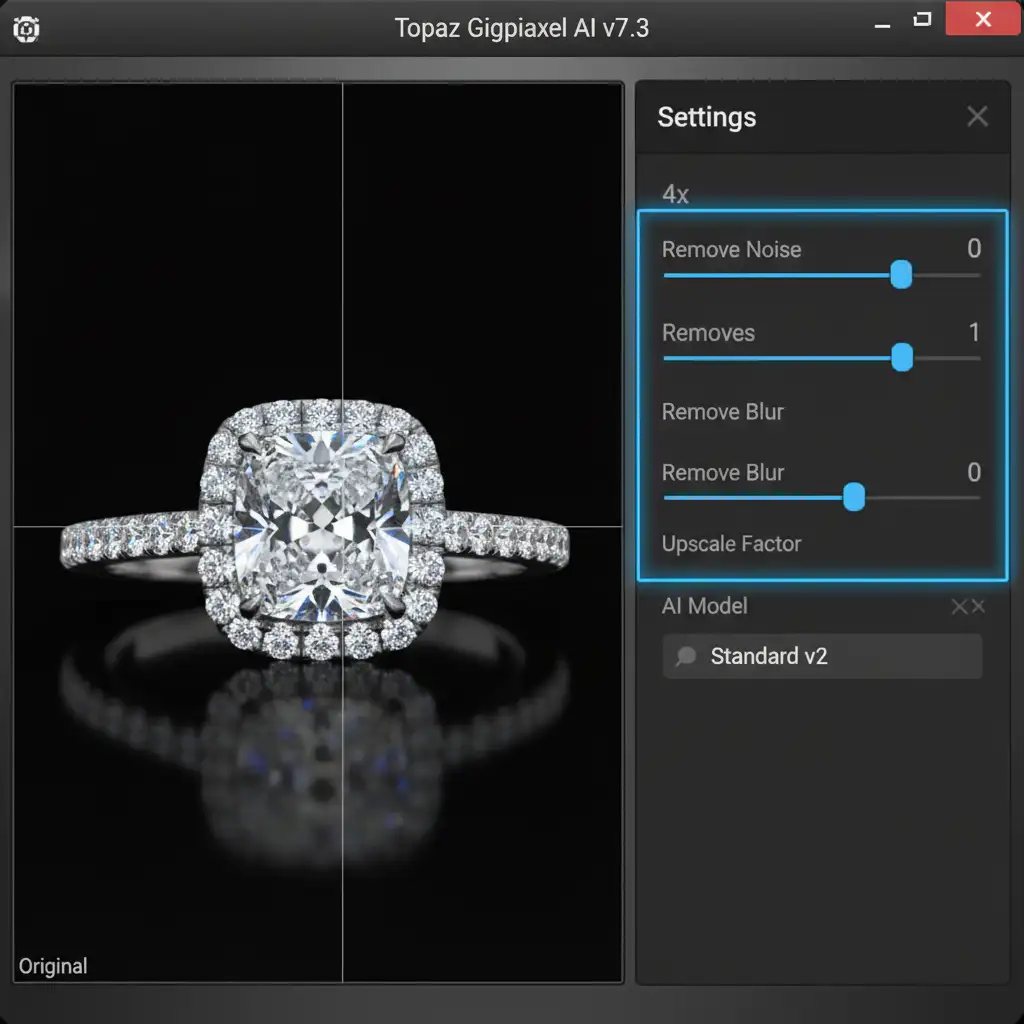
- Selective AI Upscaling: Export only the Low Frequency layer and run it through your AI upscaler. Because there is no high-frequency “noise” (dispersion) for the AI to misinterpret, it will scale the base tones flawlessly.
- Manual High-Frequency Upscaling: Take your High Frequency layer and upscale it manually in Photoshop using Image Size. Ensure the resample method is set to Preserve Details 2.0.
- Recombine: Bring both upscaled layers back into a 16-bit Photoshop workspace. Place the High Frequency layer over the Low Frequency layer (using Linear Light blend mode).
- Final Polish: Utilize selective Unsharp Masking exclusively on the facet junctions. This restores the razor-sharp edges of the gemstone without introducing upscaling artifacts into the flat planes.
Outsource Your High-End Jewelry Retouching
Maintaining gemstone fire in AI-upscaled jewelry photos requires a deep understanding of channel masking, blending modes, and light physics. When dealing with high-volume catalogs or extremely high-value pieces, spending hours tweaking frequency separation layers simply isn’t scalable.
Struggling to maintain the luxury appeal of your high-end jewelry catalogs after upscaling? Hire the expert retouchers at Image Work India and Cloud Retouch. Our specialized team understands the exact technical requirements for flawless, publication-ready gemstone rendering. We ensure your diamonds never look like glass, preserving every ounce of fire, clarity, and luxury your clients expect.
[Contact Image Work India today for a free trial on your toughest jewelry edits.]




