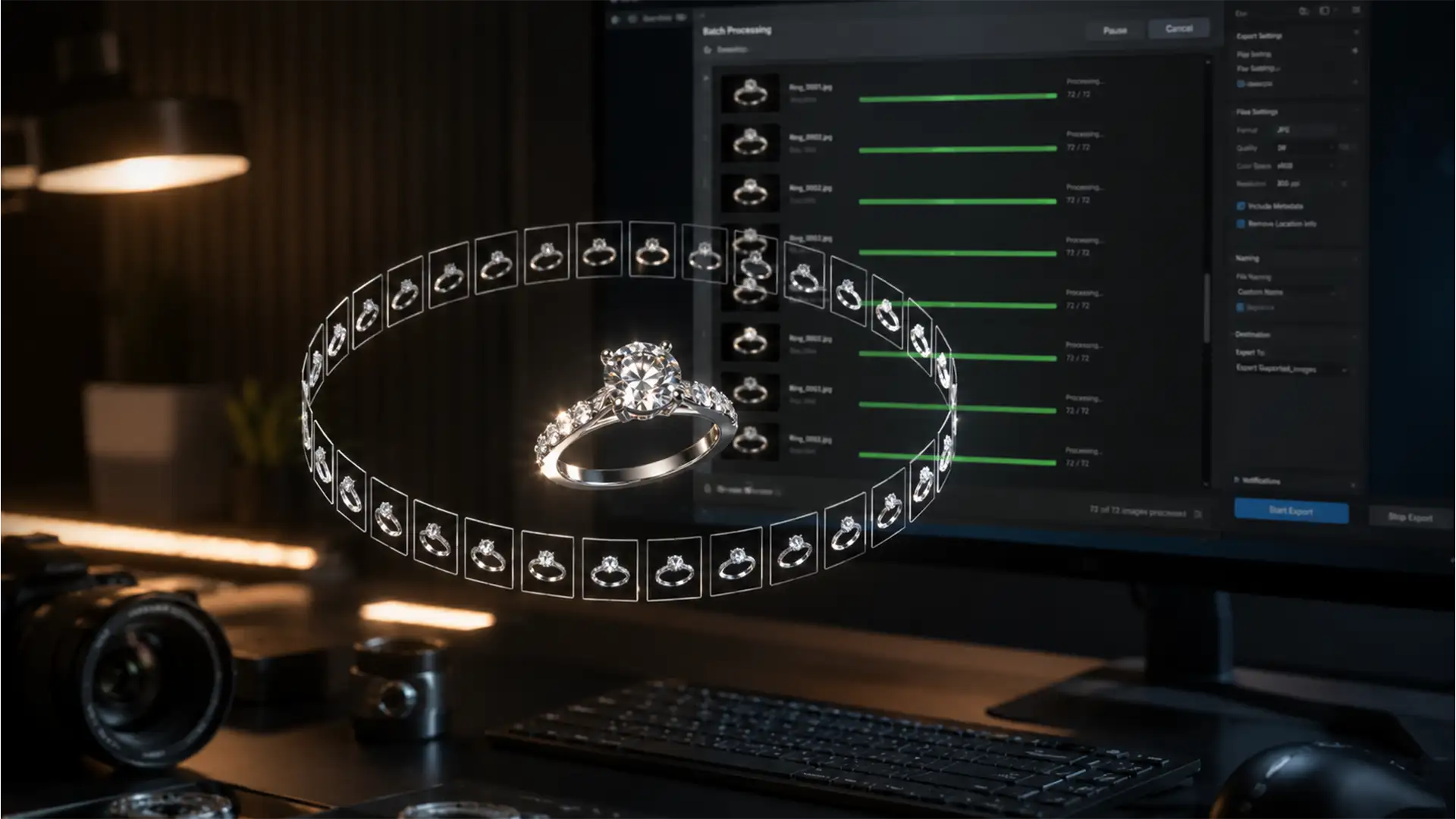

If you have ever tried to create a 360-degree product view for a diamond ring or luxury watch, you already know the nightmare: the dreaded “flicker effect.” When you manually edit 36 to 72 individual frames, human error is inevitable. Even a 1% difference in exposure matching or dust removal between frames creates a strobe-like distraction during rotation, instantly ruining the premium feel of the jewelry. You simply do not have the time to repeat the exact same edits 72 times. You need a strict, automated batch retouching workflow for 360 jewelry rotations that guarantees frame-to-frame consistency and eliminates redundant clicks.
Here is exactly how to build a highly efficient, non-destructive workflow using Lightroom and Photoshop.
Why Frame-to-Frame Consistency is the Hardest Part of 360 Jewelry Retouching
Based on our technical testing with Photoshop v25.x and Lightroom Classic v13.x, the primary bottleneck in 360-degree jewelry retouching is synchronization. Jewelry is highly reflective. As the turntable moves, the lighting on the metal and stones shifts.
If your team treats each frame as an isolated image, you will end up with inconsistent metal shine and stone clarity. The technical requirement to fix this is dividing your process into two distinct stages: a strictly controlled, synchronized global adjustments phase, followed by an automated prep phase for local retouching.
Step-by-Step Batch Retouching Workflow for 360 Jewelry Rotations
Phase 1: The Quick Fix – Global Adjustments via Lightroom Sync
Before you even think about dust removal or focus stacking, you must normalize the exposure and color across the entire sequence.
- Import all 72 raw frames of your 360 spin into Lightroom Classic v13.x.
- Select an “anchor frame” (usually the direct front-facing angle of the jewelry piece).
- Apply your global adjustments: correct the exposure, rescue the highlights, set a neutral white balance, and apply base noise reduction.
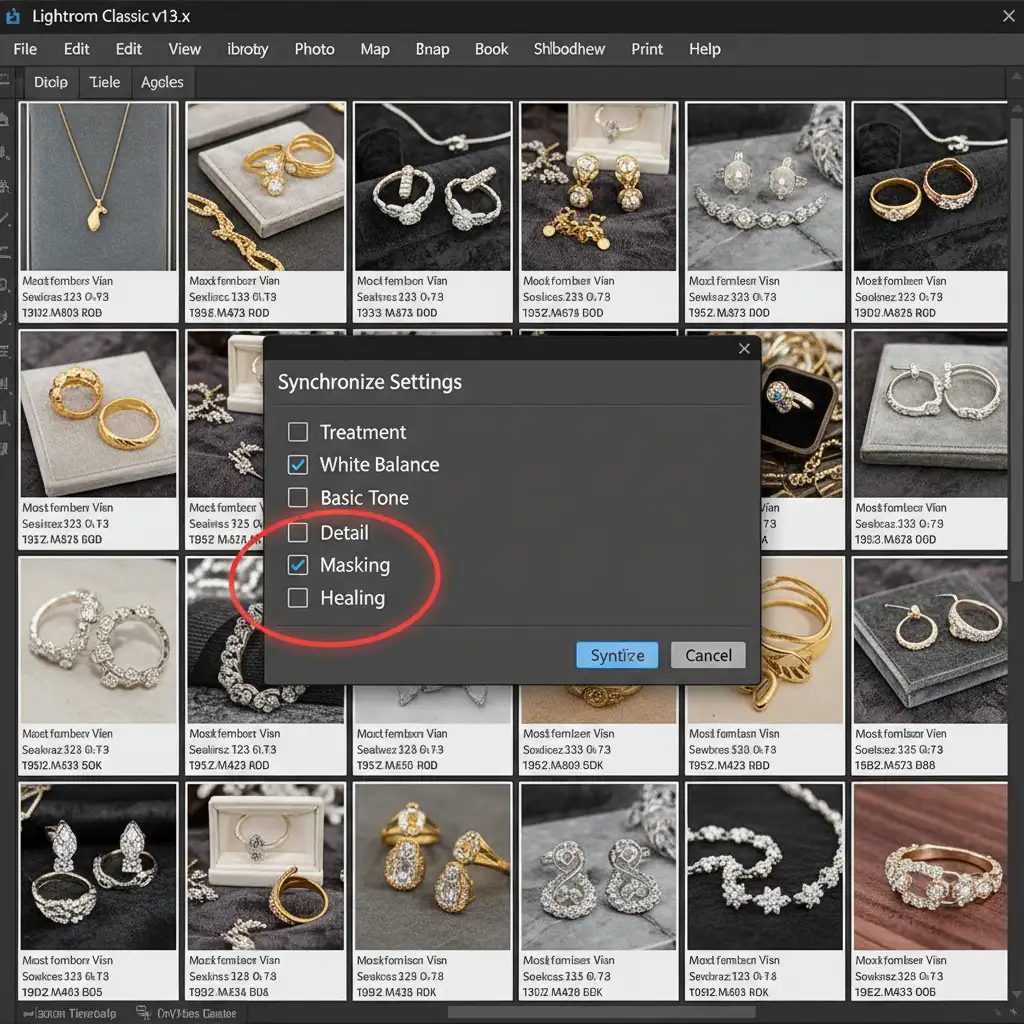
- Select all frames in the sequence and open the Sync Settings dialog.
Crucial Step: Ensure that any local masks (like radial gradients or brush adjustments) are unchecked. Syncing local masks across a rotating object will result in misaligned edits as the jewelry moves out from under the mask.
Phase 2: The Pro Workaround – Automating Local Cleanup with Action Droplets
Once your global lighting is locked in, the tedious work begins: smoothing the metal and removing micro-dust. Doing this manually on 72 frames requires thousands of redundant clicks. Instead, we use Photoshop Action Droplets.
- Open a single synced frame in Photoshop v25.x.
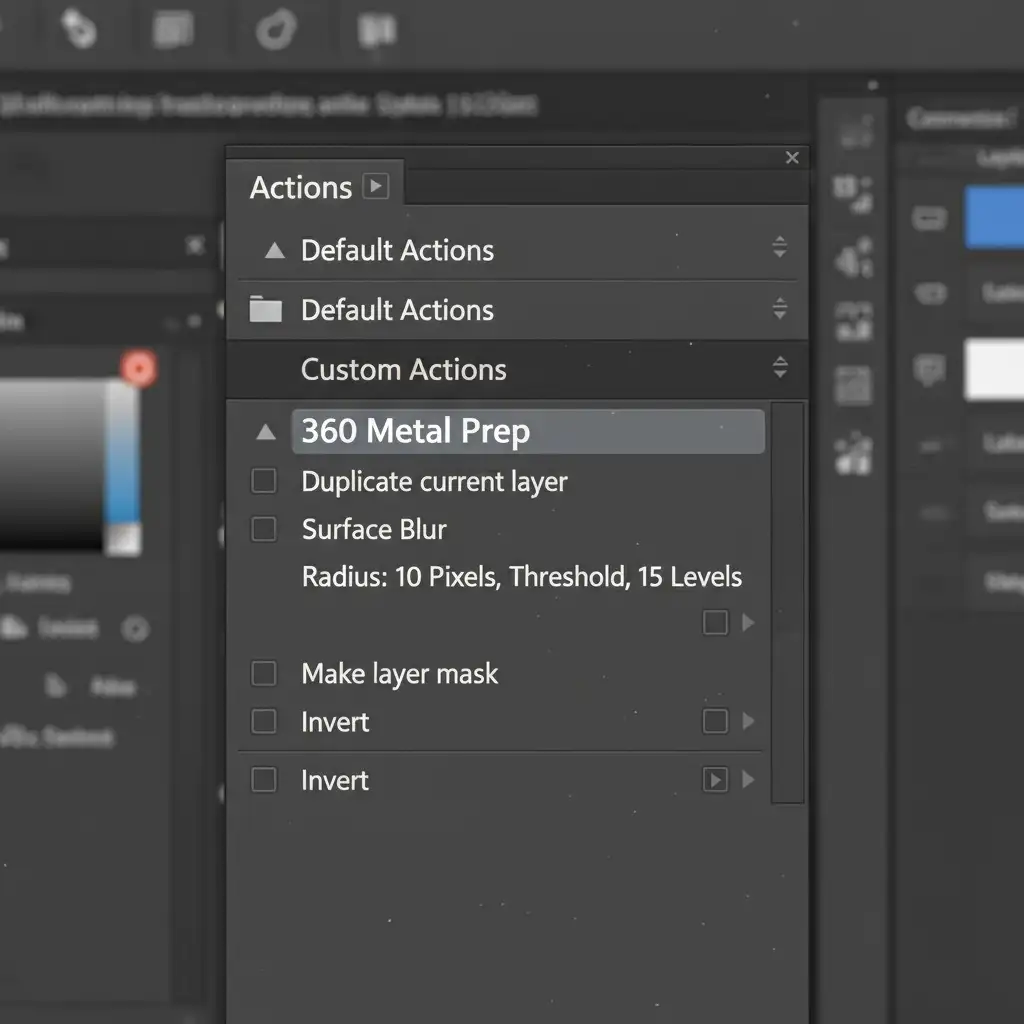
- Create a new Action in the Actions panel and hit Record.
- Duplicate your background layer. Apply a Surface Blur filter to smooth the metal textures.
- Add an inverted layer mask (black) to hide the blur, allowing the sharp original image to show through. Stop recording.
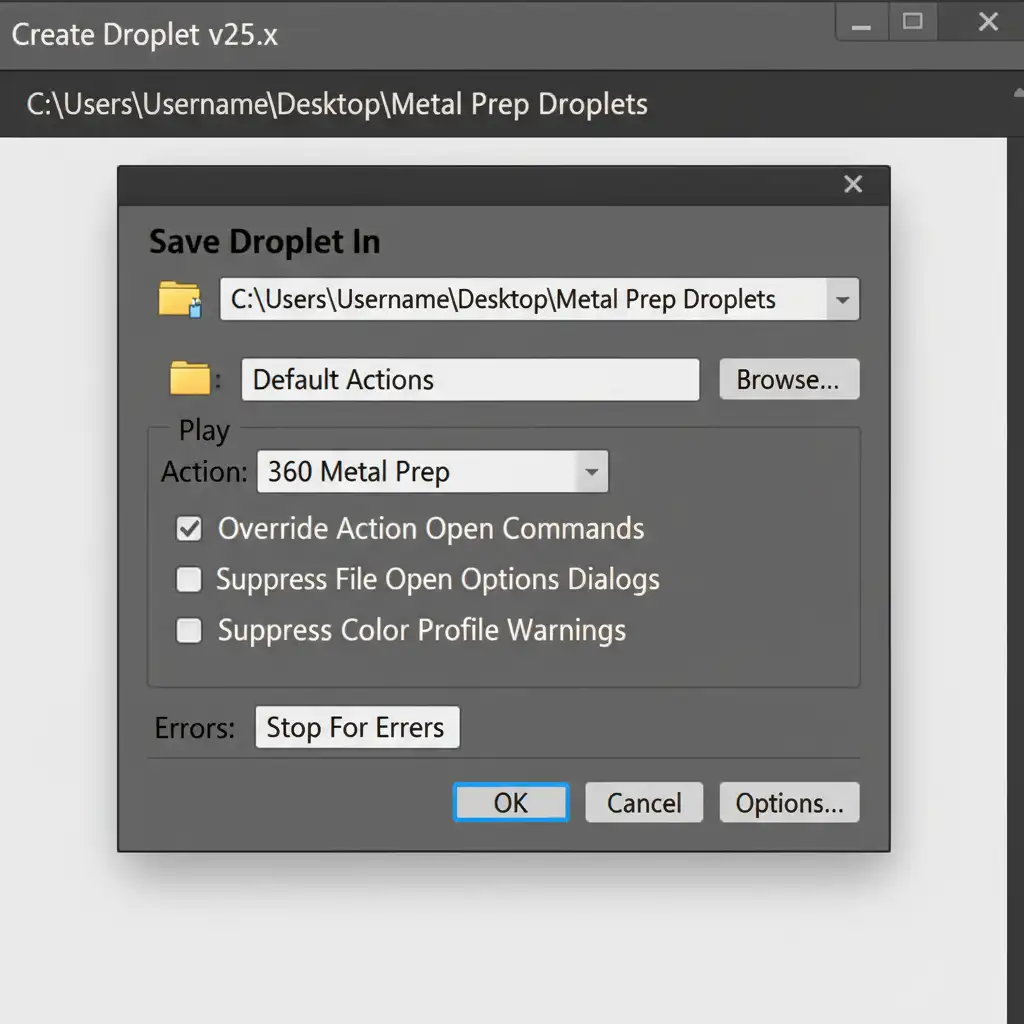
- Go to File > Automate > Create Droplet and save this Action as an executable Droplet on your desktop.
Now, instead of manually setting up layers for every image, you simply drag your entire folder of 72 images onto the Droplet icon. Photoshop will instantly process all 72 files, applying the Surface Blur and inverted mask. Your retouchers now only have to open the files and paint white on the mask over the metal areas, saving hours of prep time while maintaining a strictly non-destructive workflow.
Phase 3: The Technical Deep-Dive – Backgrounds & Color Profiling
For a 360 spin to look seamless on an e-commerce website, the background must be completely invisible, and the colors must render accurately across all browsers.
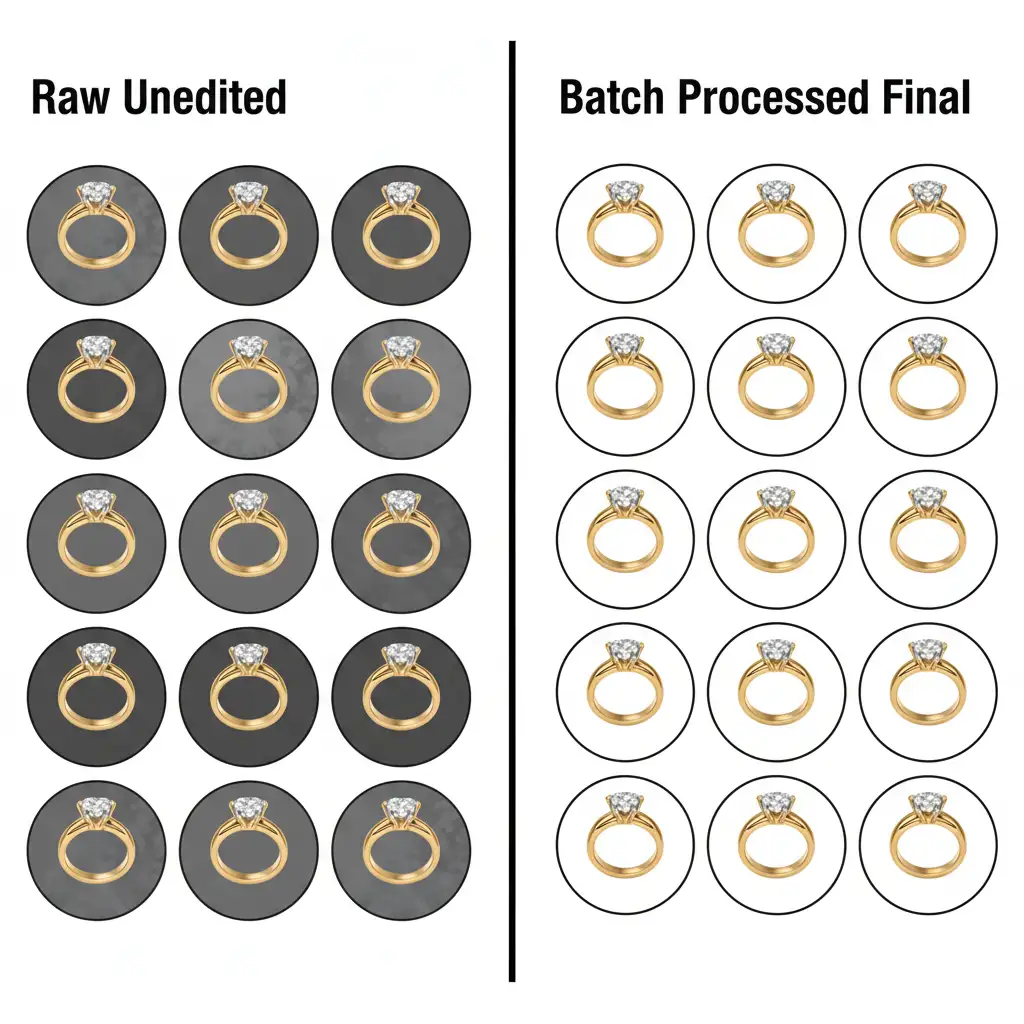
Use the Photoshop Image Processor to run a batch script that utilizes a clipping path to strip the backgrounds to pure #FFFFFF white. During this export phase, you must force the embedding of the Color Space sRGB profile.
If you export in Adobe RGB or ProPhoto RGB, the web-based HTML5 360 Viewer will strip the profile, resulting in dull, desaturated gems and off-color gold. By batch-processing the background removal and forcing sRGB, you ensure the final spin is perfectly optimized for the web.
Stop Fighting the Flicker: Let the Experts Handle Your 360 Jewelry Spins
Building a batch retouching workflow for 360 jewelry rotations requires deep technical knowledge of Lightroom synchronization, Photoshop automation, and web color spaces. While this workflow drastically reduces manual labor, executing it flawlessly across hundreds of SKUs still requires a dedicated team of experts.
Need pixel-perfect 360 jewelry spins without the headache? Let Image Work India and Cloud Retouch handle the heavy lifting for your e-commerce catalog. Our specialized retouching teams utilize proprietary batch workflows and pixel-perfect manual refinement to guarantee consistent, flicker-free rotations that drive conversions.
Contact us today to scale your 360-degree product photography with unmatched precision.




