
You are on a tight deadline, putting the final touches on a client’s image using Photoshop v25.0. You make a selection, hit Generate, and suddenly—a glaring red text box appears. The dreaded “Guidelines Violation” error.
The worst part? Your image is perfectly safe.
Whether it is an expanse of bare skin, a splash of red color resembling blood, or an innocent shape that Adobe’s overly aggressive content moderation algorithm misinterprets, a false positive is incredibly frustrating. This error blocks your Generative Workspace from communicating with Adobe’s cloud servers, bringing your workflow to a dead halt.
Don’t panic. Here is the ultimate Photoshop Generative Fill guidelines violation workaround guide to get your edits back on track.
Understanding the Adobe Firefly AI Error
Before fixing the issue, it helps to know why it happens. In Adobe Photoshop v25.0 and newer, Generative Fill relies entirely on the Adobe Firefly AI engine. To maintain safety standards, Adobe implemented a strict moderation filter that evaluates both your text prompt and the pixels inside your selection.
When the AI scans your image, it looks for restricted content. Unfortunately, its context awareness is flawed. It frequently flags safe imagery, resulting in a hard block. Because the system is a “black box,” it won’t tell you exactly what triggered the error. You simply have to manipulate the visual context to force a clean generation.
Here are five proven workarounds to bypass the block.
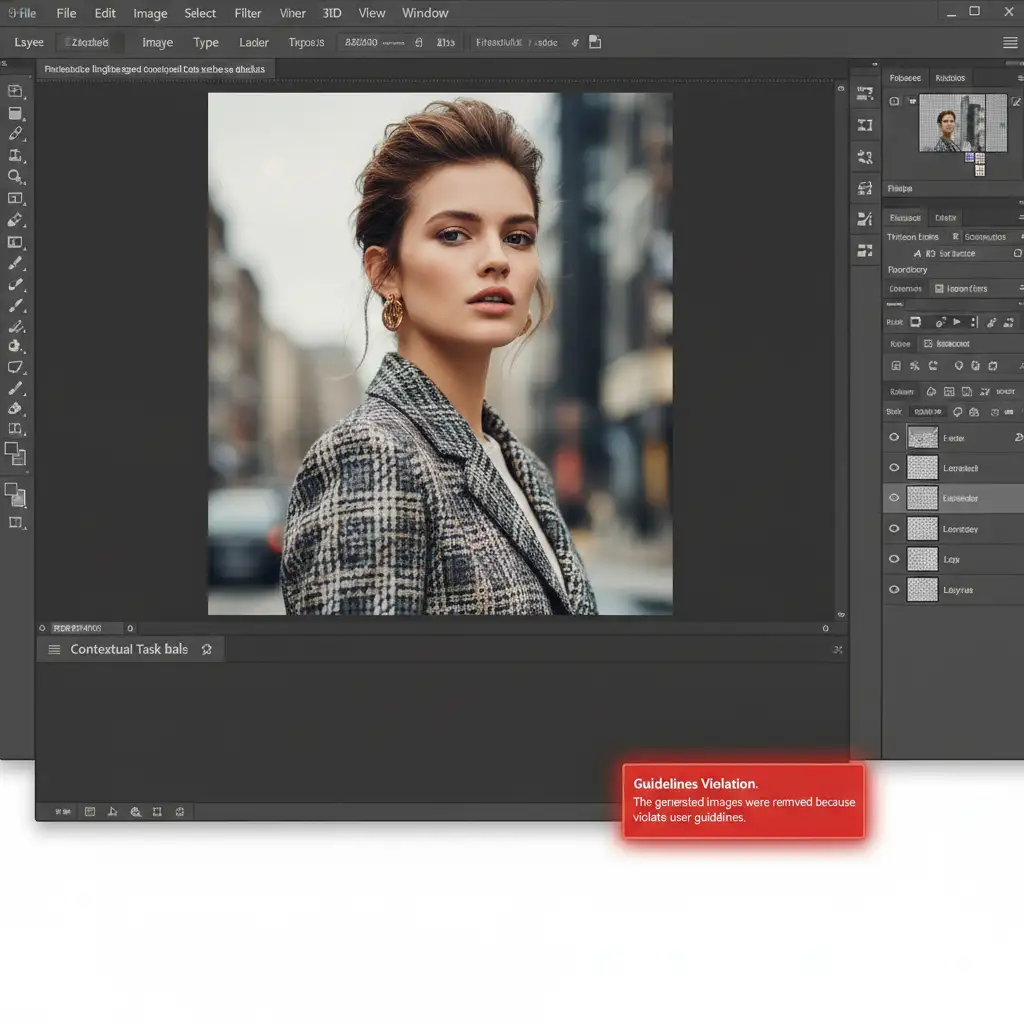
5 Photoshop Generative Fill Guidelines Violation Workarounds
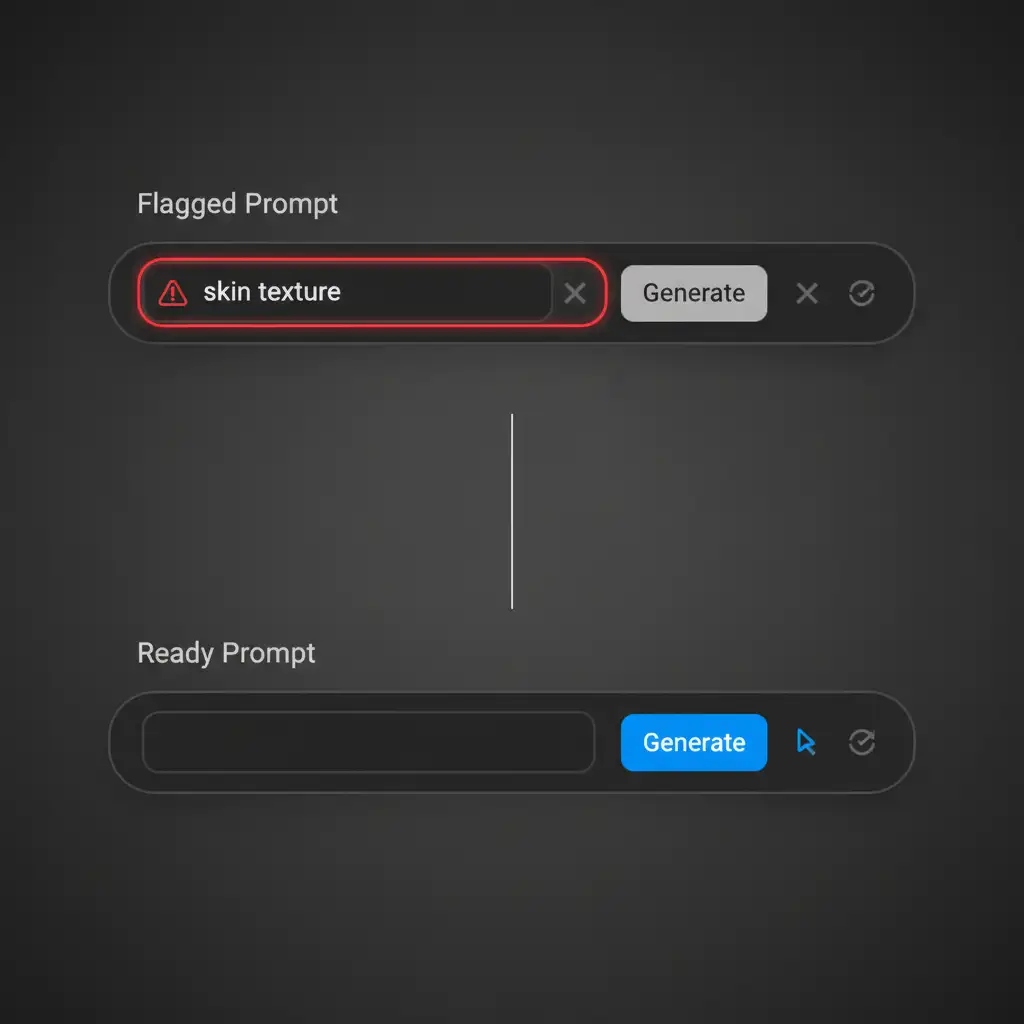
Method 1: The Quick Fix (Blank Prompts & Prompt Engineering)
The easiest way to bypass a false text flag is to eliminate the text entirely. Often, the words you use trigger the filter, not the image itself.
- Leave it Blank: Clear the text box in the Contextual Task Bar completely. Hit “Generate.” This forces the AI to rely solely on the surrounding pixels to fill the gap, which often yields better, unflagged results.
- Use Safe Synonyms: If you absolutely need to guide the AI, practice careful prompt engineering. Swap potentially triggering words for neutral alternatives (e.g., instead of “blood-red dress,” use “crimson gown”).
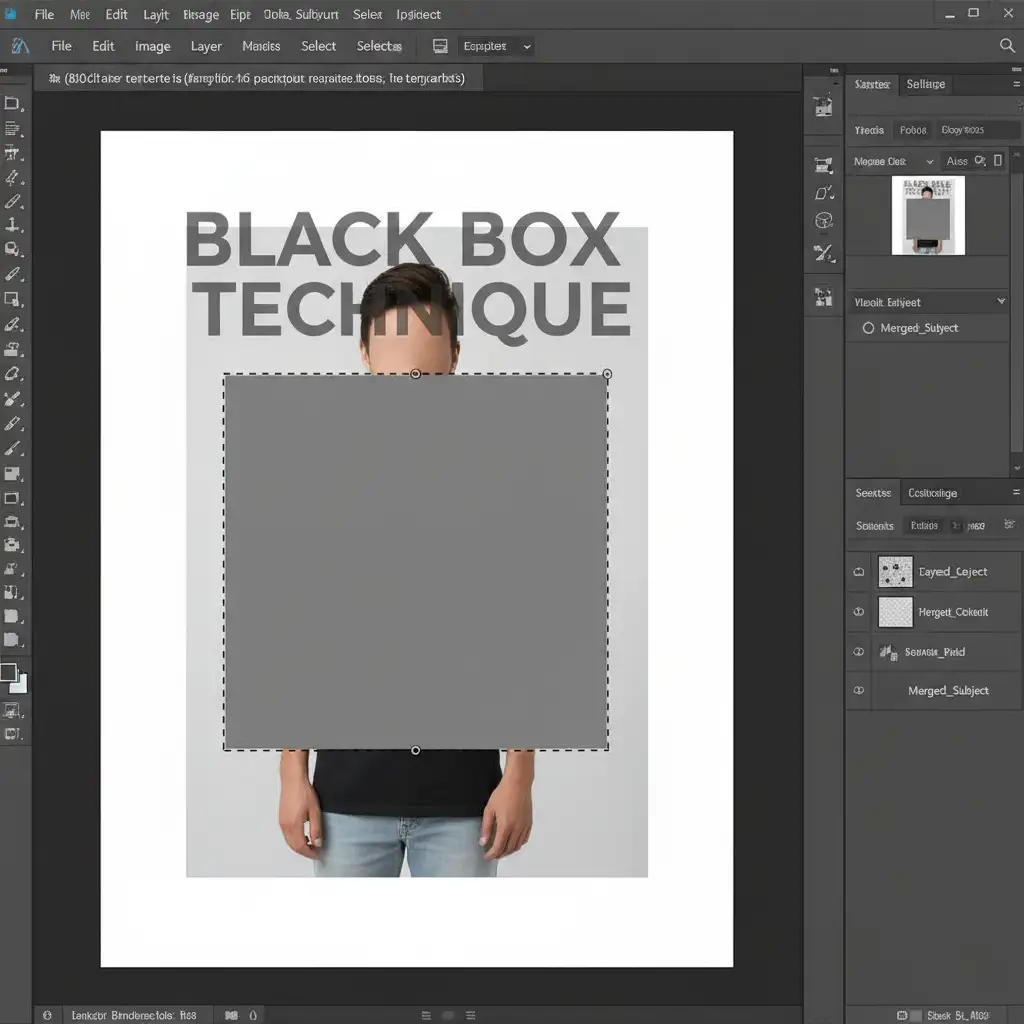
Method 2: The Pro Solution (The “Black Box” Technique)
If clearing the prompt doesn’t work, the pixels themselves are triggering the error. The “Black Box” technique is the most reliable Photoshop Generative Fill guidelines violation workaround available. It hides the problematic pixels from Adobe’s initial scan while preserving the outer context.
- Create a new layer above your image.
- Select the Rectangular Marquee Tool.
- Draw a box over the specific area causing the false positive (e.g., an area of bare skin).
- Fill the box with a solid, neutral grey color (#808080).
- Rasterize and merge the grey box layer down into your working layer.
- Select the grey box using the Magic Wand or Marquee tool.
- Run Generative Fill with a blank prompt.
Because the AI only sees a grey box and the safe surrounding pixels, it bypasses the moderation filter and generates a clean fill.
Method 3: The Technical Deep-Dive (Progressive Micro-Filling)
Sometimes, the overall shape of your selection triggers the filter. If the Black Box method disrupts your workflow, try progressive micro-filling.
Instead of selecting a large area, use the Lasso Tool to select tiny, 50×50 pixel increments. Fill the area progressively, chunk by chunk. By breaking the selection into micro-chunks, you prevent the AI’s algorithm from recognizing the restricted broader shape. The marching ants should only cover a fraction of the problem area at a time.
Method 4: The Layer Mask Reset
Occasionally, Photoshop caches error data on a specific layer. If you are stuck in a loop of false positives, try resetting the layer data.
Duplicate your background layer, apply a layer mask to isolate the area you want to edit, and apply the mask permanently. This creates a fresh pixel base. Select the area again and run the generation. This simple reset often clears invisible metadata that triggers the AI block.
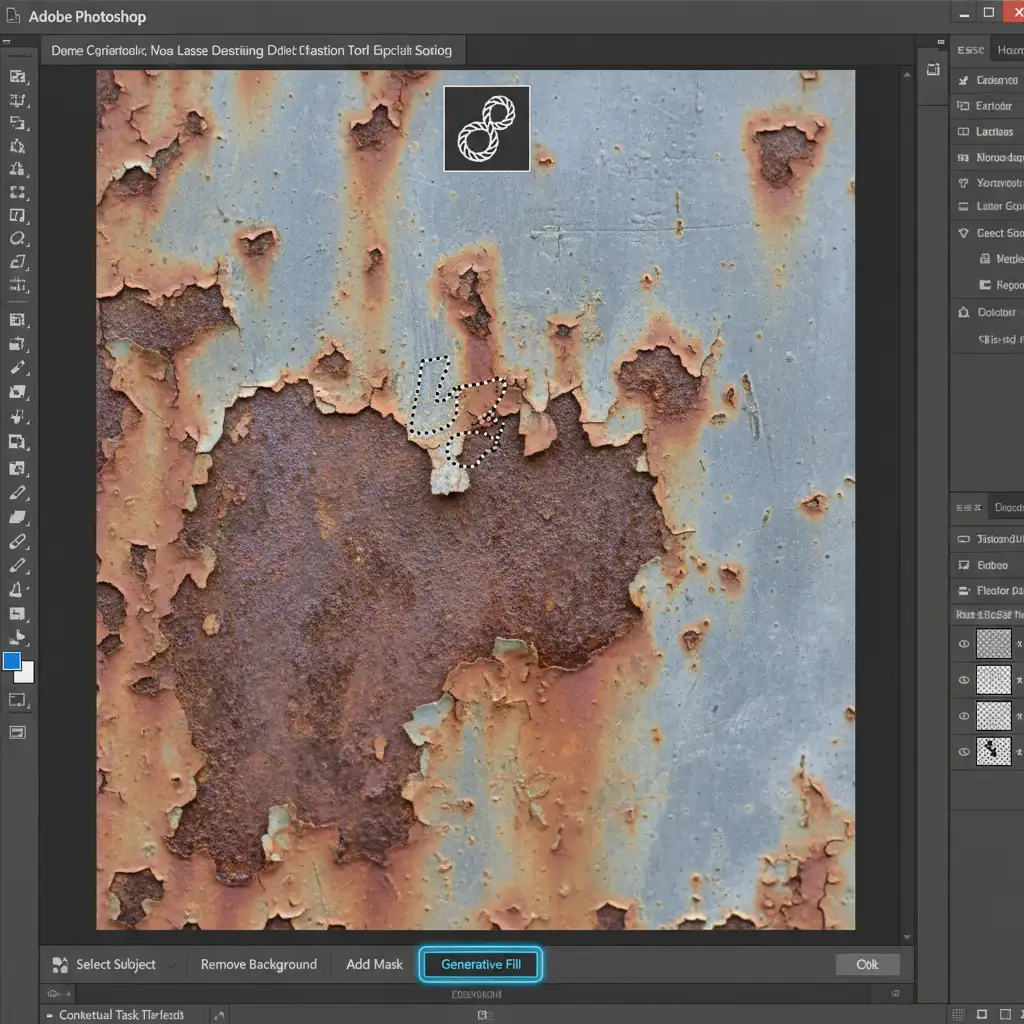
Method 5: Disable GPU Acceleration
While less common, display bugs can sometimes cause the Generative Workspace to misinterpret selections, leading to server-side errors that mimic guideline violations. Go to Edit > Preferences > Performance and temporarily uncheck GPU acceleration. Restart Photoshop and try your Generative Fill again. If it works, your graphics driver may need an update.
Why Human Precision Still Beats AI
AI tools like Generative Fill are powerful, but their reliance on rigid, automated moderation algorithms proves they are not foolproof. False positives cost professional photographers and retouchers hours of billable time. When you are editing hundreds of e-commerce product photos, real estate shots, or fashion portraits, you cannot afford to stop and troubleshoot a “Guidelines Violation” on every third image.
Software errors disrupt scaling. Human expertise guarantees it.
Let Image Work India & Cloud Retouch Handle the Heavy Lifting
Avoid the frustration of AI false positives, software errors, and endless prompt troubleshooting. If you need flawless, high-volume image editing without the technical headaches, let the expert editors at Image Work India and Cloud Retouch handle your bulk retouching needs with human precision.
From advanced clipping paths and masking to high-end fashion retouching and composite work, our dedicated team delivers pixel-perfect results that AI simply cannot guarantee.
Stop fighting with your software. [Contact Image Work India today] to streamline your post-production workflow and get your time back.




