
Migrating your successful e-commerce store from Shopify to TikTok Shop? You have probably already hit the most frustrating visual roadblock: your perfect 1:1 square product images look terrible.
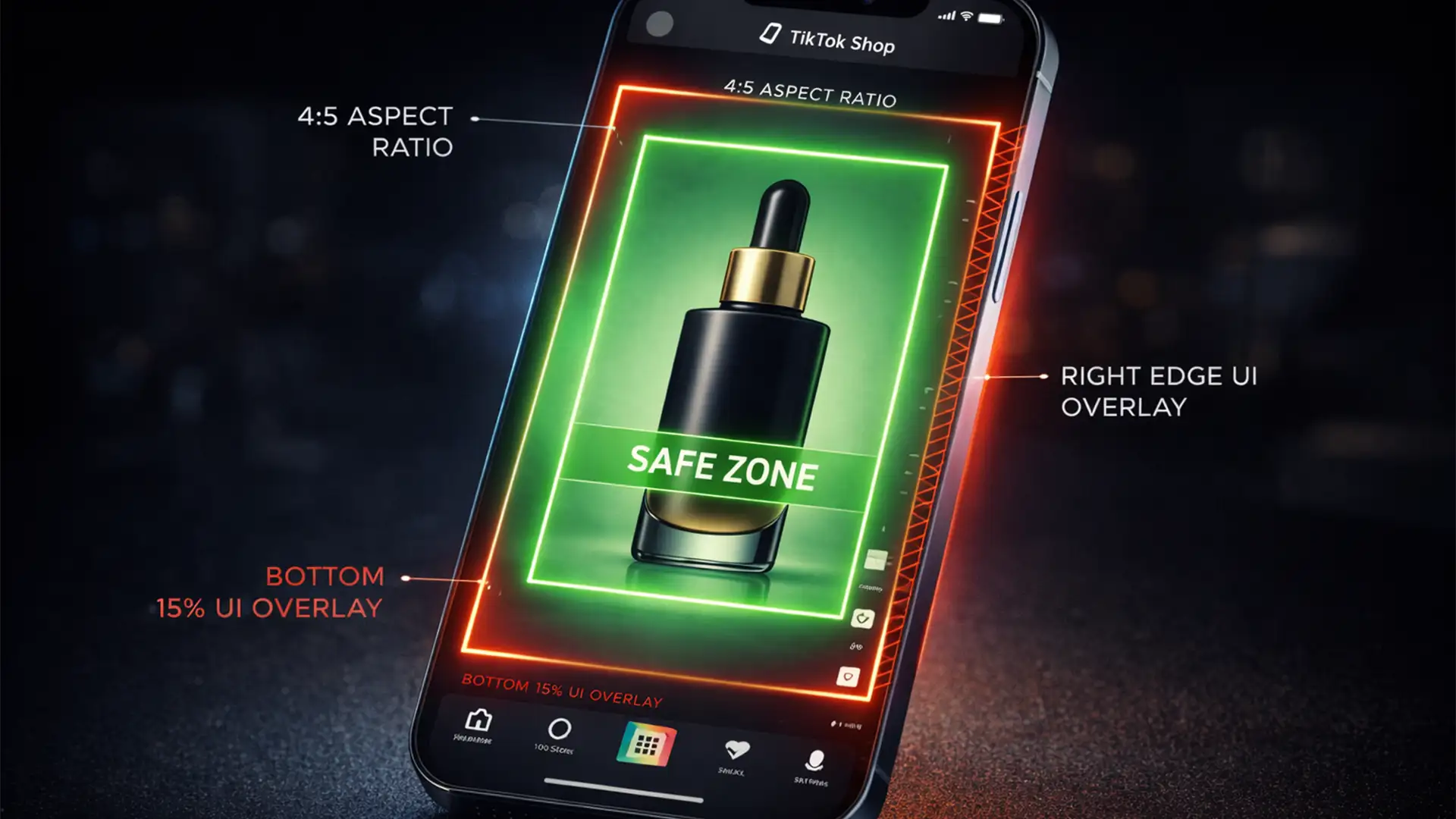
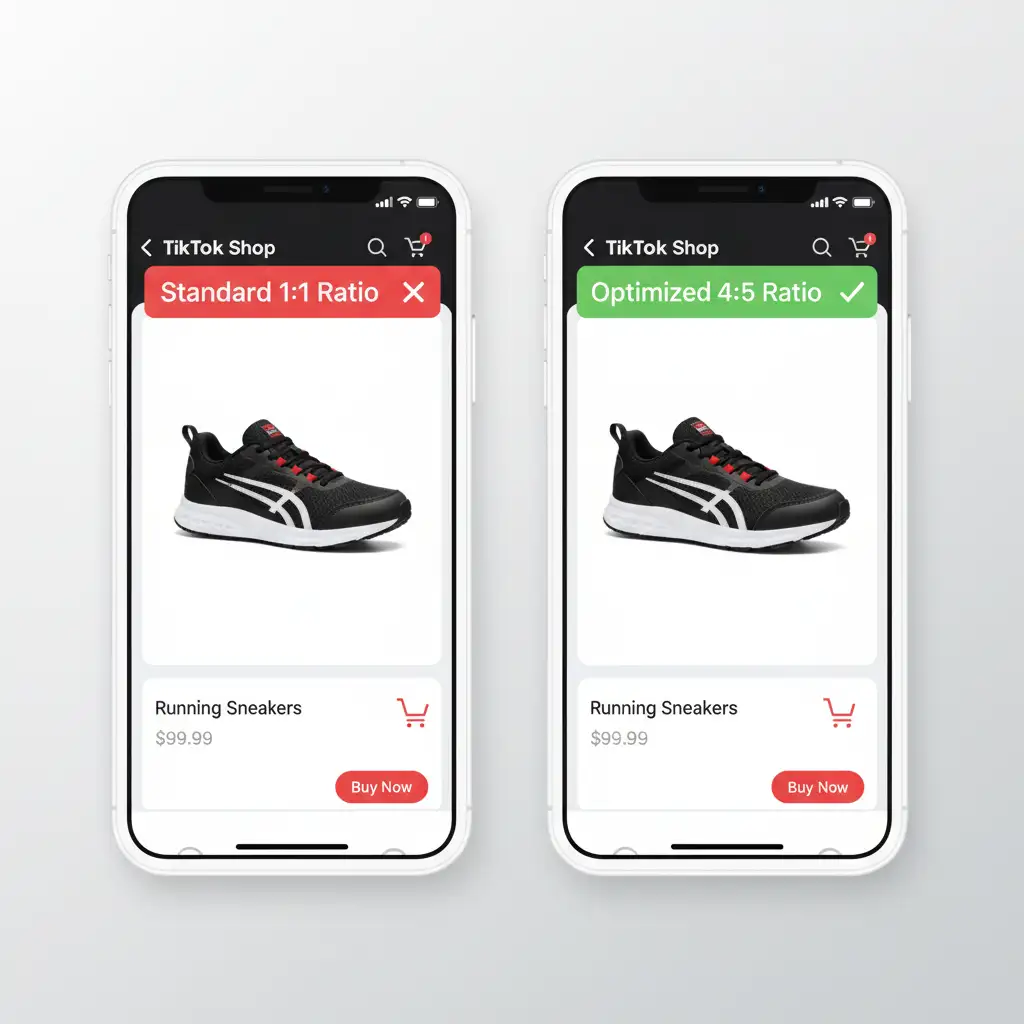
TikTok’s vertical-first platform demands a 4:5 aspect ratio. When you upload standard square images, the platform either forcefully auto-crops them—chopping off the top and bottom of your product—or slaps on awkward white borders. Worse, TikTok’s heavy UI overlays completely obscure crucial details, severely damaging your CTR optimization efforts. If you want to stop losing sales and present a flawless storefront, you must master TikTok Shop 4:5 image safe zones.
Here is the technical breakdown of how to rescue your product photography and optimize it perfectly for the TikTok Shop ecosystem.
The Problem with Shopify Integration on TikTok
Standard Shopify integration relies heavily on a 1:1 square format. While this works beautifully for traditional web stores, TikTok Shop is an entirely different environment.
When a user browses the Shop Tab or views a LIVE product callout, TikTok imposes specific UI overlays. Price tags, discount badges, shopping cart icons, and host details dominate the bottom 15 percent and the right-side margin of the screen. If your core product falls outside the designated safe zone, it gets hidden behind these interface elements.
3 Methods to Fix TikTok Shop Image Cropping
To fix this, you need to convert your images to an exact resolution of 1080×1350 pixels while keeping the product strictly within the visible safe area. Here are three professional workflows to achieve this.
Method A: The Quick Fix (Standard Cropping)
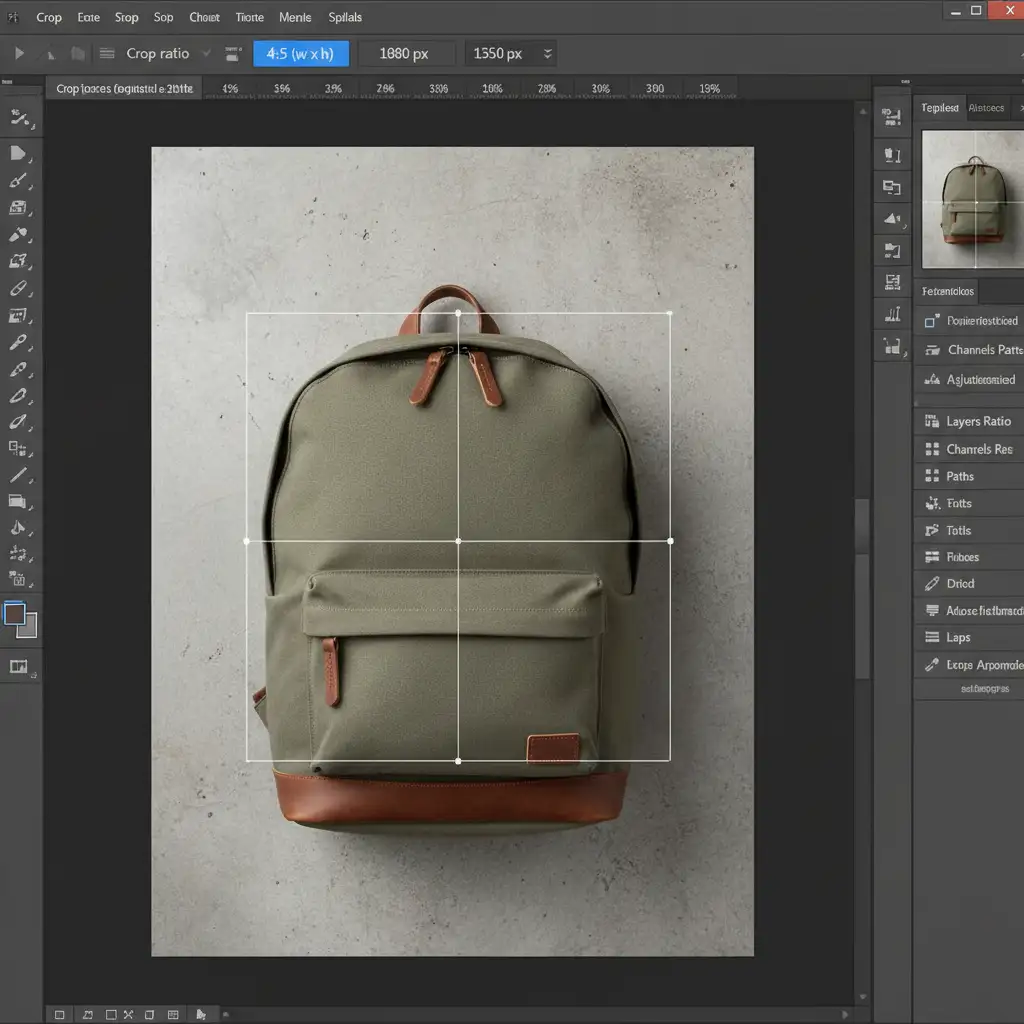
If your original photography has enough background bleed area, a simple crop is the fastest solution.
- Open Adobe Photoshop.
- Select the Crop Tool (C).
- In the top options bar, choose the 4:5 preset.
- Set your resolution explicitly to 1080×1350 pixels.
- Reposition your product to the absolute center of the frame and apply the crop.
Method B: The Pro Workaround (Generative Expand)
What if your 1:1 image is tightly cropped and zooming in cuts off the product? Instead of relying on outdated content-aware scale techniques that distort your item, use AI.
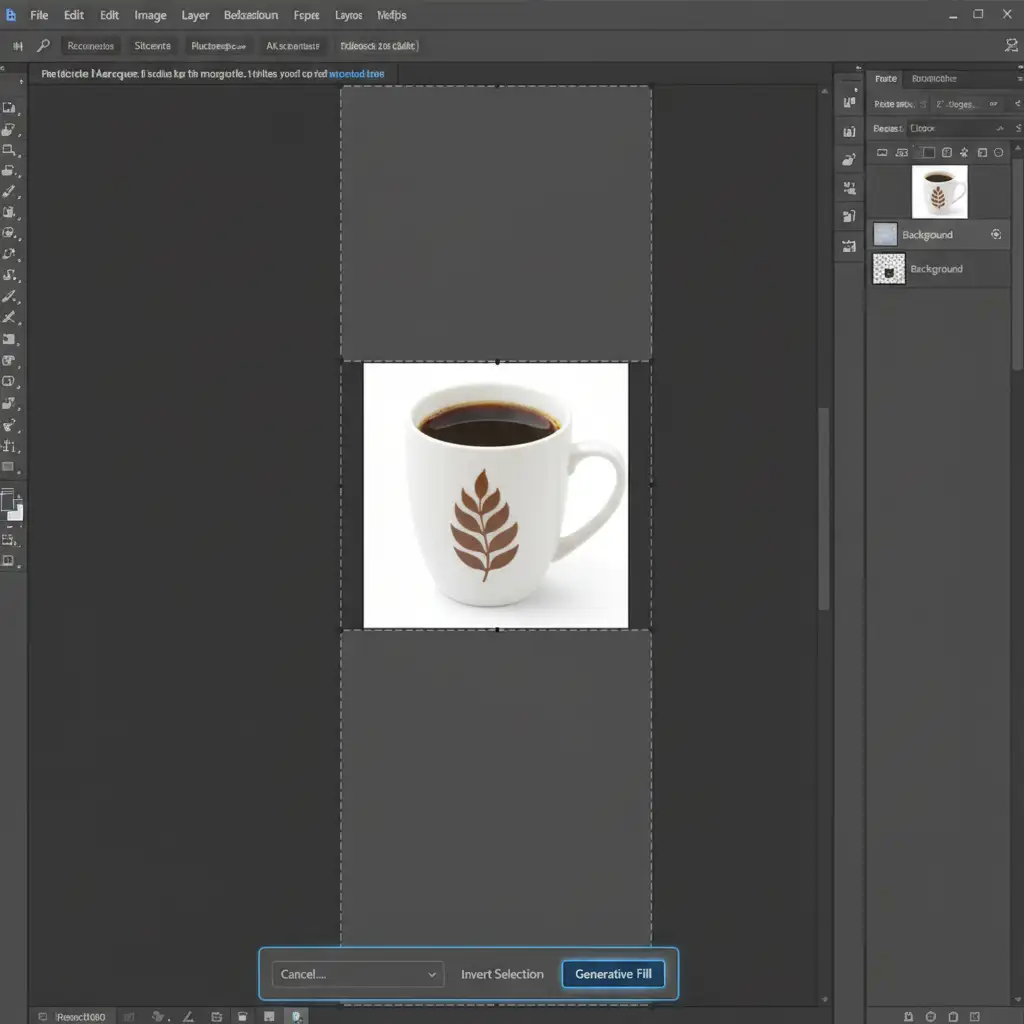
- Create a new Photoshop canvas set to 1080×1350.
- Place your 1:1 Shopify image perfectly in the center.
- Select the empty top and bottom areas using the Rectangular Marquee Tool.
- Click Generative Expand (or Generative Fill) on the contextual taskbar.
- Leave the prompt blank and hit generate. Photoshop will seamlessly extend your background without altering the core product.
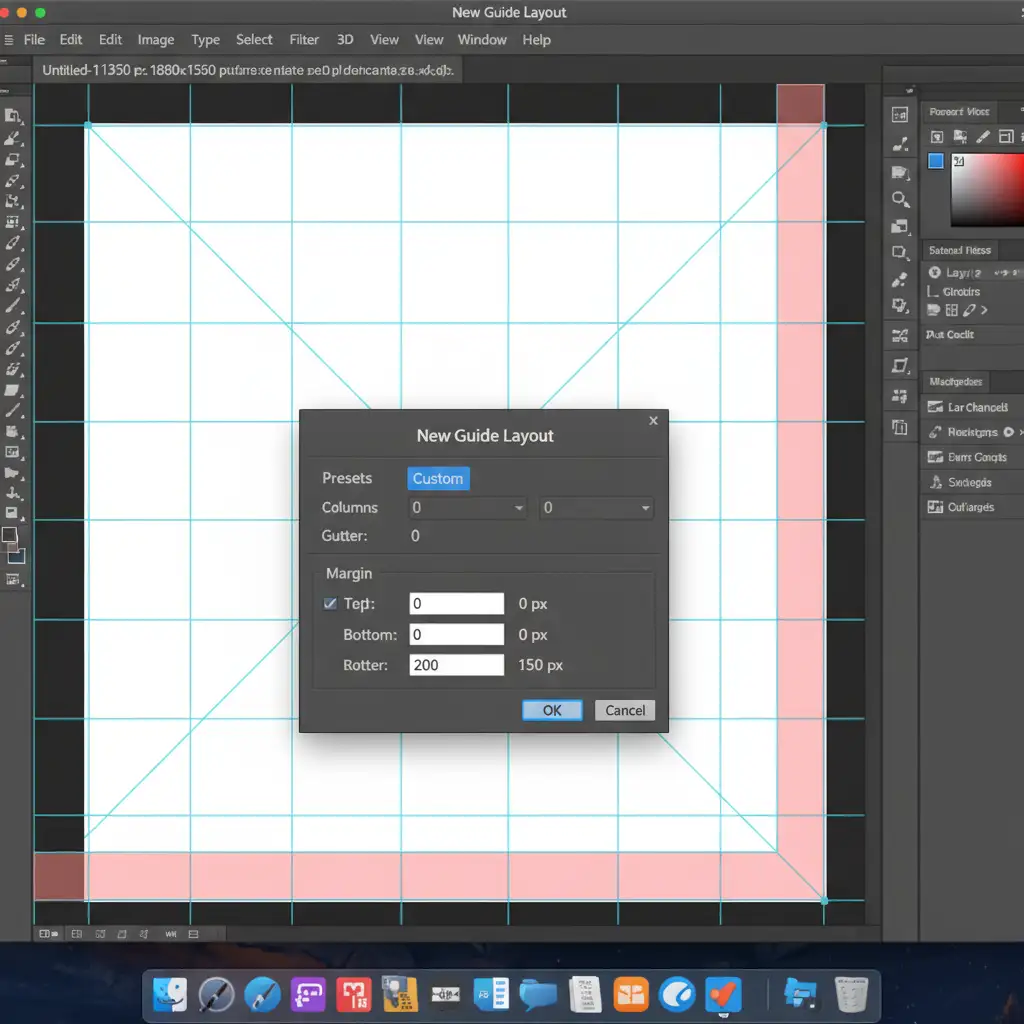
Method C: The Technical Deep-Dive (Building a Safe Zone Template)
To ensure zero UI interference during LIVE streams and in-feed displays, you need a reusable template that mathematically maps out TikTok’s UI overlays.
- Create a new 1080×1350 document in Photoshop.
- Navigate to View > Guides > New Guide Layout.
- Set your Bottom Margin to 200px (this protects against the product title, price, and purchase buttons).
- Set your Right Margin to 150px (this protects against engagement icons and LIVE UI elements).
- Save this layout as a preset. Place all future products strictly inside the resulting central bounding box.
Scale Your E-Commerce Visuals with the Experts
Adapting a massive Shopify catalog to meet TikTok Shop 4:5 image safe zones is a tedious, time-consuming process. One misaligned batch of photos can lead to obscured products, confused customers, and lost revenue.
Don’t let poor image cropping tank your TikTok Shop sales. Let the professionals handle the technical heavy lifting. At Image Work India and Cloud Retouch, we specialize in expert, high-volume e-commerce image optimization. From flawless background extensions to strict safe-zone compliance, we ensure your products look pixel-perfect across every platform.
Contact us today to streamline your TikTok Shop migration and maximize your conversion rates.




