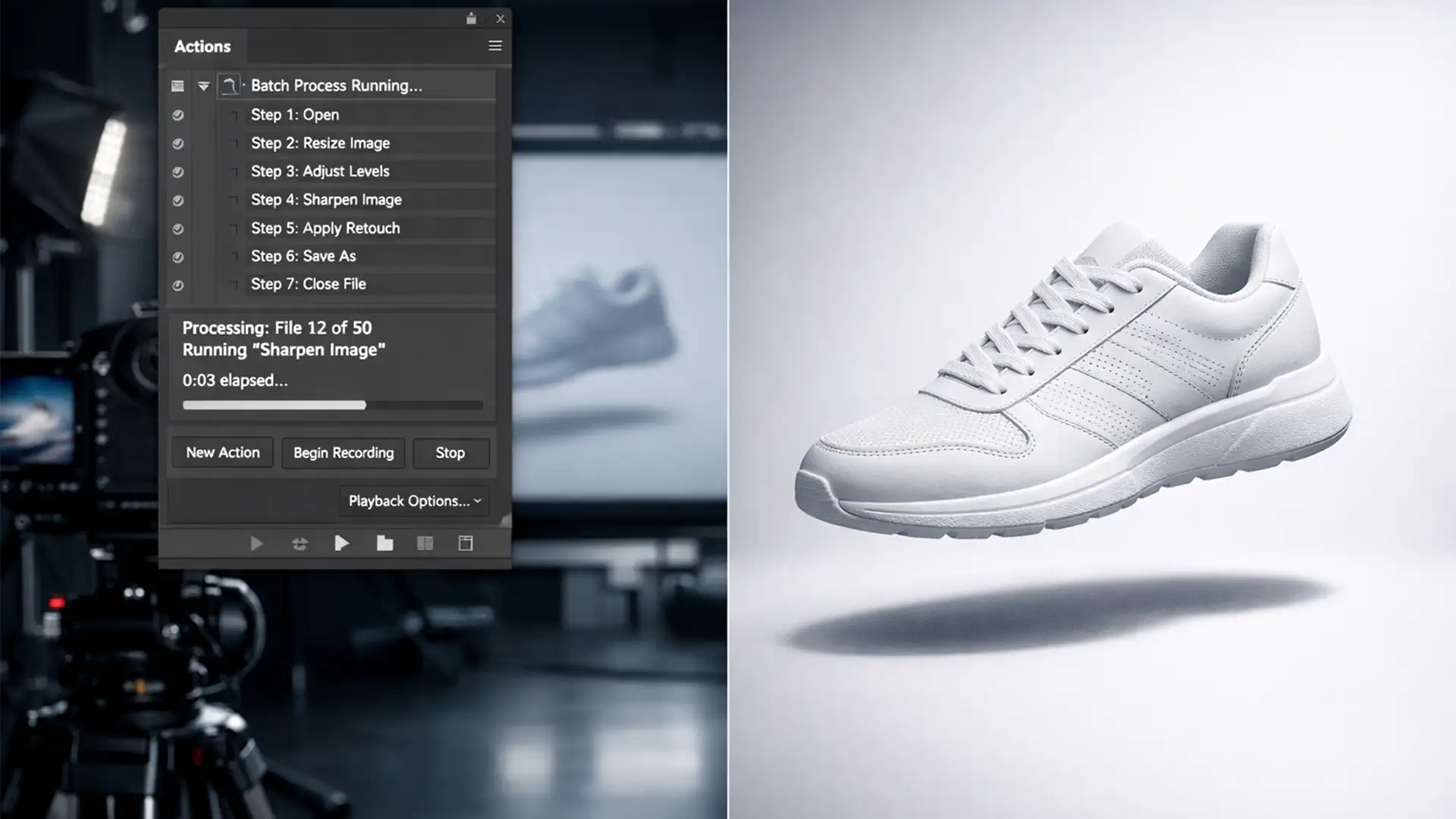

Are you losing countless hours manually drawing shadows for hundreds of product SKUs? In e-commerce retouching, nothing kills your conversion rate faster than the amateur “fake drop shadow” look. Yet, manually creating realistic cast shadows for thousands of varying product shapes is a massive workflow bottleneck. Editors constantly battle inconsistencies in light direction, shadow density, and placement across large catalogs.
If you want to scale your output without sacrificing visual quality, you need a bulletproof system. In this guide, we will break down the exact workflow for batch natural shadow creation for product photography using Photoshop 2024 (v25.x), allowing you to automate realistic depth across your entire catalog.
The Bottleneck in E-commerce Catalog Workflows
When dealing with high-volume e-commerce catalogs on platforms like Shopify or Amazon, consistency is mandatory. However, applying shadows dynamically across hundreds of images presents a unique challenge.
Products have different aspect ratios, resolutions, and physical footprints. If you simply apply a static drop shadow, tall products look like they are floating, and wide products look flat. Resolving this requires mastering batch automation by combining the logic of Photoshop’s Image Processor with dynamic alignment scripts, ensuring perfect shadows regardless of the source image’s bounding box.
How to Automate Natural Shadow Creation (3 Methods)
Depending on your catalog’s specific requirements, you can approach shadow generation in three distinct ways. Before beginning, ensure your product is already isolated from its background using an Alpha Channel or precise clipping path.
Method A: The Quick Fix (Basic Drop Shadows)
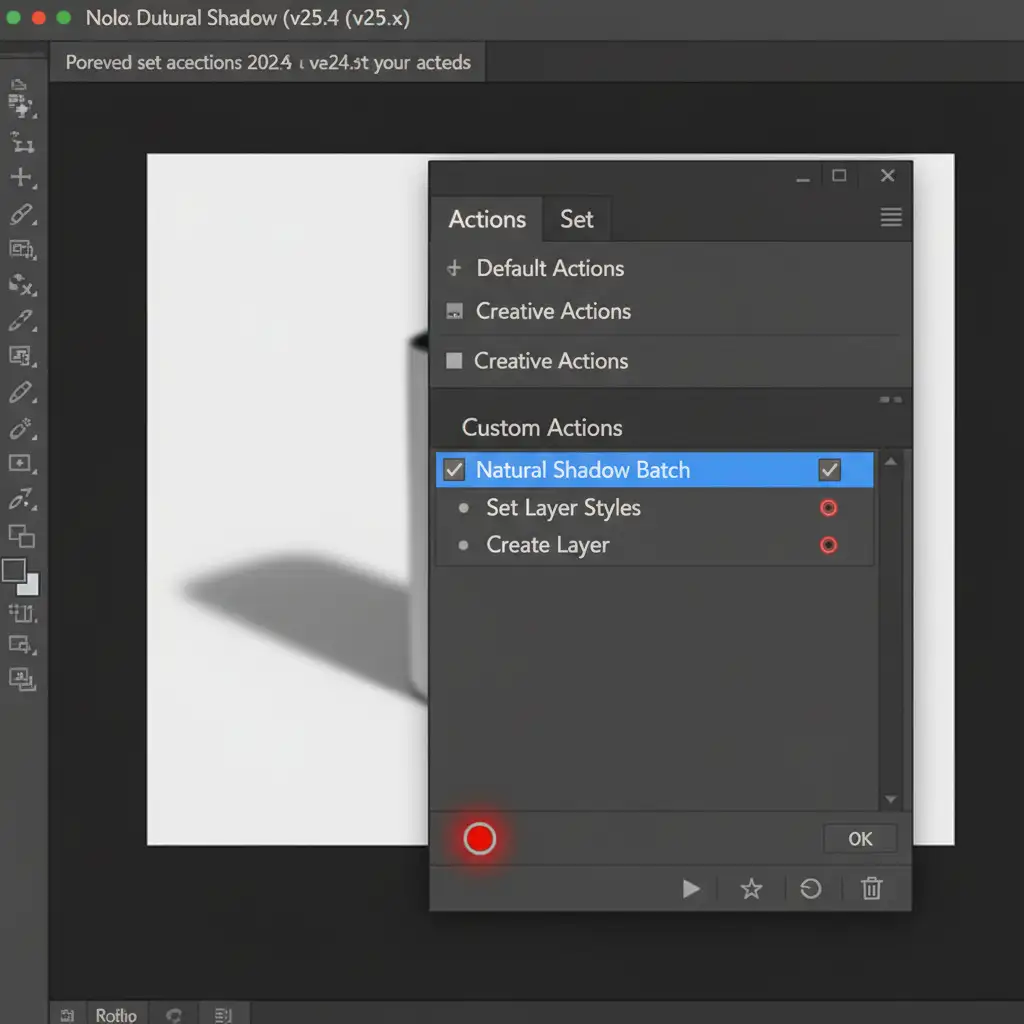
If you need a fast, uniform shadow for top-down flat lay photography, a basic layer style action is your best starting point.
- Open your isolated product image.
- Open the Photoshop Actions panel and hit “Record”.
- Double-click the product layer to open Layer Styles and select Drop Shadow.
- Set Opacity to 15%, Distance to 10px, and Size to 25px with a 90-degree angle.
- Go to Layer > Layer Style > Create Layer. This crucial step separates the shadow into its own independent layer, allowing you to adjust opacity or mask it without affecting the product.
Method B: The Pro Workaround (Realistic Cast Shadows)
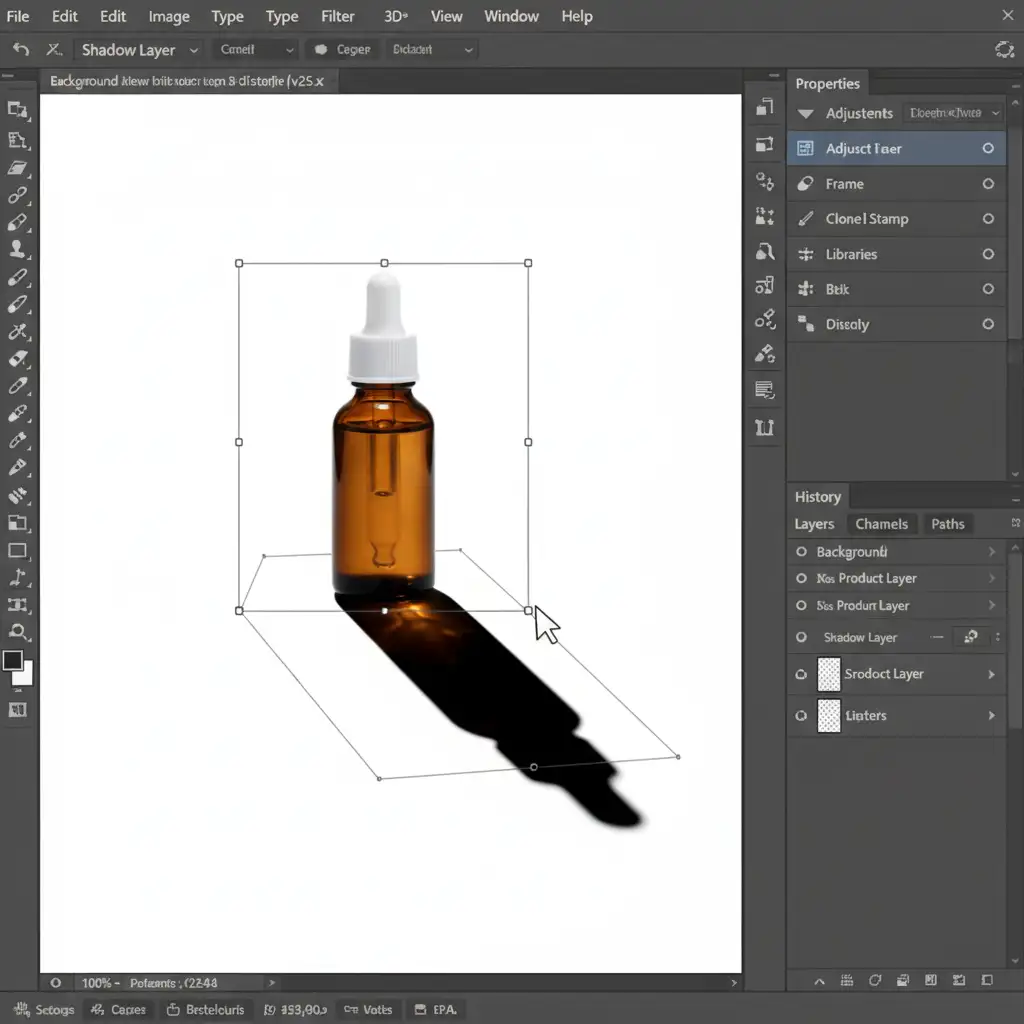
For standing products (like shoes, bottles, or appliances), a standard drop shadow looks artificial. You need a directional cast shadow anchored to the floor plane.
- Start recording a new Action.
- Convert your isolated product layer into a Smart Object.
- Duplicate the layer and move the duplicate below the original product.
- Apply a Black Color Overlay to the bottom layer.
- Go to Edit > Transform > Distort. Pull the top handles of the bounding box down and away to simulate a floor plane perspective transform.
- Apply a Gaussian Blur (around 15-20px) to soften the shadow edges.
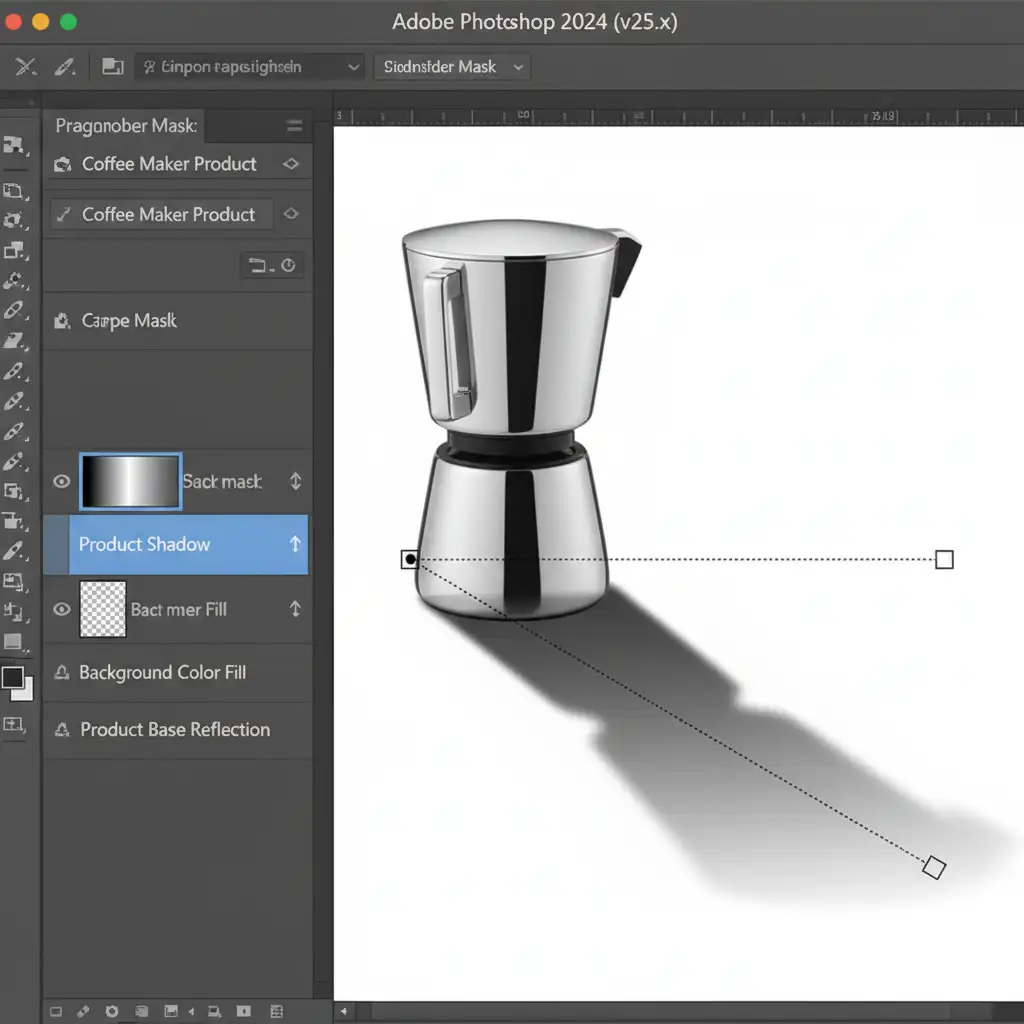
- Add a Layer Mask to the shadow layer. Use the Gradient Tool (Black to Transparent) to create a seamless falloff, making the shadow fade naturally as it moves further from the product base.
Method C: The Technical Deep-Dive (Batch Automation)
Once your Action is perfected, it’s time to scale. Applying this to thousands of images manually defeats the purpose. We will use Photoshop’s built-in batching engine.
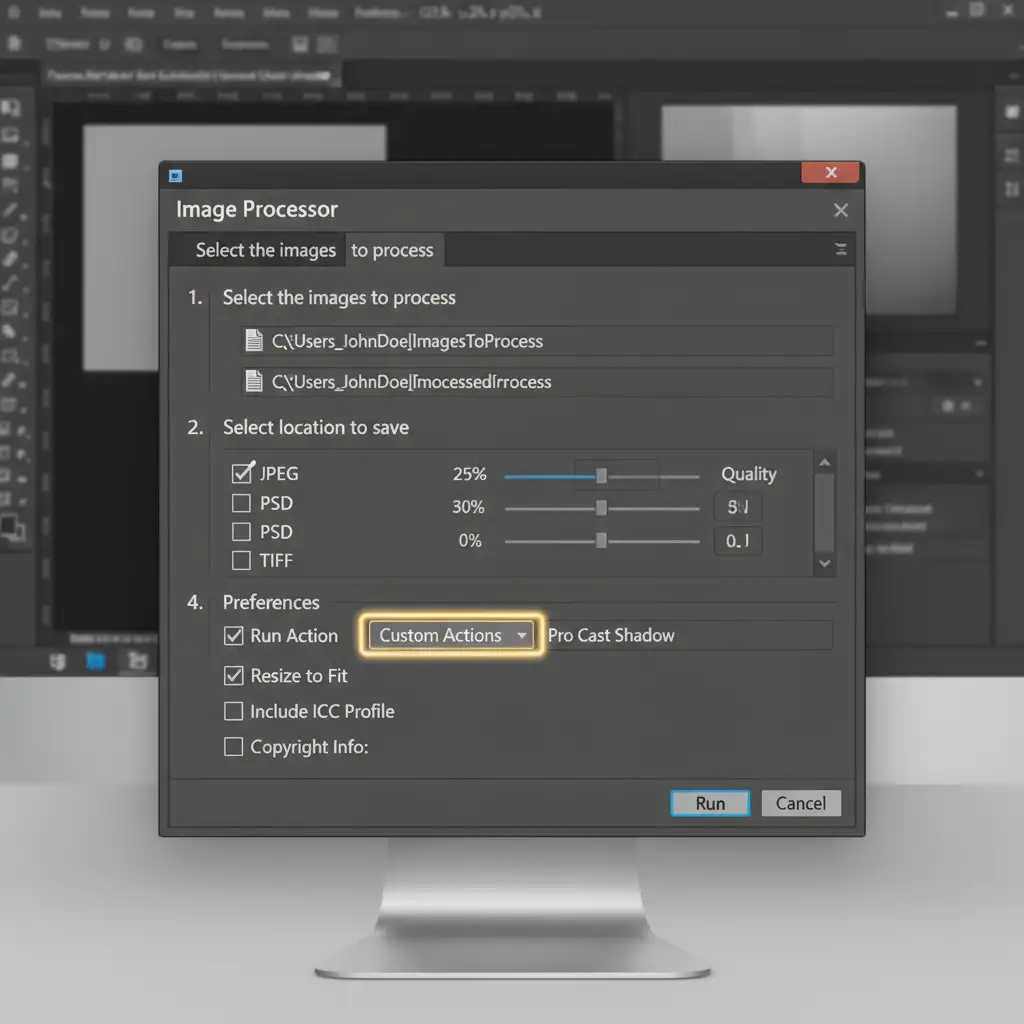
- Navigate to File > Scripts > Image Processor.
- Select the images to process: Choose the folder containing your isolated product SKUs.
- Select location to save processed images: Choose your output destination.
- Preferences: Check the box that says “Run Action”.
- From the dropdown menus, select your custom Action set and choose the natural shadow Action you created in Method B.
- Hit “Run”.
Pro Tip for varying sizes: To prevent shadows from rendering outside the canvas on differently sized products, ensure your initial Action includes a script step (or alignment command) that snaps the shadow to the bottom bounding box of the active pixels before applying the distort transform.
Scale Your E-commerce Catalog Without the Headache
Mastering batch natural shadow creation for product photography can save your studio hundreds of hours a month. However, setting up dynamic actions that flawlessly handle complex shapes, varying light sources, and different aspect ratios requires deep technical expertise. When actions break or scripts fail, you are back to square one: manual editing.
Struggling to meet tight catalog deadlines? Don’t let workflow bottlenecks slow down your product launches.
Hire Image Work India and Cloud Retouch for your bulk natural shadow creation. Our team of expert retouchers combines advanced automation with meticulous manual quality control to guarantee pixel-perfect, realistic consistency across your entire e-commerce store. Focus on growing your brand, and let us handle the pixels. Contact us today to scale your retouching workflow effortlessly.




