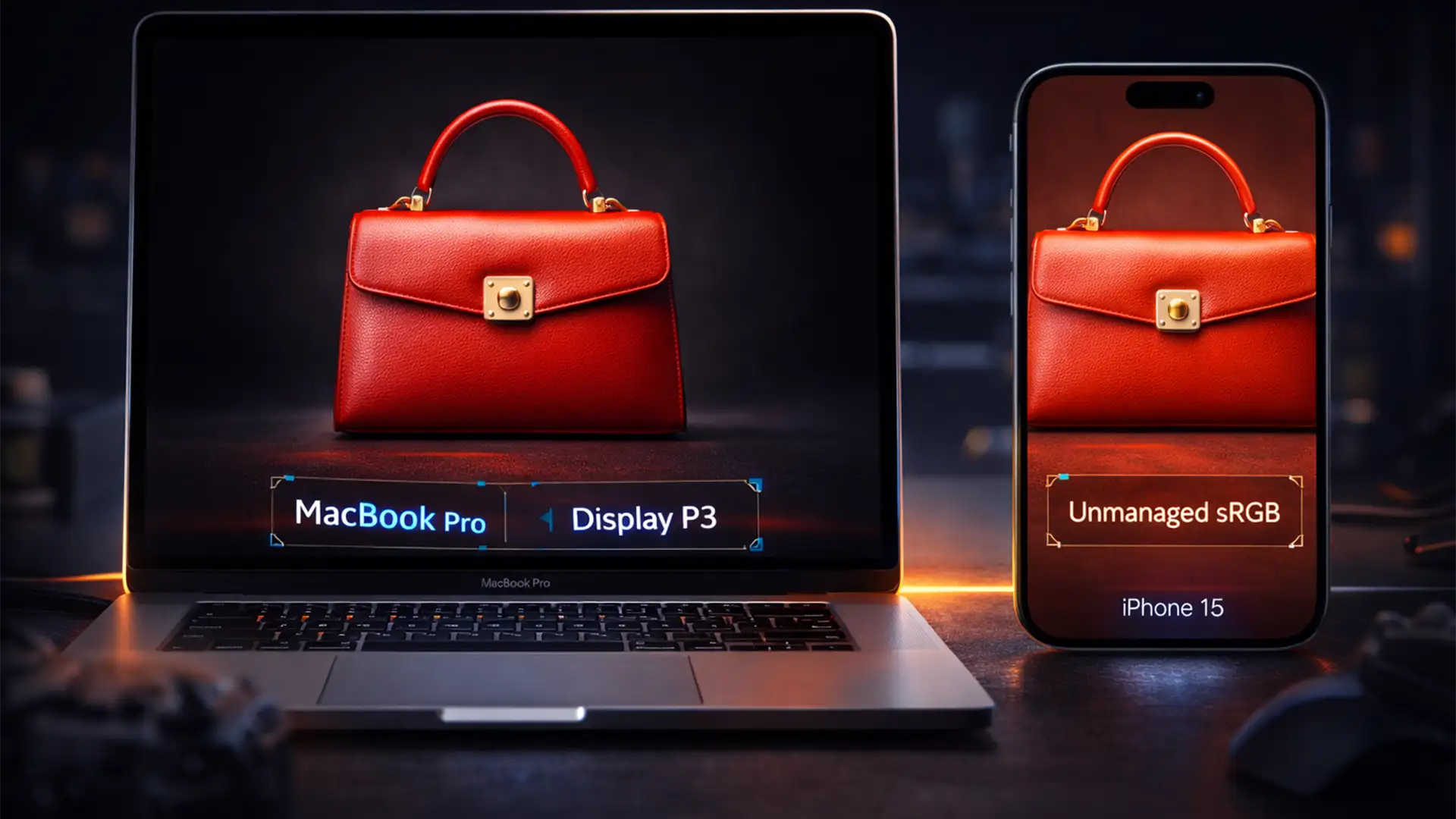

You just spent hours retouching a product catalog. On your MacBook, the deep reds and vibrant greens look flawless. But the moment your customer views the product on their iPhone, the colors look completely different—either aggressively oversaturated or disappointingly dull. A few days later, the dreaded notification arrives: “Returned: Color not as described.”
If this sounds familiar, you are experiencing the most expensive technical glitch in online retail. Mastering ecommerce color matching MacBook vs iPhone is no longer just a design preference; it is a critical business operation.
Here is exactly why your images are shifting across devices, and the precise Photoshop workflow required to fix it and protect your profit margins.
The Root Cause: Display P3 vs. sRGB Color Gamut
The core technical conflict originates from hardware advancements. Apple has widely adopted the Display P3 color space across modern MacBooks and iPhones. Display P3 contains a 25 percent wider color gamut than the traditional web-standard sRGB space, particularly extending into deep reds and greens.
When a photo editor works in Photoshop (v24.x through v25.x) on a MacBook without explicitly managing their working space, they view colors that standard web browsers cannot reproduce. If the image is saved without converting to sRGB and embedding the specific color profile, the iOS ColorSync utility on the customer’s iPhone (or their mobile browser) will incorrectly map the raw RGB values.
This hardware and software mismatch results in the drastic color shifting responsible for high return rates.
How to Fix Ecommerce Color Matching (MacBook vs iPhone)
To eliminate cross-device color shifting, you must standardize your ecommerce editing pipeline. Here are three methods to ensure your product colors remain accurate from the retoucher’s desk to the customer’s screen.
Method 1: The Quick Fix (Export Settings)
If you are processing images quickly, you must force Photoshop to translate your wider gamut into the web standard during export, while instructing mobile browsers on how to interpret those colors.
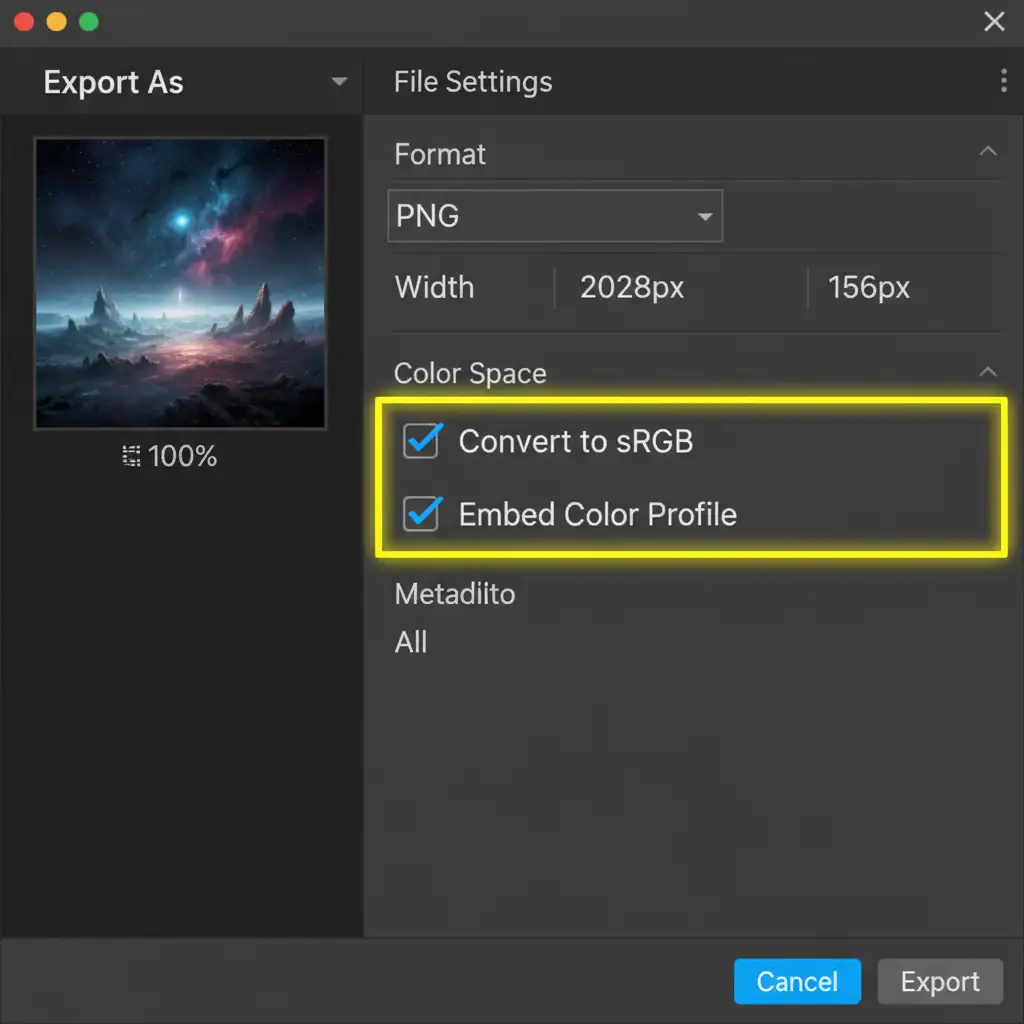
- In Photoshop, navigate to File > Export > Export As.
- Look at the Color Space section on the right-hand panel.
- Ensure both Convert to sRGB and Embed Color Profile are strictly checked.
Method 2: The Pro Workaround (Soft Proofing)
To prevent unpleasant surprises during the export phase, professional retouchers simulate the sRGB output on their P3 display while they are still editing. This is known as soft proofing.
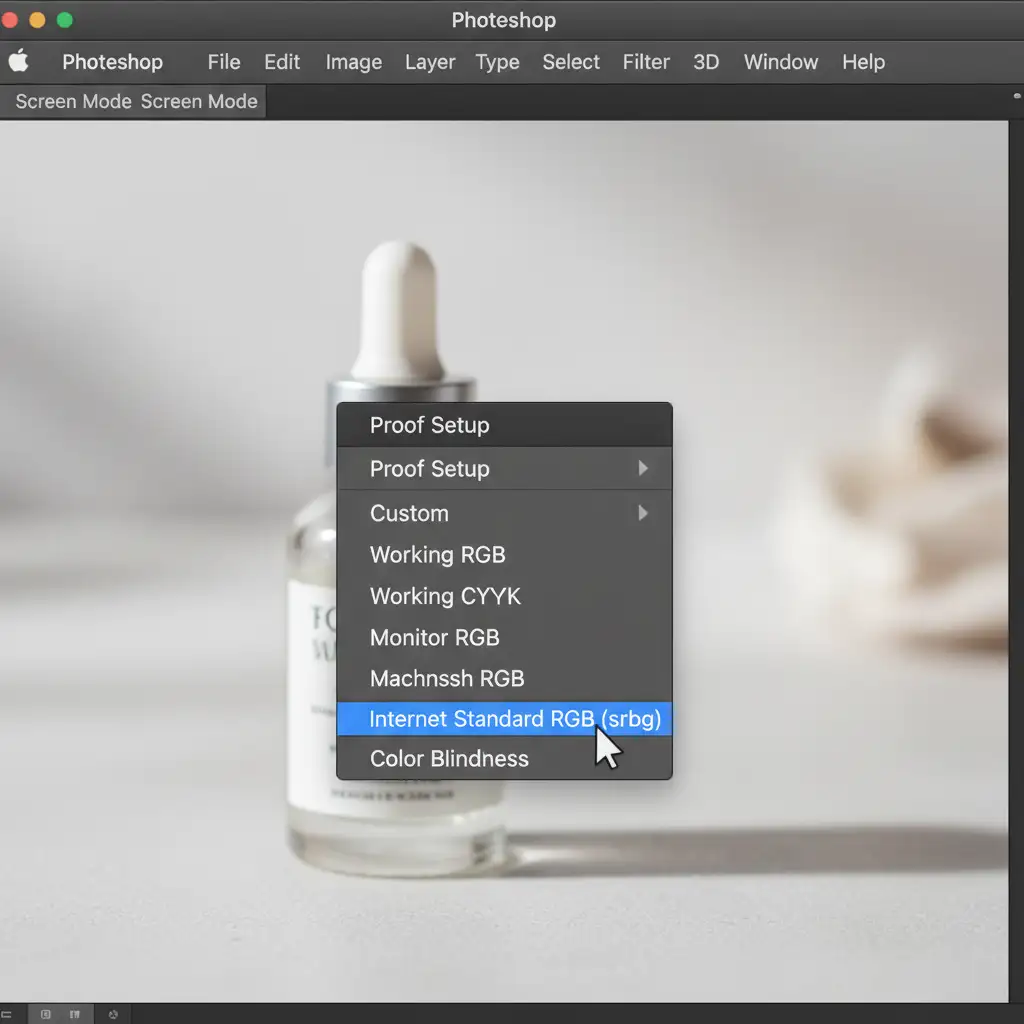
- Go to View > Proof Setup > Internet Standard RGB (sRGB).
- Toggle Proof Colors (Cmd+Y / Ctrl+Y) on and off to see exactly how your colors will shift when viewed on a standard web browser.
- If the product looks dull in soft-proof mode, use an Adjustment Layer (like Hue/Saturation or Vibrance) to selectively bump up the saturation before exporting.
Method 3: The Technical Deep-Dive (Manual Profile Conversion)
For high-end ecommerce catalogs, you should never let the export dialog guess your color conversion. Instead, manually map the colors using strict profile conversions.
Note: You must understand the difference between Assign vs Convert Profile. Assigning a profile changes how the raw numbers look, while converting changes the raw numbers to keep the image looking the same. Always use Convert for this workflow.
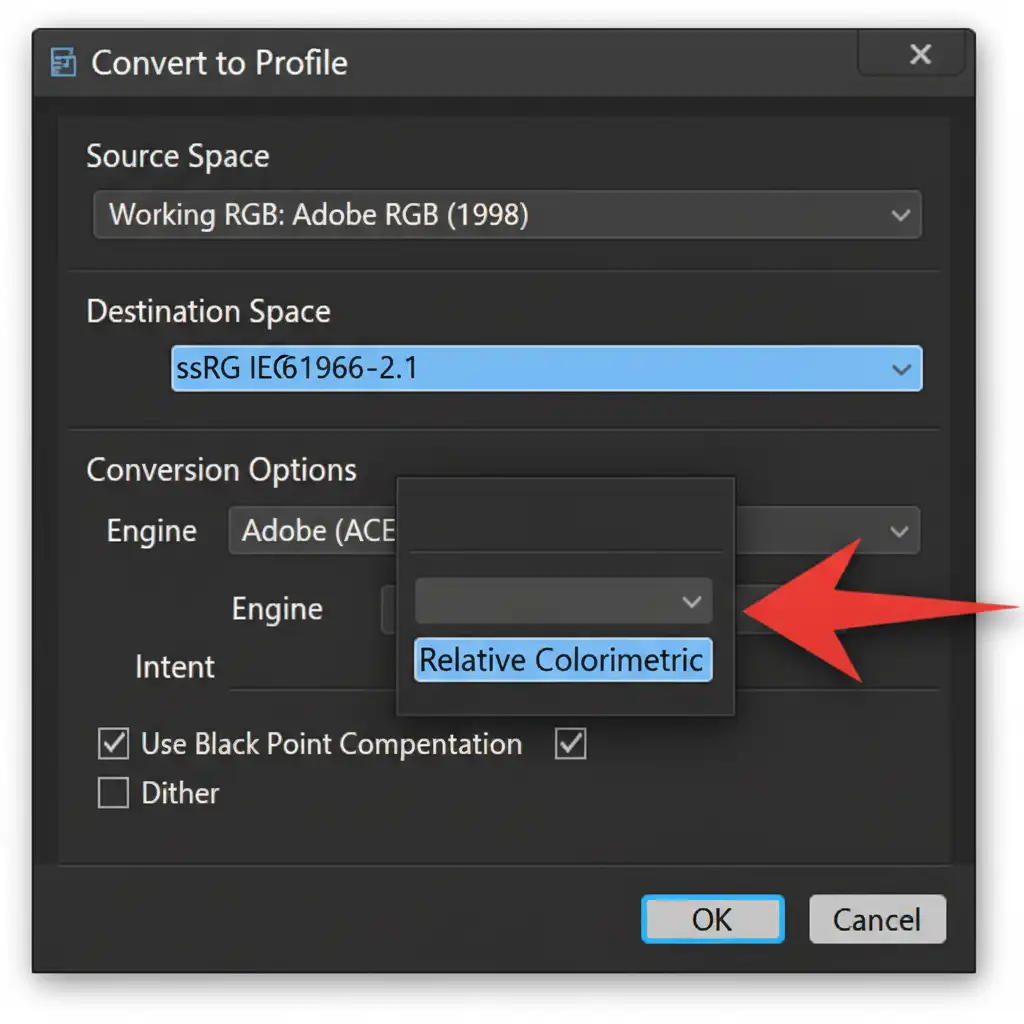
- Go to Edit > Convert to Profile.
- Set the Destination Space to sRGB IEC61966-2.1.
- Set the Rendering Intent to Relative Colorimetric. This intent preserves the colors that fall within the sRGB gamut and smoothly shifts the out-of-gamut P3 colors to their closest reproducible match.
Hardware Calibration: Defeating True Tone and Night Shift
Even with perfect Photoshop settings, your physical hardware can deceive you. Apple devices feature dynamic display settings that alter screen temperature based on ambient room lighting.
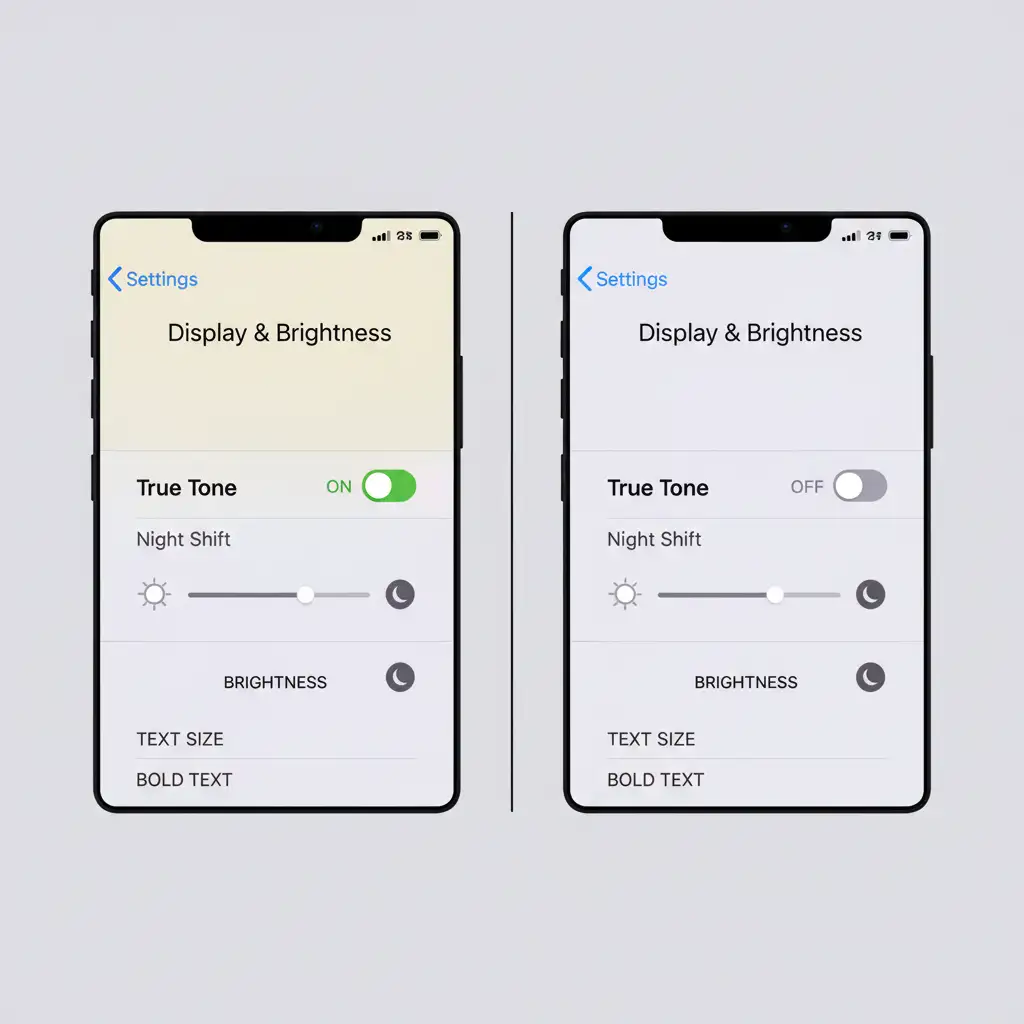
To eliminate hardware bias during your quality assurance process, you must disable True Tone and Night Shift on both your editing MacBook and your testing iPhone.
- On MacBook: Go to System Settings > Displays > Toggle True Tone OFF.
- On iPhone: Go to Settings > Display & Brightness > Toggle True Tone OFF.
Stop Losing Money on Product Returns
Mastering ecommerce color matching between MacBooks, iPhones, and standard web browsers requires technical precision, consistent workflows, and a deep understanding of color science. If your team is struggling to maintain color accuracy across thousands of SKUs, those inconsistencies are directly impacting your bottom line through increased customer complaints and product returns.
You don’t have to manage this complex pipeline alone.
Hire the experts at Image Work India and Cloud Retouch. We specialize in professional color correction, exact color-matching, and device-calibrated bulk image editing for global ecommerce brands. We ensure your products look perfectly vibrant and 100% accurate, no matter what device your customer is using.
Contact Image Work India and Cloud Retouch today to streamline your retouching workflow and protect your profit margins.




