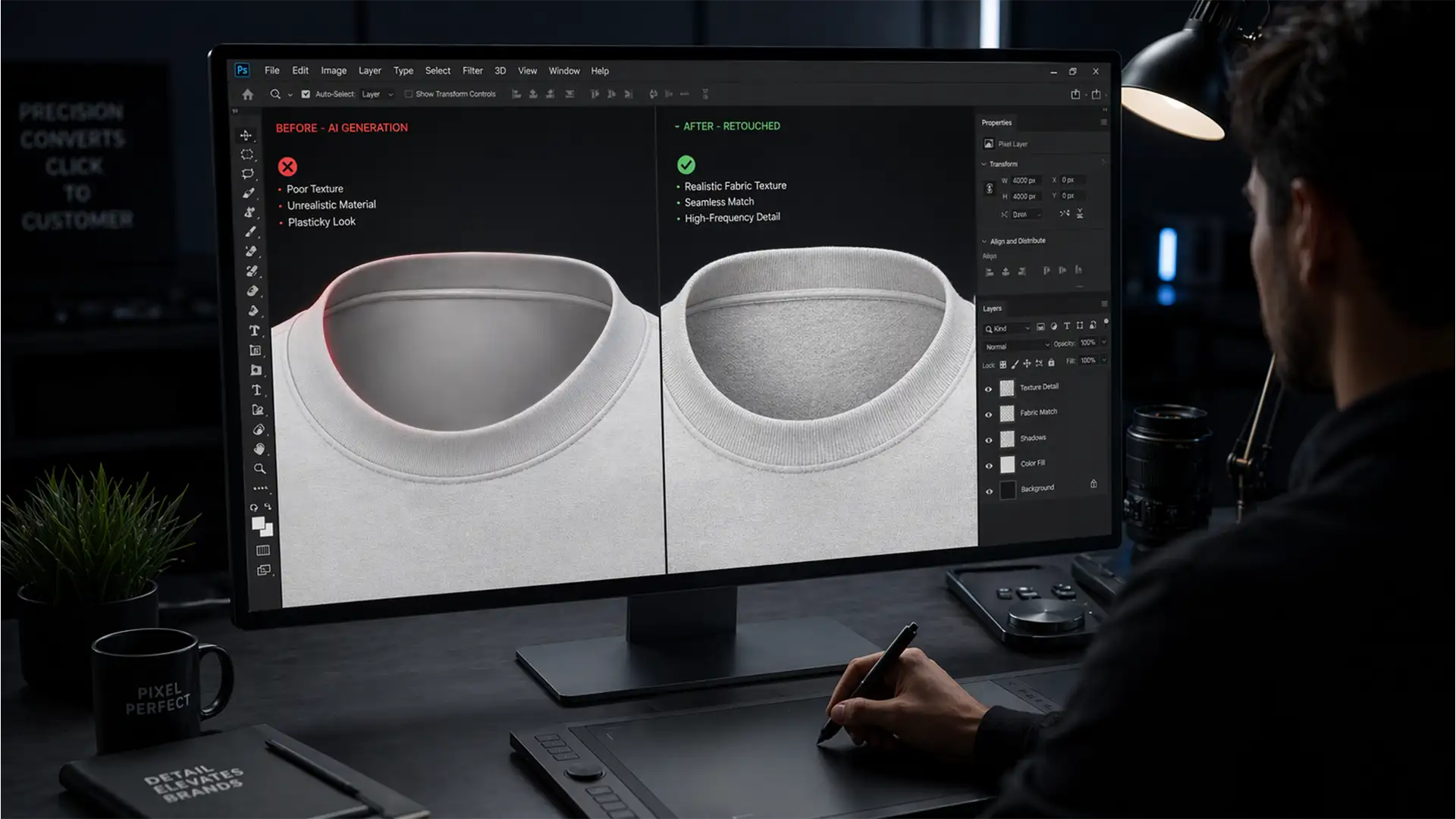

If you are bulk processing e-commerce apparel using Adobe Photoshop’s Generative Fill, you have likely hit a frustrating roadblock: the dreaded AI fabric texture mismatch. When recreating the inner neck joint for ghost mannequin photography, AI perfectly calculates lighting and structural geometry but completely fails at rendering high-frequency detail.
The result? A blurred, plasticky inner neck that starkly contrasts with the crisp fabric weave of the garment’s front. This inconsistency instantly ruins the illusion of high-end apparel. In this guide, we will show you exactly how to execute an AI ghost mannequin fabric texture mismatch fix to restore authentic texture, micro-contrast, and brand integrity to your composites.
Why Photoshop Generative Fill Blurs Fabric Textures
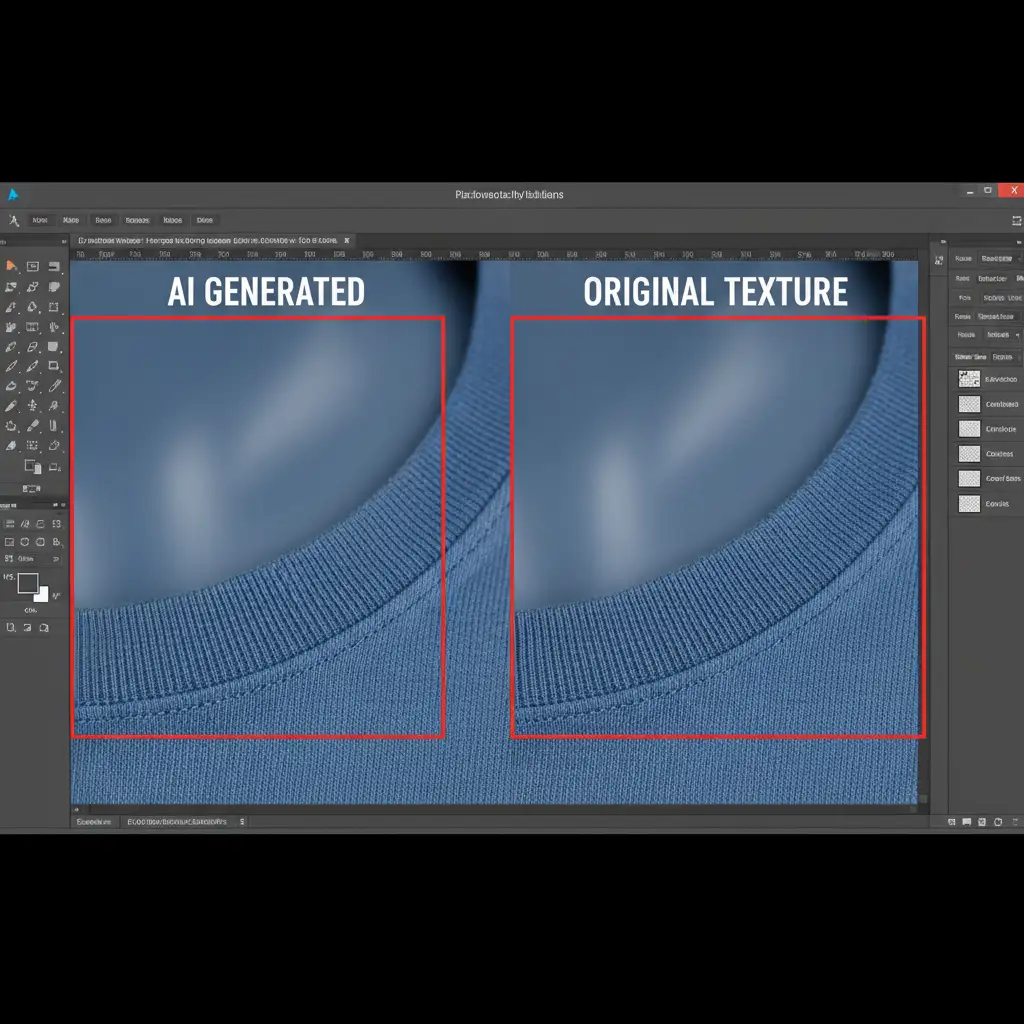
In Adobe Photoshop v25.0 and newer iterations (including the v27.x Beta), Generative Fill relies on models trained to prioritize overall image structure and lighting. While this is excellent for generating the curved geometry of a neck joint, the AI-generated pixels lack the true noise profile and micro-contrast of your original camera sensor.
Because the AI smooths out intricate details like knit patterns and cotton weaves, the transition between the actual photograph and the generated neck joint becomes glaringly obvious. To fix this, we must bridge the gap between AI geometry and authentic photographic texture.
How to Fix AI Ghost Mannequin Fabric Texture Mismatch
Depending on your production timeline and the garment’s complexity, there are three distinct ways to restore texture to your neck joint compositing workflow.
Method 1: The Quick Fix (Simulating Sensor Grain)
When dealing with simple, tightly woven fabrics where the texture mismatch is mostly a lack of sensor grain, you can use a basic noise overlay.
- Select your AI-generated neck joint layer.
- Create a new blank layer above it and fill it with 50% Gray.
- Navigate to Filter > Noise > Add Noise.
- Set the Distribution to Gaussian and check the Monochromatic box.
- Apply a Clipping Mask (Ctrl+Alt+G / Cmd+Opt+G) to clip the noise strictly to the AI-generated layer.
- Change the Blend Mode to Soft Light or Overlay, adjusting the opacity until the grain matches the original garment.
Method 2: The Pro Workaround (High Pass Texture Mapping)
For garments with distinct fabric weaves or knit patterns, simulated noise isn’t enough. You need to borrow the actual texture from the garment using a technique similar to Frequency Separation.
- Use the Lasso tool to copy a clean patch of texture from the front of the garment.
- Paste this patch above your Generative Fill neck joint layer.
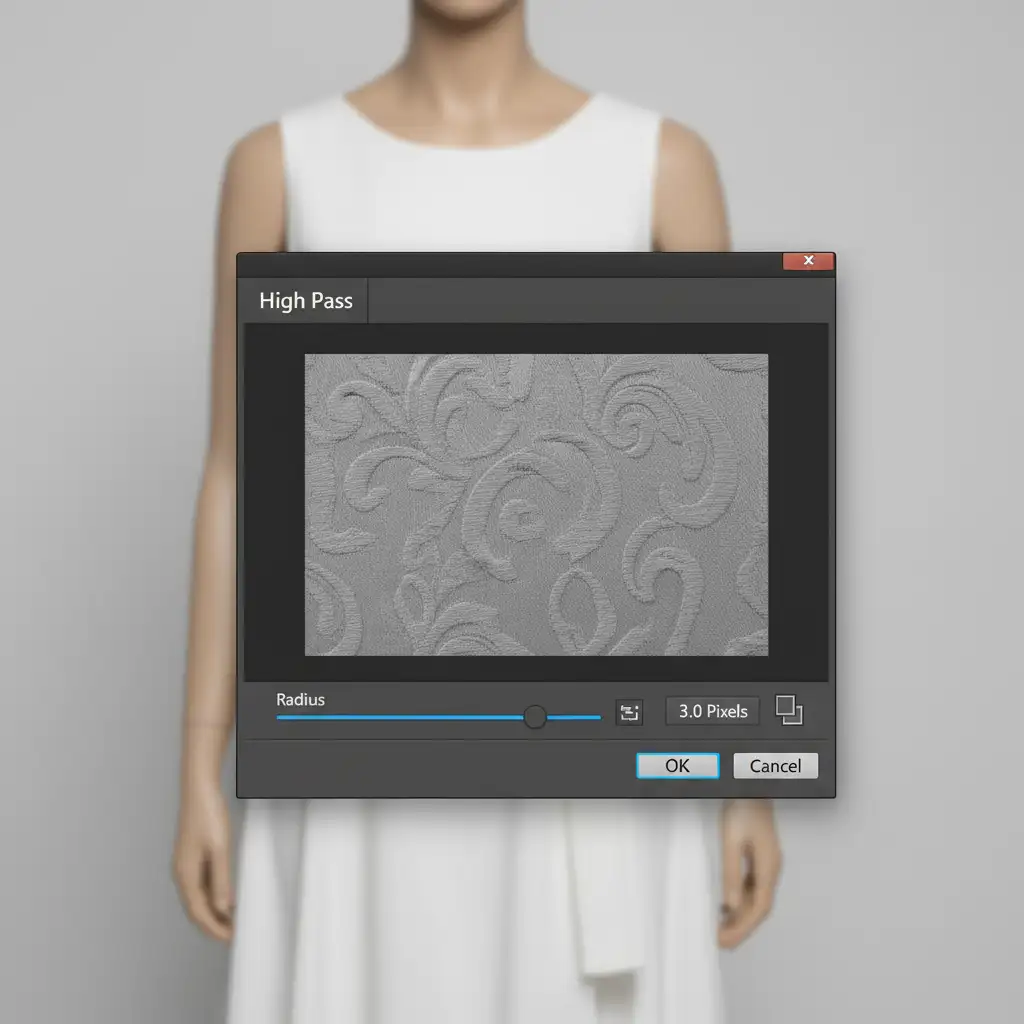
- Navigate to Filter > Other > High Pass.
- Set the radius between 2.0px and 4.0px (just enough to see the fabric weave without color halos) and click OK.
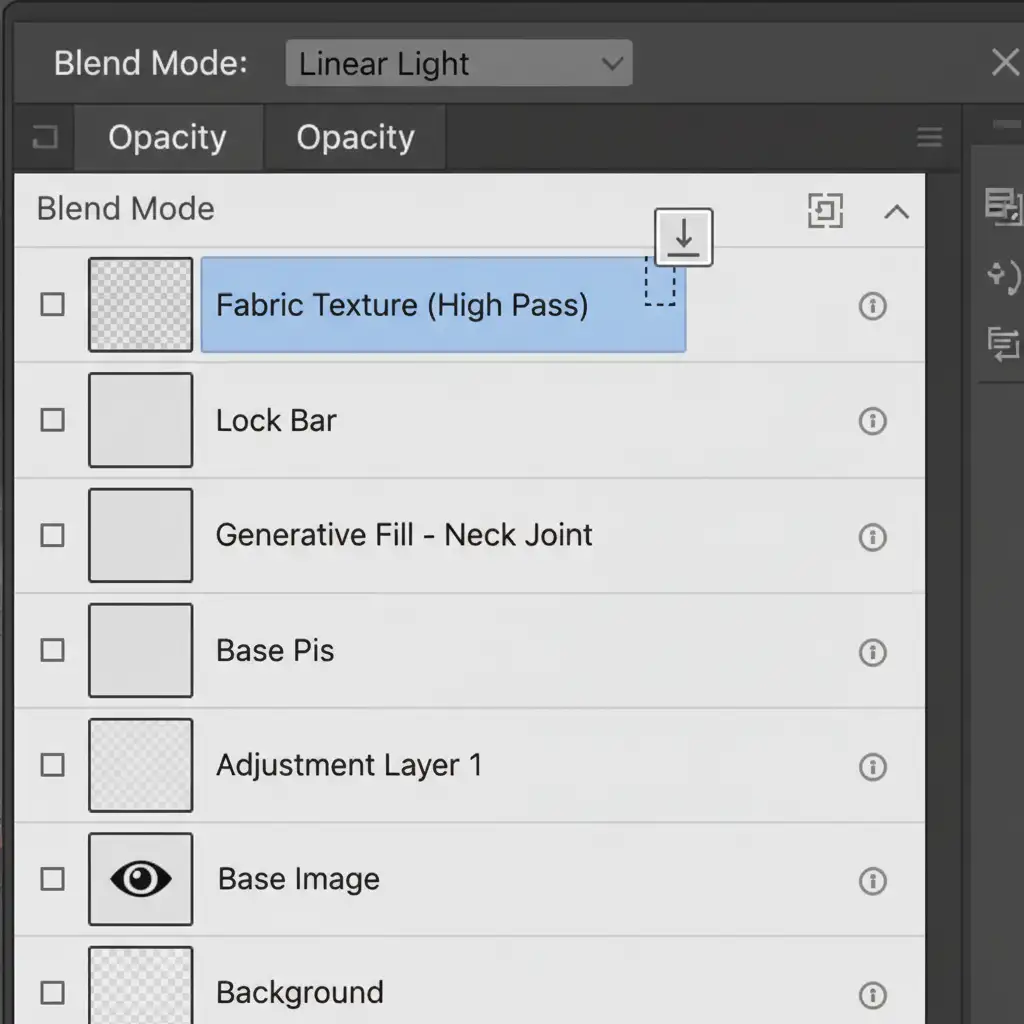
- Change the texture layer’s Blend Mode to Linear Light.
- Create a Clipping Mask so the texture only maps onto the AI geometry.
Method 3: The Technical Deep-Dive (Hybrid Seam Compositing)
If you require 100 percent texture fidelity—such as for luxury apparel where brand labels and intricate stitching must be perfectly preserved—you should avoid relying on AI for the bulk of the pixel generation.
Instead, execute a hybrid manual composite:
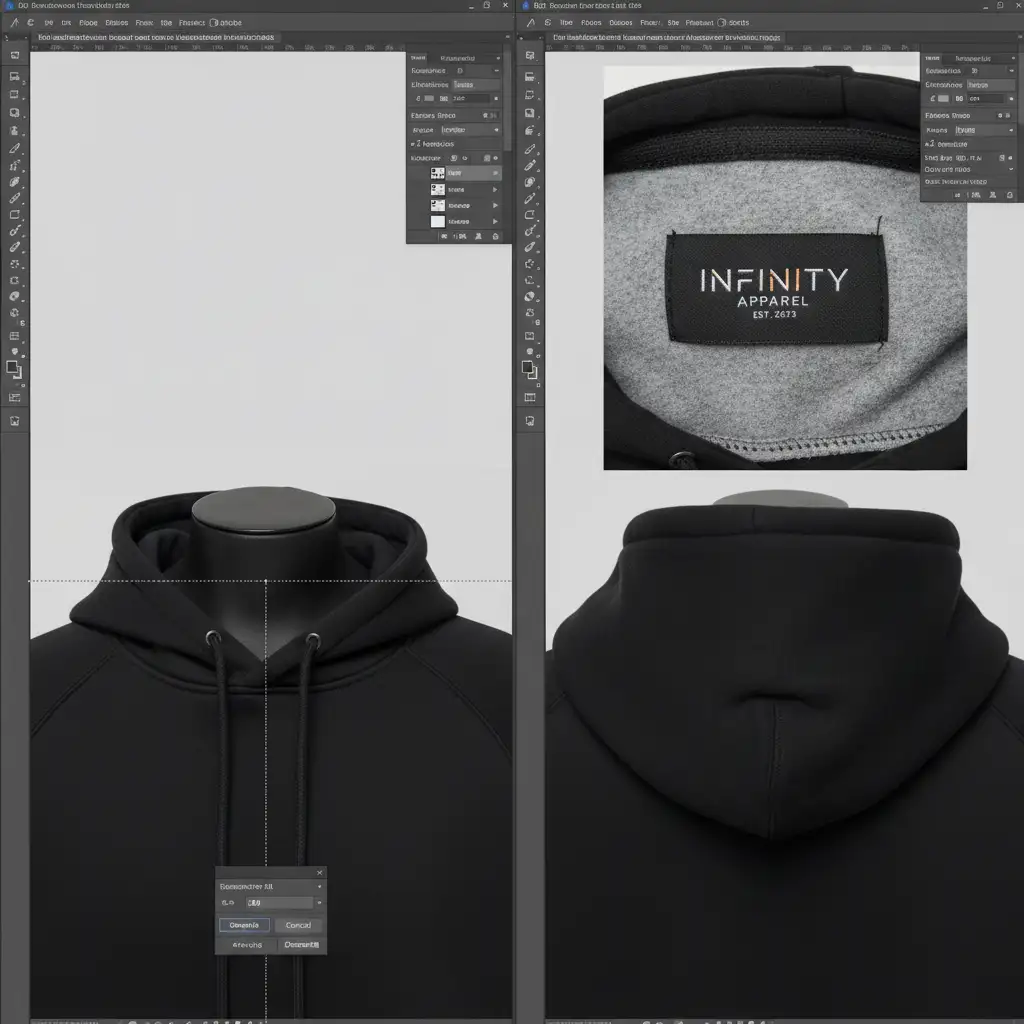
- Place the actual inside-neck reference photo underneath your main front-garment layer.
- Mask out the physical mannequin using the Pen Tool for a crisp, hard edge.
- Align the inner neck reference so the collar geometries match.
- Make a narrow selection (about a 10px strip) exactly where the front collar meets the back inner collar.
- Use Generative Fill strictly on this 10px seam transition.
By restricting the AI to just the seam, it seamlessly blends the two authentic photographic layers together while leaving the high-frequency detail of the actual fabric entirely untouched.
Scaling Your E-Commerce Retouching Workflows
Applying an AI ghost mannequin fabric texture mismatch fix is highly effective, but it adds minutes to every single image. When you are processing hundreds or thousands of SKUs for an upcoming seasonal launch, those minutes compound into massive production bottlenecks.
While AI tools like Generative Fill are incredible for speeding up structural edits, they still require a trained human eye to manage Gaussian Blur, Frequency Separation, and High Pass overlays to ensure the final product looks like a photograph, not a digital rendering.
Stop Fighting AI—Let the Experts Handle Your Ghost Mannequins
Struggling to maintain luxury fabric details at scale? You don’t have to choose between the speed of AI and the quality of traditional retouching.
At Image Work India and Cloud Retouch, our teams of expert retouchers specialize in high-volume, premium e-commerce imagery. We utilize advanced hybrid compositing techniques to ensure your ghost mannequins feature pixel-perfect neck joints, pristine brand labels, and 100% authentic fabric textures.
Stop wasting hours fixing AI mistakes. Contact Image Work India and Cloud Retouch today to streamline your post-production workflow and deliver flawless product photos that convert browsers into buyers.




