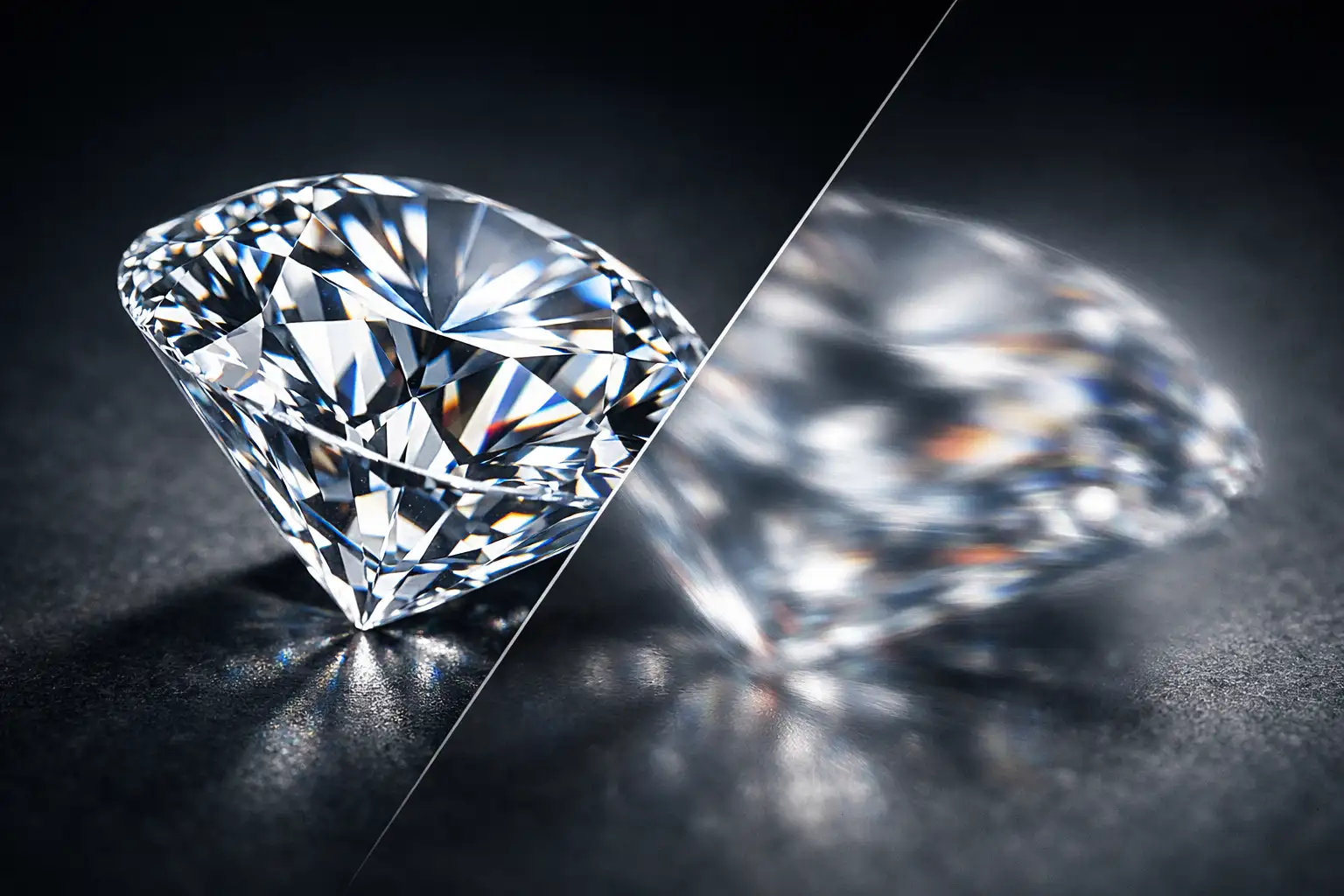

You are editing a high-end jewelry campaign in Photoshop v25.0. You make a loose selection around the product, hit Generative Fill to extend the background, and suddenly-disaster strikes. Adobe Firefly has melted the crisp edges of your center stone. Instead of a multi-million dollar gem, you are left with a soft, muddy blob.
Generative AI models notoriously struggle with the complex refractive physics and high-frequency detail required in jewelry photography. If you are trying to figure out how to fix generative fill blurring diamond facets, you are not alone. This is a massive pain point for commercial retouchers.
Here is the definitive guide to protecting your gem’s commercial value while still leveraging AI for background expansion and prop removal.
Why Adobe Firefly Struggles with Jewelry Photography
To fix the problem, you must understand why it happens. Diamonds rely on crisp facet lines, sharp light dispersion, and distinct micro-contrast to look authentic. When you run Generative Fill over or near a gem, the AI model often interprets these precise geometric facets as digital noise.
Furthermore, AI does not understand the refractive index of a diamond. It cannot accurately calculate how light bends through the stone. As a result, it hallucinates soft edges, paints over the girdle with flat colors, and destroys the high-frequency detail that gives the jewelry its luxury appeal.
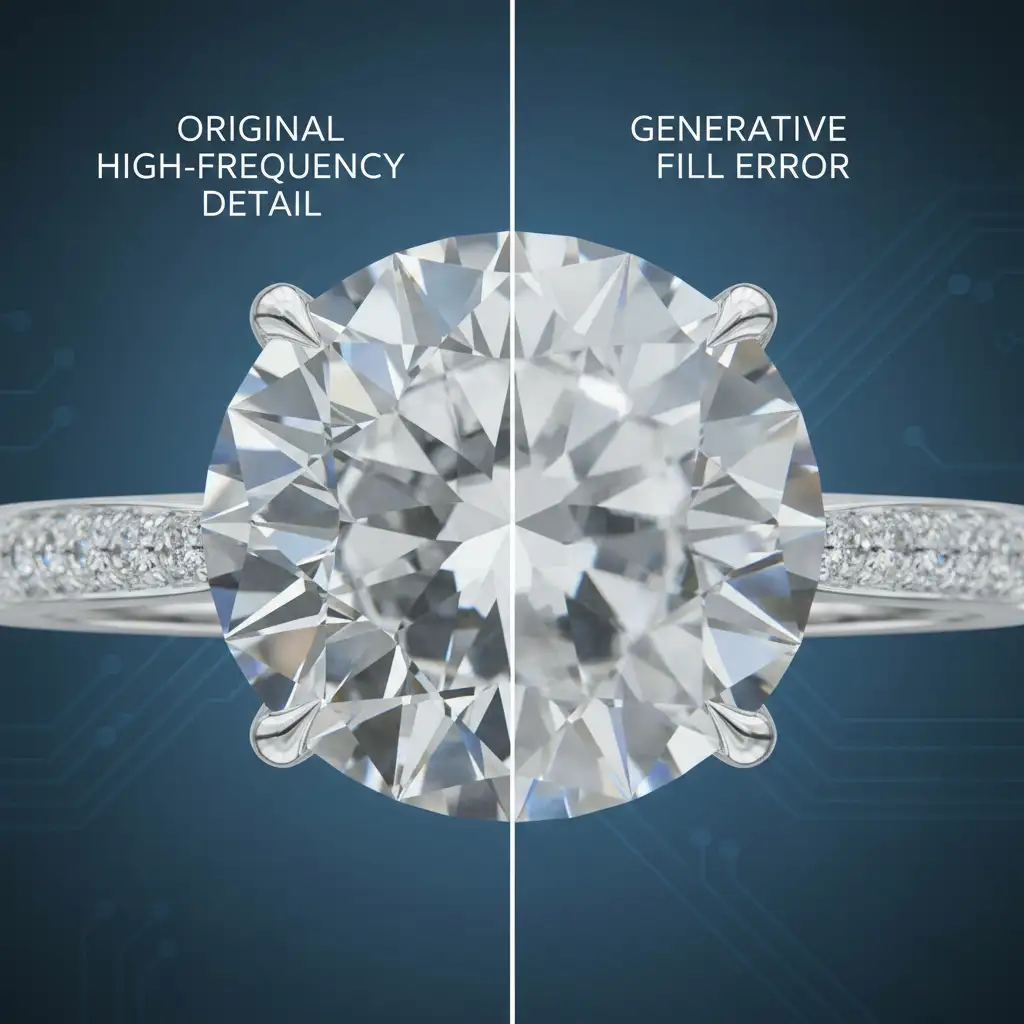
3 Methods to Fix Generative Fill Blurring Diamond Facets
You do not have to abandon AI in your workflow. By combining traditional, non-destructive editing techniques with Generative Fill, you can get the best of both worlds.
Method 1: The Quick Fix Using Strict Vector Masking
The most reliable way to stop Generative Fill from ruining your jewelry is to build an impenetrable wall around the stone before you prompt the AI.
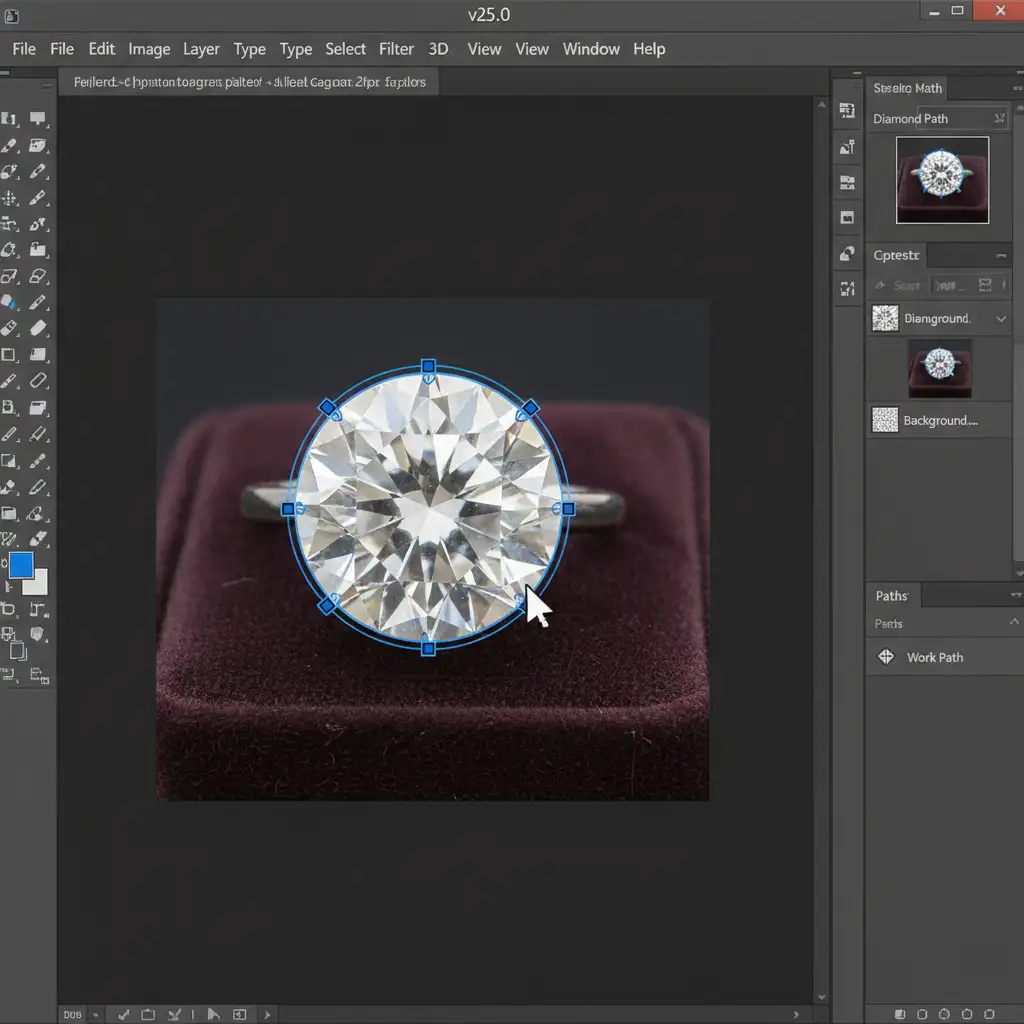
- Select the Pen Tool (P).
- Draw a precise vector path tightly hugging the diamond’s girdle and crown. Do not use the Object Selection tool; it is not accurate enough for high-end jewelry.
- Right-click and choose Make Selection. Set the feather radius to exactly 0.5 pixels to avoid harsh, pixelated cut-outs.
- Invert the selection (Ctrl+Shift+I or Cmd+Shift+I).
- Apply your Generative Fill to the background.
This creates a strict layer mask that forces the AI to ignore the diamond entirely.
Method 2: The Pro Workaround with Frequency Separation
If you need to use Generative Fill to alter the color or tone behind a transparent gem without destroying its surface texture, frequency separation is your best tool.
- Separate your original image into a High-frequency layer (texture, sharp facet lines, scratches) and a Low-frequency layer (base color, tone, gradients).
- Place your High-frequency layer at the very top of your layer stack and set its blend mode to Linear Light.
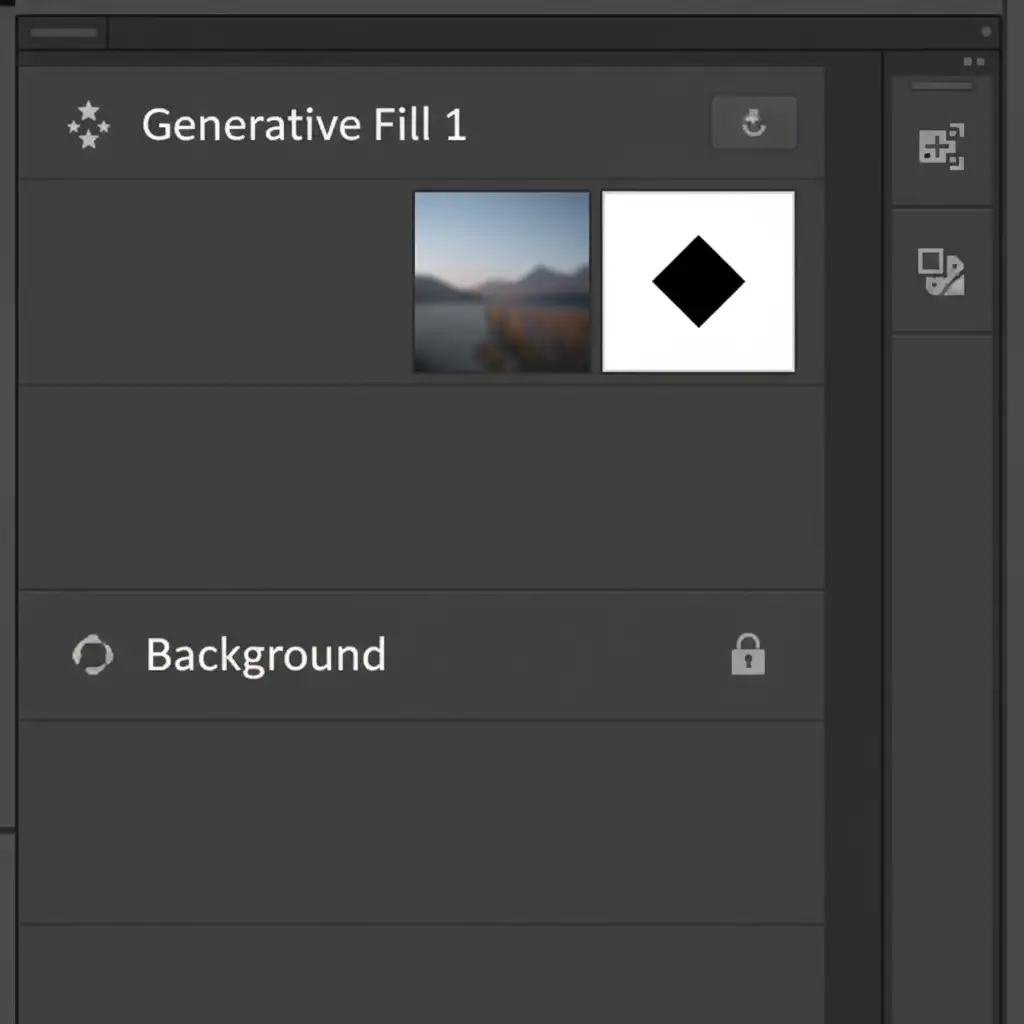
- Make your selections and apply Generative Fill only on or beneath the Low-frequency layer.
This hybrid approach allows the AI to fix messy backgrounds or underlying colors while your original, razor-sharp diamond facets remain completely untouched on the top layer.
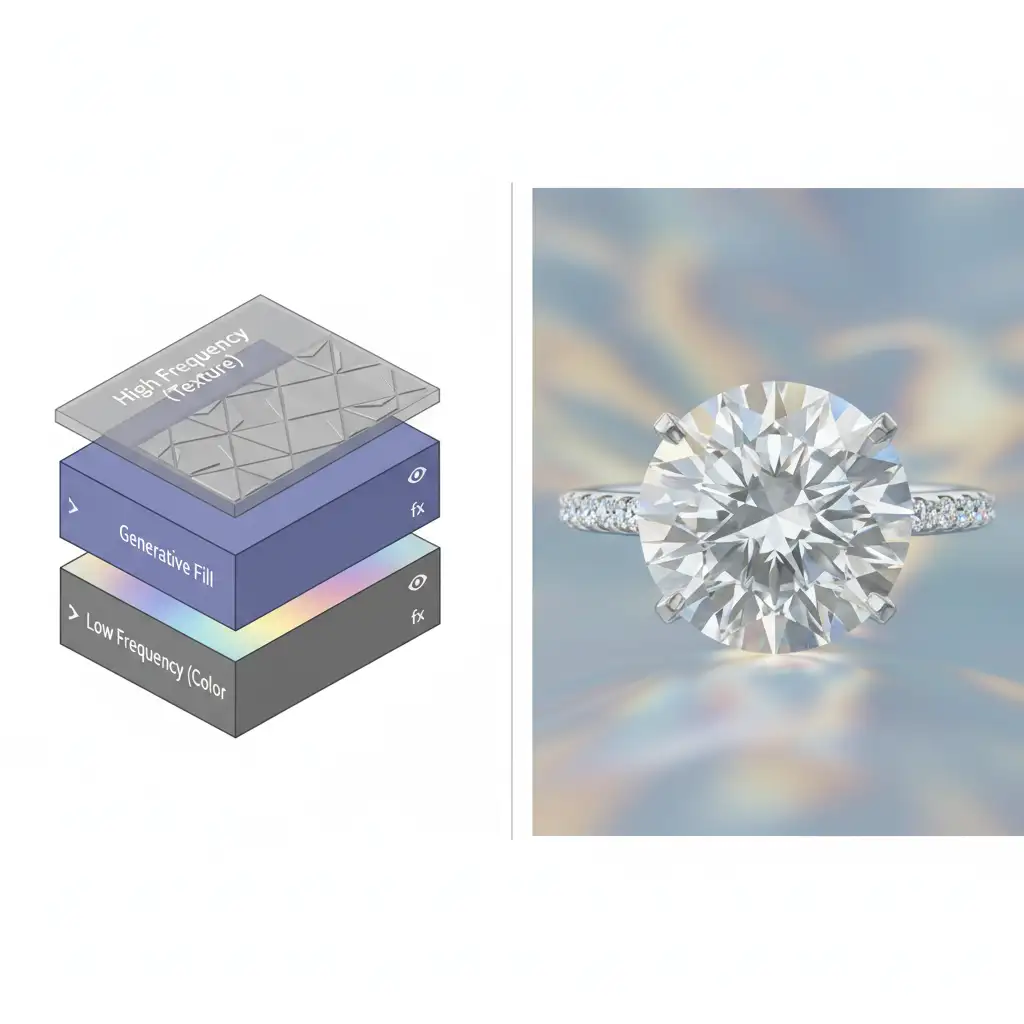
Method 3: Prompt Engineering and Luminosity Blending
Sometimes, you have to generate pixels right up against the edge of the gem, and masking leaves a noticeable halo. In these cases, you must guide the AI and rescue the contrast manually.
When typing your prompt, use highly structural keywords. Instead of just typing “remove dust,” use prompts like: “sharp geometric glass facets, high contrast, crisp edges.”
Once the AI generates the fill on a new layer:
- Double-click the Generative Fill layer to open the Layer Style panel.
- Navigate to the Blend If sliders at the bottom.
- Hold Alt (or Option) and split the underlying layer’s highlight slider, dragging it to the left.
- Alternatively, change the Generative Fill layer blend mode to Luminosity.
This pulls the original sharp highlight details and bright reflections through the AI-generated layer, instantly restoring the gem’s natural brilliance and refractive physics.
Let the Experts Handle Your Jewelry Image Editing
Learning how to fix generative fill blurring diamond facets requires a deep understanding of masking, frequency separation, and advanced Photoshop mechanics. When you are processing hundreds of images for an e-commerce catalog or a high-end editorial campaign, fighting with AI hallucinations drains your time and budget.
You don’t have to do it alone.
At Image Work India and Cloud Retouch, our team of expert retouchers specializes in luxury jewelry editing. We handle the complex vector paths, pixel-perfect frequency separation, and precise color correction required to make your diamonds shine-without the AI blur.
Struggling to maintain the luxury appeal of your jewelry images? Let us handle the heavy lifting. Contact Image Work India today for flawless, commercial-grade photo retouching tailored to your brand.




