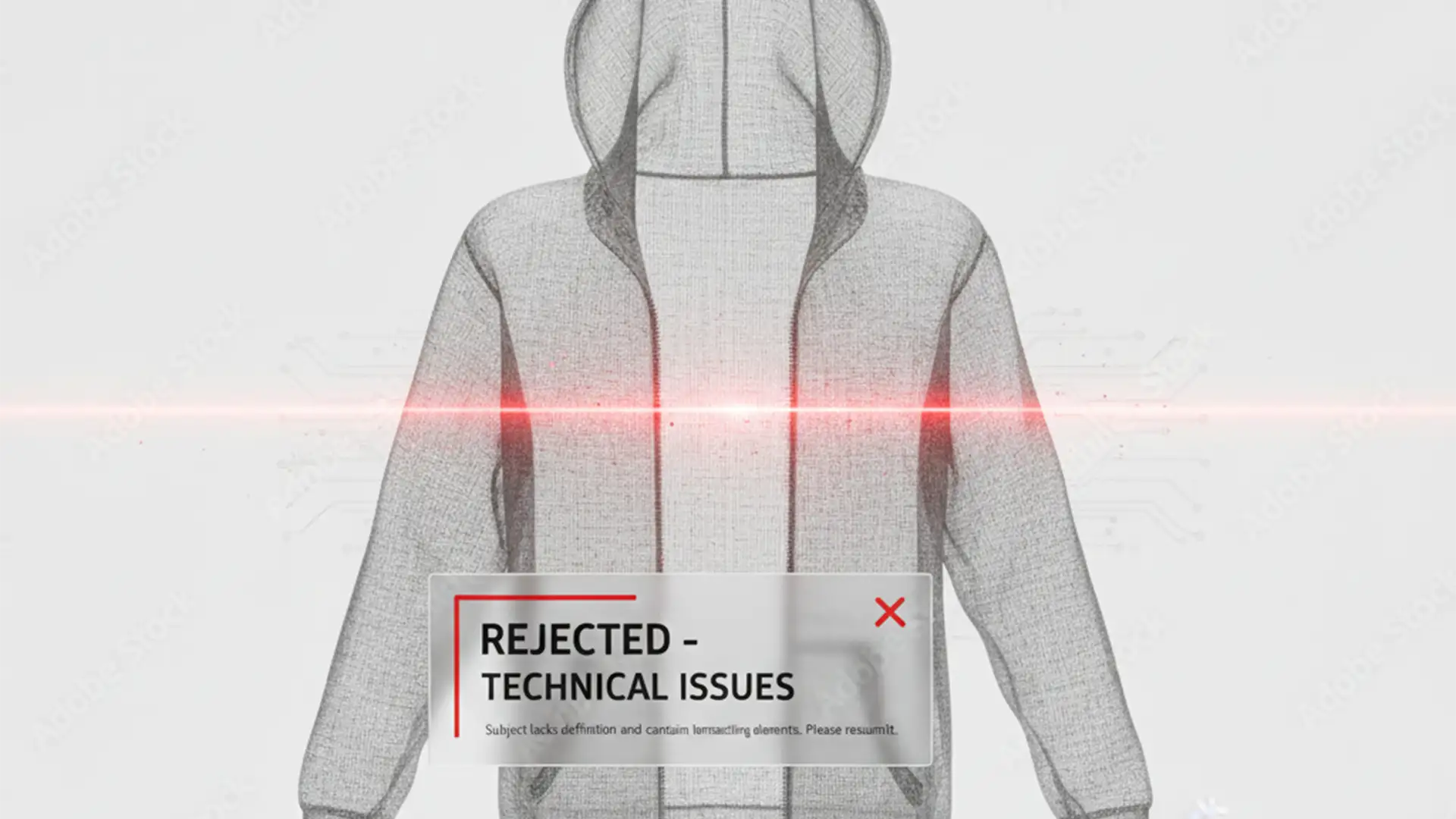

You’ve spent hours perfecting the neck joint and lighting on your apparel shots, only to hit a frustrating wall: the dreaded “Missing Model Release” error on Adobe Stock. It makes zero sense. There is no human in the photo—just hollowed-out clothing. Yet, your pristine ghost mannequin product photography keeps getting flagged and rejected.
This false positive rejection happens because Adobe’s AI image moderation system confuses the anatomical silhouette of 3D apparel with an actual person. If you’re tired of losing commercial usage rights over a bot’s mistake, here is exactly how to fix the ghost mannequin Adobe Stock model release error so your portfolio gets approved immediately.
Why Does Adobe Stock Flag the Ghost Mannequin Effect?
Adobe Stock uses an aggressive AI-driven auto-moderation tool to scan uploaded JPEGs for human faces, skin tones, and anatomical shapes. When you upload 3D hollow apparel featuring the ghost mannequin effect, the AI detects human proportions—specifically the shoulders, torso, and hips.
Because the current algorithmic threshold for human anatomy prioritizes silhouette over skin texture, the system automatically assumes a person is wearing the garment. This triggers an immediate missing model release form error. Fortunately, you can override this automated system using specific tagging, metadata, and release workarounds.
3 Ways to Fix the Ghost Mannequin Adobe Stock Model Release Error
Method 1: The Quick Fix (Portal Tagging Secrets)
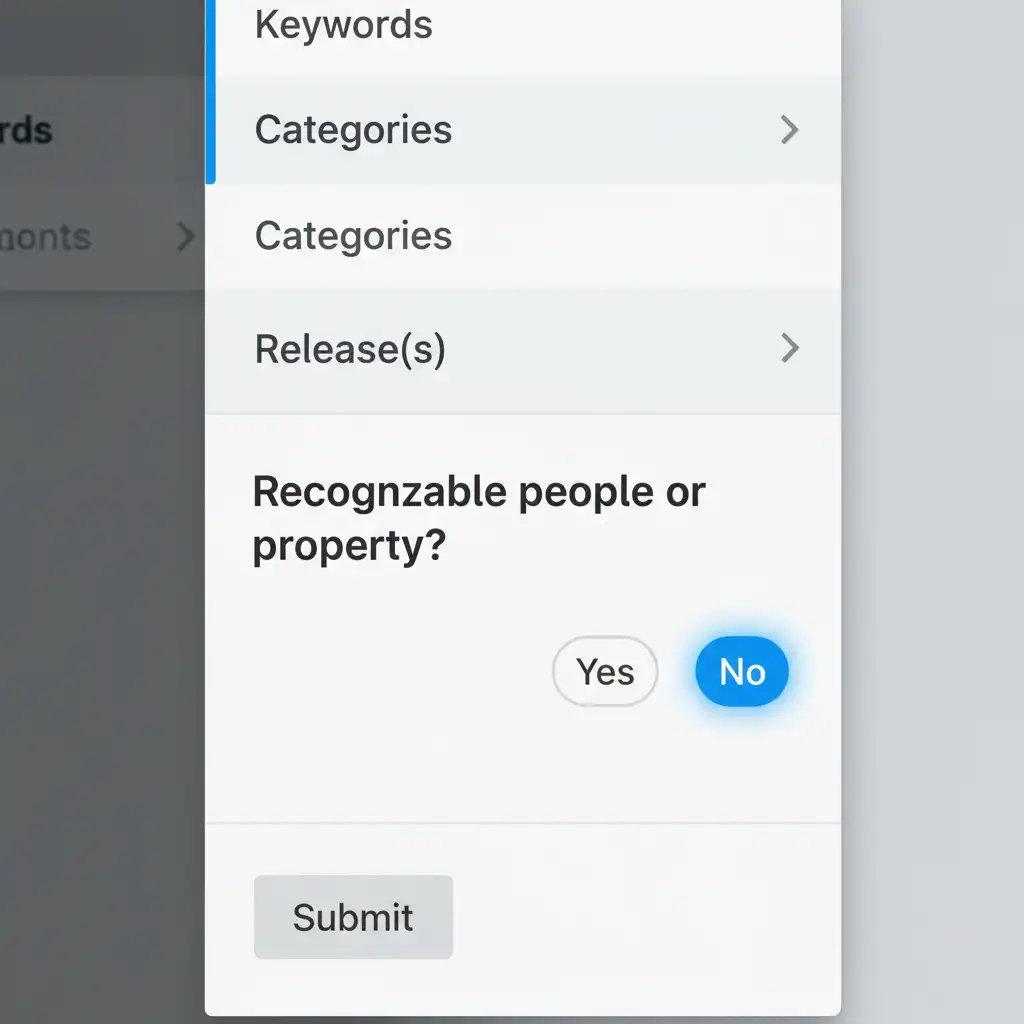
The easiest way to bypass the AI is to explicitly tell the Adobe Stock contributor portal that the image contains no human subjects.
When uploading your file, navigate to the right-hand sidebar. Ensure the Recognizable people or property option is strictly checked to No. Next, you must guide the AI using strategic negative keywords. Add ghost mannequin, invisible mannequin, and nobody as your top three keywords. This signals to the moderation bot that the human shape is intentional and artificial.
Method 2: The Pro Workaround (Dummy Property Release)
If your neck joint images are repeatedly rejected despite correct tagging, you need to force a manual review. You can achieve this by submitting a dummy property release.
Download the standard Adobe Property Release form. Instead of a building or artwork, fill it out naming yourself as the owner of the plastic mannequin used to shoot the apparel. Attach this form to your submission. When the automated system flags the file, it will pass the image to a human manual reviewer. The reviewer will see the property release, recognize the hollow apparel, and approve the file for commercial usage rights.

Method 3: The Technical Deep-Dive (IPTC Metadata Embedding)
For high-volume uploaders, the most reliable method is to bake the solution directly into the file’s IPTC metadata before it ever touches the Adobe Stock contributor portal.
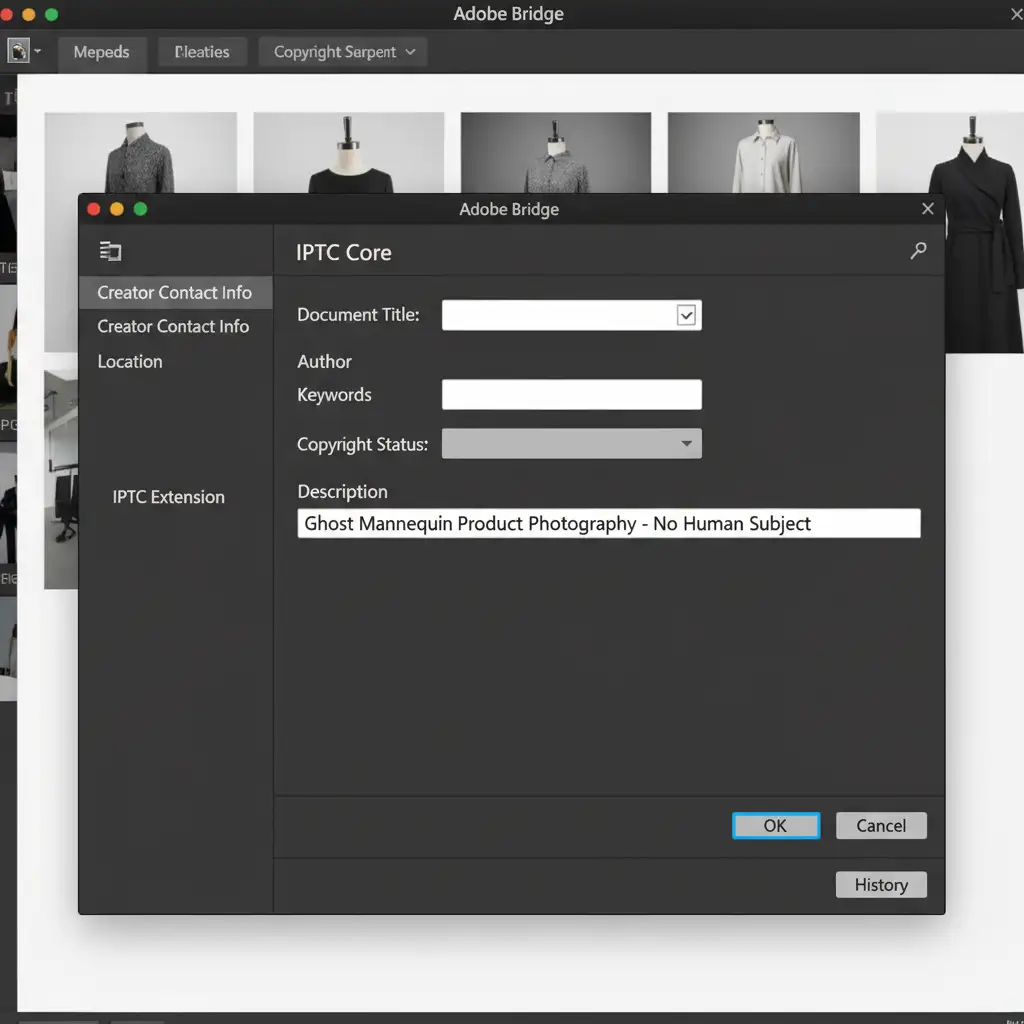
Open your images in Adobe Bridge to embed metadata directly into the JPEG.
- Go to File Info.
- In the Description field, type exactly: Ghost Mannequin Product Photography – No Human Subject.
- Strip any camera metadata (like specific portrait lenses or face-tracking autofocus data) that might imply portraiture to the AI.
- Ensure your background is strictly 255,255,255 pure white background. Off-white or gray backgrounds increase the chances of AI subject confusion.
Stop Fighting the AI: Let the Experts Handle Your Product Photos
Dealing with AI image moderation and false positive rejections drains time that you should be spending shooting new products or scaling your business. Perfecting the neck joint, achieving a flawless pure white background, and managing metadata can be overwhelming for large e-commerce catalogs.
Struggling with high rejection rates on microstock sites? Hire Image Work India and Cloud Retouch for flawless, compliance-ready ghost mannequin editing that passes QA every time. Our expert retouchers understand the exact technical specifications required by Adobe Stock, Amazon, and Shopify. We handle the complex neck joint blending, background removal, and metadata optimization so your images are approved instantly.
Contact us today to streamline your product photography workflow and guarantee your images are retail-ready.




