

You just spent an hour shooting 40 focal slices of a stunning diamond ring, loaded them into Photoshop 2025, and hit Auto-Blend. Instead of a razor-sharp masterpiece, you are staring at patchy softness, weird ghosting, and blurred metallic edges. Sound familiar?
You are not alone. The native edge-detection algorithms in Photoshop 2025 (v26.x and v27.x) frequently struggle with the intense light shifts inherent in high-contrast macro photography. If your jewelry images are failing in post-production, don’t delete your raw files just yet. Here is the definitive, step-by-step guide to fixing Photoshop 2025 focus stacking artifacts.
Why Photoshop 2025 Struggles with Jewelry Focus Stacking
Focus stacking is essential for achieving a deep depth of field in macro photography, especially with small, intricate subjects like rings and watches. However, jewelry presents a unique computational nightmare for software.
When you run Auto-Align Layers and Auto-Blend Layers, Photoshop 2025 attempts to calculate the sharpest pixels across your image stack. The problem? Specular highlights (the bright, intense reflections on polished metal and gems) shift slightly between frames due to focus breathing (minor magnification changes as the lens changes focal distance).
Photoshop’s algorithm often misinterprets these shifting highlights and chromatic aberrations as overlap noise. The software overcompensates, resulting in halo artifacts, ghosting, and patchy soft spots where perfectly sharp pixels should be.
3 Ways to Fix Photoshop 2025 Focus Stacking Artifacts
To rescue your macro composites, you need to bypass the native rendering errors. Here are three proven methods, ranging from a quick settings tweak to professional manual masking.
Method 1: The Quick Fix – Tweak Auto-Blend Settings
Sometimes, the simplest solution is to tell Photoshop to stop trying so hard to match lighting across your focal slices.
- Load your images into a stack and select all layers.
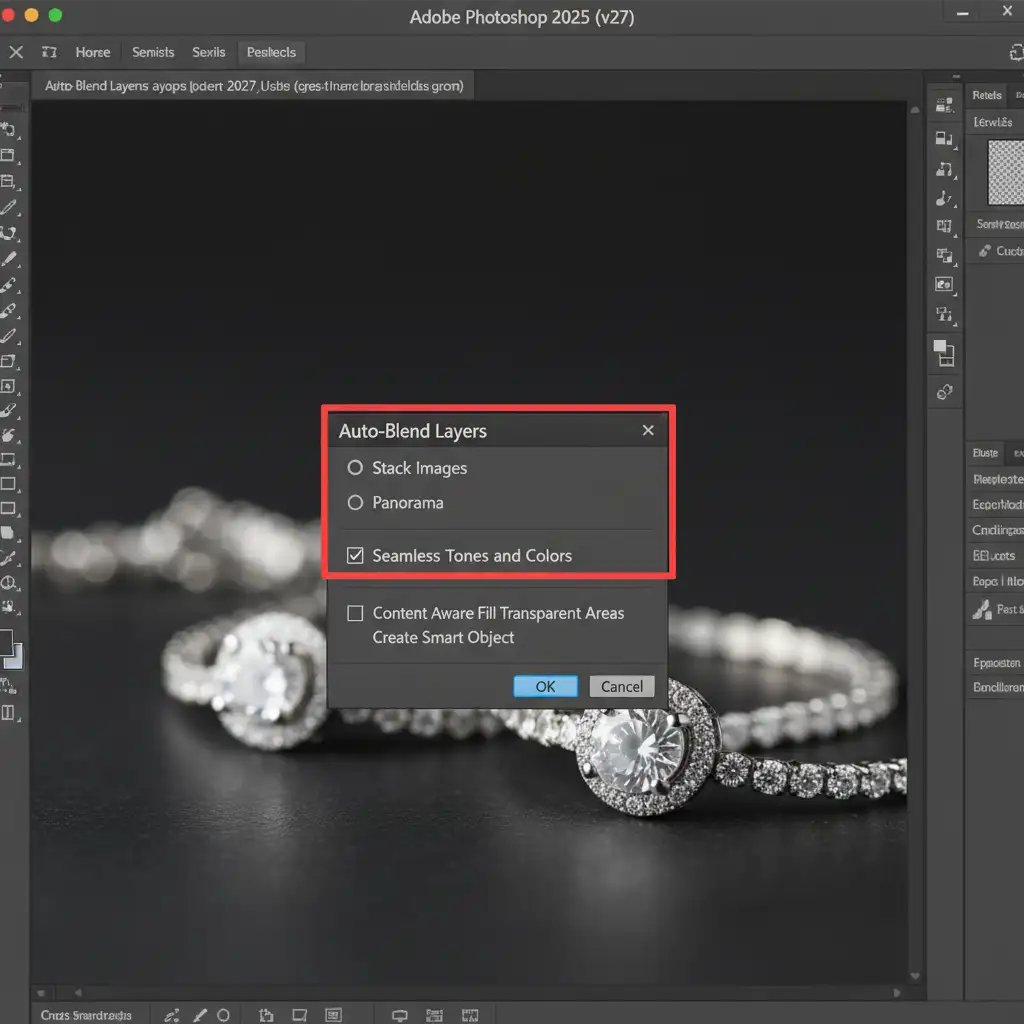
- Navigate to Edit > Auto-Blend Layers.
- Ensure Stack Images is selected.
- The Fix: Uncheck the Seamless Tones and Colors box.
By disabling this feature, you prevent Photoshop from aggressively trying to blend the shifting specular highlights, which is often the root cause of patchy blurring.
Method 2: The Pro Workaround – Manual Layer Masking
If adjusting the automated settings doesn’t yield perfectly crisp edges, you must take control of the layer mask generation. This is the industry-standard method used by high-end retouchers to guarantee perfection.
- Run the standard Auto-Blend process.
- Zoom in to 100% and inspect the jewelry for patchy soft areas or halo artifacts.
- Look through your Layers Panel. Find the specific raw focal slice where that exact soft area is actually perfectly in focus.
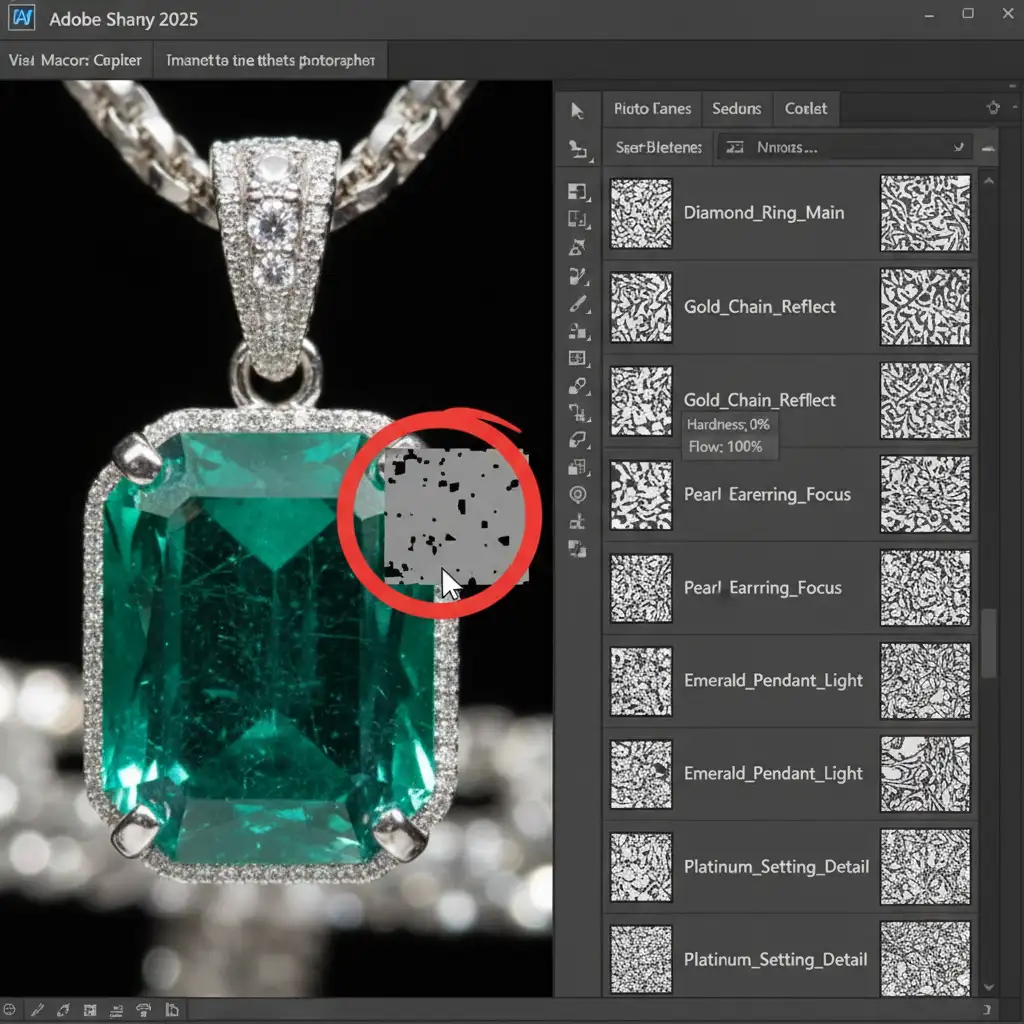
- Click on the auto-generated black-and-white layer mask for that specific layer.
- Select a soft brush (B), set your foreground color to White, and gently paint over the blurry area on the canvas.
This manually reveals the sharp details from the underlying layer, overriding Photoshop’s computational mistakes.
Method 3: The Technical Deep-Dive – Optimize Performance Settings
If you are dealing with massive, high-resolution files (like 40+ megapixel raw images), Photoshop 2025 might be experiencing rendering glitches and memory bottlenecks during the stack calculation. Adjusting your core engine settings can eliminate these computational errors.
Step A: Adjust Pixel Interpolation
- Navigate to Edit > Preferences > General (Windows) or Photoshop > Settings > General (Mac).
- Locate the Image Interpolation dropdown.
- Change it from ‘Bicubic Automatic’ to ‘Bicubic Sharper’. This forces the engine to prioritize edge contrast during the alignment phase.
Step B: Disable GPU Compositing
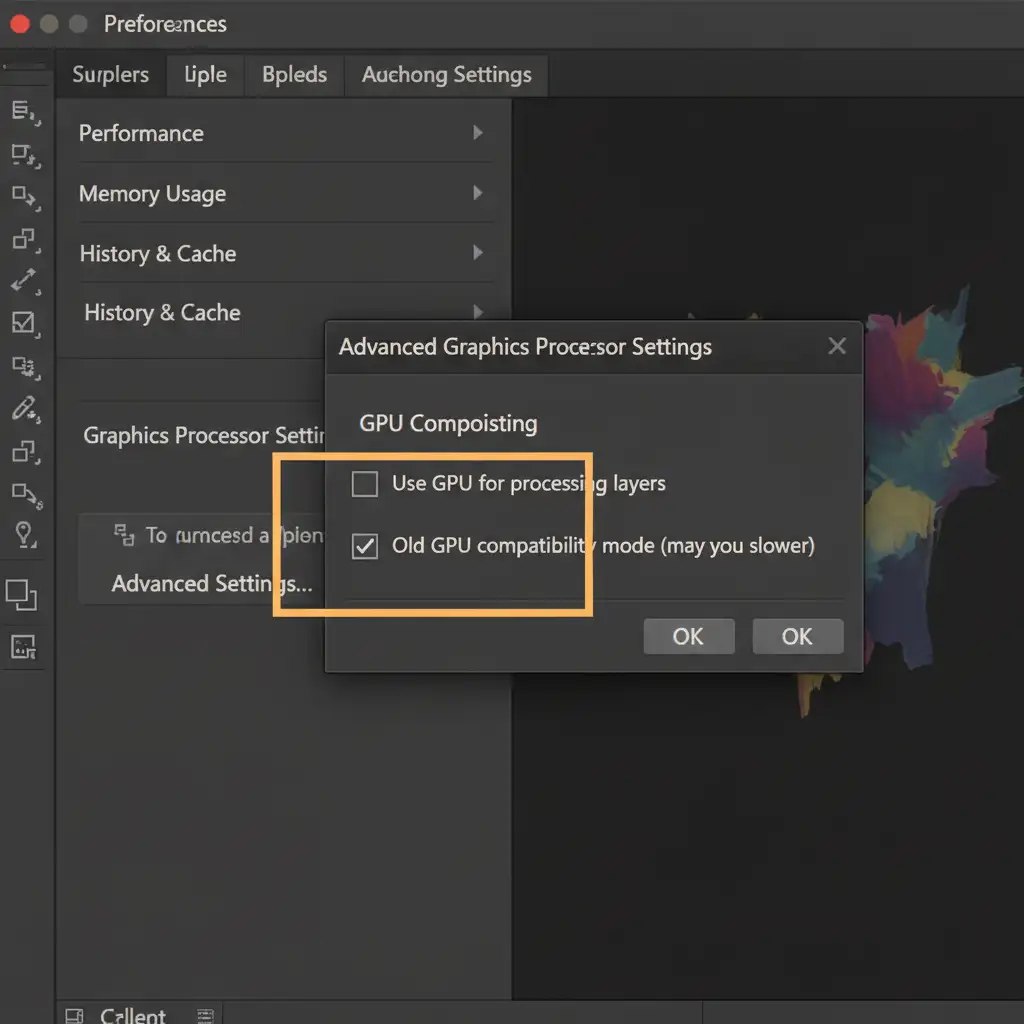
- Go to Preferences > Performance.
- Click on Advanced Graphics Processor Settings.
- Uncheck GPU Compositing.
While GPU acceleration speeds up general rendering, the compositing engine in v26.x and v27.x can occasionally miscalculate dense pixel data during complex macro blends. Turning this off forces the CPU to calculate the blend, which is slower but mathematically more precise.
Stop Fighting Software: Let the Retouching Experts Handle It
Fixing Photoshop 2025 focus stacking artifacts manually is highly effective, but it is also incredibly time-consuming. When you are processing hundreds of product images for an e-commerce catalog or a high-end editorial campaign, spending 20 minutes manually masking a single ring simply isn’t scalable.
Struggling to get pin-sharp jewelry macros? Let the experts at Image Work India and Cloud Retouch handle your focus stacking and high-end retouching.
Our specialized team of professional retouchers understands the nuances of macro photography, specular highlights, and complex layer blending. We bypass automated software errors to deliver flawless, razor-sharp product images that elevate your brand and drive sales.
Contact Image Work India and Cloud Retouch today to get a custom quote on your next jewelry photography project, and get back behind the camera instead of being stuck behind a screen.




