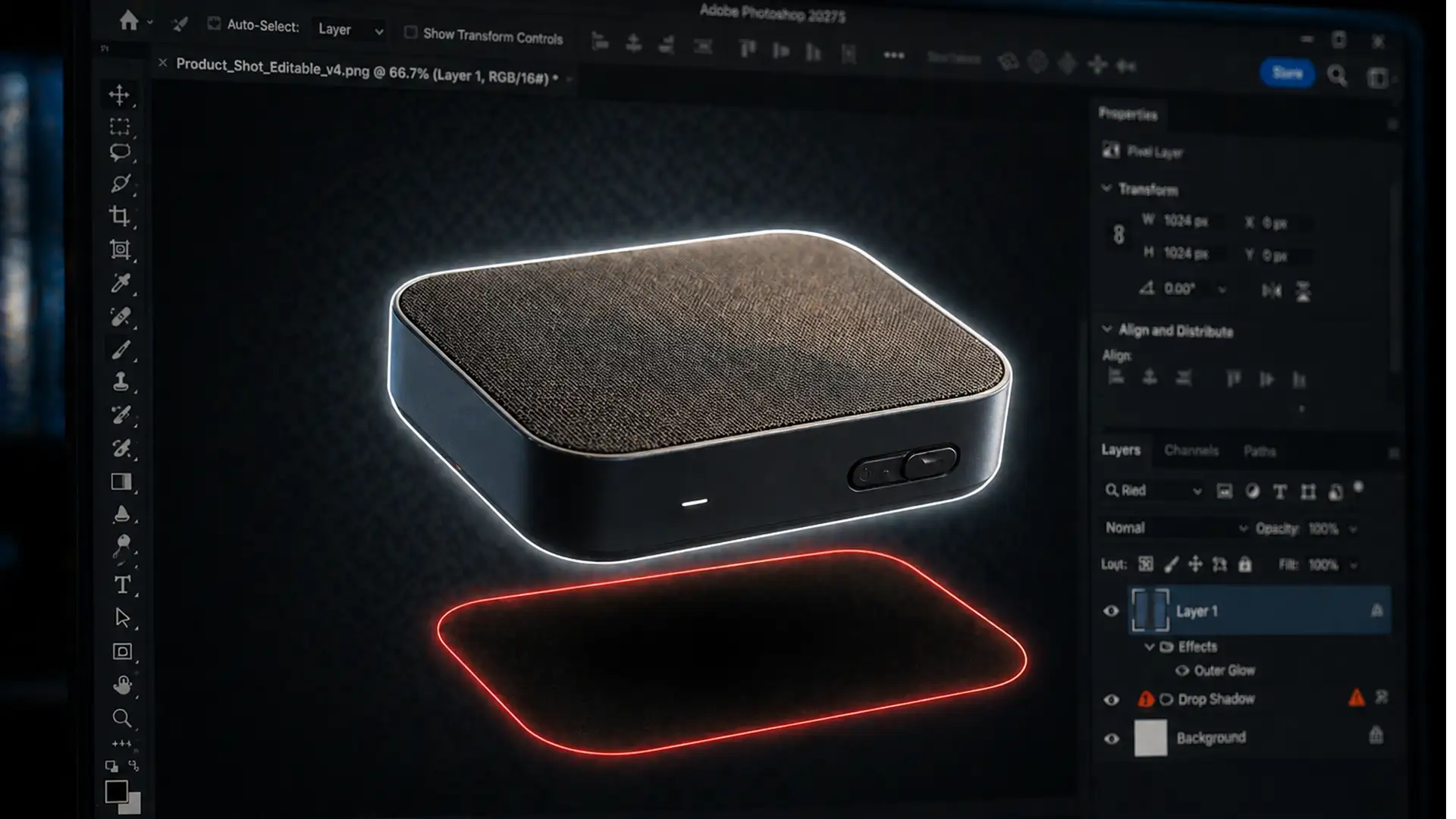

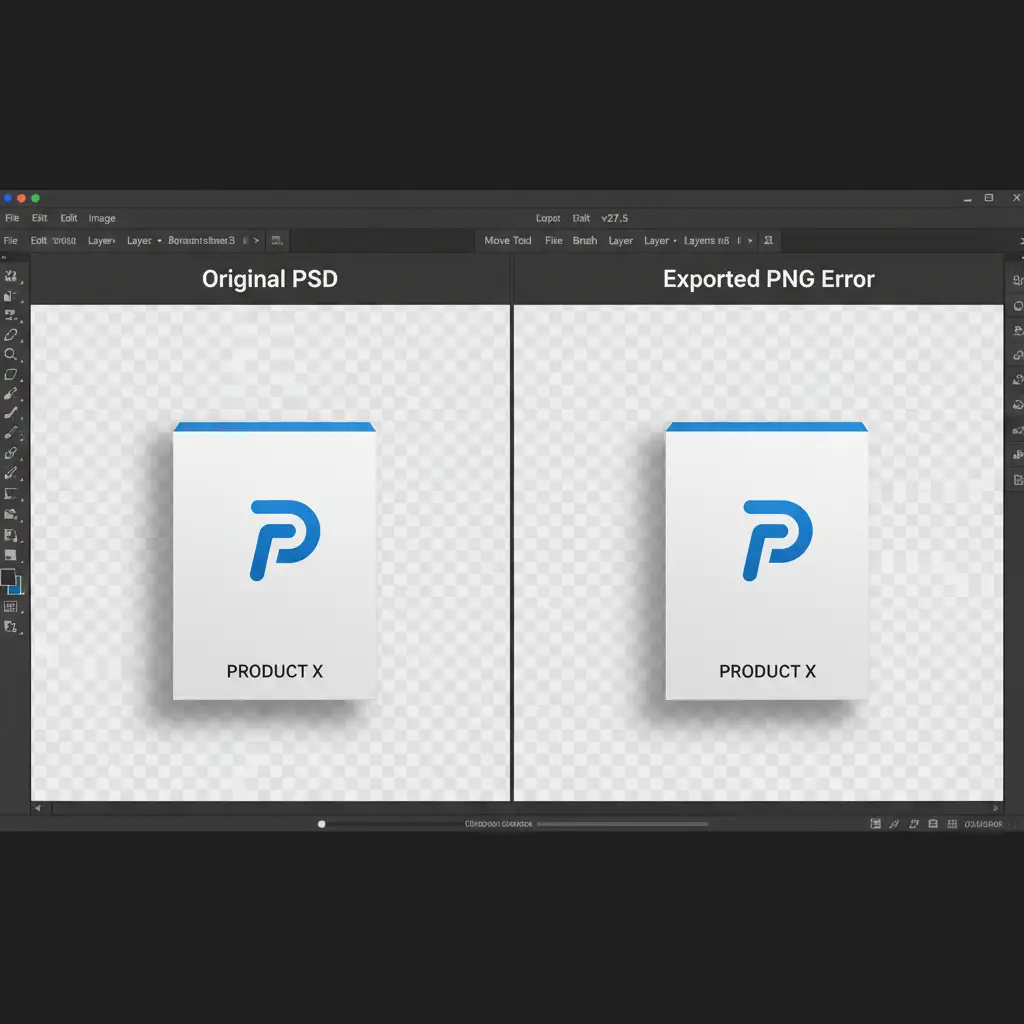
You just spent precious time dialing in the perfect drop shadow for a product image in Photoshop v27.5. It looks flawless on your canvas. But the moment you hit “Export As” and open the final file, disaster strikes: the shadow has moved, changed opacity, or inexplicably enlarged.
If your exported PNG looks entirely different from your working PSD, you are not losing your mind. The Photoshop PNG drop shadow shift error is a documented rendering bug in modern versions of the software.
In this guide, we will break down exactly why this glitch happens and walk you through three proven methods to force Photoshop to export your layer styles accurately.
Why Does the Photoshop PNG Drop Shadow Shift Error Happen?
The root of this issue lies in a miscommunication between Photoshop’s workspace rendering and its modern export engine.
When you are working in the document, Photoshop uses GPU acceleration and your native canvas to render layer styles like drop shadows in real-time. However, when you use “Export As” or “Quick Export as PNG,” Photoshop hands the data over to a separate export engine.
This modern export engine struggles with specific document conditions:
- Fractional pixels: If your layer sits on an off-grid coordinate (e.g., X: 150.4 px instead of 150 px).
- Anti-aliasing discrepancies: The export engine recalculates vector math for drop shadows differently than the live canvas.
- Smart Object scaling: Nested or non-integer scaled Smart Objects confuse the final output render.
To fix this, we need to bypass the modern export engine, bake the pixel data, or lock the coordinates to a perfect pixel grid alignment.
3 Ways to Fix the PNG Drop Shadow Glitch
Method 1: The Quick Fix (Enable Legacy Export)
The fastest way to resolve this issue is to tell Photoshop to stop using the modern export engine and revert to the older, more stable rendering method. This forces the software to calculate the shadow exactly as it appears on your screen.
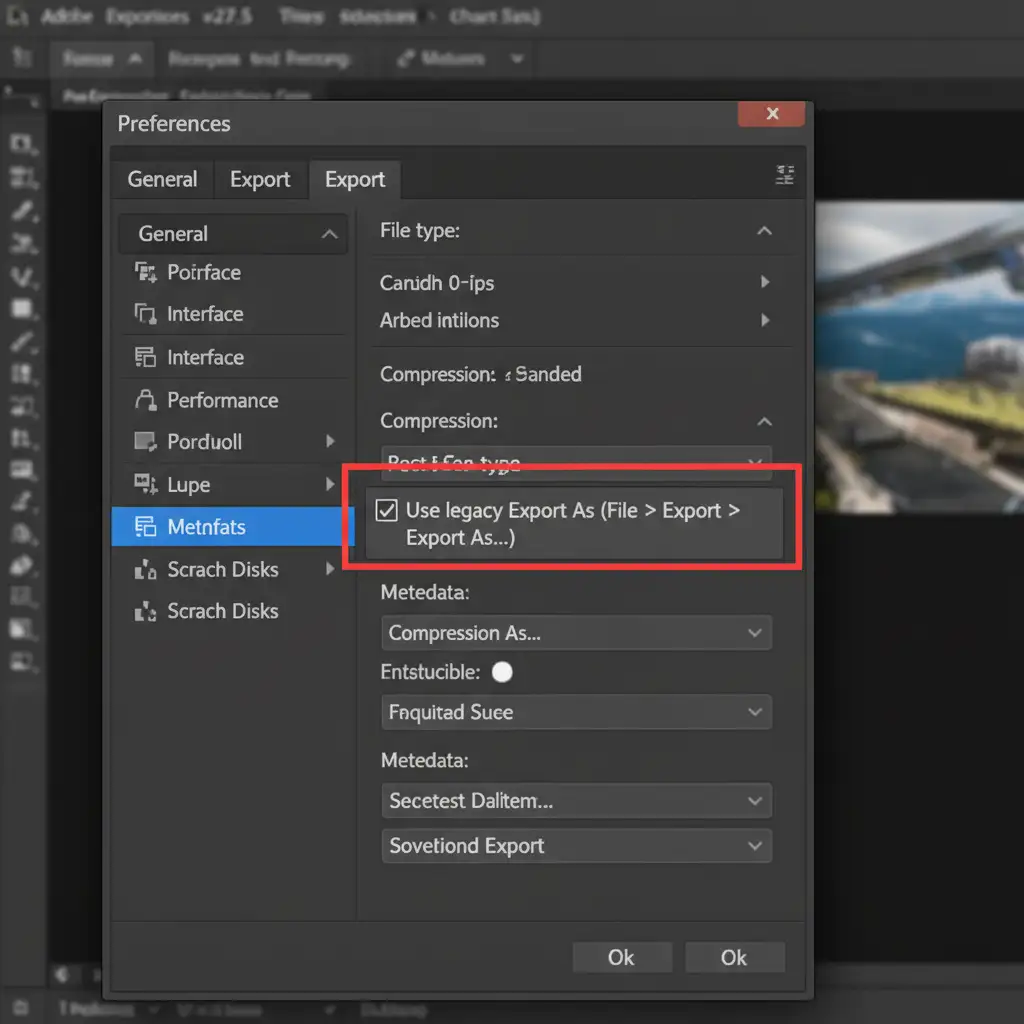
- Navigate to Edit > Preferences > Export (Windows) or Photoshop > Settings > Export (Mac).
- Look under the “Export As” options.
- Check the box for Use legacy “Export As”.
- Click OK, restart Photoshop, and export your image via File > Export > Export As.
Method 2: The Pro Workaround (Rasterize Layer Styles)
If you need to keep the modern export engine active but want a bulletproof guarantee that your shadow won’t move, you need to bake the vector math into hard pixel data. By doing this, the export engine has nothing to recalculate.
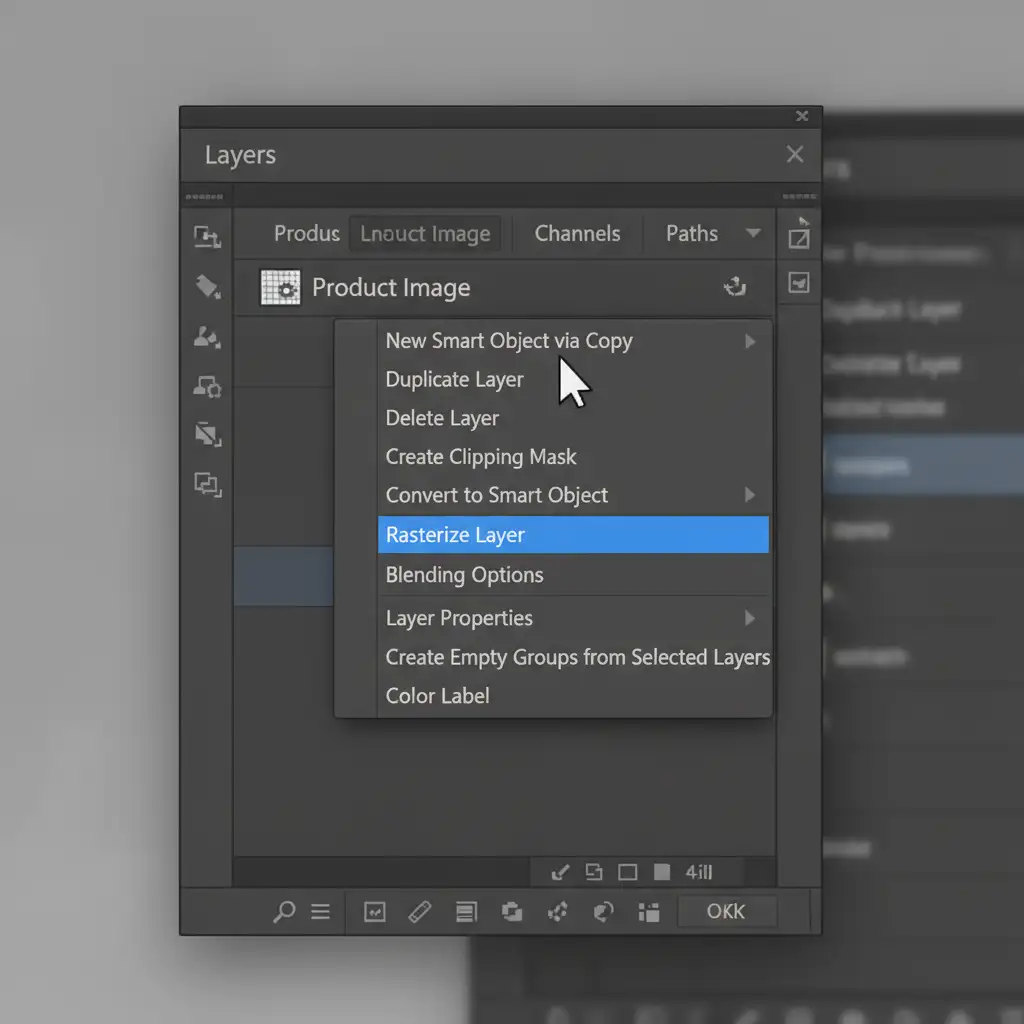
- Select the layer containing your drop shadow in the Layers panel.
- Convert it to a Smart Object (Right-click the layer > Convert to Smart Object) or Group the layer (Ctrl+G / Cmd+G).
- Right-click the new Smart Object or Group and select Rasterize (or Rasterize Layer).
- Note: Always keep a duplicate of your un-rasterized layer hidden in your working PSD in case you need to edit the shadow later!
Method 3: The Technical Deep-Dive (Fractional Pixel Correction)
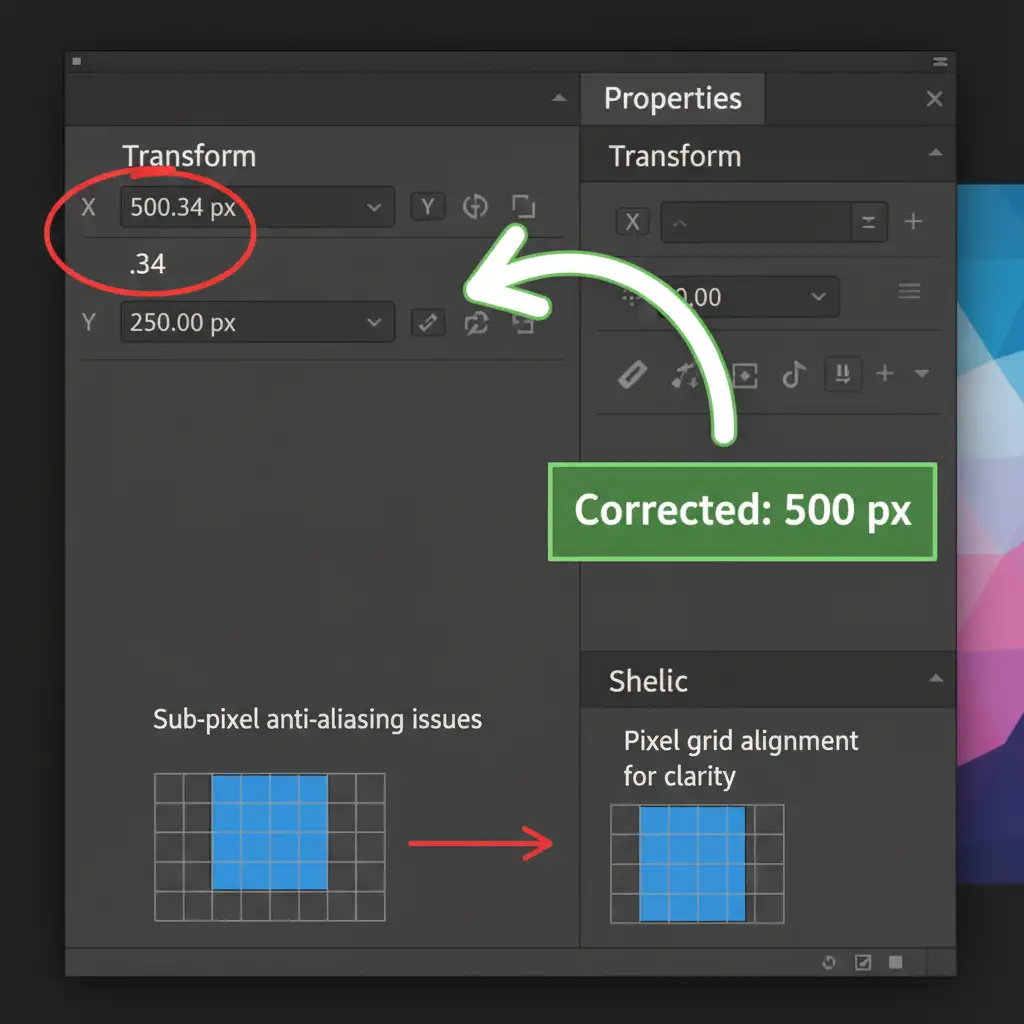
If your shadow is still shifting, the culprit is almost certainly fractional pixels. When an object is placed on a fraction of a pixel, the export engine tries to guess how to render the anti-aliasing, resulting in a visual shift.
- Turn on pixel snapping by going to View > Snap To > Pixels.
- Select your layer with the Move tool (V).
- Open your Properties panel and look at the Transform coordinates.
- Ensure your X and Y coordinates are whole numbers. If they say something like X: 500.34 px, manually type in 500 px to force perfect pixel grid alignment.
- Clear your cache by going to Edit > Purge > All.
- Finally, go to Preferences > Technology Previews and ensure Deactivate Native Canvas is unchecked.
Stop Fighting Software Bugs. Let the Experts Handle Your Images.
Troubleshooting the Photoshop PNG drop shadow shift error disrupts your workflow and eats into valuable production time. When you are processing hundreds of product photos for an e-commerce catalog, you don’t have time to manually rasterize layers or hunt down fractional pixels.
Need pixel-perfect product images with flawless, natural shadows? The expert retouchers at Image Work India and Cloud Retouch handle high-volume drop shadow creation, clipping paths, and advanced photo editing. We ensure every shadow is perfectly aligned, naturally feathered, and completely uniform across your entire product line—saving you hours of frustrating troubleshooting.
[Contact Image Work India today for a free trial] and see how our dedicated retouching teams can streamline your image production pipeline!




