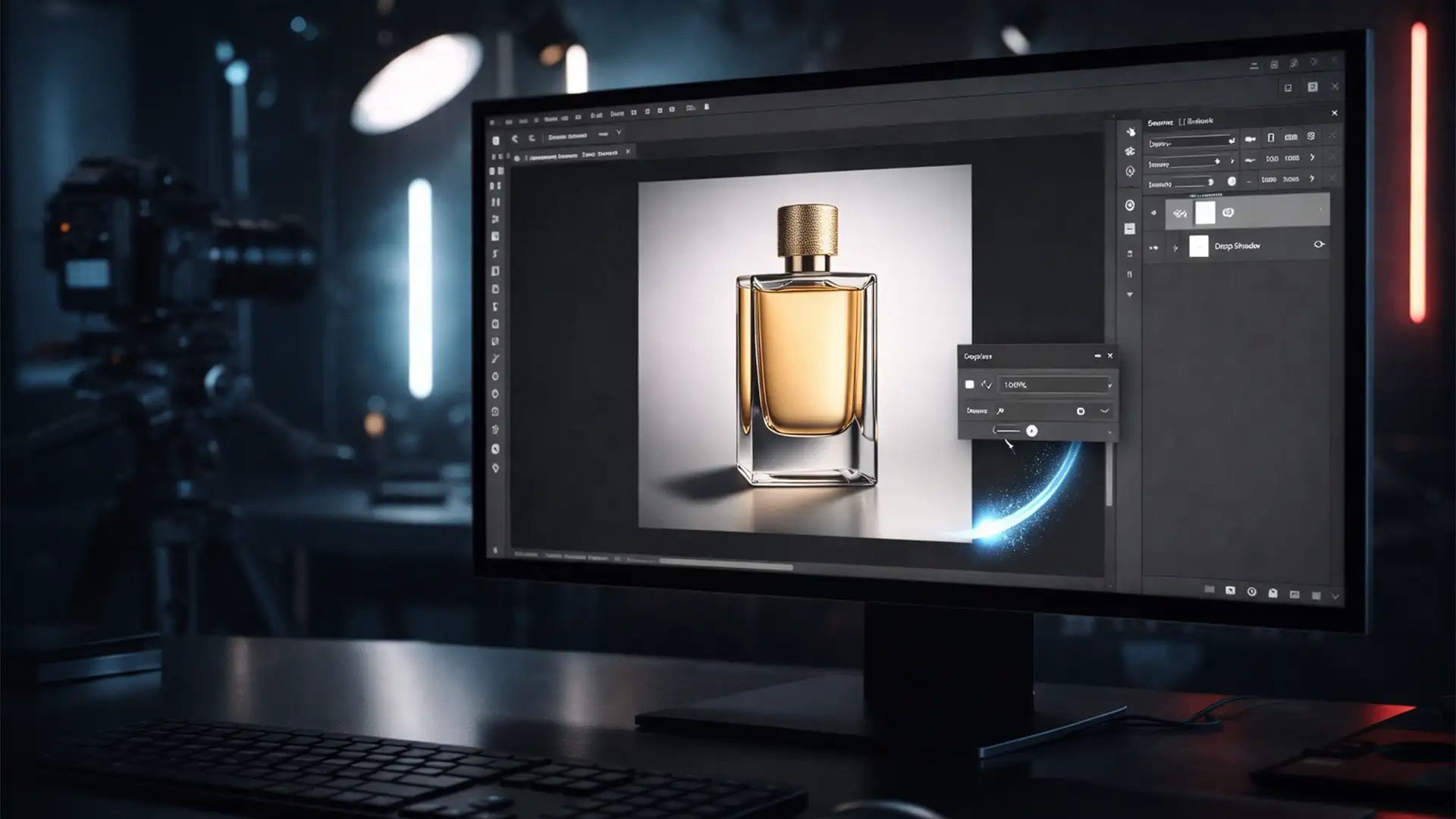

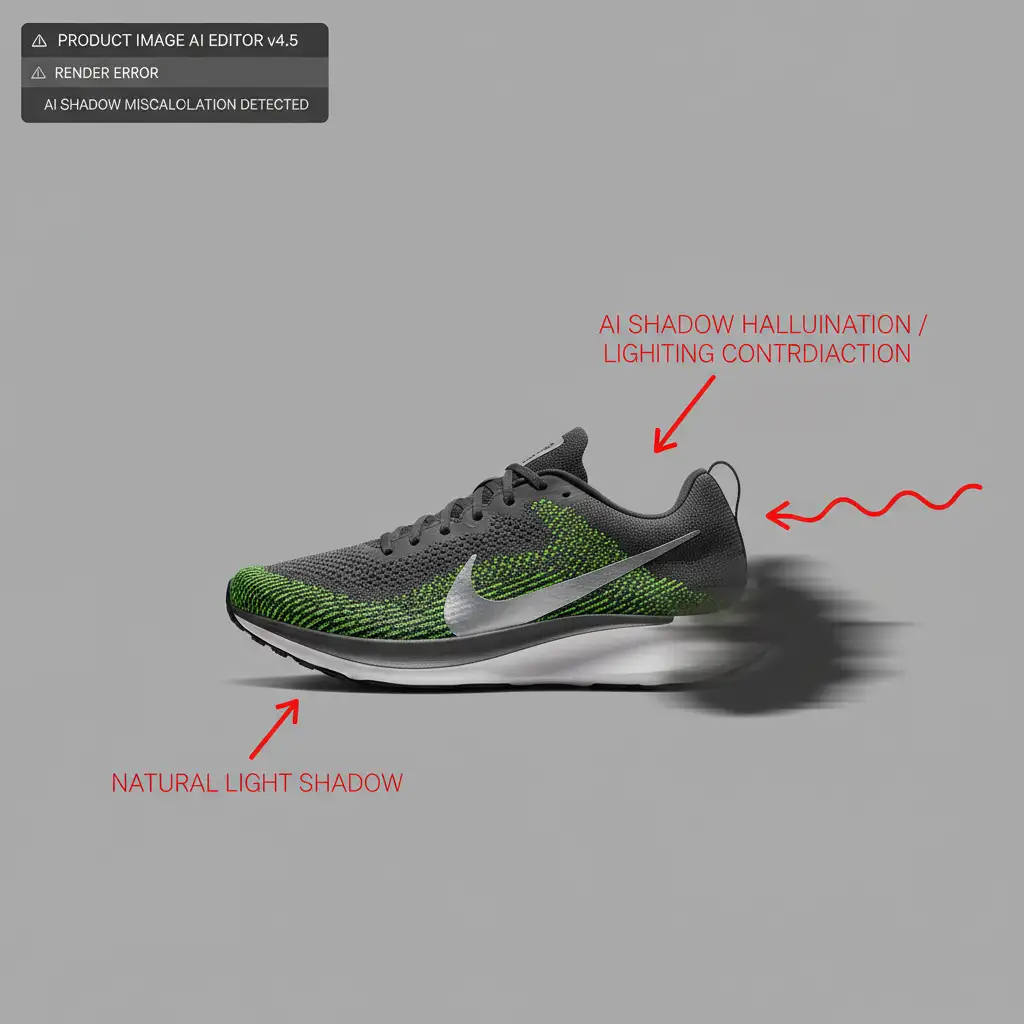
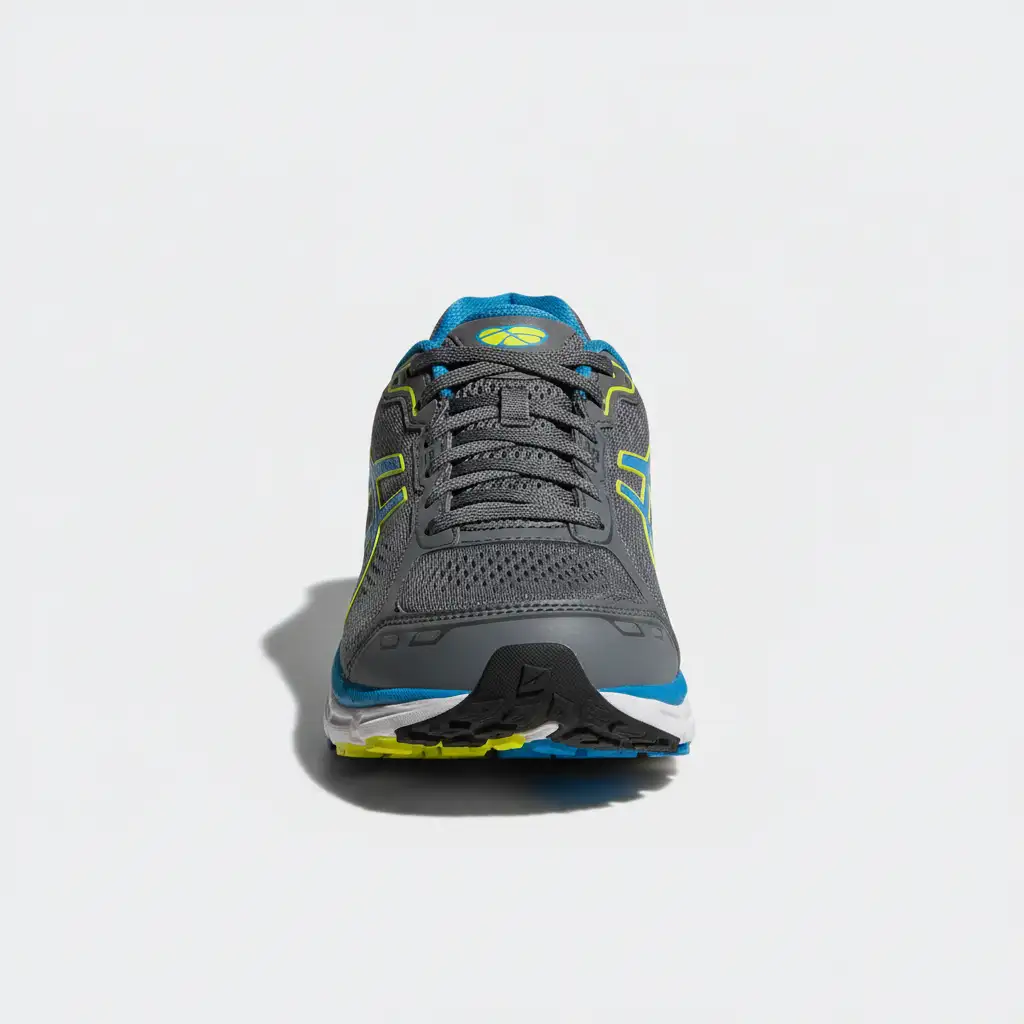
You just used Photoshop’s Generative Fill to seamlessly extend the background of a stunning e-commerce product shot. The canvas looks great, but there’s a glaring problem: the AI has hallucinated a secondary, conflicting drop shadow.
Fixing generative fill shadow artifacts is one of the most frustrating bottlenecks for commercial photographers using Adobe Firefly Image 2 and 3 models. While the AI excels at texture generation and background expansion, it frequently fails at directional lighting physics. This leaves you with muddy contrast zones and unrealistic double shadows that ruin the commercial viability of your images.
In this technical guide, we will break down three professional workflows to eliminate these AI lighting errors and restore commercial realism to your product photography.
Why Does Photoshop AI Create Shadow Hallucinations?
When you expand a canvas or generate a background plate in Photoshop v25.0 and newer, the Firefly Image Model analyzes the surrounding pixels to predict what should fill the empty space.
Unfortunately, the AI’s contextual awareness struggles with complex lighting setups. It frequently samples the darkest pixels at the base of your subject and incorrectly projects them outward. On pure white or studio-grey backgrounds, this results in a “shadow hallucination”—a secondary shadow that directly conflicts with your original, physical studio lighting.
To fix this, you need to rely on targeted prompting, luminosity control, and advanced layer masking.
3 Professional Methods for Fixing Generative Fill Shadow Artifacts
Whether you need a rapid patch or pixel-perfect commercial accuracy, here are the three best ways to correct AI drop shadows.
Method 1: The Quick Fix (Targeted Prompting)
If you are working on a tight deadline, you can often force the AI to heal its own mistakes by isolating the error.
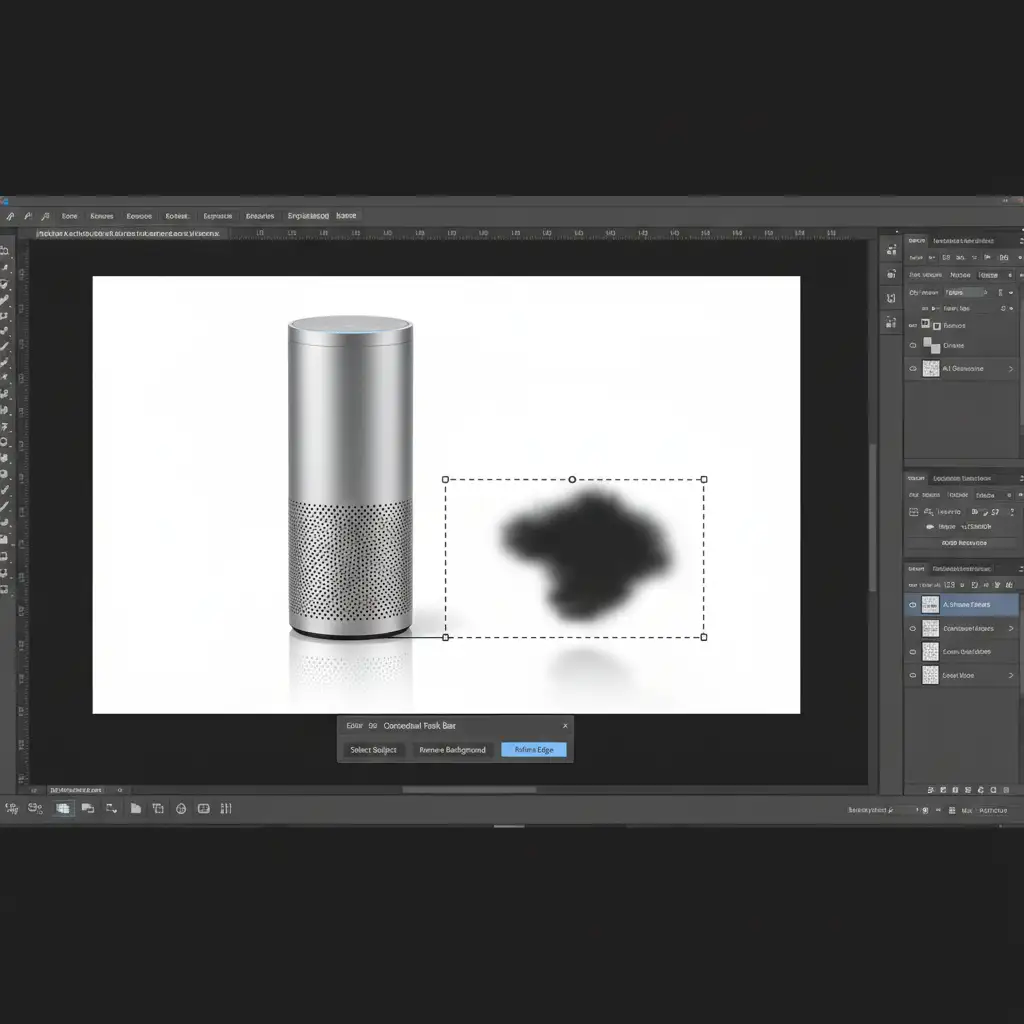
- Select the Lasso Tool (L).
- Carefully draw a selection isolating only the artifacted shadow. Crucial: Ensure your selection does not touch or overlap the base of the product itself, or the AI will attempt to alter the product.
- Navigate to the Contextual Task Bar.
- Leave the text prompt entirely blank, or type exactly: clean uniform background.
- Click Generate.
By isolating the muddy pixels and forcing a generic background generation, the AI usually overwrites the shadow hallucination with clean pixels.
Method 2: The Pro Workaround (Manual Layer Masking & Curves)
When targeted prompting fails or leaves behind muddy contrast zones, you need to take manual control over your drop shadow physics.
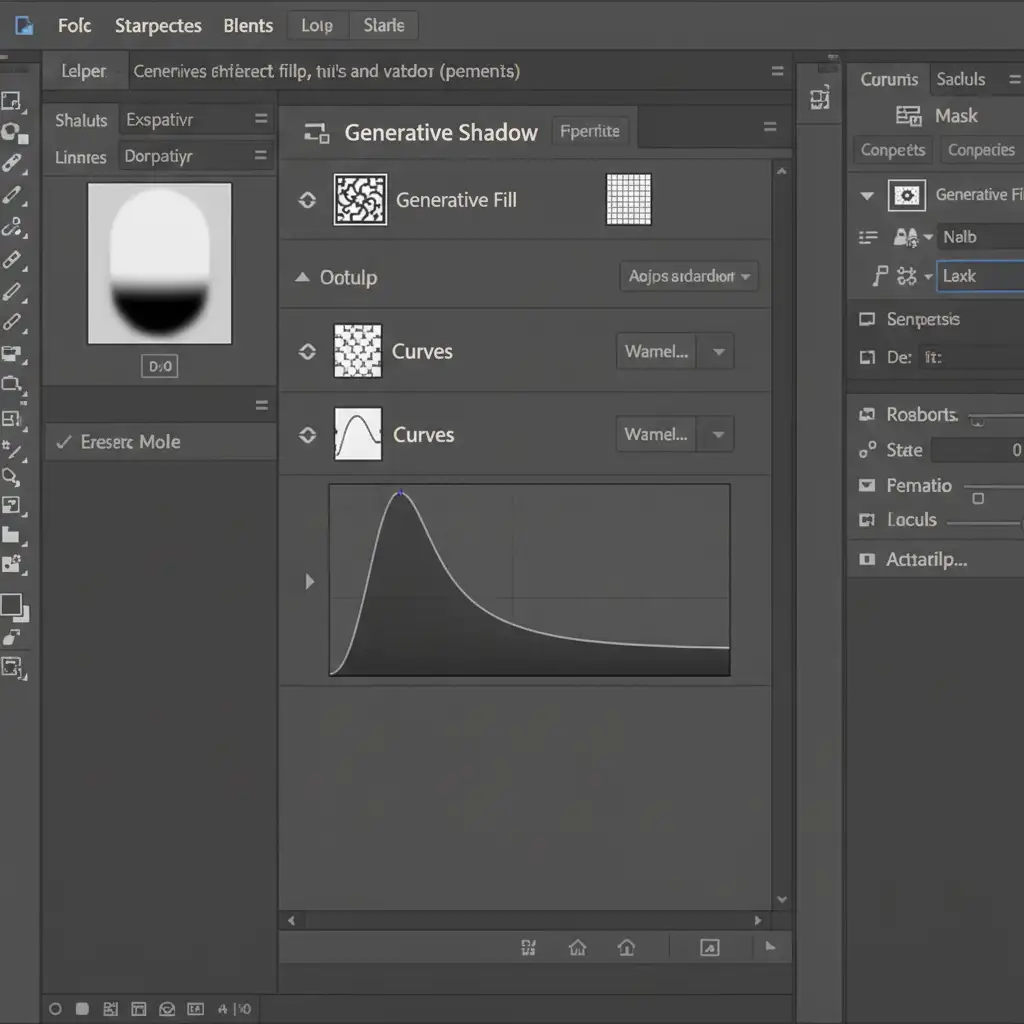
- Group your Generative Fill layers (Ctrl/Cmd + G).
- Add a Layer Mask to the group.
- Select a soft round brush (B), set your foreground color to black, and manually paint out the bad AI shadows to reveal your original background beneath.
- To rebuild the correct lighting, add a Curves Adjustment layer directly beneath your product layer.
- Pull the midtones down on the curve to darken the area.
- Invert the Curves mask (Ctrl/Cmd + I), grab a soft white brush, and manually paint back a physically accurate drop shadow that perfectly matches the directional lighting of your original shot.
Method 3: The Technical Deep-Dive (Blend If Luminosity Control)
For the cleanest possible result that preserves the generated background texture while destroying the shadow artifact, use Photoshop’s advanced Blend If sliders.
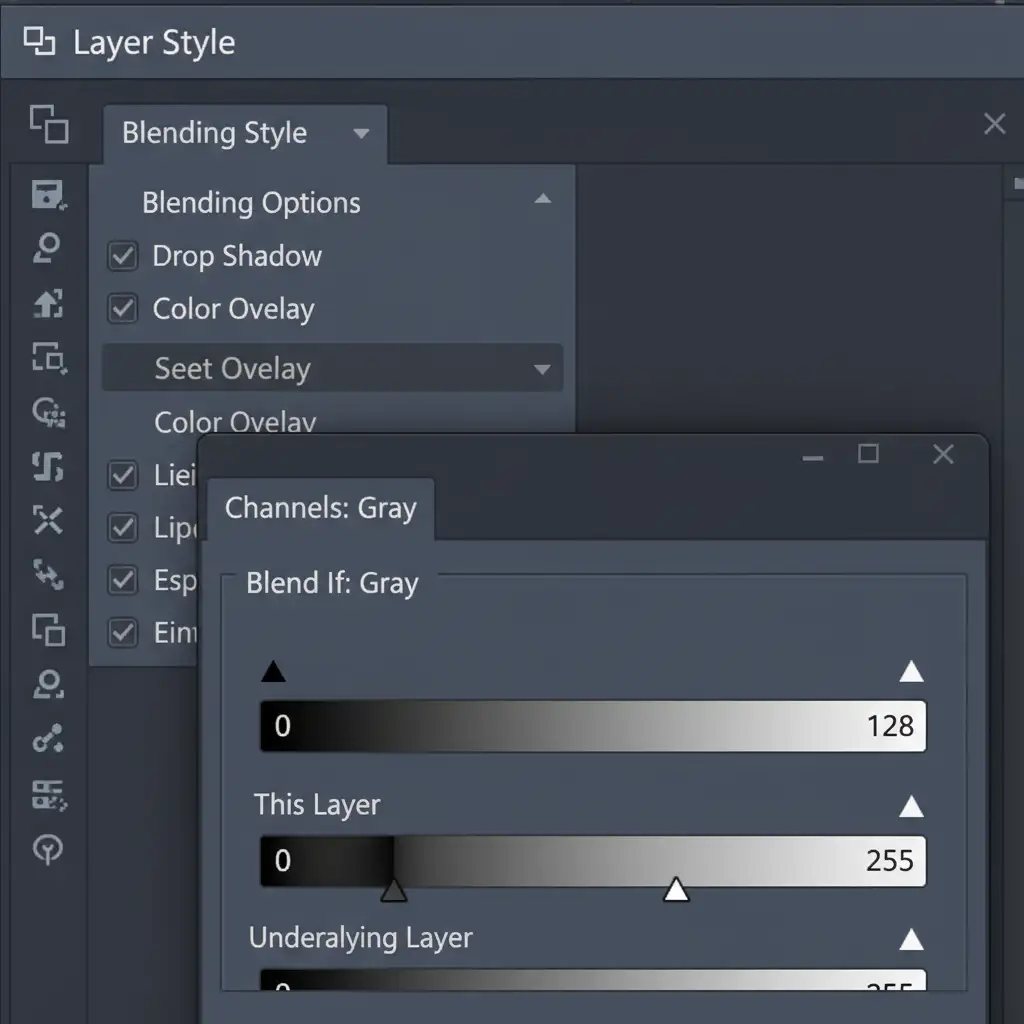
- Double-click your Generative Fill layer to open the Layer Style panel.
- Navigate to the Blend If: Gray section at the bottom of the dialog box.
- Look at the slider labeled This Layer.
- Hold Alt (Windows) or Option (Mac) and click the black slider on the left to split it in half.
- Drag the right half of the split slider toward the midtones.
This technique instantly forces the dark, muddy AI shadow pixels to become transparent. It seamlessly blends the clean, generated background texture with your original, physically accurate studio lighting beneath it.
Stop Wasting Time on AI Hallucinations
Fixing generative fill shadow artifacts on a single image takes a few minutes. But if you are processing hundreds of e-commerce SKUs, constantly battling Firefly’s lighting hallucinations will destroy your profit margins and delay your delivery times.
Tired of wasting hours fixing AI shadow hallucinations? Let the expert commercial retouchers at Image Work India and Cloud Retouch handle your e-commerce photo editing. From advanced layer masking to perfect directional lighting physics, our dedicated team guarantees pixel-perfect, physically accurate results every time.
Focus on shooting great products, and let us handle the pixel pushing. Contact us today to streamline your post-production workflow.




