

You’ve just spent hours capturing a 50-image macro sequence of a stunning diamond ring. But when you run Photoshop’s stacking tool, the result is a disaster. Instead of razor-sharp edges, you’re staring at translucent artifacts and messy halos around every prong. Highly reflective gems and lens shifts completely confuse blending algorithms, turning a high-end product shot into an unusable file. If you are tired of losing hours to these software errors, this guide will show you exactly how to execute a flawless jewelry focus stacking ghosting artifacts fix, ensuring pixel-perfect commercial results every time.
Why Do Ghosting Artifacts Happen in Jewelry Focus Stacking?
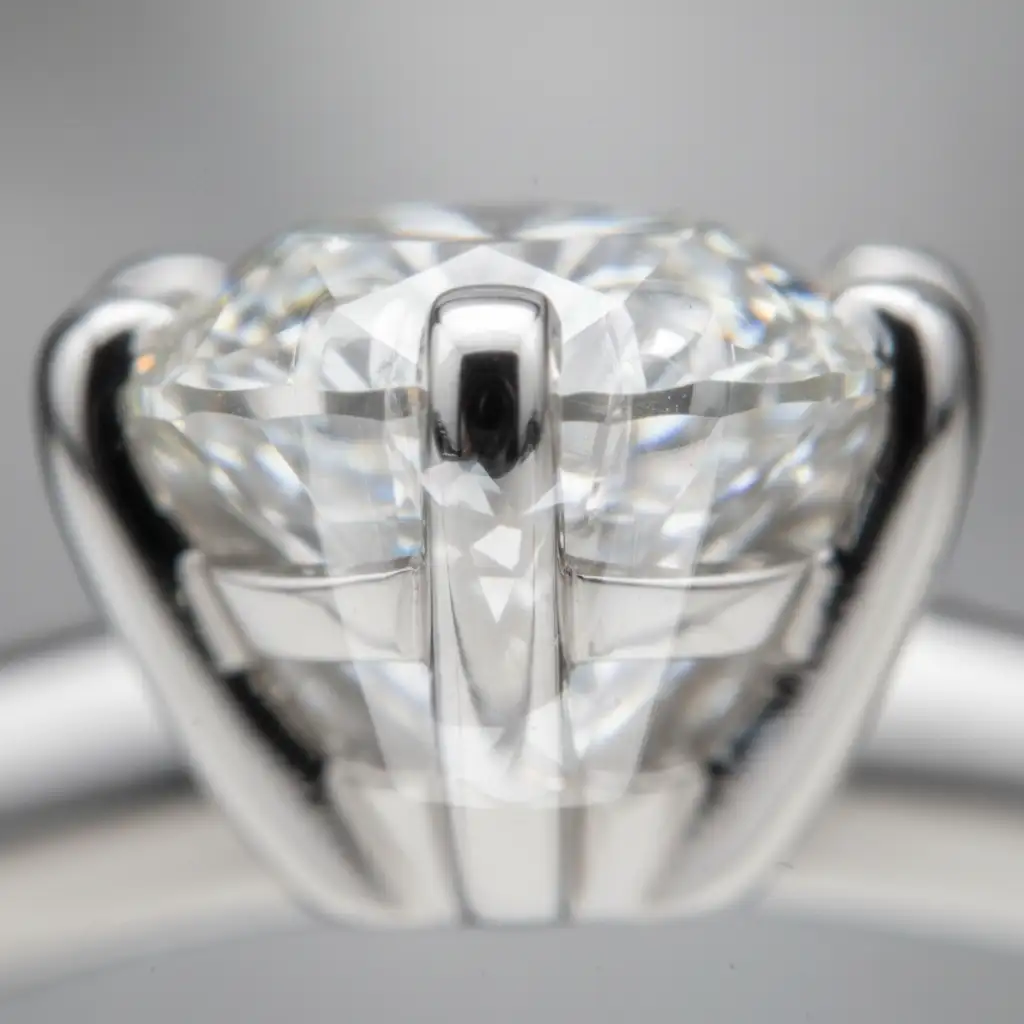
To understand how to fix the problem, you first need to understand why your software is failing. Jewelry is arguably the most difficult subject for macro photography. The combination of intense reflections, faceted gemstones, and extreme magnification creates a perfect storm for algorithmic errors.
Algorithmic Failures in Auto-Blend Layers
In Adobe Photoshop v24.x and newer, the Auto-Blend Layers feature (using Stack Images mode) frequently miscalculates highly reflective and intricate subjects. When photographing diamonds, out-of-focus highlights from the background slices overlap with the sharp edges of the foreground slices. The algorithm misinterprets these overlapping highlights as structural elements, resulting in translucent ghost artifacts or haloing around the edges of the metal.
The Role of Focus Breathing and Parallax Error
This software confusion is compounded by hardware limitations. Focus breathing occurs in macro lenses when the field of view slightly changes between focal slices. As the lens physically adjusts its focus, the subject appears to grow or shrink slightly. This creates a parallax error, causing alignment failures during the rasterization and blending phase. The software simply cannot line up the pixels perfectly, leading to smeared edges.
Method 1: The Quick Photoshop Layer Mask Fix
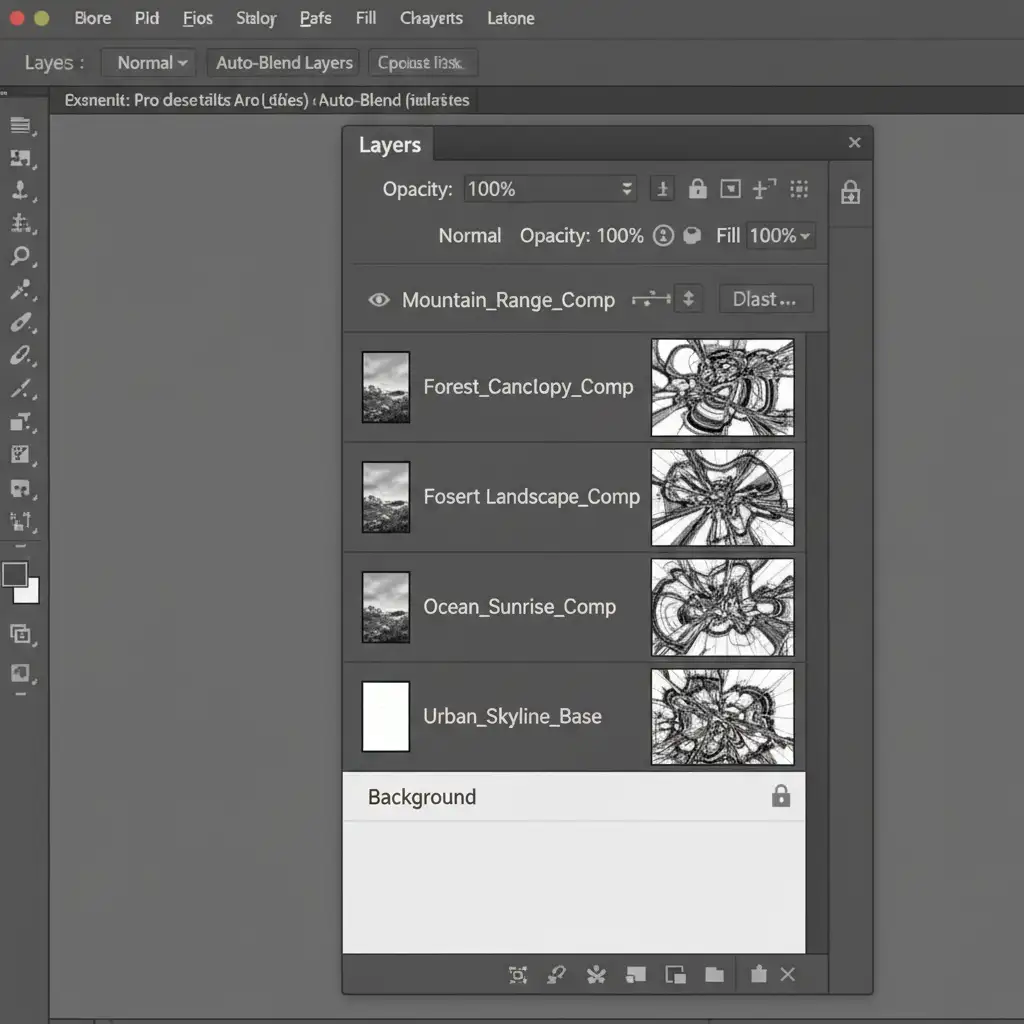
If you are already inside Photoshop and notice ghosting after running your stack, you don’t need to start over. You can manually override the algorithm’s mistakes using the auto-generated masks.
- Locate the Source File: After running Auto-Blend Layers, Photoshop generates a layer mask for each focal slice. Scroll through your layers panel and hide/reveal layers to find the specific individual layer containing the sharpest, cleanest version of the ghosted area.
- Reveal the Clean Detail: Select the layer mask of that sharp layer. Select a soft-edge Brush tool, set your foreground color to white, and paint at 100 percent opacity over the artifact area to reveal the clean detail.
- Hide the Artifacts: Next, identify the adjacent layers that contain the blurred out-of-focus highlights causing the ghosting. Select their masks and paint with a black brush to hide those specific algorithmic errors.
Method 2: The Pro Workaround Using Dedicated Software
Photoshop is a powerful generalist tool, but dedicated focus stacking software handles complex jewelry much better. Bypassing Photoshop entirely and using Helicon Focus or Zerene Stacker is the industry standard for high-volume commercial retouching.
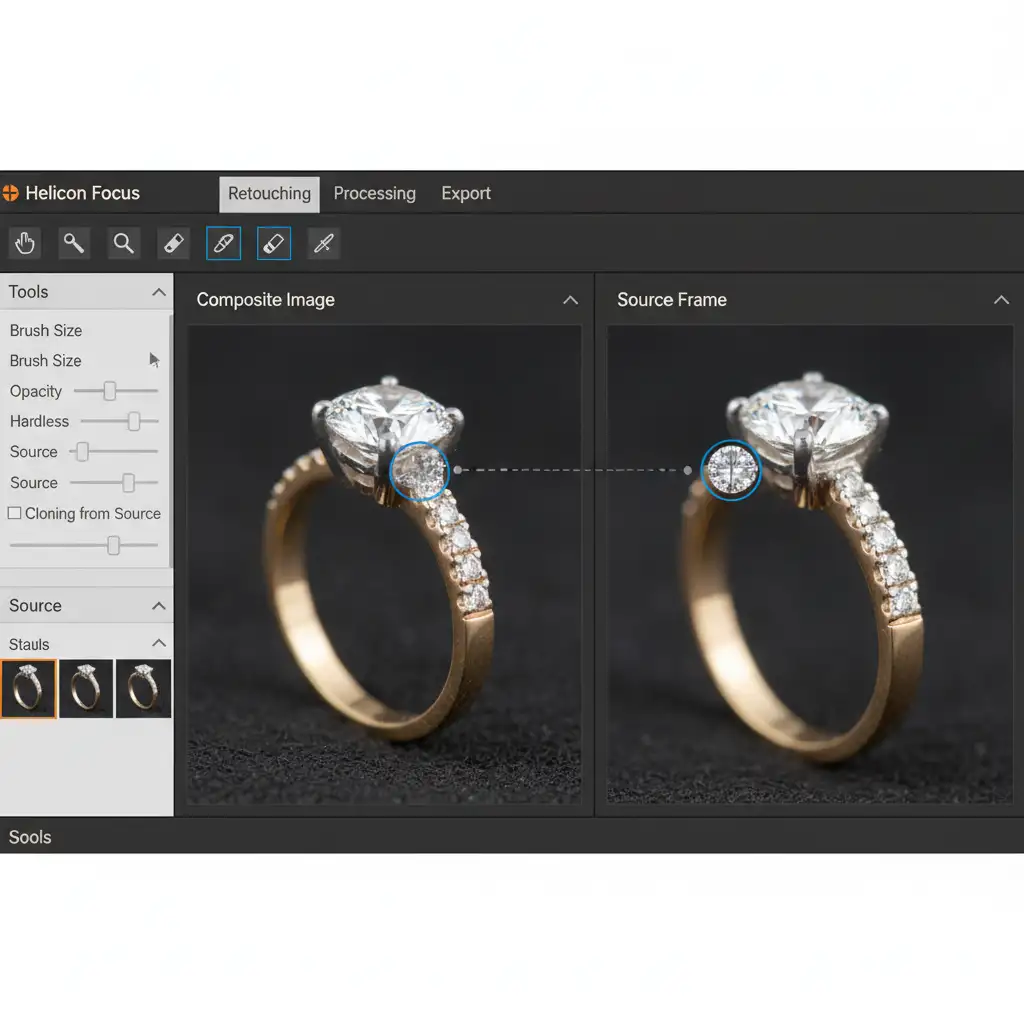
If you encounter a jewelry focus stacking ghosting artifacts fix requirement in Helicon Focus, you can bypass algorithmic errors entirely using the built-in Retouching tab.
- Process your stack using Method B or Method C in Helicon Focus.
- Navigate to the Retouching tab.
- On the right side, you will see your source files. On the left, your final composite.
- Select the specific source frame that has the perfectly sharp prong or gemstone facet.
- Use the retouching brush to clone sharp pixels directly from the source frame onto the final composite, completely overwriting the algorithmic ghosting errors.
Method 3: Technical Deep-Dive (Capture Optimization)
The best way to fix ghosting is to prevent it from happening in the camera. Ghosting and focus banding are often hardware-induced due to camera micro-shifts and inconsistent focus increments.
Fix this at the source with these capture optimizations:
- Use a Motorized Macro Rail: Manually turning the focus ring introduces human error and camera shake. A motorized macro rail moves the entire camera system in precise, equidistant increments (a consistent focus step), eliminating parallax errors.
- Find the Lens Sweet Spot: Shoot at an aperture like f/8. This avoids diffraction (which softens the image at f/16 or f/22) while maximizing the depth of field for each slice, ensuring there are no soft gaps between your focus steps.
- Disable Optical Image Stabilization (OIS): If your lens has OIS, turn it off when mounted on a tripod. The stabilization mechanism can cause tiny sensor shifts between frames, ruining the stack alignment.
Outsource Your High-End Jewelry Retouching
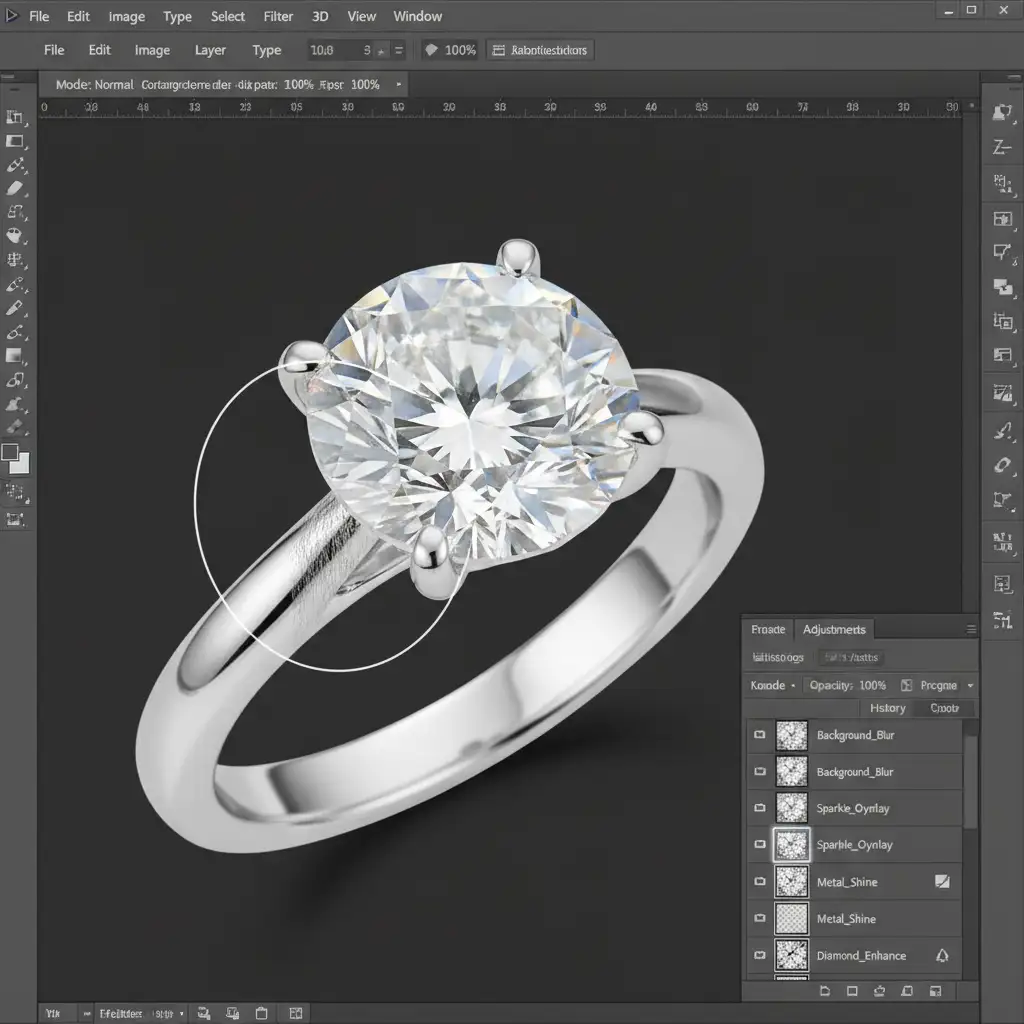
Executing a flawless jewelry focus stacking ghosting artifacts fix requires immense patience, technical skill, and hours of tedious masking. When you are managing an e-commerce catalog or delivering a massive commercial campaign, you simply don’t have the time to manually paint layer masks for hundreds of product shots.
That’s where we come in.
Struggling with complex focus stacks and persistent ghosting artifacts? Let the experts at Image Work India and Cloud Retouch handle your high-end jewelry retouching. Our specialized team uses advanced stacking software and manual pixel-level refinement to deliver flawless, artifact-free commercial images that make your diamonds shine.
Contact us today to streamline your post-production workflow and elevate your jewelry photography.




