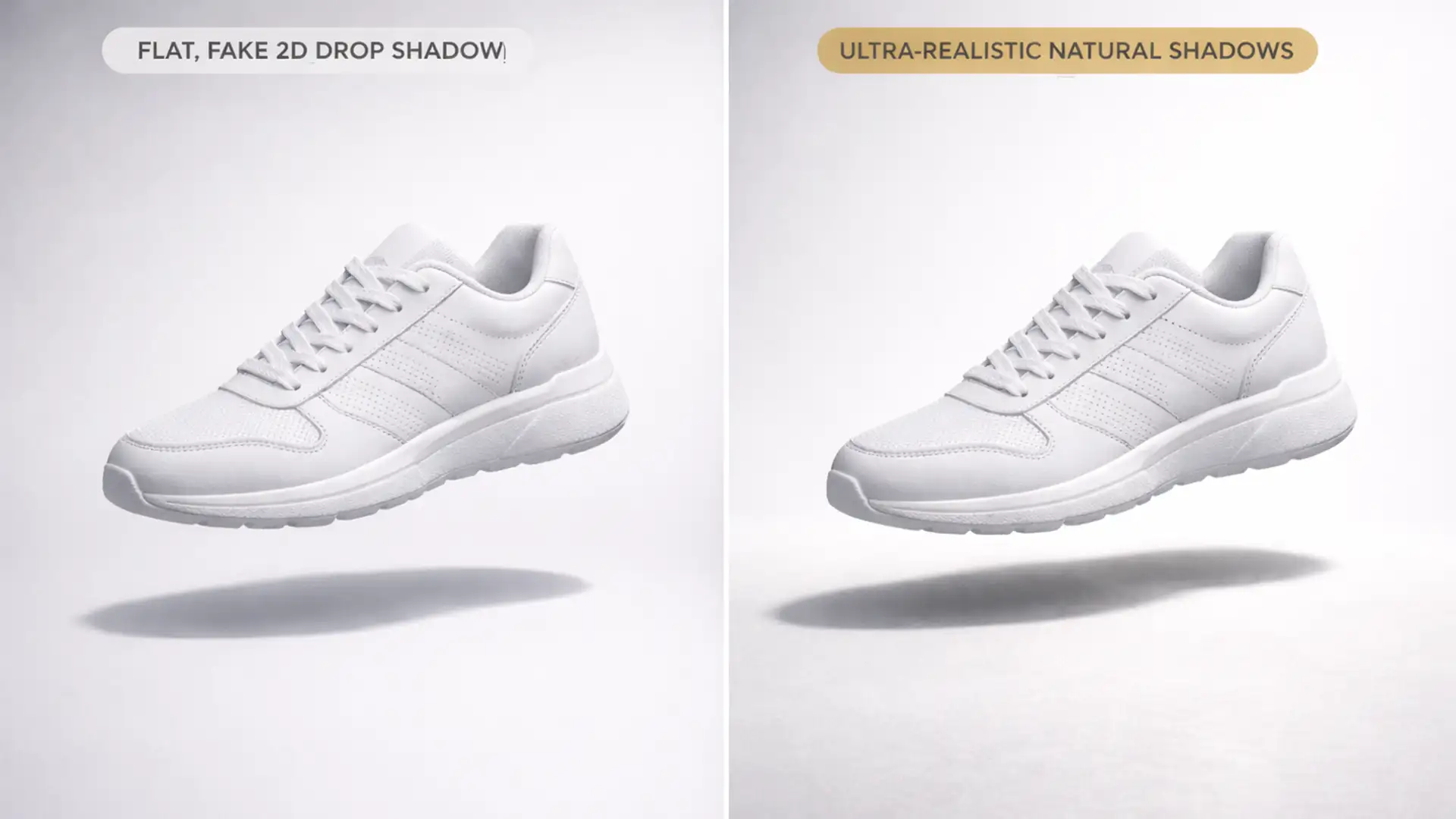

Are your e-commerce products floating in a digital void? If you are relying on default Photoshop blending options to anchor your product images, you are likely hurting your conversion rates. In modern e-commerce photography, artificial-looking drop shadows make products look cheap and untrustworthy. Premium Shopify stores and top Amazon sellers have moved past basic 2D offsets. Instead, they demand “natural grounding”—a sophisticated technique that maps shadows to a conceptual 3D floor plane.
In the debate of natural grounding vs drop shadows for ecommerce, the data is clear: realism drives sales. Let’s explore the technical differences between these two methods and how you can properly ground your products in Photoshop v25.x to build consumer trust and boost ROI.
The Problem with Default Drop Shadows in E-commerce
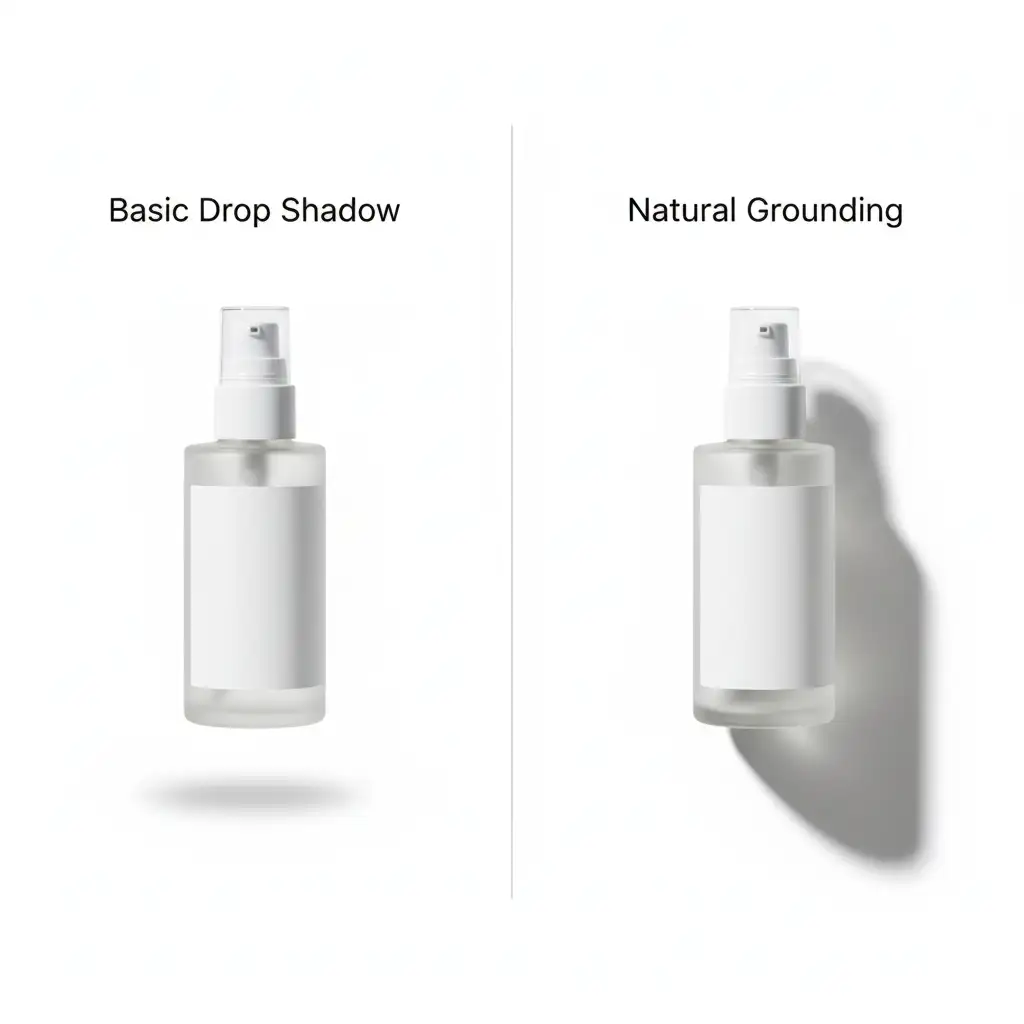
When photo editors rely on the standard Photoshop fx > Drop Shadow tool, it applies a uniform, flat 2D offset to the image. Because this shadow doesn’t interact with the geometry of the product or simulate a realistic light source, the product appears to hover above the background. This “floating” effect breaks the illusion of reality, subconsciously signaling to buyers that the image is heavily manipulated or low-quality.
What is Natural Grounding?
Natural grounding is the industry standard for premium product imagery. Instead of a single, flat shadow layer, natural grounding is a sophisticated combination of two distinct elements:
- Ambient Occlusion (Contact Shadow): The dark, dense shadow located exactly where the product makes physical contact with the floor.
- Cast Shadow: The directional shadow created by the primary light source, which stretches away from the product and features realistic light falloff (opacity fading) and diffusion.
Creating this requires separating the shadow from the subject, utilizing advanced transform tools, and applying gradient masking to simulate a 3D floor plane.
How to Create Realistic Natural Grounding in Photoshop v25.x
Transitioning from basic drop shadows to multi-layered natural shadows requires a deeper understanding of Photoshop’s transform and blurring tools. Here are three methods, ranging from a quick fix to a technical deep-dive.
Method 1: The Quick Fix (Transforming a Drop Shadow)
If you already have a clipping path applied and need a fast improvement over the default floating look, you can manipulate the standard drop shadow.
- Apply a standard Drop Shadow via Layer Styles (fx).
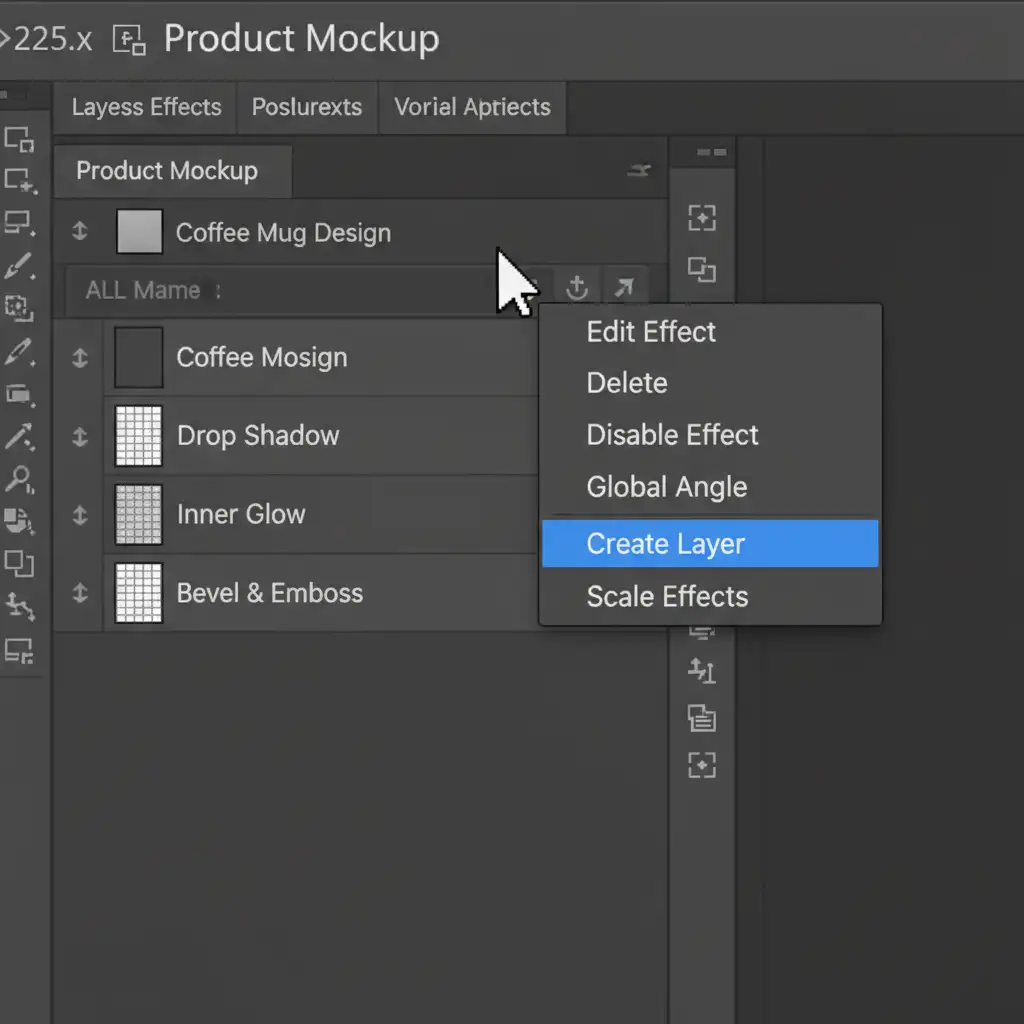
- Right-click the ‘Drop Shadow’ effect directly in the Layers panel.
- Choose ‘Create Layer’. This detaches the shadow into its own editable pixel layer.
- Select the new shadow layer, press Ctrl+T (Cmd+T), and use the Distort tool to lay the shadow flat beneath the product, simulating a floor.
Method 2: The Pro Workaround (Perspective Warp & Light Falloff)
For a more realistic cast shadow, you need to simulate how light interacts with a 3D plane.
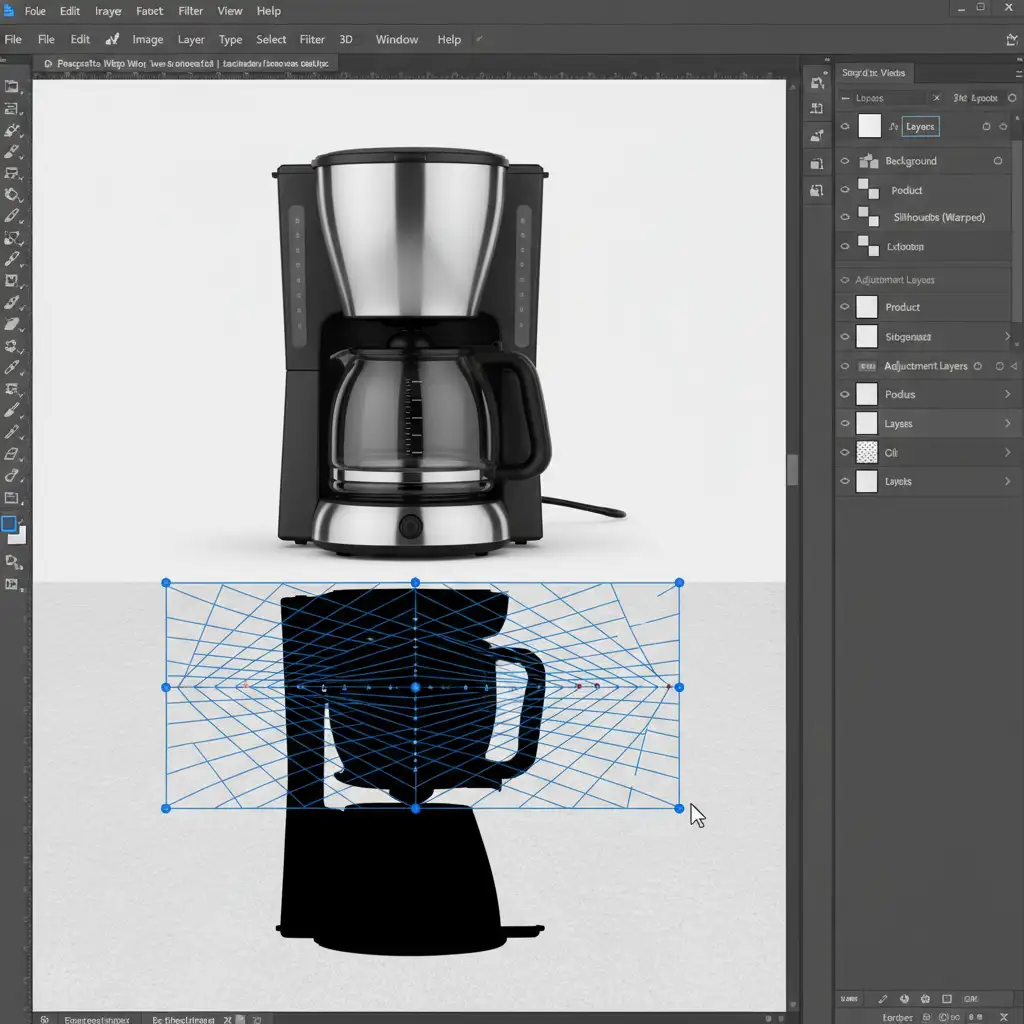
- Duplicate your product layer, lock the transparent pixels, and fill the silhouette entirely with black.
- Flip the new black layer vertically and move it below the product layer.
- Go to Edit > Perspective Warp. Adjust the grid to match the conceptual floor angle and lay the shadow down flat.
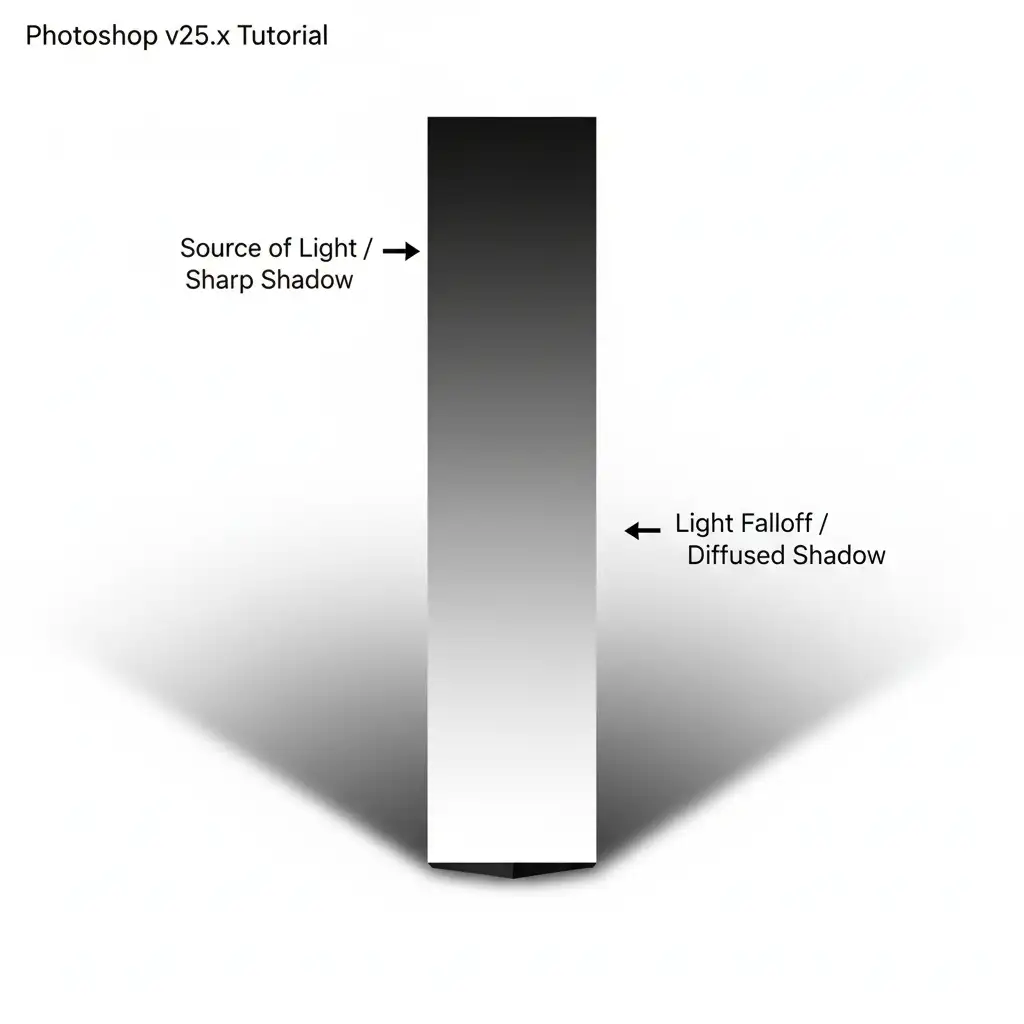
- Add a Layer Mask to the shadow.
- Use the Gradient tool to pull a black-to-white linear gradient across the mask. This creates an opacity gradient, perfectly simulating realistic light falloff as the shadow stretches away from the product.
Method 3: The Technical Deep-Dive (Multi-Layered Shadows)
For the absolute highest standard of e-commerce imagery, you must build a two-part natural shadow from scratch.
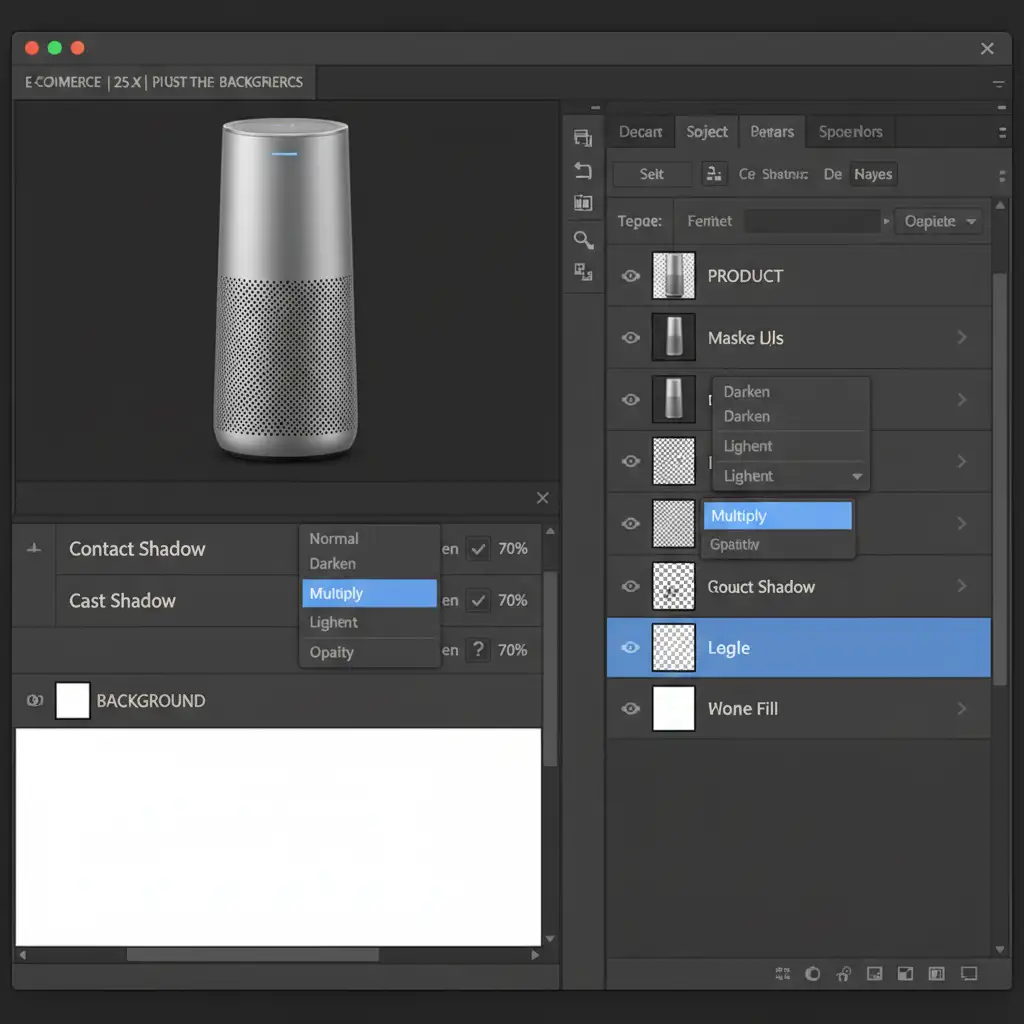
Step 1: The Contact Shadow Create a new layer beneath your product. Select a soft-edged black brush and set the flow to 15%. Carefully paint a tight, dark line directly under the product’s base where it physically touches the floor. Set this layer’s blend mode to Multiply blend mode.
Step 2: The Cast Shadow Duplicate the product, fill it with black, and use the Perspective Warp technique from Method 2. However, instead of using a standard Gaussian blur (which blurs the whole shadow uniformly), apply a Field Blur. Field Blur allows you to place multiple pins, keeping the shadow sharp near the base of the product and increasing the blur amount as the shadow extends further away, flawlessly simulating depth of field and light diffusion.
Scale Your E-commerce Imagery with Image Work India & Cloud Retouch
Mastering the nuances of natural grounding vs drop shadows for ecommerce is essential for conversion optimization. However, manually painting ambient occlusion, masking light falloff, and applying field blurs takes significant time. When you are processing hundreds or thousands of SKUs for a seasonal catalog update, relying on in-house editors to perform this technical deep-dive on every single image is a massive bottleneck.
Struggling to make your product catalog look realistic at scale? Outsource your natural grounding and shadow creation to Image Work India & Cloud Retouch. Our expert retouchers specialize in flawless, high-volume image editing, from precise clipping paths to advanced 3D shadow mapping. We ensure every product in your store looks perfectly anchored, professional, and ready to drive sales.
Contact Image Work India and Cloud Retouch today to elevate your e-commerce visuals and dramatically boost your Amazon and Shopify ROI.




