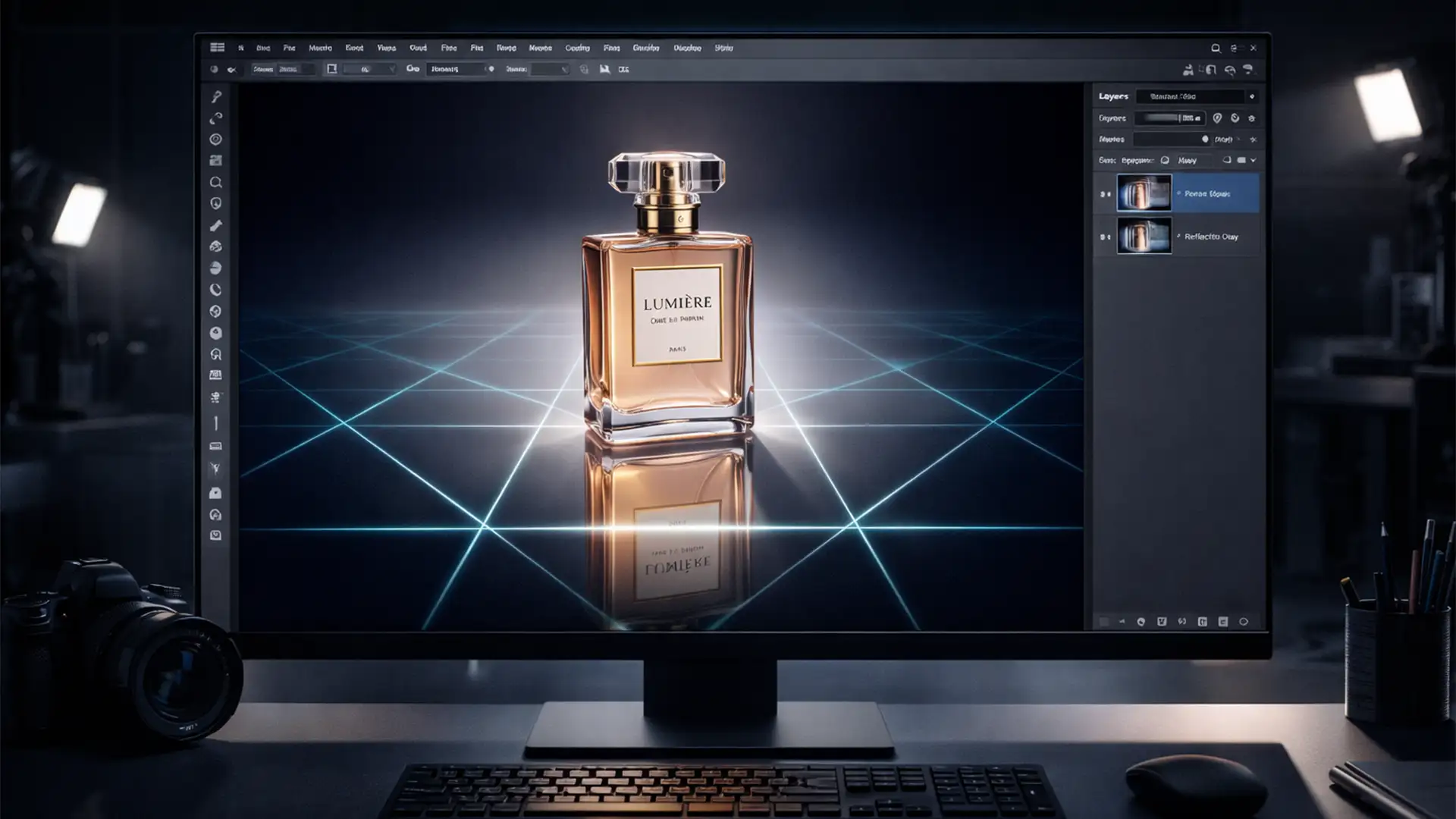

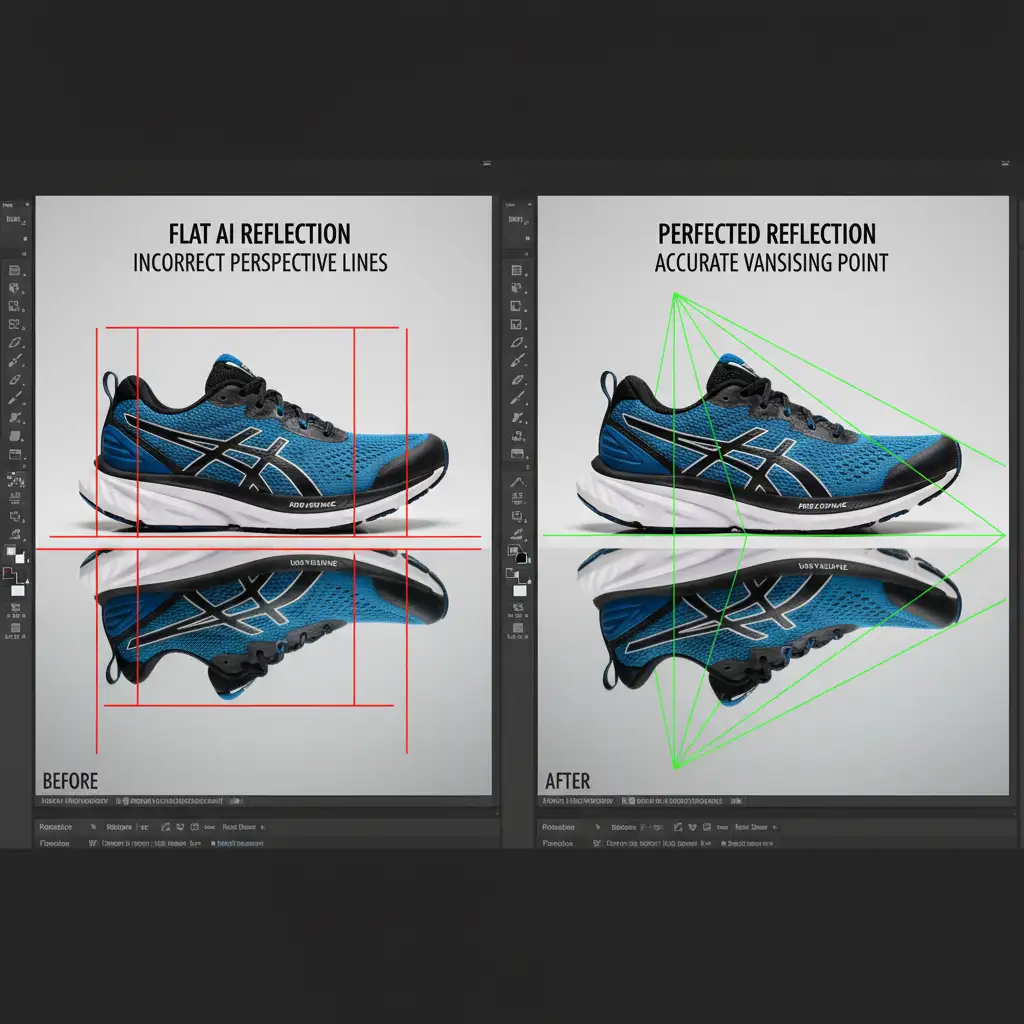
You just generated a beautiful floor reflection using Adobe Photoshop 2025’s Generative Fill, but something looks incredibly wrong. The product is angled, but the reflection is sitting at a flat, 90-degree angle.
This perspective mismatch screams “fake” and ruins high-end e-commerce product shots. Currently, the Firefly Image 3 Model struggles to map complex 3D perspective grids from 2D layers, completely ignoring the camera focal length and the primary subject’s vanishing point. If your AI reflections look distorted and detached from the base of your object, you aren’t alone.
Here is the definitive guide to mastering the Photoshop AI Reflection Perspective Fix so you can output 100% realistic product photography.
Why Generative Fill Fails at Complex Reflections
When you prompt Photoshop for a “floor reflection,” the Firefly Image 3 Model analyzes the pixels immediately surrounding your selection. However, it lacks the spatial awareness to calculate true 3D geometry. Because it cannot automatically detect the vanishing point or the original camera’s focal length, it defaults to pasting a mirrored image straight down.
To achieve a flawless result, you have to force the AI output into the correct geometric plane using manual techniques. Here are the three best workflows to correct this issue.
3 Ways to Fix AI Reflection Perspective Mismatches
Method 1: The Quick Fix (Manual Transform)
If you are working with a relatively simple, front-facing product, you don’t necessarily need AI to generate the reflection from scratch. You can manually manipulate the existing pixels.
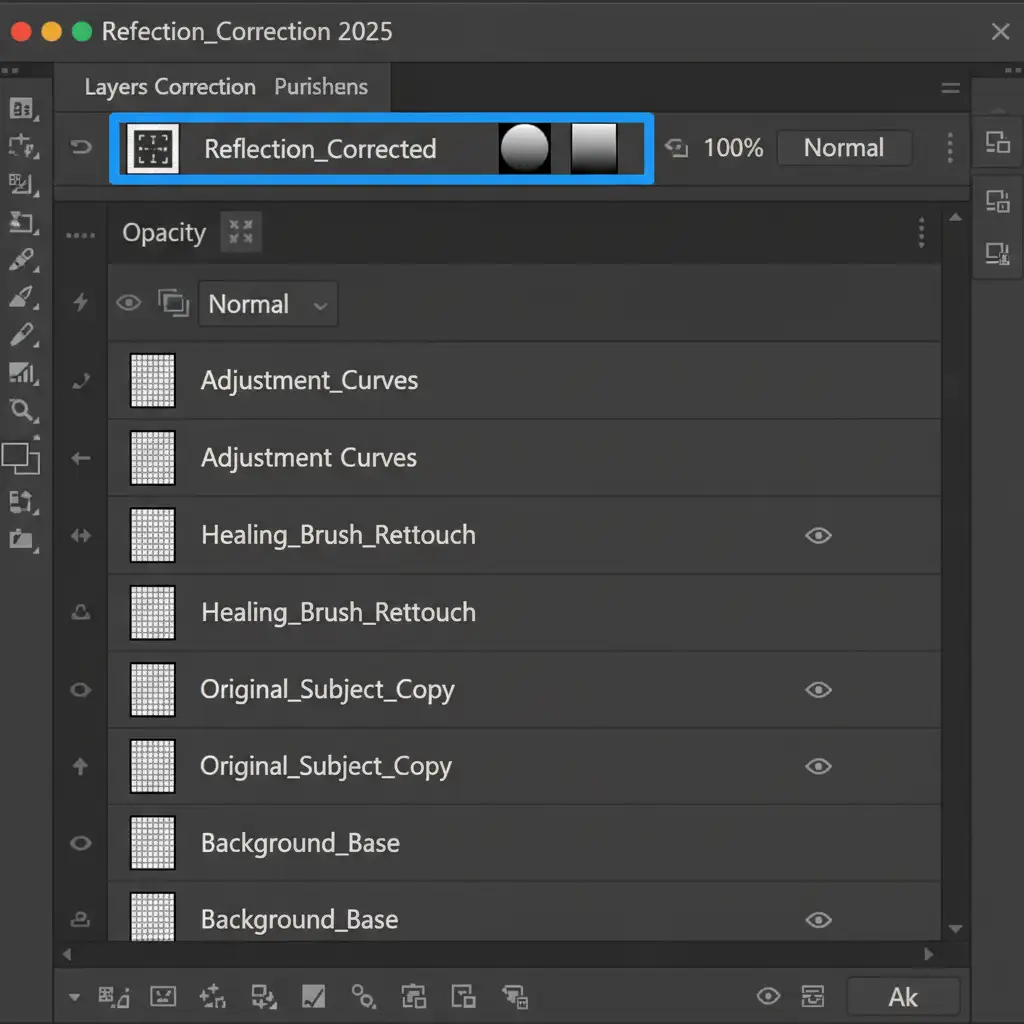
- Select your primary subject layer and duplicate it (Ctrl/Cmd + J).
- Activate the Transform Tool (Ctrl/Cmd + T), right-click, and select Flip Vertical.
- Drag the flipped layer down so it meets the base of your original product.
- Right-click within the transform box and select Skew. Manually drag the bottom corners horizontally to angle the reflection to match the floor line.
- Apply Layer Masking by adding a layer mask, selecting the Gradient Tool (black to white), and drawing a gradient from the bottom up to create a natural fade.
Method 2: The Pro Workaround (Perspective Warp)
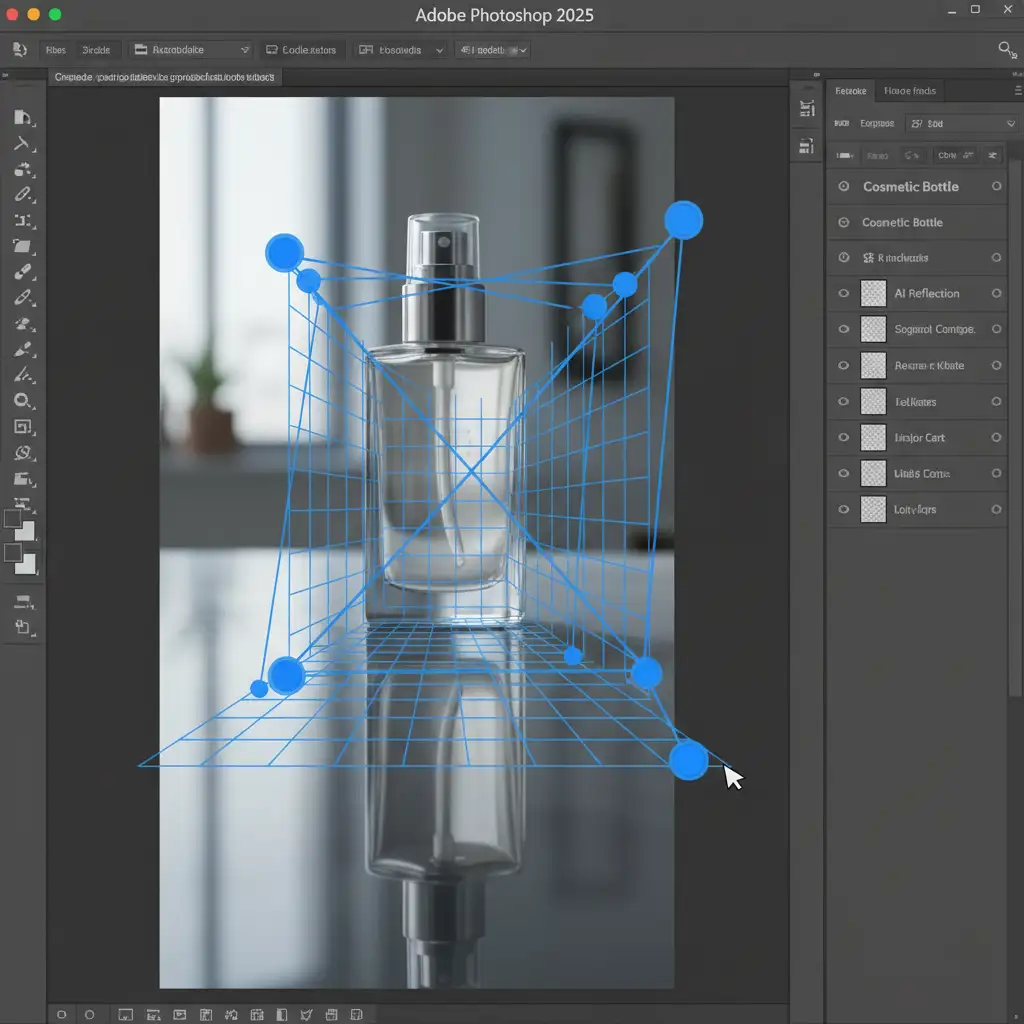
When the AI generates a reflection with great texture (like water ripples or glossy marble) but the wrong angle, the Perspective Warp tool is your best friend.
- Generate your reflection using Generative Fill.
- Right-click the new AI-generated reflection layer and convert it into a Smart Object. This ensures your edits remain non-destructive.
- Navigate to Edit > Perspective Warp.
- Draw a layout grid over the distorted AI reflection, ensuring the pins cover the four corners of the generated area.
- Hit Enter or switch to Warp mode in the top toolbar.
- Drag the corner pins to skew the reflection backwards or forwards, perfectly matching the background vanishing point of your primary subject.
Method 3: The Technical Deep-Dive (Vanishing Point & Reference Images)
For complex scenes with distinct architectural lines, you need to provide the AI with strict geometric boundaries and visual references before it generates the pixels.
Note: Ensure GPU Acceleration is enabled in your Photoshop Preferences (Performance tab) to handle the intense rendering required for this workflow.
- Create a new blank layer. Navigate to Filter > Vanishing Point.
- Use the plane tool to draw a precise grid on the floor, defining the exact perspective planes based on the scene’s geometry.
- Make your selection for the reflection along this defined grid.
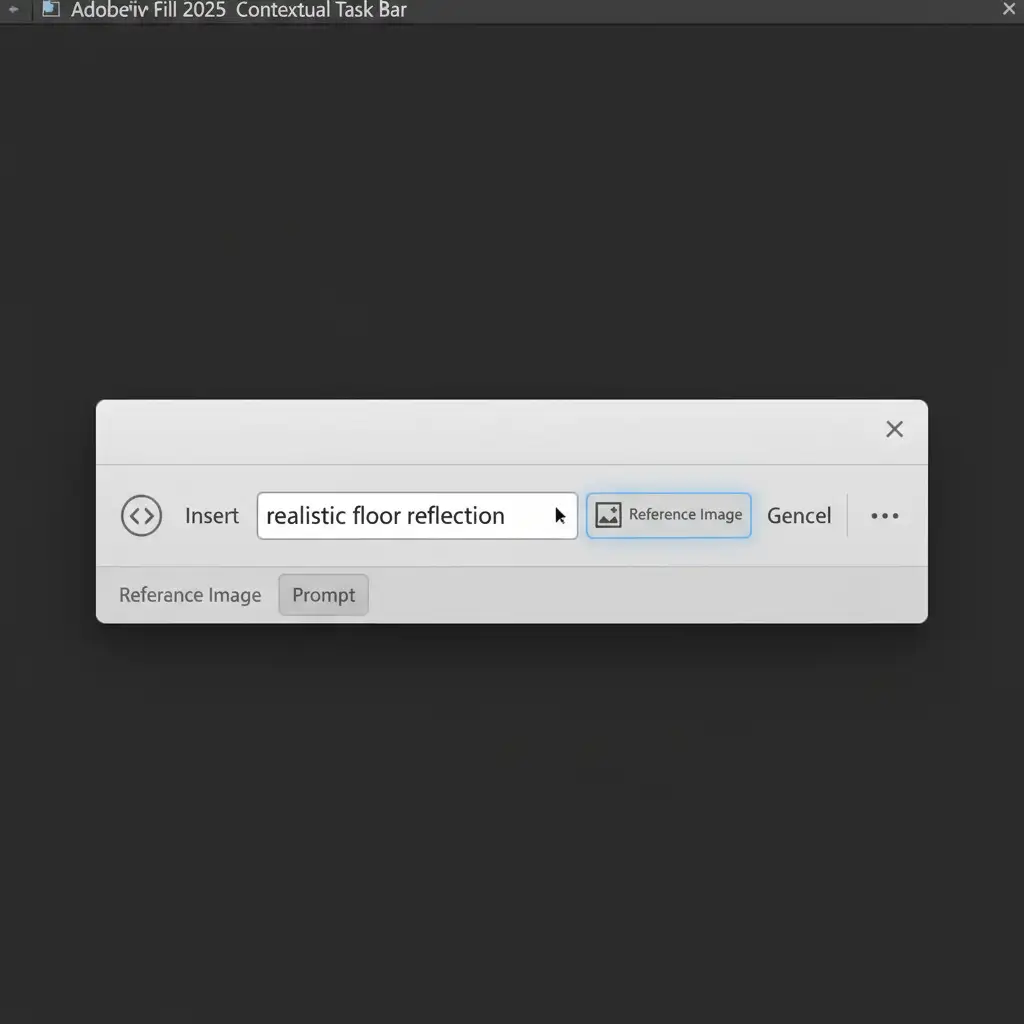
- In the Generative Fill Contextual Task Bar, click the Reference Image icon. Upload an image that features a reflection with the correct perspective.
- Use specific prompt engineering: “realistic floor reflection following defined perspective grid, matching lighting of subject.”
Stop Fighting the AI: Let the Experts Handle Your E-Commerce Edits
Fixing a Photoshop AI reflection perspective mismatch takes time, technical skill, and an advanced understanding of geometry. If you are processing dozens or hundreds of product photos for an e-commerce catalog, manually adjusting Smart Objects and Vanishing Point grids will destroy your turnaround times.
You don’t have to do this alone.
At Image Work India and Cloud Retouch, our expert retouchers specialize in pixel-perfect, 100 percent realistic product shadows and reflections. Whether you need complex perspective corrections, high-end clipping paths, or flawless background replacements, we deliver agency-quality results at scale.
Struggling to get flawless reflections for your e-commerce catalog? Stop fighting the AI. Contact Image Work India and Cloud Retouch today and let us elevate your product photography to the next level.




