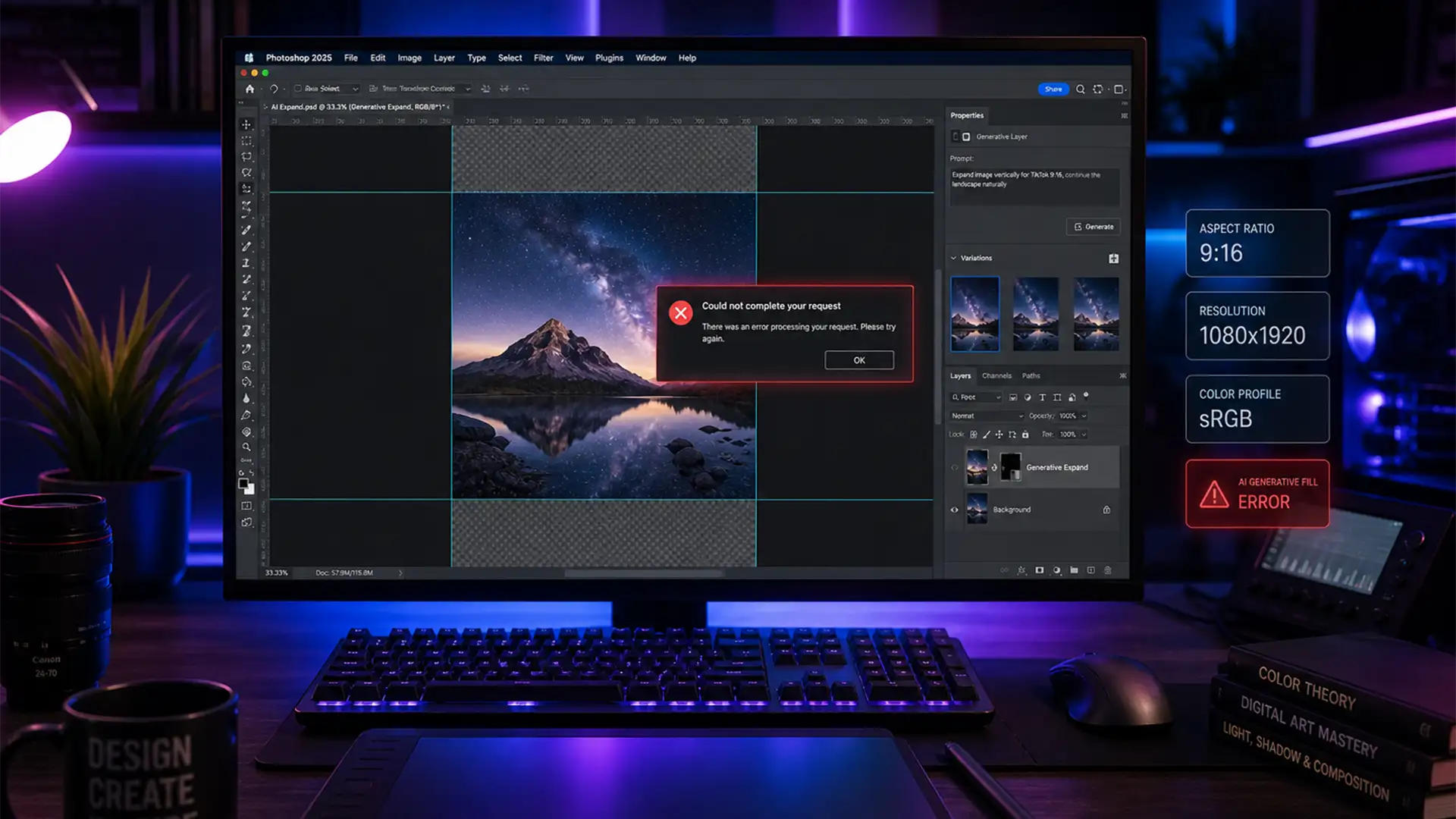

How to Fix ‘Invalid Request’ in Photoshop Generative Expand for TikTok 9:16 Crops
You’ve spent hours perfecting a landscape photo, only to realize you need it in a 9:16 vertical format for TikTok or Instagram Reels. You fire up Adobe Photoshop v25.0, grab the Crop Tool, and hit Generative Expand—only to be slammed...
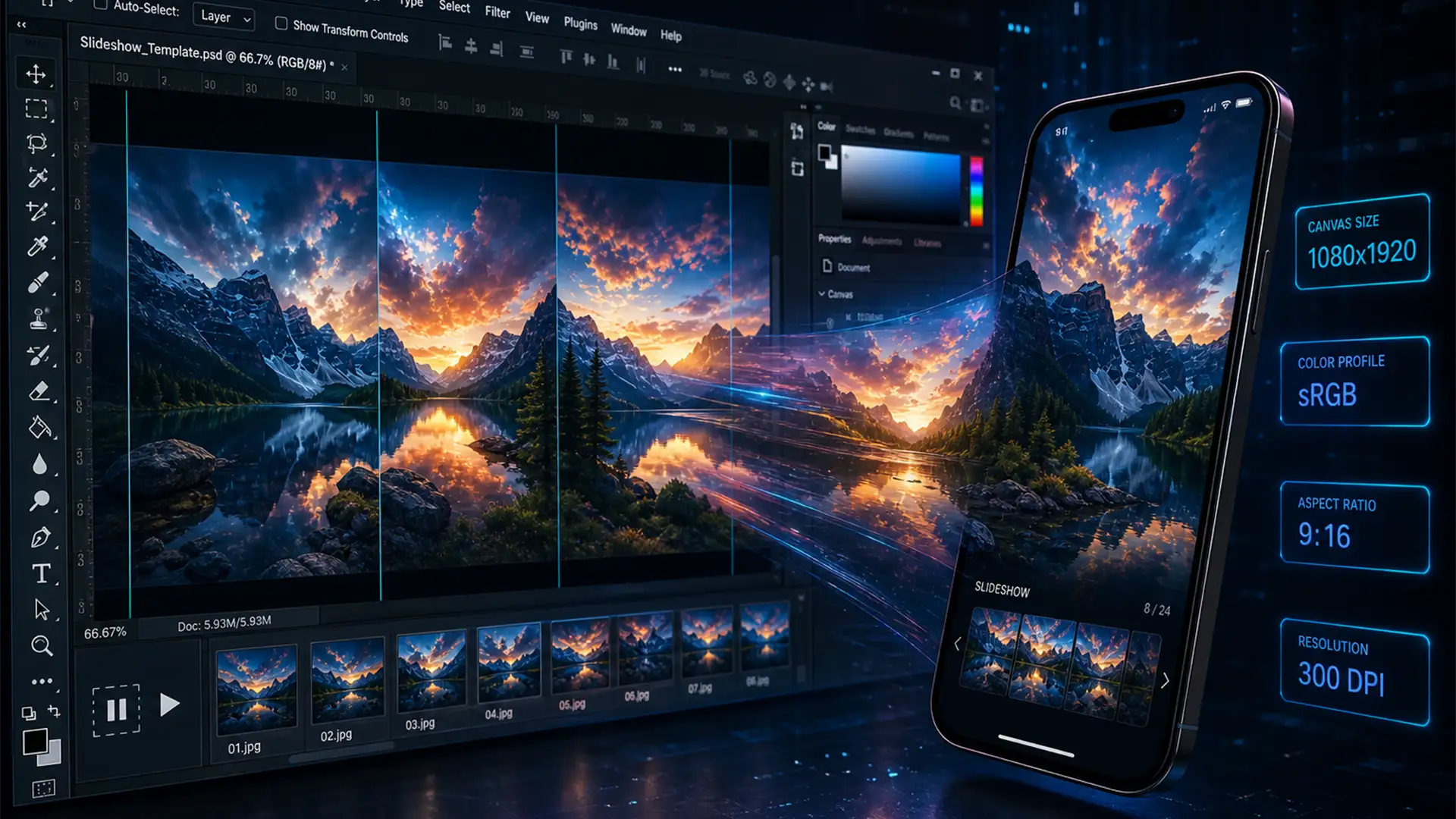
Fix Blurry TikTok Photo Dumps: Photoshop Export Settings
You spent hours perfectly grading your images, but the moment you upload them, your TikTok photo dump looks like a pixelated, desaturated mess. Sound familiar? This happens because TikTok’s algorithm applies aggressive lossy compression to large files. If you upload...
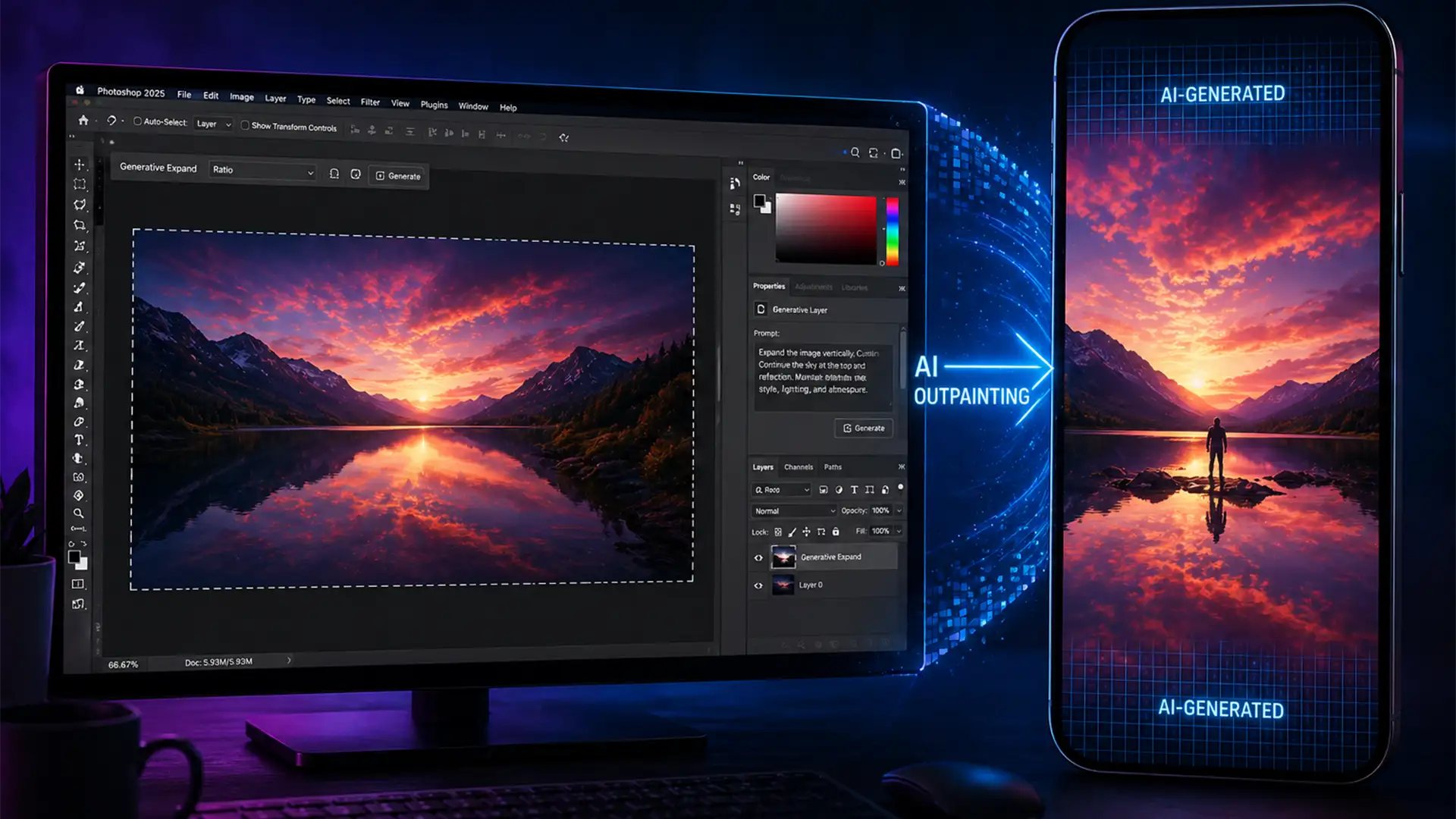
Photoshop AI Outpainting for TikTok 9:16 Conversion
You finally captured the perfect wide-angle photograph, but there is a glaring problem: you need it for TikTok. When you crop a horizontal landscape to fit a native 9:16 canvas, you lose critical subject details and environmental context. Historically, fixing...
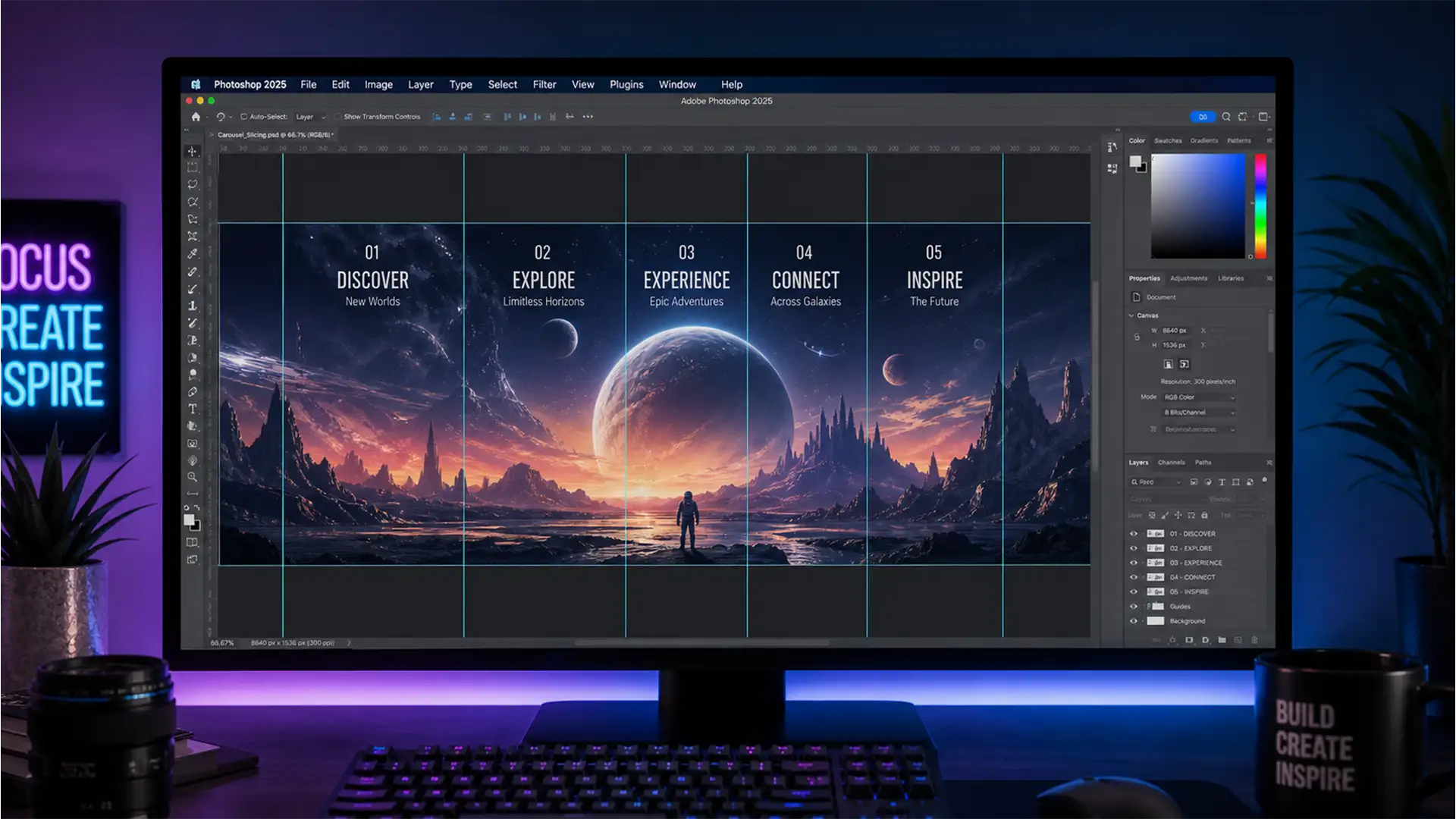
Mastering the Seamless TikTok Swipe: How to Use Photoshop Slices
You have spent hours designing a stunning, continuous photo carousel for TikTok, but when you upload it, the aesthetic is ruined. A glaring 1px hairline gap breaks the seamless swipe. Or worse, the colors shift, and the edges suffer from...
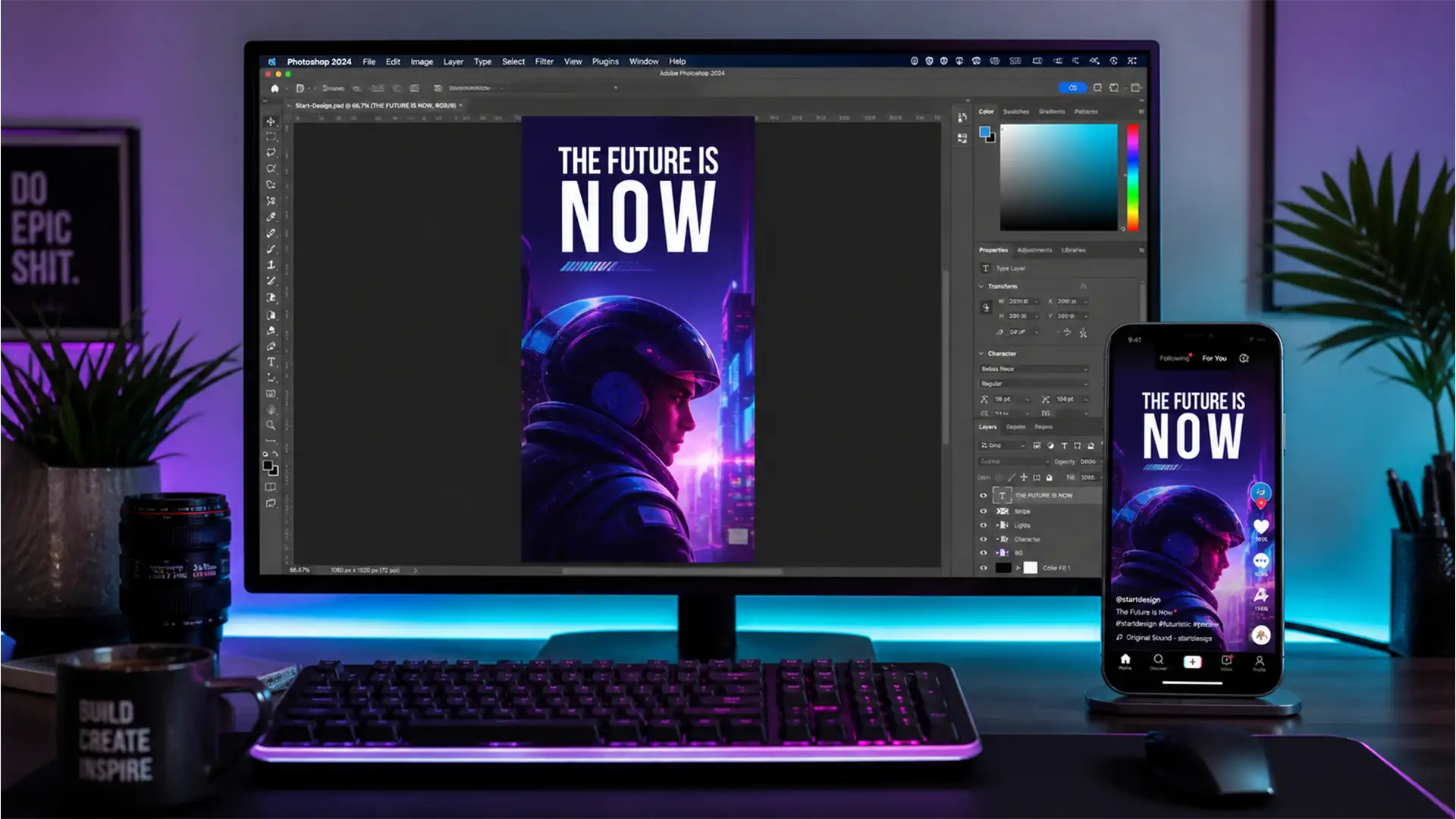
Crystal Clear TikToks: Best Photoshop Export Settings for 9:16 Content in 2024
You’ve spent hours perfecting a stunning vertical graphic in Photoshop, but the moment you upload it to TikTok, it turns into a pixelated, washed-out mess. Sound familiar? You are not alone. The 2024 TikTok algorithm is notoriously unforgiving. It aggressively...
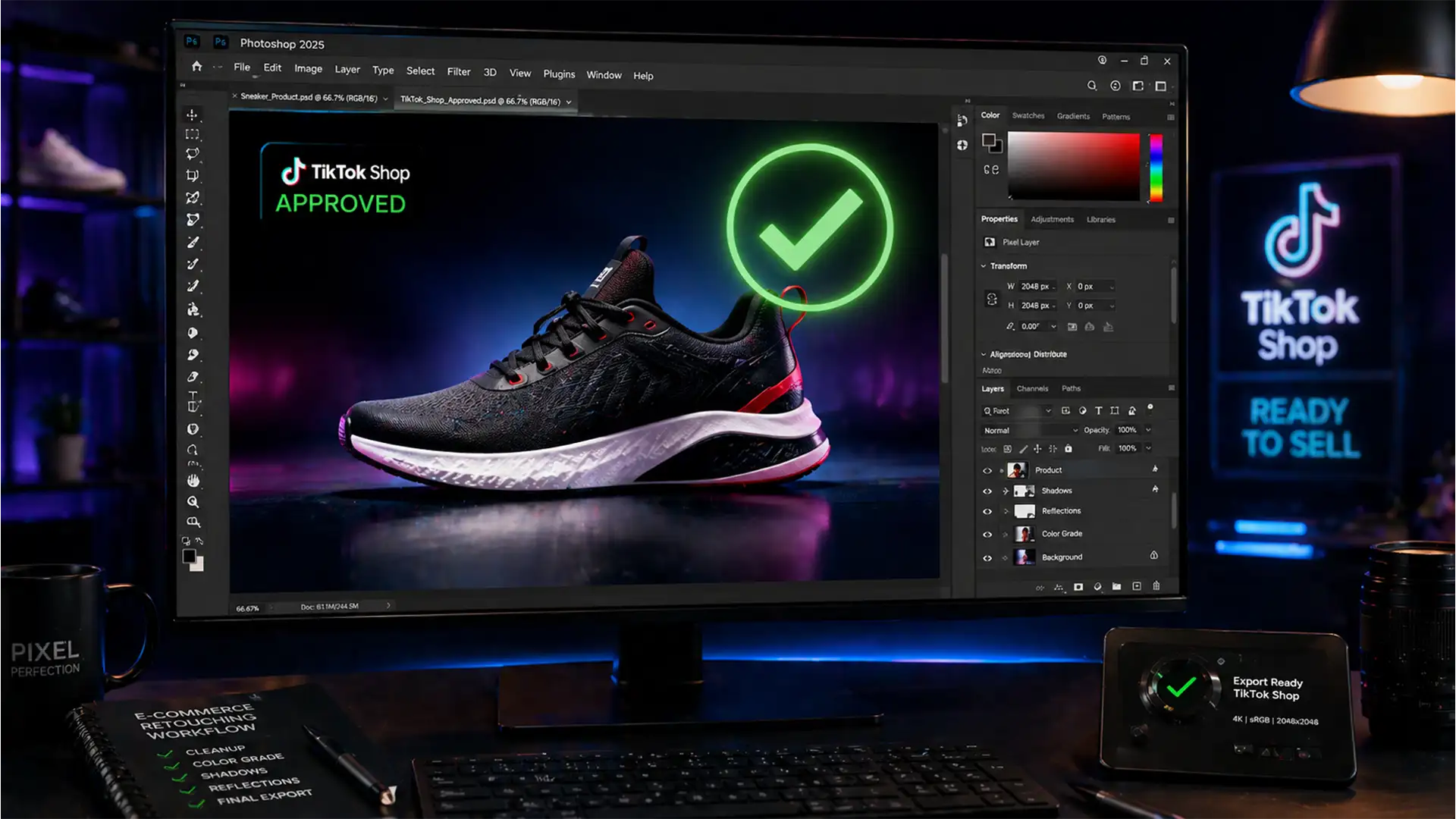
Stop TikTok Shop Rejections: The 2024 Photoshop Workflow
Are you tired of uploading perfectly good product photos only to have TikTok Shop’s automated AI moderation flag them instantly? You are not alone. Thousands of sellers face shadowbans and listing errors because their images have hidden CMYK color profiles,...
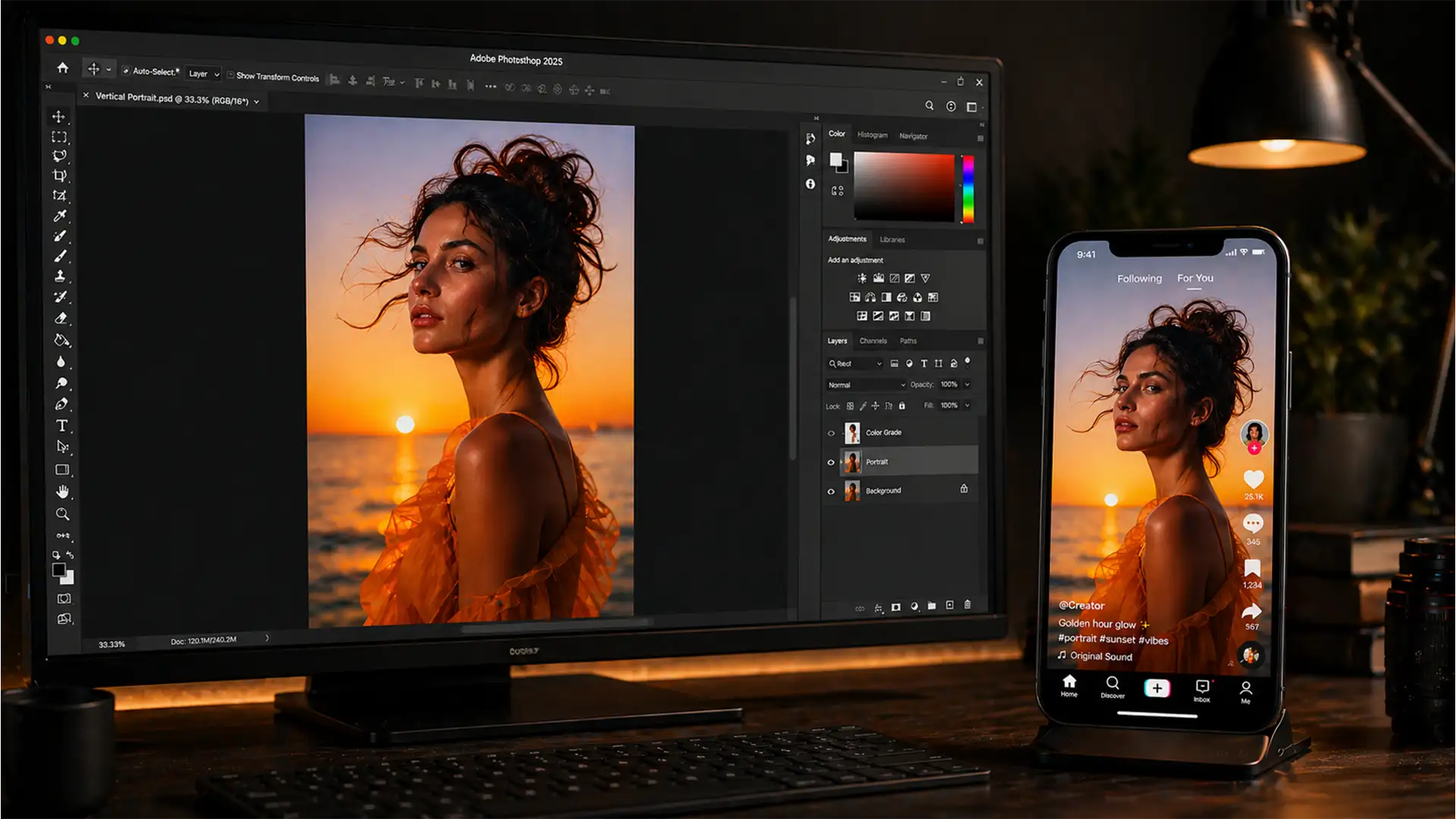
Best Photoshop Export Settings for TikTok: Stop Losing Photo Quality
You’ve just spent hours perfectly retouching a portrait or product shot in Photoshop. The colors pop, the details are razor-sharp, and it looks flawless on your calibrated monitor. But the moment you upload it to TikTok as a photo swipe,...
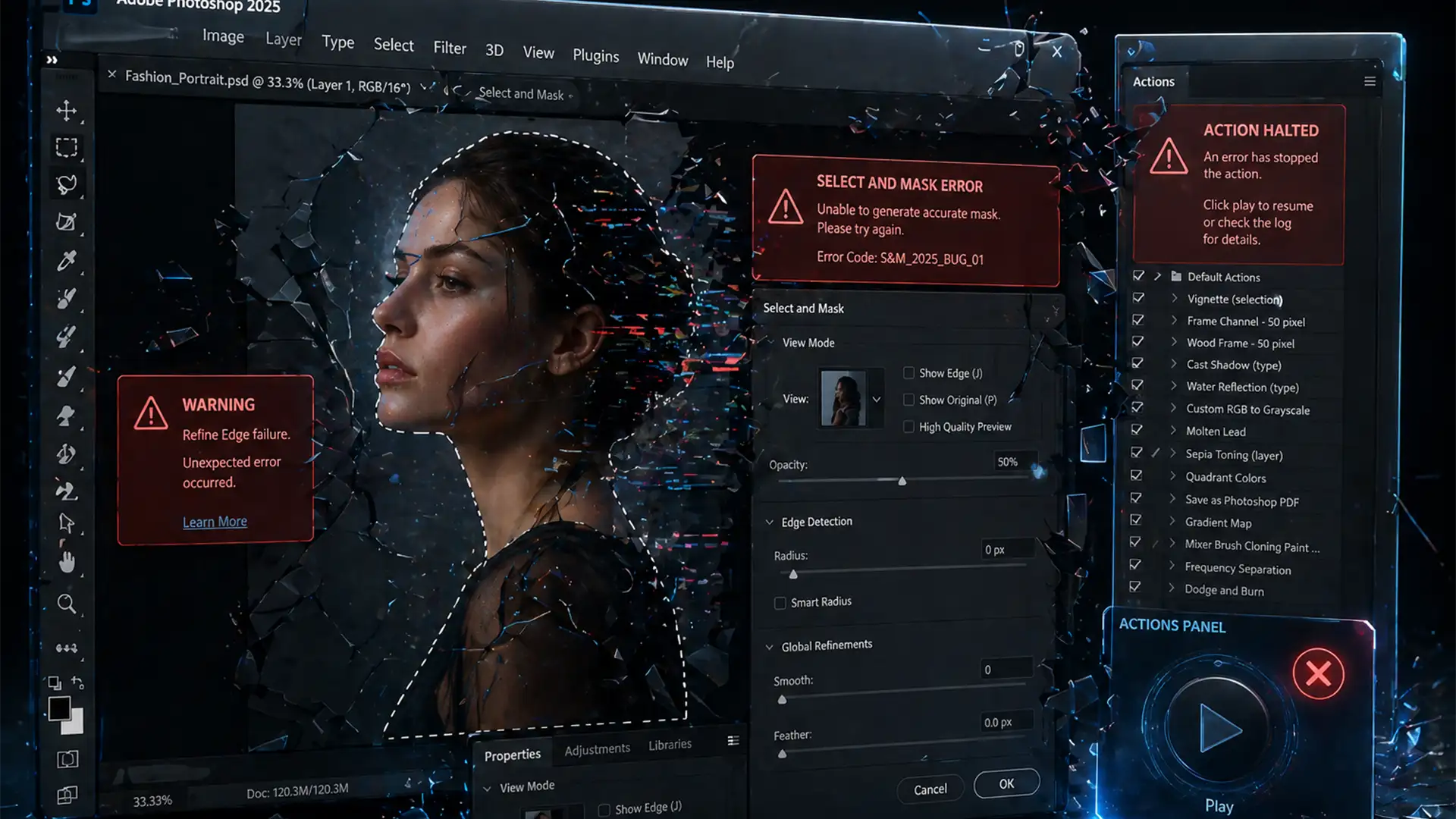
Fixing the ‘Select and Mask’ Batch Action Bug in Photoshop 2025
You set up a massive batch processing run before stepping away from your desk, only to return and find Photoshop frozen on the very first image. If you are dealing with the notorious Photoshop 2025 select and mask action bug,...
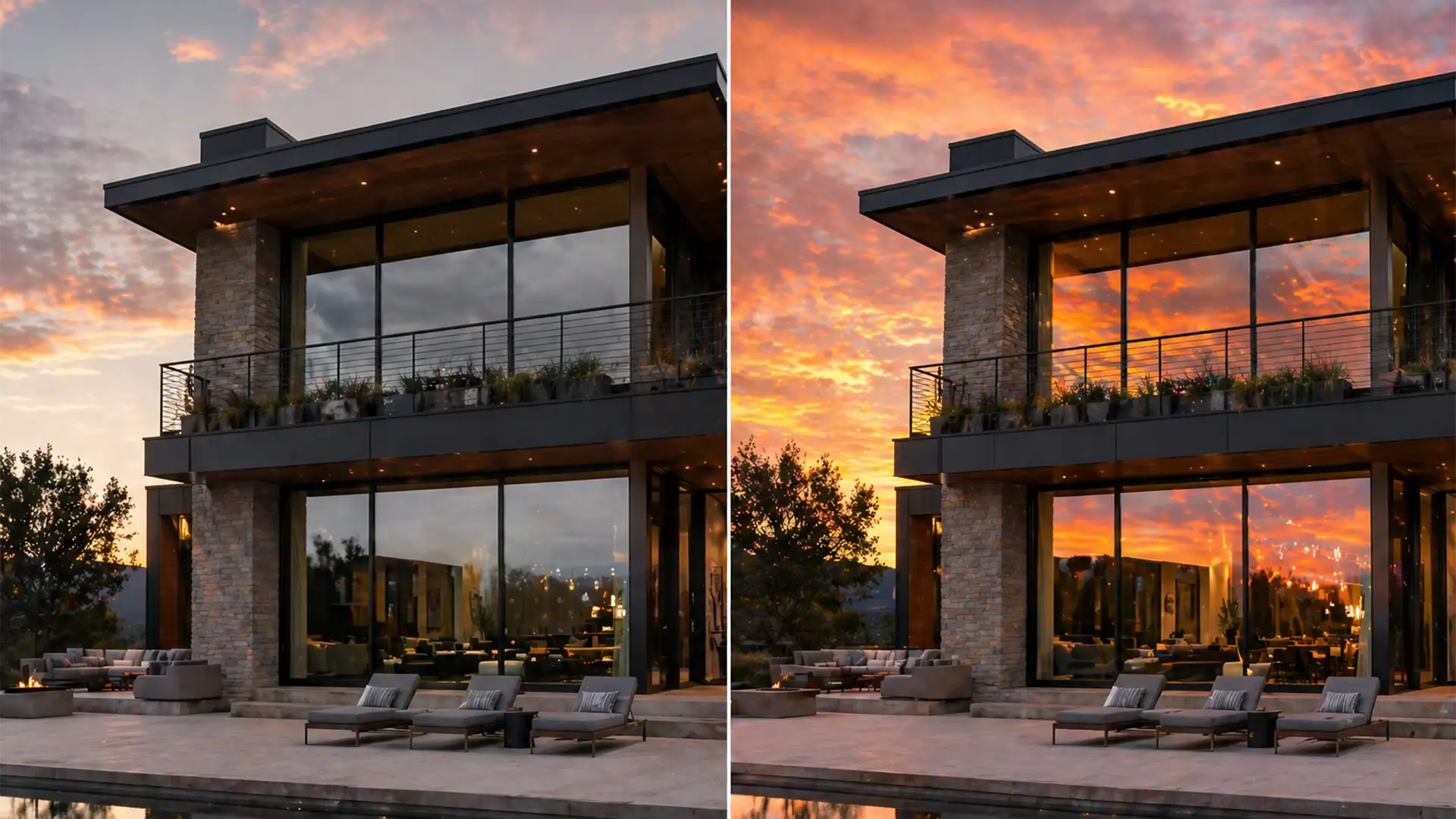
Realistic Sky Replacement: Syncing Window Reflections
You’ve just used Photoshop’s AI Sky Replacement to swap a dull, overcast gray sky for a breathtaking sunset. The property looks incredible—until you look at the glass. The windows are still reflecting that dreary, flat gray sky. This glaring mismatch...
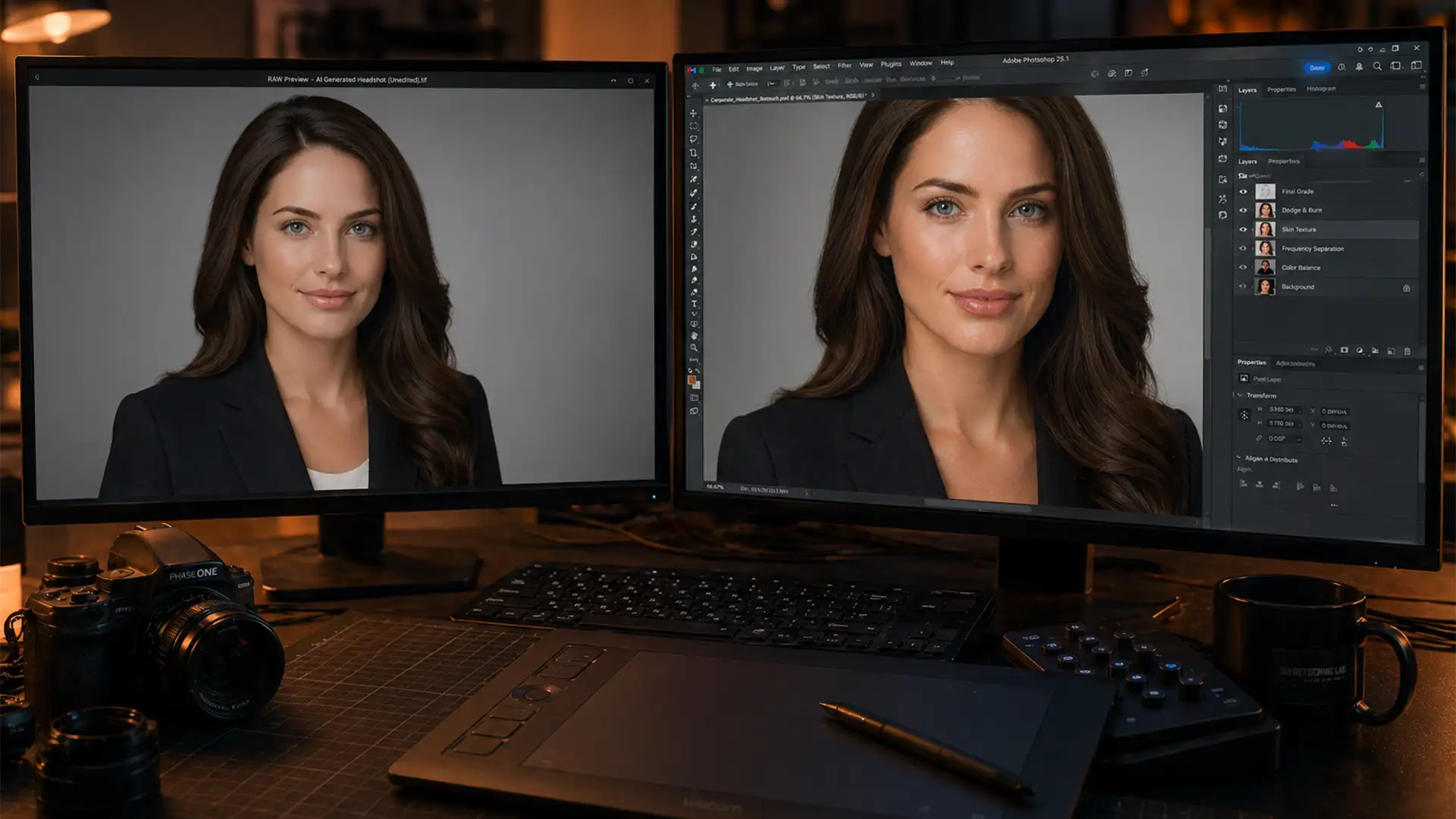
Fix Fake AI Headshots: Pro Retouching for a Human Touch
You just generated a batch of AI headshots using Midjourney v6 or an app like Remini. At first glance, they look incredible—until you zoom in. Suddenly, you notice the asymmetrical irises, fused teeth, warped neckties, and skin so perfectly smooth...